How to Get Your Router MAC Address: A Simple Guide
Learn step-by-step how to locate your router's MAC address across admin pages, apps, and hardware labels. Includes verification tips and practical examples for Windows, macOS, and mobile devices.


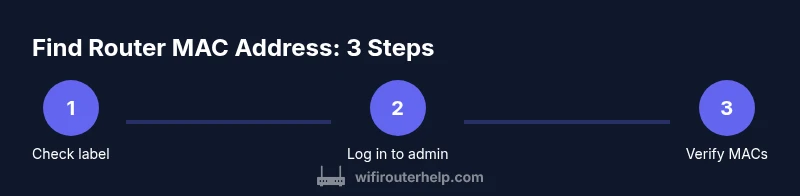
You will locate your router’s MAC address by checking the device label, then verifying it in the admin interface or mobile app. The key requirements are access to the router’s admin page (or app) and the correct login credentials. This guide covers best-practice methods for Windows, macOS, and smart phones.
Understanding MAC addresses and why you need to know yours
A MAC address is a unique hardware identifier assigned to network interfaces by the manufacturer. It helps identify devices on a local network and assists with security features like MAC filtering and DHCP allocations. When people ask how to get router mac address, they usually mean the MAC for the router itself—the gateway device that manages traffic between your home network and the internet. According to WiFi Router Help, knowing this address improves device management, troubleshooting, and network security. The router’s MAC address is typically fixed and does not change unless you replace the hardware or perform a factory reset. For home networks, the LAN MAC is what your local devices use to talk to the router, while the WAN MAC pertains to the router’s internet-facing interface. Understanding these distinctions helps avoid confusion when you dive into settings or logs.
Quick methods to locate the MAC address on your router
There are several reliable ways to obtain the router MAC address, depending on what you have available. The easiest is to read the label on the bottom or back of the device. If you have access to the router’s admin interface, you can view the MAC on the Status or Device Information pages. Some mobile apps provided by manufacturers also display the MACs for WAN and LAN interfaces. If you can’t access the admin UI, you can use a computer on the same network to verify through the network stack by pinging the gateway and checking the ARP table. These methods are broadly applicable across brands and models.
Finding the MAC address in the router's web interface
To locate the MAC address via the web interface, first identify the gateway IP (often 192.168.0.1, 192.168.1.1, or 192.168.1.254) and log in with admin credentials. Once inside, navigate to sections commonly labeled Status, Device Information, or LAN/WAN. The MAC addresses for WAN and LAN are usually listed there as a sequence like 00:1A:2B:3C:4D:5E. If you do not see them, try the other tabs such as Wireless, Network, or System. It’s helpful to bookmark this page for quick future reference and make sure you are accessing the legitimate admin interface.
Using the router's mobile app
Many router makers offer mobile apps that mirror the web interface. Open the app, sign in with the admin account, and look for a page titled Device Info, Network, or About. The app typically shows WAN MAC and LAN MAC side-by-side for quick comparison. If your app requires permission to scan the network, grant it to retrieve the connected devices’ data and confirm which MAC belongs to the router itself. Using the app can be faster on a phone or tablet when you’re away from a computer.
Locating the MAC address on the label and hardware
If the admin interface is inaccessible, the MAC address is often printed on a label on the router’s underside or back. The label might include multiple MACs if there are separate interfaces (LAN, WAN, or wireless). Read the label carefully, as some manufacturers print two or three MAC addresses with different prefixes for console, management, or guest networks. When in doubt, matching the MAC format (six groups of two hexadecimal digits) against any labels can help confirm you’ve captured the correct one. Always record both WAN and LAN MACs if available.
Special cases: IPv6 and multiple interfaces
Some routers expose IPv6 MAC-like identifiers or extended MAC addresses. In many home setups, the IPv6 link-local address does not replace the MAC but coexists as a separate identifier for IPv6 traffic. If you need the MAC for an IPv6-enabled interface, look for entries labeled IPv6 or “MAC address (IPv6)” in the same Device Info sections. If you manage multiple networks (e.g., guest networks), there may be distinct MAC addresses for each network interface; ensure you track the MACs relevant to the problem you’re solving.
Verifying the MAC address and cross-checking for accuracy
After you capture a MAC address, it’s wise to verify it from a secondary source. You can ping the gateway from a connected computer and then run an ARP query (arp -a on Windows or arp -a on macOS/Linux) to confirm the MAC associated with the gateway IP. This helps confirm you’re looking at the correct MAC and not a cached or temporary value. If you’re troubleshooting a network policy or MAC filtering, cross-check the MAC on the router and the connected device list to ensure consistency and prevent accidental blocks.
Common mistakes and troubleshooting
Common mistakes include confusing WAN MAC with LAN MAC, reading the wrong device label, or relying on an old screenshot of the admin page. Another pitfall is assuming the MAC never changes; a factory reset or hardware replacement will reset the MAC to factory defaults. If you still can’t locate the MAC, try a different browser, clear cookies related to the router page, disable VPNs that may mask internal addresses, or perform a power cycle to refresh the UI. Documenting where you found the MAC helps future maintenance and troubleshooting.
How a router MAC address interacts with DHCP, MAC filtering, and security
The router MAC address is essential for DHCP allocations within the LAN, ensuring stable device discovery and address assignment. MAC filtering uses the MAC to allow or deny devices from connecting; knowing the router’s MAC helps you configure or audit these filters. Security best practices include keeping the router’s MAC address private in public forums and ensuring that admin credentials are strong and unique. WiFi Router Help emphasizes documenting MAC addresses for hardware inventory and quick problem resolution, while avoiding sharing sensitive device identifiers in insecure environments.
Tools & Materials
- Computer or smartphone with web browser(Used to access the router’s admin interface or mobile app)
- Router login credentials(Admin username and password (or PIN for some devices))
- Ethernet cable (optional)(Useful if Wi-Fi access to the router is unavailable)
- Router hardware label(MAC addresses are often printed on a label on the device)
- Note-taking method(Notebook or digital note to record WAN/LAN MACs)
Steps
Estimated time: 10-20 minutes
- 1
Identify gateway IP address
Determine the router’s gateway IP address on your computer or mobile device. This is the address you will enter into a browser to access the admin interface (commonly 192.168.0.1, 192.168.1.1, or 192.168.1.254).
Tip: If unsure, check your device’s network settings to find the default gateway. - 2
Open the admin page
Enter the gateway IP into a web browser and log in with administrative credentials. Use a device connected to the router to ensure you reach the correct interface.
Tip: Use a wired connection if possible for stability during login. - 3
Navigate to MAC-address sections
Look for sections labeled Status, Device Information, LAN, WAN, or Network. The router MAC addresses (LAN and WAN) are typically displayed there in a standard format.
Tip: If multiple tabs exist, check both LAN and WAN areas to locate all relevant MACs. - 4
Check the hardware label
If the MAC isn’t visible in the web interface, read the label on the bottom or back of the router. Manufacturers often print WAN and LAN MACs on the same label.
Tip: Double-check digits and colons; some labels include both 2.4 GHz and 5 GHz radios with separate MACs. - 5
Verify with a mobile app
Open the maker’s app if available and locate the Device Info or Network page to view WAN and LAN MACs. Apps can be quicker on mobile devices.
Tip: Ensure you’re logged into the correct admin account within the app. - 6
Cross-check with ARP (optional)
From a connected computer, ping the gateway IP and run ARP to confirm the MAC associated with that IP. This helps verify you captured the right MAC.
Tip: Run commands like 'ping' followed by 'arp -a' on Windows or 'arp -a' on macOS/Linux. - 7
Record and secure the MAC
Document the WAN and LAN MAC addresses in a secure note for reference in future maintenance or security audits.
Tip: Store in a password-protected note or a secure digital vault.
People Also Ask
What is a MAC address and why do I need it for my router?
A MAC address is a unique hardware identifier assigned to a network interface. For routers, the MAC helps distinguish the device on the local network and supports security features like MAC filtering and DHCP. Knowing the router’s MAC makes inventory and troubleshooting easier.
A MAC address is a hardware ID for network interfaces. For routers, it helps identify the device on your network and enables features like MAC filtering.
Where can I find the router MAC address if I can’t access the admin page?
If the admin page is unavailable, check the router’s label, which usually lists WAN and LAN MACs. You can also connect a computer on the network and use ARP after pinging the gateway to reveal the MAC associated with the router.
If you can’t access the admin page, read the label on the router or use ARP after pinging the gateway to see the MAC.
Can I see both WAN and LAN MAC addresses in the same place?
Yes, most routers display both WAN and LAN MAC addresses in the device information or status pages. If one is missing, check other sections or the hardware label for the complete set.
Most routers show WAN and LAN MACs in device info; if one is missing, check other sections or the label.
Is ARP reliable for discovering the router MAC?
ARP can reveal the MAC for the gateway after you’ve recently communicated with it. It’s reliable for verification but may not show if there’s no recent network activity.
ARP is reliable after you ping the gateway, but it depends on recent network activity.
What if my router uses IPv6 and I need its MAC?
MAC addresses remain the hardware identifiers for interfaces, including IPv6. Look under Device Info for IPv6 MAC entries; the steps are similar to the IPv4 process.
For IPv6, check Device Info for the MAC address; the steps are similar to IPv4.
Should I reset the router to find its MAC?
A factory reset is not required to find the MAC address and can disrupt your network. Use the hardware label or admin interface instead.
No—don’t reset the router just to find the MAC. Use the label or admin interface.
Watch Video
What to Remember
- Identify WAN and LAN MAC addresses from multiple sources
- Use web UI, mobile app, and hardware labels for verification
- Record MAC addresses securely for future maintenance
- Verify with ARP after pinging the gateway for accuracy
- Avoid sharing sensitive MAC data in public spaces