What's My Router IP: A Practical Guide to Finding Your Network Address
A practical, data-driven guide to locating your router's IP address (LAN/private) and your public IP, plus steps to access the admin interface safely.


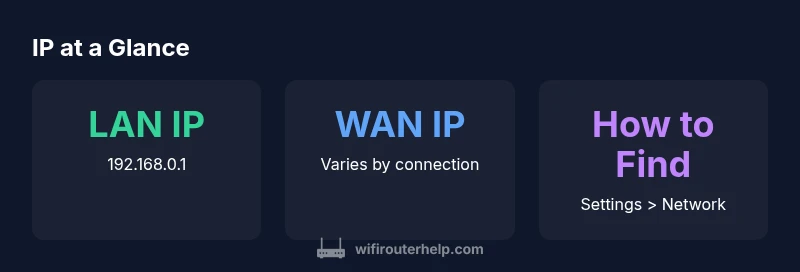
For most home networks, the router’s LAN IP is a private address, commonly 192.168.0.1 or 192.168.1.1 (or 192.168.1.254). To find it, check your device’s network settings or log in to your router’s admin page using that address. The public IP shown by websites is different and is assigned by your ISP.
What's my router IP and why it matters
Understanding the terms LAN IP (private) and WAN/public IP is fundamental to effective home networking. When you ask what's my router ip, you’re usually seeking the address you use to reach the router’s admin interface from inside your network. That LAN IP is the private address assigned to the router on your local network and functions as the gateway for all connected devices. The WAN IP, assigned by your ISP, is what the wider internet sees and can change over time with dynamic addressing. Recognizing which IP you need—private for local administration and public for remote access—improves setup, security, and troubleshooting. According to WiFi Router Help, most homes rely on private LAN IPs like 192.168.0.1 or 192.168.1.1, while the public IP can vary by session and service plan.
Locating your router IP across major platforms
Finding your router IP is platform-agnostic, but the method varies by device. On Windows, open Command Prompt and run ipconfig; the Default Gateway line is your LAN IP. On
Default LAN IPs and how to recognize them
Many consumer routers ship with common defaults, such as 192.168.0.1, 192.168.1.1, or 192.168.1.254. If you don’t see these values, don’t panic—your device could be using a custom private range (e.g., 10.0.x.x or 172.16.x.x). Check your network settings or consult the router’s label on the hardware itself. If you must, you can reset to factory defaults, but be mindful of potential data loss and reconfiguration needs.
Verifying the IP with quick checks
After you identify a candidate LAN IP, verify it by attempting to open http://<LAN-IP> in a browser. If the page loads the router login, you’ve found the correct address. You can also run commands like ping <LAN-IP> to confirm connectivity and arp -a to observe devices on the local network; these checks help distinguish your router’s IP from other devices.
Examples of IP addresses and how they relate to your router
| Category | Value | Notes |
|---|---|---|
| LAN IP (private) | 192.168.0.1 | Common default for many routers |
| LAN IP alternative | 192.168.1.1 | Another common default |
| Public IP (external) | Varies by ISP | Shown by websites when you connect |
People Also Ask
What is my router IP address on my network?
Your router IP is the LAN (private) address used to access the administrator interface from inside your network. It is different from your public IP, which is assigned by your ISP. Common values include 192.168.0.1 or 192.168.1.1, but yours can vary. Use your device’s network settings to confirm.
Your router IP is the private address you use in your browser to reach the admin page, not the address shown to websites.
How do I find my IP on Windows?
Open Command Prompt and type ipconfig. Look for the Default Gateway under your active network connection; that value is your router’s LAN IP. You can also check Network settings for the same information.
In Windows, use ipconfig and look for the Default Gateway.
How do I find my IP on a Mac?
Open System Preferences > Network, select your active connection, and click Advanced > TCP/IP. The Router field shows your LAN IP. You can also use the Terminal command ifconfig to locate the address.
Use Network preferences to see your router address on a Mac.
Is my public IP the same as my router IP?
No. The public IP is assigned by your ISP and is what the internet sees. The router IP is a private address inside your home network used for local management and device routing.
Public IP and router IP are different; one is for your network, the other for external identification.
What if my router uses a different IP address?
If your LAN IP isn’t one of the common defaults, check your device’s network settings, try the admin label on the router, or reset to factory settings if necessary (note any custom config will be lost).
If the address isn’t the usual ones, check settings or reset as a last resort.
“Knowing your router IP reduces misconfigurations during setup and speeds up troubleshooting; it’s the first touchpoint for secure admin access.”
What to Remember
- Identify your LAN IP first to access the router admin page
- Differentiate private LAN IP from public IP; keep both in mind
- Use official interfaces for changes; avoid risky third‑party apps
- If IP changes, consider DHCP reservation to stabilize addresses