Verizon Router Login: Access Your FiOS Gateway Easily
Learn how to securely log in to your Verizon router, locate credentials, access the admin console, and adjust Wi-Fi settings. This step-by-step guide from WiFi Router Help covers common issues, security best practices, and troubleshooting for FiOS gateways.


To log in to Verizon router (FiOS gateway), open a browser, enter the gateway’s local address or IP, and sign in with your admin credentials. If you haven’t changed them, check the router label or your FiOS paperwork. This guide walks you through the login URL, locating credentials, and securing your network.
Why Verizon Router Login Matters
Accessing your Verizon router login is more than just loading a control panel. It’s the gateway to essential security settings, firmware updates, guest network management, parental controls, and QoS rules that influence everything from streaming to gaming. The WiFi Router Help team emphasizes that routine login and credential hygiene reduce unauthorized access and improve overall home network stability. According to WiFi Router Help, many users overlook changing default credentials, which exposes devices to risk. Prioritizing a secure login process helps safeguard personal data and keeps your home network resilient as new devices join the network and internet usage grows.
Beyond basic setup, the login page is your entry point to audit connected devices, enable firewall features, and schedule automatic updates. Regularly verifying admin access helps ensure your settings align with your privacy preferences and household needs. By understanding how the Verizon gateway login works, homeowners can troubleshoot connectivity issues more efficiently and avoid unnecessary ISP visits. This guide uses plain language and practical steps suitable for both homeowners and tech enthusiasts.
Finding the Login Address and Credentials
Your first task is locating the correct address to access the admin console. The login URL is typically a local gateway address that your router advertises on its label. If you cannot read the label, open a connected device’s network settings to identify the default gateway, which serves as the login URL. Some FiOS gateways also support local hostnames like myfiosgateway.local, depending on the model and firmware version. Do not rely on secondhand sources for the address; always verify from the device itself and your official documentation. When you reach the login page, enter the admin username and password. If the credentials were never changed, you’ll find them on the router label or in your FiOS setup paperwork. If you still cannot access, it may be necessary to contact your ISP for guidance or check for a firmware update that might alter the login page layout.
Step-by-Step: Accessing the Admin Console
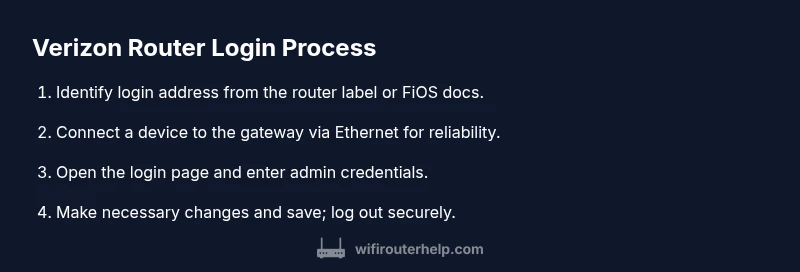
- Connect your device to the Verizon gateway via Ethernet for a reliable link or connect wirelessly to the router’s SSID. 2) Open a web browser and enter the gateway address identified in the previous section. 3) Enter the admin username and password found on the label or FiOS documentation. 4) If prompted, accept any safety prompts or terms of use; you may be asked to set a new password. 5) Explore the admin console to view device status, update firmware, and adjust wireless settings. 6) Save changes and log out when finished to prevent unauthorized access. 7) If you enabled guest networks, test connectivity with a guest device to ensure isolation is working correctly.
Changing Wi-Fi Name and Password After Login
After successfully logging in, navigate to the Wireless or Wi‑Fi settings portion of the admin console. Change the SSID (network name) to something recognizable and update the password to a strong, unique passphrase. For security, avoid common names and reuse of passwords across devices. Save your changes, then reconnect each device with the new SSID and password. If your gateway supports WPA3, enable it for stronger protection and ensure the router firmware is up to date to maintain compatibility with modern devices.
Troubleshooting Common Login Issues
If the login page won’t load, verify your device is on the same local network as the gateway and that you’re using the correct local address. Disable VPNs or privacy extensions that could block local network access. If credentials aren’t accepted, double‑check the exact spelling and consider resetting the admin password if you have physical access to the router. For persistent problems, reboot the gateway by power cycling it, then try again. If you still can’t log in, you may need professional support from WiFi Router Help or Verizon FiOS support for model-specific guidance.
Security Best Practices After Accessing the Router
Secure your gateway by disabling remote management unless you need it, enabling a robust firewall, and keeping firmware up to date. Create unique admin credentials and avoid using defaults. Regularly review connected devices and revoke access for unknown clients. Consider enabling features like guest networks to keep IoT devices segregated from your main network. Finally, back up your configuration after making meaningful changes so you can restore settings quickly after a reset.
Common Pitfalls and How to Avoid Them
Keep in mind that firmware updates can reset certain custom settings, so note down any critical configurations before updating. Avoid using easily guessable passwords or reusing the same password across accounts. If you perform a factory reset, be prepared to reconfigure all preferences from scratch. Always verify you’re connected to the correct gateway when performing changes, especially if you have multiple network devices in the home.
Tools & Materials
- A device with a web browser (laptop, smartphone, or tablet)(Ensure the device is connected to the Verizon gateway either via Wi-Fi or Ethernet.)
- Gateway login credentials(Check the router label or FiOS account paperwork for the admin username and password.)
- Ethernet cable (optional)(Use wired connections for more reliable access during configuration.)
- FiOS account information or manuals(Helps verify default addresses and model-specific steps.)
- Backup plan for config(Have a note of current settings in case you need to revert.)
Steps
Estimated time: 15-25 minutes
- 1
Identify the login address
Find the gateway IP address or local hostname printed on the router label or in the FiOS documentation. If needed, check a connected device’s network settings to identify the default gateway. Knowing the exact login URL is essential to reach the admin console.
Tip: Always verify the address against the model’s label to avoid alternate pages. - 2
Prepare your device
Connect your computer, phone, or tablet to the gateway via Wi‑Fi or Ethernet for a stable connection. Disable VPNs that could block local network access during login.
Tip: A wired connection minimizes the chance of dropped pages during login. - 3
Open the login page
Launch a browser and enter the gateway address. If the page loads, you’ll see the login prompt where you’ll enter the admin credentials.
Tip: If you see a page unrelated to the gateway, double-check you’re using the correct local address. - 4
Enter credentials
Input the admin username and password found on the router label or FiOS docs. If you’ve never changed them, this is likely the default login.
Tip: Default credentials should be changed immediately after first login for security. - 5
Access the admin console
Once logged in, review status information, firmware version, and security features. Navigate to Wireless or Network settings to adjust SSID and password.
Tip: Take a quick note of current settings before making changes. - 6
Secure and save changes
Apply any changes, save or confirm, and log out. Reconnect devices with the new credentials if you changed the Wi‑Fi password.
Tip: If you enable remote management, document the new access method and ensure it’s restricted to trusted networks. - 7
Verify connectivity
Test all critical devices to ensure they reconnect with the updated settings. Check for internet access and verify guest networks if configured.
Tip: Run a quick speed test to ensure performance is as expected after changes.
People Also Ask
What is the default login URL for Verizon router?
There isn’t a universal URL; use the gateway address printed on the router label or your FiOS documentation. If you can’t find it, check your device’s network settings for the default gateway.
Use the address on the router label or your FiOS docs to reach the login page. If you can’t locate it, check the gateway’s default gateway in your device’s network settings.
What if I forgot the admin password?
If you forgot the admin password, you may need to reset the gateway to factory defaults. This will erase custom settings, so only perform a reset if you can’t recover the password.
If you forgot the admin password, a factory reset is usually required. Remember it will erase your settings, so use it as a last resort.
Can I login to the router without an internet connection?
Yes. Local access to the router is possible when a device is connected to the gateway, even if the internet service is down. This lets you adjust settings and restore connectivity.
Yes. Local access works even without internet, as long as you’re connected to the gateway.
How do I change the Wi-Fi name and password after logging in?
Navigate to Wireless settings, update the SSID and password, save changes, and reconnect devices with the new credentials.
Go to Wireless settings, update your SSID and password, then reconnect your devices.
Why won’t the login page load after entering the address?
Check that you’re on the same local network as the router, disable VPNs, and try a wired connection. If the page still won’t load, reboot the gateway and retry.
If the login page won’t load, verify the local connection, and consider rebooting the gateway and trying again.
Is it safe to enable remote management?
Remote management can expose your network if not configured securely. Disable it unless you need remote access and ensure strong authentication if you enable it.
Remote management isn’t necessary for most homes; disable it unless you truly need it, and use strong authentication if you enable it.
Watch Video
What to Remember
- Log in using the gateway URL from the router label or FiOS docs
- Change default credentials to protect your network
- Document settings before making changes for easy recovery
- Test all devices after updating Wi‑Fi name or password
- Disable remote management unless required for accessibility