Verizon FiOS Router G3100: Setup, Optimize, Troubleshoot
Comprehensive guide to install, secure, and optimize the Verizon FiOS Router G3100 with step-by-step instructions, practical tips, and troubleshooting insights for homeowners and tech enthusiasts.


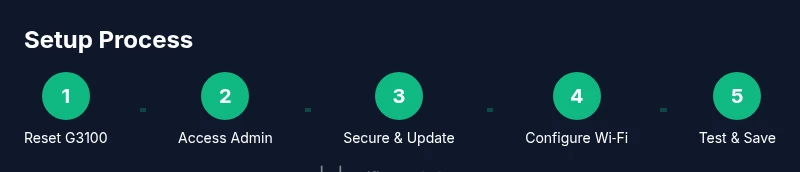
To configure the verizon fios router g3100, start with a factory reset, connect a PC via Ethernet, and open http://192.168.1.1 in a web browser. Sign in with your FiOS account, check for firmware updates, set a strong Wi‑Fi password, enable guest networking, configure DHCP, and save changes before rebooting the device.
Why Verizon FiOS Router G3100 Setup Matters
The verizon fios router g3100 is the centerpiece of many home networks, and getting the basics right can prevent slow connections, dead zones, and security gaps. According to WiFi Router Help, a well-planned setup reduces interference, improves reliability, and makes future upgrades easier. This guide walks you through a practical, drop-by-drop approach so homeowners and tech enthusiasts can achieve a robust, stable network without guesswork. You’ll learn how to reset, access the admin console, secure the network, and tailor settings for everyday uses like streaming, gaming, and remote work. By following these steps, you’ll gain clearer control over your home Wi‑Fi and minimize service interruptions. We’ll also discuss why firmware updates matter and how careful configuration can protect devices on your network.
Hardware and Core Features of the G3100
The G3100 router from Verizon includes support for common home-network needs, including multi‑band Wi‑Fi and wired connections for desktop PCs and smart hubs. You’ll generally find multiple Ethernet ports, a WAN port for the FiOS connection, and an on-device status display to help gauge activity. While user interfaces may vary with firmware revisions, the core goal remains the same: provide a stable, secure platform for your home network. For best results, place the unit in a central, elevated location away from thick walls and metal appliances, which can impede signal strength. This section highlights practical, observable features to help you plan placement and basic configuration.
Quick-Start: Factory Reset and Initial Setup
Starting point matters. A factory reset ensures you begin with a clean slate, removing old configurations that could conflict with fresh settings. Before you begin, gather a computer or phone with a web browser, an Ethernet cable, and your FiOS account credentials. To initiate the reset, press and hold the reset button as described in the user manual until the lights blink or a confirmation tone signals the reset is complete. Then power cycle the device and connect a device directly via Ethernet for speed and stability during setup. Finally, open a browser and navigate to http://192.168.1.1 to access the admin interface and begin the login process.
Accessing the Admin Console and Securing the Network
Logging into the G3100 admin console is your doorway to security and performance tuning. After the reset, sign in with your FiOS credentials or the default login if prompted. From there, immediately change any default admin passwords to something unique and long. Check for and apply firmware updates to ensure you’re protected against known vulnerabilities and compatibility issues. Enable a strong password for the Wi‑Fi network, and consider turning on guest networking for visitors to keep your main network private. Finally, review basic security options such as firewall settings and admin access from the internet to minimize risk.
Optimize Wi‑Fi Performance: Bands, SSID, and Channels
Effective Wi‑Fi optimization starts with clear naming and strong credentials. Create separate SSIDs for 2.4 GHz and 5 GHz bands to help devices connect to the most appropriate spectrum. Use different passwords for each band, or at least make sure the overall password is strong. If you notice interference, you can manually select channels or rely on automatic channel selection where available. Keep firmware up to date and test speeds in different rooms to identify dead zones. A well-structured SSID layout and channel strategy can significantly improve reliability for streaming, gaming, and smart-home devices.
Advanced Network Configurations: Bridge Mode, DHCP, NAT, and Firewall
For users expanding beyond the G3100’s default role, consider whether you need the router to operate in router mode or bridge mode. In bridge mode, another primary router handles the network, with the G3100 acting as a simple modem path. If you stay in router mode, review DHCP settings to ensure IP addresses are allocated predictably, and consider adjusting NAT and firewall settings to balance security with performance. When making changes, document modifications and avoid disabling essential services. These steps help prevent conflicts with FiOS TV services and other connected devices.
Guest Networks, Parental Controls, and Access Management
Guest networks provide a safe avenue for visitors to use your internet without accessing your main devices. Enable a separate guest network and limit bandwidth as needed. Parental controls are valuable for households with children, allowing you to schedule access and filter content. Use strong, unique passwords for each network and regularly review device access lists. Access management features help you monitor which devices are connected and can alert you to unusual activity.
Maintenance, Firmware Updates, and Troubleshooting
Regular maintenance keeps the G3100 performing as intended. Check firmware updates periodically and apply them when available. If you experience issues, perform a quick power cycle, verify cabling, and re-check admin settings after updates. Common problems include devices failing to obtain an IP address, slow Wi‑Fi in certain rooms, or unexpected reboots. Reproduce issues by testing with multiple devices and, if needed, revert to a known-good configuration backup. Keeping a documented backup simplifies recovery after experimentation or updates.
Common Pitfalls and How to Avoid Them
Avoid overloading one band with too many devices or attempting drastic setting changes without a backup. Watch for conflicting SSIDs or overlapping channel selections, especially in apartments with dense networks. If your FiOS TV service behaves oddly after changes, revert the most recent configuration and verify compatibility with the TV set-top box. Finally, maintain a habit of backing up the current configuration before making larger changes to minimize downtime.
Tools & Materials
- PC or smartphone with a web browser(Used to access the admin interface via http://192.168.1.1)
- Ethernet cable(Recommended for initial setup to avoid wireless instability)
- Verizon FiOS account credentials(Needed to sign in and apply updates or changes)
- Internet access via FiOS(Your service must be active for first-time setup)
- Notebook or digital document(Useful to record settings, backups, and passwords)
Steps
Estimated time: 45-60 minutes
- 1
Prepare and reset the G3100
Power off the device, locate the reset button, and perform a factory reset as described in the user manual. Wait for lights to stabilize and the device to reboot. This ensures a clean slate for configuration.
Tip: Have your FiOS account details handy in case you need to re-authenticate after reset. - 2
Connect and access the admin page
Connect a computer via Ethernet to the G3100 and open http://192.168.1.1 in a web browser. If prompted, enter the default login or your FiOS account credentials and begin the security setup.
Tip: Use a wired connection during this step to avoid dropouts. - 3
Update firmware and secure settings
Check for firmware updates in the admin console and apply them. Change the admin password to a strong, unique value and enable mandatory security features such as firewall protection.
Tip: Back up current configuration before applying major updates. - 4
Configure Wi‑Fi name and passwords
Create distinct SSIDs for 2.4 GHz and 5 GHz networks and set strong passwords. Enable automatic channel selection or manually pick clear channels to minimize interference.
Tip: Document both network names and passwords for quick future access. - 5
Set up guest network and access controls
Enable a guest network to isolate visitors from your main devices. Configure parental controls if needed and review device access permissions.
Tip: Limit guest network access time if you want tighter control. - 6
Decide on router mode vs bridge mode
Choose router mode for typical home usage, or bridge mode if you’re integrating a separate main router. Understand that bridge mode disables some router features.
Tip: If TV or set-top box behavior is affected, test both modes before committing. - 7
Save, reboot, and verify connectivity
Save your changes, reboot the G3100, and verify that wired and wireless devices can access the Internet. Re-run speed tests in different rooms to confirm coverage improvements.
Tip: Keep a record of the final configuration for quick resets later.
People Also Ask
How do I access the Verizon FiOS Router G3100 admin interface?
Open a browser and navigate to http://192.168.1.1. Sign in with your FiOS account credentials; if prompted, set or update the admin password and verify security settings.
Open your browser, go to 192.168.1.1, and sign in with your FiOS account. Update the admin password for security.
Can I use the G3100 in bridge mode with FiOS?
Yes, you can place the G3100 in bridge mode to let a separate router manage the network; note that some FiOS services may require additional configuration.
Bridge mode allows another router to handle the network; some FiOS features may require adjustments.
How do I update the firmware on the G3100?
Sign in to the admin console, check for firmware updates, and apply them if available. Reboot after updating to ensure changes take effect.
Go to the admin panel, check for updates, and apply them. Reboot afterward.
What is the default Wi‑Fi network name and password for the G3100?
Default credentials are usually printed on the device label. Change them during setup to secure access and prevent unauthorized connections.
The default names and passwords are on the device label; change them during setup for security.
How can I improve Wi‑Fi speed on the G3100?
Place the router in a central location, separate the bands, and ensure firmware is up to date. Run tests in multiple rooms to identify slow zones.
Center the router, optimize bands, and keep firmware current; test speeds in different rooms.
What safety precautions should I take when changing router settings?
Back up configurations before changes, avoid turning off essential services, and use strong passwords. Only adjust settings you understand.
Backup before changes, keep essential services enabled, and use strong passwords.
Why is my FiOS internet dropping after changes?
Drops can result from misconfigurations or interference. Recheck changes, test with a wired connection, and consider reverting to a known-good backup.
Interference or misconfigurations can cause drops; revert changes if needed and re-test.
Watch Video
What to Remember
- Back up config before changing settings
- Use separate networks for 2.4 GHz and 5 GHz
- Keep firmware up to date
- Use strong admin and Wi‑Fi passwords
- Test connectivity after every major change