Verizon Router Reset Guide: Safe Factory Reset and Reconfiguration
Learn how to safely reset a Verizon router, distinguish between factory reset and reboot, and reconfigure your network for optimal performance. This educational, step‑by‑step guide covers FiOS and 5G Home devices with practical tips and troubleshooting.


You will learn how to perform a Verizon router reset safely, including factory reset vs reboot, what to back up, how to reconfigure Wi‑Fi after the reset, and how to verify connectivity. This guide covers FiOS and 5G Home devices with practical, step‑by‑step directions.
Why Resetting Verizon Router Helps
Resetting a Verizon router can fix stubborn connectivity problems, clear misconfigurations, and restore factory defaults when your devices won’t connect reliably. The WiFi Router Help team has found that many home networks regain stability after a controlled reset, followed by careful reconfiguration. A reset should be part of your troubleshooting toolkit after you’ve tried less disruptive steps like rebooting or validating ISP status. For FiOS and 5G Home Internet users, understanding the difference between a factory reset and a simple reboot is essential to avoid losing important settings. In practice, a reset can help with issues ranging from DNS errors to bottlenecked wireless channels, but you should always proceed with a plan to re-create your network afterward. This is particularly true for households that rely on smart home devices, video conferencing, and gaming, where even small misconfigurations can degrade performance over time. By framing reset decisions with clear goals, you minimize downtime and preserve essential network rules.
How a Verizon Router Reset Differs From a Simple Reboot
A reboot merely restarts the device, leaving most settings intact. A factory reset, however, wipes user configurations, custom Wi‑Fi names, passwords, port forwards, and parental controls, returning the router to its original factory state. The Verizon hardware you’re dealing with may vary by model (FiOS vs 5G Home), but the core idea is the same: a reset removes accumulated glitches and stale rules that might be slowing your network. According to WiFi Router Help, many issues like persistent DNS errors, flaky guest networks, or devices failing to obtain IP addresses clear up after a true factory reset, followed by deliberate reconfiguration. If you’re unsure, start with a soft reboot and proceed to a factory reset only if issues persist or if you suspect a corrupted configuration. Remember that post‑reset, you’ll need to recreate your network from scratch, including SSID, password, and any custom rules.
When to Reset: Common Scenarios
Not every issue requires a reset, but certain scenarios make it a sensible next step. If you notice that devices can connect to the modem but not access the Internet, or if your Wi‑Fi broadcast name has changed unexpectedly, a reset may help. If you’ve updated firmware and the device behaves oddly, a reset can stabilize the new version. Reboot attempts should be exhausted first, and you should verify that the issue isn’t a service outage or a faulty Ethernet cable. In households with many smart devices, a reset followed by a curated reconfiguration (including guest networks and device prioritization) can yield noticeable improvements in reliability and speed. The goal is to reach a known baseline: all devices communicating reliably with a secure, well‑defined wireless environment.
Preparation: Backups, Credentials, and Planning
Before performing a Verizon router reset, gather essentials: the router is plugged in, access to the admin interface, and up‑to‑date credentials for the network. If you can, download a current backup of your settings or take note of critical rules (port forwards, parental controls, QoS rules). Write down the Wi‑Fi network name (SSID) and password you want to re‑create, plus any advanced settings you plan to reapply. If you run a smart home ecosystem, capture device device names, static IP reservations, and VPN rules. Having this information on hand prevents a long, frustrating re‑setup after the reset and reduces the chance of overlookable mistakes. For accuracy and a smoother experience, set up a brief plan with a backup copy of your essential configuration and a checklist of steps you will follow after the reset.
Understanding Factory Reset Outcomes and Data Loss
A factory reset returns the router to its original state, erasing user‑defined Wi‑Fi names, passwords, and all custom rules. It also clears saved settings such as port forwards, firewall rules, and any guest networks you previously created. Some users fear losing their Internet service, but the reset itself does not disable service for most Verizon devices—it simply resets internal configurations. You should expect to re‑authenticate to your network and reapply security settings after the reset. If the router supported a settings export feature, use it to back up key configurations before proceeding. By knowing exactly what will be erased, you can make an informed decision about whether a reset will help or if a targeted reboot or firmware update would suffice.
After Reset: Reconfiguring Your Network for Performance
Once the device finishes rebooting, you’ll reconnect to the default network and begin reconfiguring. Start by changing the default SSID and a strong, unique password. Reapply security standards (WPA3 if available or WPA2‑PSK), and disable any unnecessary remote management features unless you need them. Restore essential rules such as port forwarding for games or servers, QoS policies for video conferencing, and parental controls if required. Re‑enable your guest network if you use one, and confirm device connectivity across your smart home setup. To maximize performance, optimize channel selection, set up a 2.4 GHz and 5 GHz band plan, and periodically check for firmware updates from the manufacturer’s site. Finally, run speed tests from multiple devices to verify that your Wi‑Fi provides the expected coverage and throughput.
Troubleshooting Post‑Reset Issues
Even after a reset, some networks encounter persistent problems. If you still can’t access the Internet, verify physical connections, ensure the correct power cycling sequence, and confirm the service status with Verizon. If devices fail to obtain IP addresses, check DHCP settings and ensure your router isn’t inadvertently blocking devices. For poor Wi‑Fi range, consider repositioning the router, updating antenna settings, or enabling beamforming if supported. If problems persist, a second factory reset can sometimes clear stubborn glitches, but only after you’ve documented the settings you plan to reapply. Remember to review security settings and backup files to avoid repeating mistakes.
Authority Sources and Further Reading
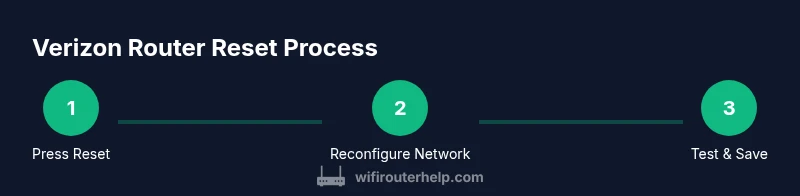
For broader context on home network resets and security best practices, consult authoritative sources. FCC guidance on consumer networking, CISA recommendations for device security, and FTC consumer information about router privacy can help you stay informed during resets. While Verizon-specific docs vary by model, the general principles—back up, plan, reset, reconfigure, and test—apply across FiOS and 5G Home devices. These references provide reliable, up‑to‑date guidance to complement hands‑on steps.
Tools & Materials
- Pin or paperclip(To press recessed reset button)
- Mobile phone or computer(To access router admin page after reset)
- Current router login credentials(An admin account or default credentials if you haven’t changed them)
- Ethernet cable (optional)(For wired recovery if WiFi is down)
- Stable power source(Keep router plugged in during reset)
Steps
Estimated time: 20-40 minutes
- 1
Press and hold the reset button
With the router powered, press and hold the recessed reset button for 10–15 seconds until the lights flash or cycle. This signals a factory reset and clears user configurations. Do not release early, or you may interrupt the reset. Expect a reboot afterward.
Tip: Use a paperclip or pin to avoid slipping and accidentally pressing other buttons. - 2
Wait for the router to reboot to factory settings
Allow the device to complete its reboot cycle, typically 2–5 minutes. You will know it’s ready when the status lights stabilize. Do not attempt to reconnect until the reboot finishes to avoid partial configuration loads.
Tip: If lights blink in an unusual pattern for more than 5 minutes, power cycle once and try again. - 3
Connect a device to the default network
On your smartphone or computer, connect to the router’s default SSID, usually printed on the bottom or side of the unit. Use the default password if provided. This connection is needed to access the admin interface after reset.
Tip: If the Wi‑Fi isn’t visible, connect via Ethernet to guarantee access. - 4
Open the router admin page
Open a browser and navigate to the router’s default gateway (commonly 192.168.1.1 or 192.168.0.1). Sign in with the default credentials or your saved admin password. If you can't reach the page, clear your browser cache or try a different device.
Tip: Bookmark the admin URL once you log in to avoid lookup delays in the future. - 5
Reconfigure your Wi‑Fi name and password
In the Wireless section, set a new SSID and a strong password. Use WPA2‑PSK or WPA3 if available. Disable WPS if you don’t need it. Save changes and test connectivity with a few devices.
Tip: Choose a unique, memorable SSID and a password you can manage without writing it down insecurely. - 6
Restore essential settings
Reapply critical rules such as port forwarding, VPN access, QoS, and parental controls. If you backed up configurations before the reset, restore selectively to avoid reintroducing old issues.
Tip: Document key rules so you can reproduce them accurately after future resets. - 7
Check for firmware updates
In the administration menu, check for available firmware updates and install them if present. Updated firmware can fix bugs and improve security. Reboot after updating to ensure changes take effect.
Tip: Enable automatic updates if your router supports them and you’re comfortable with automatic maintenance. - 8
Run a quick network test and finalize
Test Internet connectivity on several devices, run speed tests, and verify that devices connect reliably across bands. Confirm guest network access and verify security settings. Save a fresh backup configuration.
Tip: Keep a record of your network profile for future reference and quick restoration.
People Also Ask
Will a factory reset erase all my settings on a Verizon router?
Yes. A factory reset returns the router to its default state, wiping custom SSIDs, passwords, and rules. You’ll need to reconfigure everything afterward.
Yes, a factory reset erases settings. You’ll need to set up your Wi‑Fi again and reapply any rules.
What’s the difference between rebooting and resetting a Verizon router?
Reboot simply restarts the device and keeps settings intact. A reset restores defaults and clears custom configurations.
A reboot restarts the router without removing settings; a factory reset restores the original factory state.
How long does a Verizon router reset typically take?
A standard factory reset plus reconfiguration usually takes about 20 to 40 minutes, depending on your backup readiness and the complexity of your settings.
Typically twenty to forty minutes, depending on your backups and settings.
Can I back up Verizon router settings before a reset?
Many Verizon routers offer a backup feature in the admin interface. If available, use it to save key configurations like port forwards and QoS rules.
Yes, if your model supports it, back up settings before resetting.
What should I do if I can’t access the admin page after resetting?
First, confirm you’re connected to the default network or via Ethernet. Try the default gateway address again, and clear browser cache. If needed, perform another reset and retry.
If you can't reach the admin page, check the connection and gateway address, then retry after a clean cache.
When should I contact Verizon support after a reset?
If Internet service is still unavailable after reset or you suspect hardware issues, contact Verizon support for guidance or device replacement options.
If you still have no Internet after a reset, reach out to Verizon for help.
Watch Video
What to Remember
- Perform reset only when needed, and back up settings first.
- Know the difference between reboot and factory reset.
- Reconfigure Wi‑Fi and essential rules promptly after reset.
- Test across devices to confirm stable performance.