What's the IP Address of My Router? A Practical Guide
Learn how to locate your router's IP address, why it matters, and how to access admin settings across devices. Clear steps, troubleshooting tips, and safe practices for home networks.


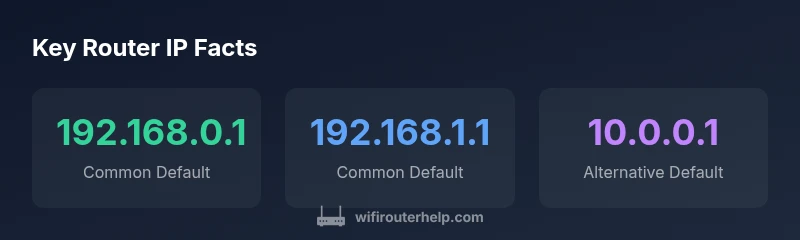
Common private IP addresses for home routers are 192.168.0.1 and 192.168.1.1; others use 192.168.10.1 or 10.0.0.1 depending on the brand. To confirm yours, check a connected device’s network settings or look at the router label. You can also run simple commands like ipconfig (Windows) or ifconfig/ip a (macOS/Linux) to reveal the gateway address.
What's the IP address of my router? A foundational concept for home networks
When you ask what’s the ip address of my router, you’re asking for the private gateway address that lets devices talk to the internet through your home network. This address lives on your local network, not on the public internet. Most home networks use private IP ranges like 192.168.x.x or 10.x.x.x. The gateway address is what you type into a browser to reach the admin page. Understanding this distinction is essential for setup, ongoing troubleshooting, and securing devices in a smart home. In practice, your router’s IP acts as the door to settings, connected device management, and security configurations—so knowing it helps you manage traffic, QoS, and parental controls with confidence.
How home networks assign IP addresses and why it matters
Home networks rely on a combination of DHCP, NAT, and private address spaces. Your router typically runs a DHCP server that assigns private IPs to devices on demand. This process creates a dynamic map of devices (phones, PCs, smart speakers) behind a single public IP shown to websites. Because the gateway IP (the router’s address) remains constant for a given network, users can reliably access the admin interface to adjust settings, review connected devices, and implement security policies. Knowing how DHCP hands out addresses helps you troubleshoot conflicts and plan network changes without disrupting connectivity.
Common IP address defaults by brand and layout
Manufacturers and ISPs default to specific gateway addresses, which is why you’ll see 192.168.0.1 or 192.168.1.1 far more often than anything else. Some routers use 192.168.10.1 or 10.0.0.1 as their default. If you’ve never changed the router’s IP, you’re likely in one of these common ranges. The exact value is printed on a label on the bottom or back of the device, so a quick glance can save time. If you’re setting up a new system, expect a quick boot and a standard login page at http://<gateway>.
How to locate the IP on Windows, macOS, iOS, and Android
Different devices provide the gateway address in different places:
- Windows: Run ipconfig in Command Prompt and look for the Default Gateway under your active network adapter.
- macOS: Open System Preferences > Network, select your connection, and view the Router field, or use Terminal with the command the route -n get default.
- iOS/Android: Go to Settings > Wi‑Fi, tap your connected network, and view the Router or Gateway field.
- Linux: Use ip route or ip addr; the default route indicates the gateway IP. If you see a valid IP, that’s your router’s address.
Accessing the router admin page and verifying the IP
Once you have the gateway/IP address, open a web browser and type http://<IP> or https://<IP> depending on your device. You’ll be prompted for credentials—these are typically printed on the router label or provided by your ISP. If you change networks or reset the device, the IP may shift. In that case, repeat the discovery steps to re‑establish access and confirm the correct address before making changes.
What to do if your IP address changes after reset or updates
A factory reset or firmware update can restore the router to a default IP or trigger a new internal map. If you can’t reach the admin page at the expected address, recheck the label, re-run OS commands, and verify that you are connected to the router’s network. After changes, verify that all devices regain access and that the new gateway address is noted for future reference.
Troubleshooting common issues finding your IP address
If you can’t see the IP, first ensure you’re connected to the router’s network and not a guest network. Disable VPNs or firewall rules that might block local addresses. Try another device and re-check with a fresh glance at the router label. If the router is in bridge mode or part of a mesh system, the gateway IP may be managed by a different device—check the primary unit for the correct address.
When and why you might want to change your router IP address
There are legitimate reasons to adjust the gateway IP, such as avoiding conflicts with other devices or aligning with a custom network scheme. To change it, log into the admin interface, locate the LAN settings, and update the IP address. Remember to reboot the router and reconfigure connected devices if needed. Document any changes to prevent future access problems.
Quick-reference checks you can perform today
- Confirm you’re on the same network as the router when searching for the IP.
- Check the router’s bottom label for the gateway address.
- On your computer, run ipconfig or ifconfig to reveal the default gateway.
- Try both 192.168.0.1 and 192.168.1.1 in your browser if you’re unsure.
- Consider bookmarking the admin URL for faster future access.
Common router IP references and how to identify them
| Category | Default IP Range | Notes |
|---|---|---|
| Private IP range | 192.168.x.x / 10.x.x.x | Common home network ranges |
| Common defaults | 192.168.0.1 / 192.168.1.1 / 10.0.0.1 | Varies by vendor/ISP |
| How to discover | OS utilities or router label | Cross-check on different devices |
| Access method | HTTP/HTTPS to gateway address | Secure access to admin page |
People Also Ask
What is the IP address of my router?
The common private router IPs are 192.168.0.1 or 192.168.1.1, though some brands use 10.0.0.1. Check a connected device’s network settings or the router label to confirm the exact address. If needed, run OS commands like ipconfig or ifconfig to reveal the gateway.
The router’s IP is usually 192.168.0.1 or 192.168.1.1; check your device’s network settings or the router’s label to confirm.
Is there a difference between the router IP and the public IP?
Yes. The router IP (gateway) is a private address on your local network. Your public IP is assigned by your ISP and is what the internet sees. The two serve different purposes and appear in different places in network settings.
Yes. The router IP is private on your home network, while the public IP is what your ISP assigns for internet traffic.
What if I can’t access the router’s IP address?
Ensure you’re connected to the same network, disable VPNs, and try a different device. Check the router label for the address and try common defaults like 192.168.0.1 or 192.168.1.1. If needed, reset or power cycle the router and re-check.
First, make sure you’re on the right network and try a different device. If needed, reset or power cycle the router and try again.
Can I change my router’s IP address?
Yes. Access the admin page, locate LAN settings, and update the gateway/IP address. Reboot and adjust connected devices if necessary. Document the new address to avoid future access problems.
Yes. You can change it in the router’s LAN settings, then reboot and update connected devices.
How do I find the IP on iPhone or Android?
On iPhone or Android, go to Settings > Wi‑Fi, tap your network, and view the Router or Gateway field. This shows your router’s IP address. If you’re using a mesh system, check the primary node for the gateway address.
On mobile, open Wi‑Fi settings, select your network, and view the router field to see the IP.
What should I do if the IP seems inconsistent after updates?
IP changes can occur after firmware updates or DHCP reconfiguration. Re-check the gateway after updates, verify the admin URL, and, if needed, re-assign a consistent IP range in LAN settings.
IPs can shift after updates; re-check the gateway and re-note the address if needed.
“Locating the router IP is foundational for secure network access and configuration; it’s quick, safe, and gives you control over your home network.”
What to Remember
- Identify your gateway as the router’s private IP.
- Use OS tools or the device label to confirm the address.
- Access the admin page via a browser using the gateway IP.
- Keep notes of any IP changes after updates or resets.
- If you can’t access, troubleshoot network connectivity first.