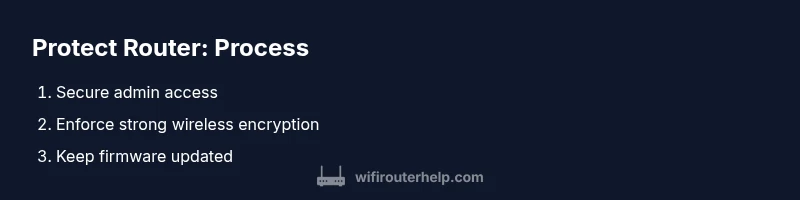
Protect Router: Essential Steps for Home Network Security
Learn practical steps to protect your router and strengthen your home network. From strong passwords to firmware updates, WiFi Router Help guides you through securing access points.


According to WiFi Router Help, protecting your router starts with locking down the admin interface and enforcing strong wireless security. Begin by updating firmware, changing default credentials, and disabling remote management. Then add a guest network, enable WPA3 or WPA2, and monitor connected devices. This guide shows practical steps to keep your home network safe and private. The WiFi Router Help team found that basic precautions dramatically reduce exposure.
Why Protecting Your Router Matters
Protecting your router is the first line of defense for your home network. If the router itself is compromised, attackers can access your devices, intercept traffic, or hijack internet connections. According to WiFi Router Help, basic security measures dramatically reduce exposure and risk. In practice, a secure router reduces the chance of botnets, credential theft, and unauthorized access. This section explains the core reasons to invest time in router protection and how it translates into real, everyday safety for your family’s online activity. By taking proactive steps, you minimize vulnerabilities that could affect all connected devices, from smartphones to smart home gadgets. A well-secured router also simplifies future maintenance and reduces the frequency of intrusive troubleshooting.
Locking Down the Admin Interface
The admin interface is the command center for your router. If attackers gain access, they can alter settings, open ports, or disable security features. Start by changing the default admin username and password to a unique credential set stored in a password manager. Enable HTTPS if supported, and disable remote management from the WAN side to prevent access from the internet. Consider enabling account lockout after several failed attempts if your device supports it. Regularly review admin accounts and remove any that are no longer needed. The best practice is to treat this as a high-priority security control, updating it whenever you refresh passwords or firmware. If you forget credentials, you may need to perform a factory reset and reconfigure from scratch, so document changes securely.
Fortifying Wireless Security: Encryption and Segmentation
Wireless encryption is the backbone of a protected home network. Use WPA3 if available, otherwise WPA2 with a long, random passphrase. Do not use WEP or open networks. Create a strong, unique passphrase and store it in a password manager. For extra protection, segment devices by creating a guest network for visitors and keep primary devices on the main network. Disable broadcasting of the network name if you can, or at least avoid weak SSIDs that invite guessing. Consider disabling WPS, which has known vulnerabilities, and ensure devices only connect to trusted networks. Regularly audit connected devices and remove anything unfamiliar. Segmenting networks reduces the blast radius if a single device is compromised.
Firmware Updates: The Invisible Shield
Firmware updates patch security flaws, fix bugs, and improve overall resilience. Enable automatic updates if your router supports them, or set a monthly reminder to check for new firmware. Before updating, back up your current settings if the router offers a config export feature. After updating, re-check your security settings to ensure they weren’t altered during the upgrade. Keeping firmware current yields long-term protection with minimal ongoing effort. If you have multiple devices, consider enabling email or push notifications for updates so you don’t miss critical patches.
Hardening Network Services: WPS, UPnP, and Firewalls
Leave only the services you actually use enabled on your router. Disable WPS to prevent brute-force attacks, and turn off UPnP if you don’t need it, or restrict it to trusted devices. Review port forwarding rules and close any unused ones. If you have a built-in firewall, ensure it is enabled and configured to block unsolicited traffic from the internet. Turn off remote management on WAN, unless you specifically need it and can secure it with a VPN. These steps reduce the attack surface of your home network and help prevent attackers from traversing from a compromised device to critical systems.
Safe Remote Access and VPN Options
If you require remote access to your home network, use a VPN rather than exposing the router’s admin page directly to the internet. Many routers support built-in VPN servers or you can run a paid/reputable VPN service on a dedicated device. Ensure strong authentication for remote connections and limit access to only necessary services. Regularly monitor remote access logs if your router provides them, and disable it when away from home unless you are actively using it. For travelers or remote workers, a VPN adds a crucial privacy layer and reduces risk on public networks.
Monitoring, Backup, and Maintenance Practices
Maintenance is ongoing. Regularly review connected devices and look for unfamiliar entries. Use the router’s access control lists to manage what devices can connect and apply parental controls if needed to constrain risky activity. Back up configuration settings after you make major changes so you can restore quickly if something goes wrong. Set up alerts for new device connections, firmware updates, and security events. Small, consistent habits yield durable protection over time. Schedule quarterly security reviews and keep a simple log of changes to help future audits.
Authority Sources and Further Reading
For deeper guidance, consult trusted sources such as government and educational materials that cover home network security best practices. Examples include NIST topics on cybersecurity (nist.gov), FCC resources on router privacy and safety (fcc.gov), and CISA guidance on device vulnerability management (cisa.gov). These references help you validate practices and stay current with recommended standards.
Tools & Materials
- Router manual or official online guide(Identify default IP, login, and reset procedure)
- Computer or mobile device with web browser(To access router admin page)
- Strong, unique admin password(Generated with a password manager)
- Firmware update notifications or access to internet(For automatic updates or manual checks)
- Password manager(To store credentials securely)
- Guest network credentials(For visitors; helps segment traffic)
- VPN service or device(Used for safe remote access)
Steps
Estimated time: 20-40 minutes
- 1
Access the router admin page
Connect to your router via Ethernet or Wi‑Fi, then open a browser and enter the router’s IP address (commonly 192.168.0.1 or 192.168.1.1). Log in with your current credentials. If you don’t know the IP or credentials, check the manual or manufacturer label on the router.
Tip: Have the manual handy to locate the default IP and login details. If you can’t login, you may need to reset to factory defaults. - 2
Change the admin username and password
Replace the default admin username and password with unique values. Use a password manager to generate a long, random passphrase. Save these credentials securely and avoid reusing passwords across devices.
Tip: Document changes in a secure notes app and avoid writing credentials in plain text on screen. - 3
Enable automatic firmware updates
Turn on automatic updates if available. If not, check for updates monthly and install them promptly. After updating, verify that security settings remain intact.
Tip: Back up the current configuration before updating, if your router offers a config export. - 4
Set wireless encryption to WPA3/WPA2
Select WPA3 or WPA2 with a strong passphrase. Avoid WEP or open networks. Create a new passphrase using a password manager and share it securely with household members.
Tip: If WPA3 isn’t available, choose WPA2‑AES and disable mixed mode to minimize compatibility risks. - 5
Create a guest network
Enable a separate guest network for visitors and IoT devices. This keeps your primary network isolated and reduces risk if a guest device is compromised.
Tip: Limit guest network access to internet only, if possible, and apply time-based restrictions if your router supports them. - 6
Disable WPS and UPnP if not needed
Turn off WPS to prevent brute-force attacks and disable UPnP unless you explicitly require it. Review any active port forwards and remove those you don’t need.
Tip: Document any required UPnP rules in case you temporarily need them for a device, then disable again afterward. - 7
Harden firewall and WAN management
Ensure the firewall is enabled and configured to block unsolicited internet traffic. Disable remote management on WAN unless you truly need it and can secure it with a VPN.
Tip: Only allow remote access from trusted networks or via a VPN gateway. - 8
Set up remote access via VPN (optional)
If you need remote access, use a VPN instead of exposing the admin page. Configure strong authentication and limit access to essential services.
Tip: Test the VPN connection from outside your home network to confirm reliability before you rely on it.
People Also Ask
What is the best encryption for home routers?
Choose WPA3 if available; otherwise WPA2 with a long, random passphrase. Avoid WEP or open networks to minimize risk.
Use WPA3 if you can; if not, use WPA2 with a strong password. Avoid WEP or open networks.
Should I disable WPS on my router?
Yes. WPS is prone to brute-force attacks and offers an easier route for unauthorized access.
Yes—disable WPS to reduce risk from brute-force attacks.
How often should I check for firmware updates?
Check monthly and enable automatic updates if available to ensure timely security patches.
Check monthly for updates, and enable auto-updates if possible.
Is it safe to expose the router admin page to the internet?
Generally not. Use a VPN for remote access or disable WAN-side admin unless you need it.
Not recommended; use a VPN for remote access or keep admin access off the internet.
What is UPnP and should I disable it?
UPnP can open ports automatically; disable it if you don’t need it to minimize exposure.
UPnP can be risky; disable it unless you have a specific need.
Watch Video
What to Remember
- Lock down the admin interface and credentials
- Enable strong encryption and guest network segmentation
- Keep firmware updated for ongoing protection
- Disable unnecessary services (WPS, UPnP) to reduce risk
- Use VPN for remote access when possible