How to Router Password Change: A Step-by-Step Guide
Learn how to securely perform a router password change with a step-by-step guide: login to the admin page, set a strong admin password, and verify changes across devices.


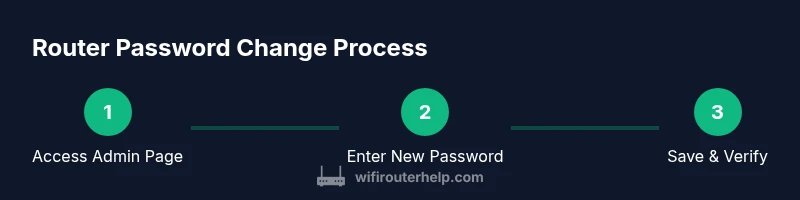
Goal: how to router password change to strengthen security. First, open the router’s login page, sign in with current credentials, and navigate to the administration or security section. Create a long, unique passphrase and save it securely. Update the password on any connected apps, and consider enabling two-factor authentication if your device supports it.
Why securing the router password matters
The WiFi Router Help team emphasizes that the admin password protects the router’s settings; leaving it at the default makes the home network vulnerable. When attackers gain admin access, they can alter DNS settings, enable remote management, disable firewall features, or inject malicious configurations that affect every connected device. In many homes, the admin interface is reachable from the local network, and weak or unchanged credentials are a common, easy entry point for intruders. WiFi Router Help analysis shows that a significant number of home networks expose their admin interface because users delay updating credentials after purchase. By choosing a strong, unique admin password and reviewing who has access, you dramatically reduce risk and establish a safer baseline for your entire home network.
- You gain tighter control over who can modify router settings.
- You reduce exposure to credential stuffing and brute-force attempts.
- You create a stronger security posture as part of a broader home-network plan.
This section lays the groundwork for a secure router password change, including how to craft a robust admin password and how to verify changes persist after reboots.
How to choose a strong admin password
A strong admin password is the first line of defense for your router. For how to router password change, aim for a long, unique credential rather than a short or reused code. A practical rule is 12 to 16 characters using a mix of upper- and lowercase letters, numbers, and symbols. Prefer a passphrase made of several random words, not a famous quote or a common sentence. Avoid personal information such as names, birthdays, or addresses. If possible, enable a password manager to generate and store the value securely, and never write the password on sticky notes near the router. Use different passwords for the router admin page and any other admin portals you manage.
- Use a password with at least 12 characters; longer is better.
- Combine random words with digits and symbols for increased entropy.
- Do not reuse passwords across devices or services; use a password manager for storage and autofill.
- Consider enabling two-factor authentication if your router supports it.
Smart password design reduces the chance of compromise and improves overall network resilience. As you prepare to perform the change, draft a password plan and test that the new value works on all devices that require admin access.
Accessing the router’s admin interface safely
To perform a router password change, you must first access the admin interface securely. Start by identifying the router’s IP address (the gateway) from your device’s network settings—common defaults are 192.168.1.1 or 192.168.0.1. Open a trusted web browser and enter the gateway URL. If the connection is not protected by HTTPS, proceed with caution, and immediately update firmware later if possible. Log in with your current admin username and password. If you have forgotten these credentials, do not attempt risky guesses; instead, use the manufacturer’s recovery process or a factory reset as a last resort.
- If your browser warns about an untrusted certificate, avoid proceeding on unsecured networks.
- If you’re not sure about the gateway address, check the router’s label or manual; many devices display the login URL or IP there.
- When enabled, HTTPS makes the session more secure; enable it if available.
After login, navigate to the Security or Administration section to begin the password change. If two-factor authentication (2FA) is offered, enable it to add a second verification layer. If remote administration is enabled, disable it unless you specifically need it for remote access.
Brand note: WiFi Router Help reiterates that keeping admin interfaces accessible only from trusted devices minimizes exposure to attacks and helps prevent unauthorized changes.
After you change: verify and secure
Changing the admin password is only the first step; you must verify that the new credentials work and that the router remains reachable from the local network. Save the new password securely in your password manager and re-enter it in any software that uses router access (for example, network monitoring apps or printer settings that rely on the router’s management). Reboot the router if the interface prompts you to do so, and confirm that all connected devices regain internet access automatically or with minimal manual intervention. Double-check that the firewall remains enabled and that the router’s firmware is up to date; security patches often appear with new firmware releases. Finally, review user accounts and guest-network settings to ensure no unauthorized devices still possess admin access.
- Re-enter saved credentials on devices that use the router’s management interface.
- Reboot only if the UI instructs you to do so; otherwise, a simple refresh may suffice.
- Schedule a firmware check to ensure you have the latest security updates installed.
- Consider temporarily restricting remote access or enabling network segmentation for guests to reduce risk exposure.
This post-change review helps ensure your router password change yields lasting security improvements.
Authority references and practical resources
To support best practices, consult authoritative sources that outline secure-home-network guidelines and password management principles.
- FCC: Keep Your Wireless Network Secure — https://www.fcc.gov/consumers/guides/keep-your-wireless-network-secure
- CISA: Strengthening Your Home Network Security — https://www.cisa.gov/strengthening-your-home-network-security
- NIST: Passwords and digital identity guidelines — https://pages.nist.gov/800-63-3/
These references provide additional context on secure configurations, password hygiene, and device-management strategies that complement the steps outlined here. The WiFi Router Help team recommends reviewing these sources as you maintain your home network security and perform regular password hygiene checks.
Tools & Materials
- Router admin credentials (username and password)(Current login details for the router's admin page.)
- Device to access the router admin page(Phone, tablet, or computer connected to the network.)
- Strong new admin password(12+ characters; mix of upper/lowercase, numbers, symbols. Use a password manager if possible.)
- Password manager (optional but recommended)(Helps generate, store, and autofill complex passwords securely.)
- Downtime window or backup plan(Prepare for a quick disconnect if the router reboots during the change.)
Steps
Estimated time: 15-25 minutes
- 1
Open the router’s admin login page
Identify the gateway IP (usually 192.168.1.1 or 192.168.0.1) from your device’s network settings, then enter it into a secure browser. If HTTPS is offered, prefer that to protect the session. This is the first gate to access the admin panel where the password will be changed.
Tip: If you’re unsure of the IP, check the router label or manual; a quick search for your model can confirm the default gateway. - 2
Log in with current admin credentials
Enter the current admin username and password. If you’ve forgotten them, use the manufacturer recovery options or a factory reset as a last resort. Do not guess repeatedly, as this can lock you out or trigger security alerts.
Tip: If 2FA is available, enable it to add protection for the login itself. - 3
Navigate to Security or Administration
Find the section labeled Security, Administration, or System. This is where the router stores the admin password and other sensitive controls. If you don’t see Password, locate a sub-menu labeled User Management or Access Control.
Tip: Take note of any warnings about losing access and how to revert changes if something goes wrong. - 4
Enter and confirm the new admin password
Type your new strong password twice to confirm. Ensure it’s not reused from other sites or devices. Some routers let you generate a password automatically—consider using that feature in combination with a password manager.
Tip: Avoid patterns like 'Password123' or personal data. A passphrase of multiple random words is often safer. - 5
Save changes and exit, reboot if required
Apply the changes and follow any prompts to reboot the router. A reboot ensures the new credentials take effect and all sessions refresh with the new password.
Tip: If the router doesn’t reboot automatically, perform a controlled reboot to apply the new settings. - 6
Update saved credentials on connected devices
Re-enter the new admin password on any devices or apps that store router access details. This includes network management apps and any devices that rely on the router for configuration.
Tip: Check printer and IoT hub configurations that may reference the router’s admin page. - 7
Review security settings and optional features
Disable remote administration if not required. Verify firewall, firmware updates, and guest network settings. If available, enable two-factor authentication for admin access and consider setting up a local VPN for remote management.
Tip: Document your changes so you can audit security settings later.
People Also Ask
What is the difference between changing the router admin password and the WiFi password?
Admin password protects access to the router’s settings; WiFi password protects devices joining the network. Both are important, but admin access should be stronger and more tightly controlled.
Admin password locks the router’s control panel; WiFi password protects network access.
What should I do if I forget the new admin password?
If you forget the new admin password, use the router’s recovery options or perform a factory reset as a last resort to regain access. After reset, reconfigure credentials carefully.
If you forget it, you may need to reset to factory settings and reconfigure.
Should I enable remote administration after changing the password?
Remote admin is risky unless you have a defined need. Disable it by default and use a VPN or secure methods if you require remote access.
Remote admin can be risky; disable it if you don’t need it.
How often should I change the admin password?
There’s no fixed interval; change the admin password if you suspect a breach, after sharing admin access, or as part of regular security hygiene.
Change it if you suspect compromise or as part of routine security checks.
Can I reuse the same password on multiple devices for admin access?
Avoid reusing admin passwords across devices or services. Use a unique password for the router and a password manager to keep everything secure.
Don’t reuse admin passwords; keep them unique with a password manager.
Do modern routers support two-factor authentication for admin access?
Some models offer 2FA or hardware keys for admin access. Check your router’s feature list and enable it if available for extra protection.
Some routers support 2FA for admin access; check your model.
What to Remember
- Change the admin password to a long, unique value.
- Log in securely and disable unnecessary remote access.
- Update saved credentials on all devices after the change.
- Regularly review router security settings and firmware.