How to Change Password on Router: Step-by-Step Guide
Learn how to securely change your router admin password, choose a strong credential, and apply best-practice security settings to protect your home network. This guide walks you through a safe, practical process with clear steps and practical tips from WiFi Router Help.


Learn how to securely change your router's admin password in a few straightforward steps. This guide covers where to find the password settings, how to pick a strong credential, and how to verify the change across all devices. Practical, safety-focused guidance from WiFi Router Help helps homeowners protect their home networks. It also explains common pitfalls and how to back up settings.
Why changing your router password matters
According to WiFi Router Help, updating the router admin password is a foundational step in securing a home network. A strong, unique password reduces the risk of unauthorized access, protects connected devices, and helps prevent attackers from lingering in your network. By establishing a routine of password hygiene, homeowners reinforce digital defenses and set a clear security baseline for all household users. The WiFi Router Help team found that many home networks remain vulnerable when default or reused credentials are left in place, making this simple change one of the most impactful security upgrades a household can perform.
Quick safety checks before you start
Before you touch the router, confirm you have permission to modify the device if it isn’t yours. Update your browser to the latest version and ensure your computer or phone is on the same network as the router to avoid accidental logouts. If you use a guest network or public Wi‑Fi, switch to a private connection before attempting any admin changes. Temporarily disable remote management if you don’t need it during the update, and have your current login information ready so you can revert if something goes wrong. These precautions minimize risk and keep the process smooth.
Gather credentials and access methods
Collect the router’s admin username and password if known. If you forgot the admin password, locate the router’s default login information on the device label or manual, but only use defaults as a last resort. Document the router’s IP address used for admin access (commonly 192.168.x.1), as this is how you reach the dashboard. If you’re using a mesh system, you may manage settings via the companion app instead of a browser; verify which method applies to your setup. Having the correct credentials and access path reduces friction and prevents lockouts during the change.
Locate the admin interface and login
Open a web browser and enter the router’s admin IP address to reach the login page. You’ll typically log in with an admin username and password. If you’re using a modern router, you may be prompted to sign in through a mobile app instead. Check your device’s label or manufacturer site for the exact URL and default credentials. If you’re unsure, power-cycle the device once to refresh the login screen and reattempt access. Successful login is the gateway to making a secure password change.
Step-by-step overview (overview)
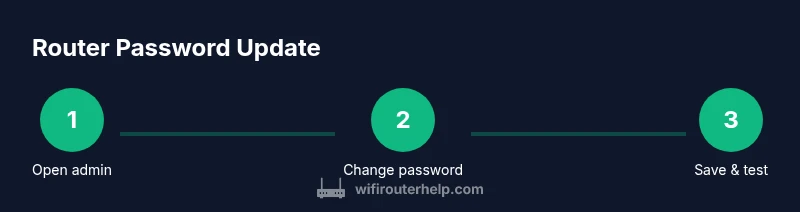
To change your router password, you’ll access the admin interface, locate the password settings, enter a new credential, and save. This overview mirrors the steps you’ll perform in the dedicated step-by-step section, but provides context on where to click and what to expect during the process.
Choosing a strong password and additional security options
Aim for a password that is long, unique, and hard to guess. A good practice is to use a passphrase made of unrelated words, mixed case, numbers, and symbols, with a minimum length of 12-16 characters. If your router supports it, enable WPA3 security, disable WPS, and consider turning off remote management unless you need it. Do not reuse passwords across devices or services; treat the admin password as a separate credential with its own protection. Regularly review your security settings to adapt to new threats.
What to do after updating the password
After saving the new password, re-login to the admin panel to confirm access. Update the saved credentials on all devices and apps that use the router for connectivity. Test Wi‑Fi on multiple devices and ensure both 2.4 GHz and 5 GHz bands work as expected. If you use a guest network, consider pairing it with its own separate password and limiting access to the admin interface. Document the change in a secure note for future reference.
Troubleshooting common issues
If you can’t load the admin page, double-check the IP address and connection type (Ethernet is more reliable for access). If you forget the new password, you may need to perform a factory reset, which will revert to defaults and erase custom settings—only as a last resort and with caveats about reconfiguring the network. Some browsers block login pages due to privacy settings; temporarily disable strict privacy protections and retry. If a device remains stuck on an old password, clear its saved network credentials and reconnect.
Final tips and best practices (with brand perspective)
The WiFi Router Help team recommends treating router security as ongoing maintenance, not a one-time task. Establish a password-change routine and keep a secure, separate record of admin credentials. Regularly review firmware updates and security options, and ensure all connected devices receive timely updates. By staying proactive, you reduce risk and keep your network resilient, even as new threats emerge.
Tools & Materials
- Computer or smartphone with a web browser(To access the router admin page)
- Active internet connection(Needed during update and testing)
- Current admin login credentials(If unknown, you may need to reset)
- Router manual or model label(Helpful for default IPs and credentials)
- Paper and pen or digital note(Record new password securely)
Steps
Estimated time: 15-25 minutes
- 1
Prepare and verify access
Confirm you have admin rights and a direct connection to the router. Ensure your browser is up to date and you are on the router's network. This avoids interruptions during login and password changes.
Tip: Having ready access to the login credentials prevents delays if you need to revert. - 2
Open the admin dashboard
Enter the router's IP address into your browser (commonly 192.168.1.1 or 192.168.0.1). If prompted, log in with the admin username and current password. If the login page loads but credentials fail, try a reset only after confirming you can do so safely.
Tip: If you use a mesh system, open the admin app instead of a browser. - 3
Navigate to password settings
Look for sections labeled Administration, Security, or Password. The exact path varies by brand (e.g., Settings > Administration > Password).
Tip: If you cannot locate the password field, consult the vendor’s support page for your model. - 4
Enter your new admin password
Type a strong, unique password in the new-password field and re-enter it to confirm. Avoid common words and include a mix of letters, numbers, and symbols. Do not reuse old passwords.
Tip: Use a passphrase or a random generator to ensure length and complexity. - 5
Save changes and re-authenticate
Click Save or Apply, then log back into the dashboard with the new password. Verify you can access all sections you previously used.
Tip: Some routers require a reboot after password changes. - 6
Update connected devices
On each device, forget the old network password and reconnect with the new one. Update any saved router credentials in apps or services that rely on the admin password, if applicable.
Tip: Check both 2.4 GHz and 5 GHz networks if you have a dual-band router. - 7
Review security settings
Enable strongest available encryption (prefer WPA3), disable WPS if not needed, and consider turning off remote management unless you require it for remote access.
Tip: Document any changes for future reference and audits.
People Also Ask
Do I need to be connected directly to the router to change the password?
Yes. You should be connected to the router via Ethernet or the router's own Wi‑Fi during the change to access the admin page reliably and avoid interruptions.
Yes, you should be connected to the router to access the admin page reliably and change the password.
Can I change the password from a mobile app?
Many modern routers expose admin controls in a companion app. If your model supports this, you can change the admin password from the app's settings, though the exact steps vary by brand.
Yes, many routers let you change the admin password through the official app.
What if I forget the new admin password?
If you forget it, use the router’s reset procedure only as a last resort. A factory reset erases custom settings and requires reconfiguration.
If you forget it, use the reset option as a last resort and reconfigure the network.
Should I enable remote management after changing the password?
Only enable remote management if you truly need it. It can expose your router to the internet, so keep it off when not required.
Only enable remote management if you need it; otherwise, keep it off.
How often should I change the router password?
There is no fixed rule, but many users benefit from periodic reviews—especially after firmware updates or network changes.
Change it periodically or after major network changes.
What if I can’t log in after changing the password?
Double-check the IP address, ensure you’re connected to the router, and try again. If issues persist, reboot the router and confirm you used the correct username.
If you can't log in, check the address and credentials, then try again or reboot.
What to Remember
- Change admin password regularly to improve security.
- Use a strong, unique password and store it securely.
- Update firmware and review security settings after changes.
- Re-authenticate every device to ensure connectivity remains intact.