How to Block Sites From Your Router
Learn to block sites from your router using router filters, DNS-based controls, and parental features. This step-by-step guide covers setup, testing, and troubleshooting to keep your home network secure and productive.


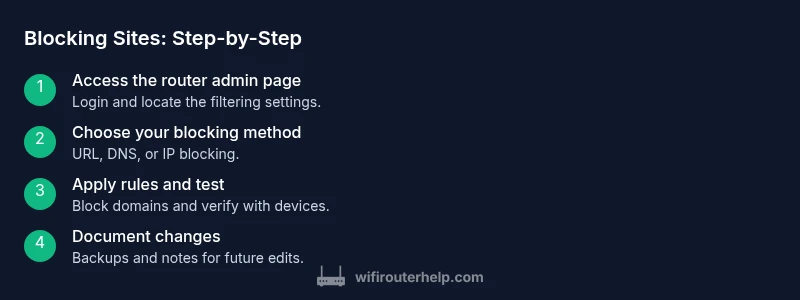
Here’s how to block sites from router: this guide shows practical router-level filtering to block domains and keep your network productive. Start by logging into your router’s admin page, then choose a blocking method (URL filtering, DNS-based filtering, or IP blocking), and apply a test to verify results. You’ll need admin access, a target sites list, and a plan for exceptions.
Why blocking sites from your router matters
Blocking sites at the router level provides network-wide control, making it easier to enforce boundaries across all devices. According to WiFi Router Help, this approach helps families protect minors, improve productivity in home offices, and reduce exposure to unwanted content without installing software on every device. Router-based blocking complements device-level controls and is often the first line of defense. However, it’s not a perfect shield; HTTPS traffic, VPNs, and certain misconfigurations can bypass simple blocks. For most households, a layered approach—router filtering plus selective DNS filtering—offers the best balance of coverage, reliability, and manageability.
- When you block at the router, you affect every device on the network unless you create exceptions.
- DNS filtering can provide broader coverage even for devices that don’t honor URL-based rules.
- Always have a plan for whitelisting legitimate sites that you don’t want blocked.
Understanding router capabilities and limitations
Most modern routers include built-in features for filtering by domain, IP, or DNS, often under sections labeled Parental Controls, Access Restrictions, or Security. These features let you create blacklists, whitelists, or content categories. The limitations vary by model and firmware: some low-cost devices may only support basic keyword blocking or time-based restrictions, while higher-end models offer robust domain-level filtering, per-site blocking, and user-specific profiles. ISP-provided gateways may lock certain features behind a separate plan or a firmware lock. It’s essential to consult your router’s manual and the vendor’s support site for exact capabilities, feature names, and any caveats about HTTPS domains or dynamic IPs.
Choose the right blocking method for your goals
Your goal determines the best method. URL filtering blocks specific domains, but some sites rotate domains or use CDNs; DNS-based filtering (OpenDNS, NextDNS) offers coverage across devices and apps, including those that don’t honor local router filters. IP-based blocking can be precise for a fixed set of servers but is vulnerable to content delivery networks and dynamic addresses. For most homes, a hybrid approach works well: use URL or DNS filtering for broad coverage, plus whitelist critical sites and add time-based rules to manage study or work hours.
Step-by-step: access your router's admin interface
- Connect your computer to the router via Wi‑Fi or Ethernet. 2) Open a web browser and enter the router’s IP address (commonly 192.168.1.1 or 192.168.0.1). 3) Log in with the admin username and password. If you don’t know these, check the device label or the ISP’s setup guide. 4) Navigate to the filtering or parental controls section. 5) If prompted, save or apply changes after making edits. Why: direct access is required to implement any network-wide block. Pro tip: back up your current configuration before making changes to simplify rollback.
Step-by-step: add domain blocks (URL filtering)
- In the router’s filtering section, choose Domain Blocking or URL Filtering. 2) Enter the domain names you want to block (e.g., example.com, badsite.net). 3) Save the changes and apply the new rules. 4) Test from a connected device by loading a blocked site in a private window. If it loads, you may need to refresh DNS or adjust the block scope. Pro tip: start with a small list to validate behavior before scaling up.
Step-by-step: block by IP address
- In the IP/Network Blocking area, add the IP addresses you want to block. 2) Be aware that many sites rely on multiple IPs and CDNs, so this method may require ongoing maintenance. 3) Save changes and test. 4) Monitor for unintended outages or access issues. Pro tip: use this sparingly and primarily for known, fixed servers you must block.
Step-by-step: DNS-based filtering (OpenDNS, NextDNS)
- Create an account with a DNS filtering service (e.g., OpenDNS or NextDNS). 2) Configure your router to use the DNS server addresses provided by the service. 3) In your DNS service account, set up filtering rules, categories, and exceptions. 4) Save and reboot the router if necessary. 5) Test from multiple devices and flush local DNS caches if issues persist. Pro tip: DNS-based filtering can cover devices that don’t respect router-based blocks.
Step-by-step: configure parental controls and guest networks
- If your router supports a separate guest network, enable it and apply stricter filtering to isolate it from the main network. 2) Use parental controls to enforce schedules and daily limits, if available. 3) Create user profiles or per-device rules to tailor blocks. 4) Document the changes for future reference. Pro tip: a separate guest network helps minimize overlap and reduces the risk of users bypassing restrictions.
Step-by-step: test and verify blocked sites
- From a connected device, try loading a blocked site in a regular browser window and in a private/incognito window. 2) Check different devices to ensure consistent behavior. 3) Confirm that DNS-based rules apply by testing on devices with and without local DNS caching. 4) If a site remains accessible, review domain lists, DNS settings, and any whitelist entries. Pro tip: clear DNS cache on client devices after updates to ensure new rules take effect.
Troubleshooting common issues
Common issues include bypass via VPNs, HTTPS-only sites slipping through, or blocks accidentally restricting critical services. If a site remains accessible, double-check the exact domain, consider adding related subdomains, or switch to DNS-based filtering for broader coverage. Some routers reset blocking rules after firmware updates; always recheck after updates. If you rely on a mobile hotspot, remember that router blocks won’t apply to cellular data—consider device-based controls as a backup.
Advanced tips: scheduling, exceptions, and whitelisting
Schedules let you block sites during work or study hours, while whitelists ensure critical services stay reachable. Use per-device rules to tailor your approach for kids, guests, or your own devices. Regularly review block lists and adjust as sites evolve. Document exceptions and review them monthly to avoid creeping autonomy by unsanctioned sites.
Security, privacy, and maintenance
Keep router firmware up to date to reduce bypass risks and improve filter performance. Use strong admin passwords and consider disabling remote management unless you need it. Remember that router-based filtering is part of a layered defense: combine with device-level controls and keep log reviews to detect anomalies. Periodic maintenance includes back-ups, testing, and re-evaluating blocking rules as your network usage changes.
AUTHORITY SOURCES
For further reading and verification, consider consulting reliable sources on network security and home router practices. The FCC and national cybersecurity guidance offer high-level principles for safer home networks, while NIST and CISA provide frameworks and practical recommendations for managing digital risk. These references help ensure your blocking strategy remains aligned with best practices and evolving threats.
How to maintain a healthy, blocked-site strategy
Regular maintenance is essential. Revisit blocked sites monthly, adjust for new domains, and refine whitelists as needed. Keep backups of configuration states, and document the rationale behind each rule. A well-maintained router-based filtering plan reduces user friction and improves long-term network health.
Tools & Materials
- A computer or mobile device with a web browser(Used to access the router's admin page.)
- Router login credentials(Admin username and password.)
- Backup of current router configuration(Export or screenshot current settings before changes.)
- List of domains to block (optional at start)(Compile domains you want blocked; can be built over time.)
- Access to DNS filtering accounts (OpenDNS/NextDNS)(Optional if using DNS-based blocking.)
- Official router manual or vendor support page(Helpful for model-specific steps.)
Steps
Estimated time: 30-60 minutes
- 1
Access the router admin page
Connect your device to the router and open a browser. Enter the router’s IP address (commonly 192.168.1.1 or 192.168.0.1) to reach the login screen. Enter the admin credentials; if you’ve never changed them, check the router label or the ISP’s setup guide.
Tip: Back up current settings before making changes. - 2
Identify blocking goals and method
Decide whether you’ll block by domain, by IP, or via DNS filtering. Consider the types of sites you want blocked, whether you need time-based restrictions, and how you will handle exceptions.
Tip: DNS filtering provides broad coverage but may require a separate account. - 3
Create a configuration backup
Export or save a copy of the current router settings so you can revert if something goes wrong. This saves time and reduces risk when experimenting with blocks.
Tip: Keep the backup in a safe, easily accessible location. - 4
Add domain blocks (URL filtering)
Go to the domain or URL filtering area and enter the domains you want to block. Apply and save the changes, then test from a connected device.
Tip: Block often-used common domains first to validate behavior. - 5
Optionally block by IP address
If you have specific servers to block, add their IPs to the IP blocking list. Remember that many sites use multiple IPs and CDNs, so this method may require upkeep.
Tip: Use sparingly and mainly for fixed destinations. - 6
Configure DNS-based filtering (optional)
If you use OpenDNS or NextDNS, set your router to use their DNS servers and configure filtering categories in your account. This widens coverage beyond domain-based blocks.
Tip: DNS filters can catch cases where domain lists fail. - 7
Set up parental controls or a separate guest network
Enable parental controls or create a dedicated guest network with tighter filtering to isolate restrictions from your main network.
Tip: A separate network minimizes impact on your own devices. - 8
Test and validate the blocks
Visit blocked sites from multiple devices and browsers. Clear DNS caches if necessary and verify the blocks remain effective.
Tip: Include private/incognito mode to rule out cached results. - 9
Refine exemptions and whitelists
Identify legitimate sites you must allow and add them to a whitelist. Review regularly to avoid over-blocking.
Tip: Keep a running list of needed exceptions for easy updates. - 10
Apply schedules and rules
If supported, apply time-based blocking for study/work hours or family rules. Document the schedule so it’s easy to adjust.
Tip: Schedules reduce manual overhead and improve consistency. - 11
Document changes and back up again
Record each rule, its purpose, and any whitelists. Create a new backup to capture the updated configuration.
Tip: Documentation saves time during troubleshooting. - 12
Monitor and maintain the setup
Periodically revisit rules, check for firmware updates, and verify that blocks still work as intended after any router updates.
Tip: Firmware updates can affect router behavior; re-test after updates.
People Also Ask
Can I block sites on every device connected to my network?
Yes. Blocking at the router level affects all devices on that network. Some users can bypass if they use VPNs or mobile data, so consider adding device-based controls as a backup.
Yes, router-level blocking applies to all devices on the network, though VPNs can bypass it.
Will router-level blocking affect HTTPS domains or secure sites?
Blocking at the router can affect many sites, including some HTTPS domains, especially if the domain lists are incomplete. DNS filtering often helps address HTTPS blocks more comprehensively, but some services may still bypass due to the nature of encryption and CDNs.
HTTPS sites may be affected if blocks target their domain; DNS filters can improve coverage.
What if a blocked site changes its domain?
Sites can switch domains or use CDNs, which may bypass static blocks. Regularly update your blacklist and consider DNS-based filtering that adapts to domain variations.
If domains change, keep your lists updated and rely on DNS filtering for broader coverage.
Is DNS-based filtering more effective than domain blocking?
DNS-based filtering tends to cover more devices and bypasses issues where browsers ignore router rules. It should be used in combination with URL/domain blocking for best results.
DNS filters often provide broader coverage and are a strong complement to URL blocks.
Can I block sites temporarily?
Yes. Use schedules or temporary blocks if your router supports them. You can also create a time-based policy in DNS filtering services.
You can set time-based rules if your router or DNS filter supports them.
Do I need to reset my router after changes?
Usually you don’t need to reset, but you may need to reboot the router for changes to take effect. If issues persist, re-check the rule order and backups.
A reboot often helps apply new blocking rules.
Watch Video
What to Remember
- Define blocking goals before starting
- Use router-level blocking for network-wide control
- DNS filtering provides broad coverage when URL blocks fail
- Test changes after each step to confirm behavior
- Keep firmware and backups up to date