How to Stop Router Internet Access: A Step-by-Step Guide
Learn how to stop router internet access for specific devices or guests with practical steps, from guest networks to MAC filtering. Protect your home network without a full reset with clear, actionable guidance.


This guide explains how to stop router internet access for specific devices or guests. You’ll learn quick methods like using a guest network, MAC filtering, and parental controls, plus time-based rules. Before you begin, ensure you can sign in to your router admin page and know the administrator password. This keeps your network secure without a full reset.
Why stopping router internet access matters
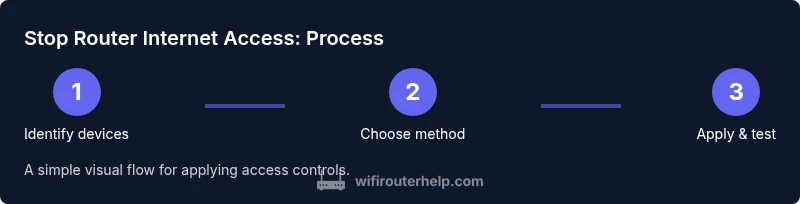
In a connected home, controlling who can reach the internet helps protect kids, guests, and devices from unauthorized access while preserving network speed for essential devices. By learning how to stop router internet access, homeowners can quickly pause or tailor internet availability without resorting to a factory reset. According to WiFi Router Help, the right combination of controls stays nimble as households change, preventing accidental exposure and keeping profiles clear. Effective management requires a plan: identify devices you want to block, decide which method fits best, and test after applying settings. The goal is to create a controlled environment where network access is predictable, auditable, and easy to revert if needed.
Quick methods to block devices
There are several non-destructive ways to stop router internet access for specific devices. The simplest is a guest network: create a separate network for visitors and disable access to your main network while they are connected. This isolates guest traffic and keeps your primary devices safe. MAC filtering allows you to list the exact hardware IDs that are allowed or blocked; it’s precise but requires keeping an updated list. Parental controls are user-friendly, enabling schedules, content filtering, and blocking on-demand for child devices. Time-based rules can restrict when a device can use the internet. You can also block by IP or disable a device’s DHCP lease, but that may require reconfiguration if the device reconnects with a new IP. Remember to label each rule clearly to avoid confusion later, and document changes for future reference.
Implementing time-based rules and access windows
Time-based rules let you set when devices can access the internet, a powerful way to enforce routines without completely cutting off a device. Start by picking the rule type your router supports (time window, schedule, or uptime). For each device or group, define a daily or weekly window, such as school hours or bedtime. Apply the rule to a device group rather than a single device when possible to reduce maintenance. Test the schedule by simulating typical days; ensure clocks are correct on the router, not relying on client devices. If your router supports multiple schedules, you can create 'Weekdays' and 'Weekends' profiles and switch automatically. For shared devices like smart speakers or security cameras, consider a separate maintenance window that preserves critical operations while restricting casual use. Some routers offer automatic exceptions for firmware updates or emergency access; enable these if available. Keep a centralized log of changes so you can roll back quickly if a schedule causes unintended outages. For added reliability, pair time-based controls with MAC filtering or a guest network to ensure a fail-safe if one rule misbehaves.
Managing guest networks and device groups
Guest networks are a cornerstone of flexible access control. Create a separate SSID with its own password and limit bandwidth or access duration. Give guests temporary access and set a reminder to rotate passwords after events. Device groups help you apply rules to several devices at once; group devices by user, family member, or function (work laptops, kids tablets, streaming devices). Use descriptive names so future changes are obvious. If you’re managing a busy home network, consider using the router’s cloud management features to push updates and monitor connections from a single dashboard. Be mindful that some smart home hubs and security cameras rely on consistent network access; in such cases, avoid broad blocks and instead use targeted controls or an allow-list approach. By combining guest networks, groups, and time-based rules, you can finely tune who gets online and when.
Safety, privacy, and keeping a recovery plan
Blocking access is a powerful tool, but misconfigurations can lock you out. Always keep a current backup of your router settings and have your admin password handy. Use strong, unique passwords for both WiFi and the router admin interface, and enable two-factor authentication if supported. Regularly review connected devices and logs for unfamiliar entries. Document which devices are blocked and the reason, so you can revert quickly if a device needs access again. If you need to reset, perform a controlled reset to default, then reconfigure from scratch rather than applying ad-hoc changes. This is where the WiFi Router Help team emphasizes a careful, documented approach to prevent accidental outages.
Common pitfalls and how to test
Users often rely on a single method; combine methods to reduce the chance of bypass. Some devices renew IP addresses, undermining DHCP-based blocks; rely on MAC filtering or a dedicated guest network for stronger control. Be aware of apps that create VPNs or cellular offloading; those can circumvent local network controls. After applying changes, test from each blocked device by attempting to browse, streaming, or updating; observe whether access stops within a few seconds. If access persists, re-check MAC addresses, ensure schedules are active, and verify that you’re editing the correct router interface (some homes have multiple APs). Also verify that you applied the rule to the correct band (2.4 GHz vs 5 GHz) if your router uses separate networks. Finally, review how these changes affect other devices that rely on the blocked device for normal operation (e.g., smart home routines).
Tools & Materials
- Router admin page access (web interface)(Know the router IP and login credentials.)
- Device inventory (names and MAC addresses)(Prepare a list of devices to manage.)
- A signing device (phone/computer)(Used to sign in and apply settings.)
- Notepad or digital log(Record changes and schedules for future reference.)
- Guest network details (optional)(Prepare separate SSID and password if available.)
Steps
Estimated time: 15-25 minutes
- 1
Log in to the router admin page
Open your browser and enter the router’s IP address (commonly 192.168.1.1 or 192.168.0.1). Enter the admin username and password. If you’ve never changed these, check the router label or manual for defaults and update to a secure credential.
Tip: If you forget credentials, use the router’s reset hole as a last resort and reconfigure from scratch. - 2
Identify devices to block or restrict
Review the list of currently connected devices and compile each device’s name and MAC address. Label them clearly so you can apply rules precisely without guessing later.
Tip: Take screenshots of the device list or export a report if your router supports it. - 3
Choose your blocking method
Decide whether to use a guest network, MAC filtering, parental controls, time-based rules, or a combination. Each method has trade-offs: guest networks isolate traffic, MAC filtering is precise but requires upkeep, and schedules require clock accuracy.
Tip: Start with a reversible method (guest network) before locking devices with MAC filtering. - 4
Apply the rule to the target device(s)
Add the device’s MAC address to the block list or enable the family controls for the device. Save changes and confirm the rule is active. If using a guest network, ensure it’s isolated from your main network.
Tip: Double-check you edited the correct profile (2.4 GHz vs 5 GHz if separate). - 5
Test the setup
From the blocked device, attempt to browse the web or stream content. If access persists, revisit the rule inputs, verify clocks, and retrace steps. If necessary, apply a secondary method as a backup.
Tip: Repeat tests on multiple devices to confirm reliability. - 6
Document and monitor
Record what changes were made, the effective times, and any follow-up actions. Set a reminder to review rules monthly, and back up router settings after major changes.
Tip: Keep a log that includes the date, device name, MAC, rule type, and outcome.
People Also Ask
Will blocking stop all traffic to a device?
Blocking can stop most internet traffic, but some apps using VPNs or cellular fallback may bypass local controls. For best results, combine MAC filtering with a guest network or time-based rules and test regularly.
Blocking should stop most traffic, but VPNs or cellular offloading can bypass it; test and combine methods for reliability.
Can I temporarily pause internet for a device without changing wifi passwords?
Yes. Use a time-based schedule or a guest network with access windows that match your desired pause duration. These controls can be turned on/off without touching the main WiFi password.
You can pause access by scheduling it or using a guest network, no password changes needed.
What’s the difference between MAC filtering and parental controls?
MAC filtering blocks based on hardware IDs and is precise but requires upkeep. Parental controls offer easier-to-use schedules and content restrictions, often with multiple devices managed at once.
MAC filtering targets devices by hardware IDs; parental controls are more user-friendly for families.
How do I revert changes if something goes wrong?
Keep a backup of your router settings and note the exact steps you took. Restore from the backup or reverse each rule one by one to return to the prior configuration.
Restore from a saved backup or reverse each rule to undo changes.
Does this affect smart home devices?
Some smart home devices rely on constant network access. If issues occur, place them on a trusted allow-list or dedicated, non-blocked network lane rather than applying broad blocks.
Smart homes can be affected; use targeted allows rather than blanket blocks.
Watch Video
What to Remember
- Identify devices you want to block with clear labels.
- Use multiple methods (guest network, MAC filtering, time rules) for reliability.
- Test after each change and maintain a change log.
- Document changes for quick restoration if needed.