How to Remove Devices from Router: A Practical Guide
Learn how to remove devices from your router safely with a practical, step-by-step approach. Identify connected devices, remove by MAC or IP, and strengthen security with guests, parental controls, and regular audits.


By following these steps, you’ll safely remove devices from your router and reclaim control over your home network. You’ll learn how to identify connected devices, access the router’s admin page, and remove devices by MAC or IP. This guide covers wired and wireless admin access, plus how to prevent unauthorized add-ons in the future.
Why removing devices from your router matters
If you’re asking how to remove devices from router, you’ve taken a crucial first step toward a safer home network. A clean, actively managed connected-device list reduces the risk of unauthorized users, bandwidth abuse, and potential compromises. According to WiFi Router Help, proactive device auditing is one of the most effective, under‑the‑radar defenses homeowners can implement. The WiFi Router Help team found that most home networks become vulnerable when devices linger on the network after being moved or replaced. In this section, we’ll explain what you’re safeguarding, from privacy to performance, and set the expectations for a careful removal process that minimizes disruption to legitimate users.
Understanding why devices stay connected helps you tailor the approach: some routers keep a persistent list; others rely on DHCP leases. You’ll learn how to differentiate between a currently active device, one that was recently connected, and a device that simply reconnects automatically. We’ll also cover how to avoid accidental lockouts by keeping a backup admin path and documenting changes. In short, removing devices isn’t just about cutting access; it’s about restoring control, protecting personal data, and preserving the performance you paid for.
For ongoing security, plan a monthly audit and consider enabling guest networks for visitors. Always keep a record of changes and back up settings before making major edits. The goal is to minimize disruption while maximizing protection and performance.
Understanding device lists and access controls
Devices that appear on your router’s attached devices page usually show a mix of MAC addresses, hostnames, and sometimes IP addresses. The first clue to a device’s legitimacy is a recognized hostname or familiar MAC address. If something looks unfamiliar, note it down and cross-check with your household device inventory. WiFi Router Help emphasizes that relying on a single indicator is risky; combine name, MAC, and timing to determine legitimacy. Many routers also offer a separate page for MAC filtering, which can block specific hardware addresses. However, MAC filtering is not foolproof, since attackers can spoof MAC addresses. A more robust strategy combines device list reviews with strong WPA2/WPA3 security, a protected admin password, and a properly segmented guest network. When you review device lists, consider the time of day devices typically connect, which can reveal unauthorized access windows you might otherwise miss.
Pre-checks before removing devices from router
Before you start removing devices, verify you have administrative access and ready credentials. Confirm the exact router model and firmware version; this helps anticipate UI differences and ensures you don’t lock yourself out. Gather a current list of devices you recognize, including family phones, laptops, and smart home gadgets. If you have guests who have recently connected, plan for an alternative access path so you don’t cut off legitimate users. It’s also wise to back up current router settings if your device offers a backup export feature. By preparing in advance, you reduce the risk of accidental removals and make the process smoother if the interface behaves differently than expected.
Common router UI labels and where to look for device controls
Most routers label the connected-device list as “Attached Devices,” “Device List,” or “Client List.” You’ll often find controls to disconnect, block, or forget a device next to each entry. Some routers require you to first select the device, then choose “Disconnect” or “Block.” If your router supports it, you can also set up a MAC address filter to permanently block a device from joining, or create a DHCP reservation to stabilize assignments for trusted devices. If you don’t see a device you expect, refresh the page, check different tabs (e.g., LAN vs. Wireless), and ensure you’re viewing the admin panel with the correct permissions. A slower, deliberate review helps avoid mistakes and ensures you’re not removing a device that is important for daily activities.
Removing a device by MAC address: careful and precise
MAC-based removal targets a hardware address, not a user account, so it’s precise but not foolproof. Start by locating the MAC address from the device list or the device’s settings screen on the device itself. Record the MACs you want to block, then apply the block in the router’s MAC filtering or Blacklist section. After applying, save changes and verify the device can no longer connect. If your router supports “deny by default” after a removal, enable it to simplify ongoing management. Remember: some devices may reconnect automatically if the MAC address is spoofed; for stronger protection, pair MAC filtering with a strong password and a guest network.
Removing a device by IP or DHCP reservations: broader controls
IP-based controls can be effective when devices renew a known address via DHCP. Find the device’s IP in the same device list, then remove it or set a manual DHCP lease that excludes that device. If your router supports it, you can create a DHCP reservation for trusted devices and explicitly remove reservations for ones you want to block. This approach is helpful when a device’s MAC address is difficult to confirm, but you still want to ensure it cannot reconnect using the same IP. Always apply changes and test connectivity with a secondary device to confirm the removal was successful.
Strengthening after removal: guest networks, firewall, and updates
After you’ve removed undesirable devices, strengthen your network to reduce future risk. Enable a dedicated guest network for visitors to prevent guest devices from accessing your main network. Update firmware to close known vulnerabilities, and review firewall rules to ensure only necessary ports are open. Consider enabling UPnP only if needed and disable it otherwise. Regularly audit connected devices and rotate your admin password every 6–12 months. These practices keep your home network resilient as new devices join your ecosystem.
When to reset or seek advanced help: avoiding lockouts and recovery paths
If removal actions lead to unexpected lockouts or unfamiliar UI behavior, don’t panic. Use the router’s recovery options, if available, or perform a factory reset as a last resort. Always back up configurations before resetting so you can restore settings quickly. If you’re unsure about a change, consult manufacturer documentation or a trusted guide before proceeding. Some routers offer cloud-based management that can simplify access if you’re away from home, but ensure you have two-factor authentication enabled for that service.
Tools & Materials
- Computer or mobile device with a web browser(Used to log into the router’s admin interface.)
- Router admin credentials (username and password)(Needed to access and modify settings.)
- Ethernet cable (optional)(Wired connection can improve stability during changes.)
- List of currently connected devices(Helpful for verifying before removal.)
- Pen and notebook or digital notes(Record MAC addresses and device names for future audits.)
Steps
Estimated time: 25-40 minutes
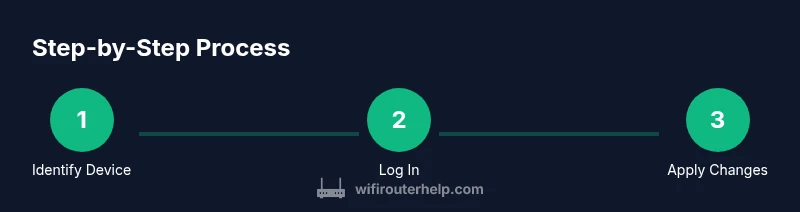
- 1
Open the router admin page
In a web browser, enter the router’s IP address (commonly 192.168.1.1 or 192.168.0.1) to reach the login screen. This is the central point where you manage connected devices. If you’re unsure of the IP, check the router label or your network settings.
Tip: If you can’t reach the page, try a wired connection and disable VPNs that might block local addresses. - 2
Log in with admin credentials
Enter your administrative username and password. If you’ve never changed these, they may be on the router label or in the manual. Use a unique, strong password to reduce risk of compromise.
Tip: If you forgot credentials, use the router’s password recovery or factory reset as a last resort. - 3
Navigate to the connected devices list
Find the page labeled something like Attached Devices, Device List, or Client List. This is your first view of who is currently on your network and will guide removal actions.
Tip: Some interfaces separate guest devices from main network devices; confirm you’re viewing the correct section. - 4
Identify the target device by MAC address
Match the MAC address shown in the router list with a device you want to remove. If you’re unsure, cross-check with the device’s own network settings to confirm identity.
Tip: Document the MACs you remove to avoid accidentally re-adding them later. - 5
Remove or disconnect the device
Select the device and choose Remove, Disconnect, or Block. Save changes to apply the action immediately. Some interfaces require you to confirm before the change takes effect.
Tip: If you don’t see a Remove option, try a Force Disconnect or similar control. - 6
Apply a secondary block (optional but recommended)
If supported, add the MAC address to a blacklist or enable MAC filtering to prevent future connections from that device. This adds a second layer of protection beyond a one-time removal.
Tip: MAC filtering is not foolproof; use it with password strength and network segmentation. - 7
Enable a guest network for visitors (recommended)
Set up a separate guest network to isolate devices used by guests or temporary devices. This preserves the security of your main network while giving guests access to the internet.
Tip: Disable guest network sharing of shared resources unless necessary. - 8
Review admin password and settings
Change the router’s admin password to a strong, unique one. Disable universal or insecure settings like WPS if present, and enable WPA3 if available.
Tip: Store the new password in a password manager for future use. - 9
Reboot the router
Reboot to ensure changes take full effect and to clear stale sessions. A clean reboot can also help fix minor UI glitches.
Tip: If your router has a firmware update pending, apply it before rebooting for best security. - 10
Verify device removal and monitor
Reconnect via the admin page and confirm the device no longer appears on the list. Check that existing devices reconnect normally and monitor for any unusual activity.
Tip: Set up monthly checks to keep the device roster clean.
People Also Ask
What does removing a device from the router do?
Removing a device disconnects it from your network; it cannot access the internet until reconnected. The device may still appear in the admin list for auditing purposes, but it will be unable to connect.
Removing a device from your router disconnects it from your network and prevents immediate access.
Can I remove a device remotely?
Yes, if you have remote access enabled for your router’s admin interface or a cloud management option. You’ll still need proper authentication to perform removals.
Yes, remote removal is possible with proper authentication and remote access enabled.
Will removing a device affect other devices?
No. Removing one device should not disrupt other devices if done carefully. However, a mis-click could temporarily disrupt network access for legitimate devices.
No, removing one device doesn't affect others when done correctly.
What is MAC address filtering, and is it secure?
MAC filtering blocks specified hardware addresses, but it’s not foolproof. It’s best used with strong encryption and a guest network, not as the sole defense.
MAC filtering helps, but it's not perfect; use it with other protections.
How often should I audit connected devices?
Aim for a monthly check of connected devices and a quarterly review of admin credentials and guest network settings.
Check your connected devices monthly and review security settings quarterly.
What if I forget my router password?
Use the router’s password recovery option or perform a factory reset if necessary, then reconfigure from a backup if available.
If you forget the password, recover it or reset the router, then restore settings.
Watch Video
What to Remember
- Audit connected devices regularly.
- Use strong admin passwords and update firmware.
- Combine MAC filtering with guest networks for better security.
- Back up router settings before making changes.
- Schedule periodic reviews to maintain control.