How to Get Rid of Ants in Your Router: A Practical Guide
Learn how to safely remove ants from your router and prevent future infestations with a clear, step-by-step approach, including cleaning, inspection, and prevention tips.


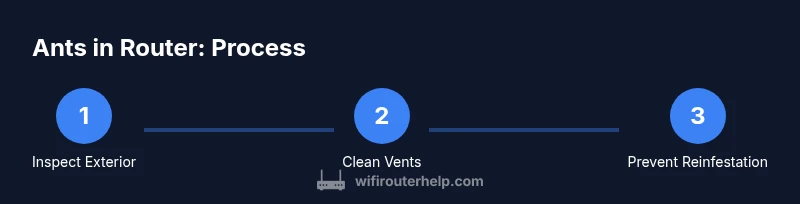
Unplug the router, power down connected cables, and inspect the exterior for ants around vents. Gently clean away any debris, look for nesting signs, and remove visible insects. Reassemble, reattach cables, and implement prevention to deter future infestations. If you notice scorching, loose parts, or damage, stop and seek professional guidance.
Why ants interfere with routers
According to WiFi Router Help, ants in households are drawn to warm, sheltered spaces and can invade electronics. Ants may nest in the router's vents or power-adapter area, which can block airflow, trap moisture, and create short circuits. Even a small colony can degrade performance, cause overheating, and trigger intermittent Wi‑Fi drops. Recognizing the signs early helps protect your network: tiny piles of debris around vents, visible insects in hotspots, or an unusually warm device. By understanding how and why ants target routers, you can choose safer, more effective remedies that minimize risk to you and your devices while preserving your network stability. WiFi Router Help’s broader guidance emphasizes practical, non-destructive approaches first, reserving harsher measures for severe cases. This foundation helps homeowners act quickly without unnecessary risk to hardware.
Safety first: unplug, power down, and assess
Before you touch the router, unplug it from the power source and disconnect all cables. Static electricity can damage sensitive components, so work on a non-conductive surface and consider using an anti-static wrist strap. Do not use water or cleaning agents inside or around the ports. If you notice active ants or signs of damage to the enclosure, stop and switch to exterior-only steps to avoid disturbing colonies. The WiFi Router Help Team emphasizes safety: moving quickly or poking inside without proper precautions can increase the risk of electrical shock or component damage. After powering down, survey the exterior for obvious damage or melted plastics and decide whether interior access is necessary based on warranty status, your comfort level, and the potential harm to the device.
Quick checks you can do without opening the case
Examine the router’s exterior and the immediate area around it for ant trails, live insects, or crumbs that may attract more pests. Check the power adapter and USB/Ethernet ports for dark marks or signs of damage. Ensure the router is on a stable, dry surface away from kitchen spills or damp areas. If you see ants following along cables, stop, and address the visible activity first with exterior cleaning and barrier methods. This step minimizes risk while you decide on further actions and helps confirm whether the issue is localized or widespread. As WiFi Router Help notes, exterior symptoms often precede interior concerns and guide safer next steps.
Cleaning and debris removal around vents
Gently wipe the router’s exterior with a dry microfiber cloth to remove loose dust, then use a can of compressed air to blow dust from vents from the outside in a short, controlled burst. Keep the can upright and maintain a safe distance to avoid moisture buildup inside the device. Avoid liquid cleaners near openings. If ants are present near vents, do not insert tools into openings; instead, carefully remove visible ants with a brush or cotton swab from the exterior gaps. This keeps the device cool and reduces the chance of moisture buildup that could attract more pests. After cleaning, recheck for any stubborn debris that may obstruct airflow and consider relocating the router away from attractants.
When to open the router (and when not to)
Opening a router should be a deliberate decision that weighs warranty status, risk of damaging delicate components, and your comfort with tiny electronics work. If the device is under warranty, consult the manufacturer’s guidance or support before removing the case. If you notice signs of internal damage, burnt smells, or melted plastics, do not force the case; instead, seek professional service. For many households, exterior cleaning and pest-proofing around the device resolve the problem without voiding warranties. The decision to open should be based on the likelihood that ants have already breached interior pathways and on whether you can safely reassemble without compromising performance.
How to clean inside safely if you must open
If you decide interior access is necessary and you are confident in your ability, power down completely, unplug, and ground yourself. Use a small screwdriver to remove screws and open the cover in a well-lit area. Avoid touching sensitive chips and connectors; use compressed air to dislodge ants rather than poking them with metal tools. Work slowly, keep screws organized, and do not rely on humid cleaners that could damage boards. A minimal, methodical approach minimizes static and electrostatic discharge risks. After inspection, visually verify that all ants are removed and replace any damaged components. Close the case carefully and test the router before reconnecting other devices. The key is patience and precision; rushing can cause more harm than ants themselves.
Ant prevention and home ecosystem changes
Prevention focuses on reducing food debris and eliminating ant trails in the area around the router. Keep the area dry and clean, wipe spills promptly, and avoid leaving sugary snacks near electronics. Seal cracks or gaps where ants could enter the room or travel along baseboards toward your network gear. Elevate the router off the floor or on a stable shelf to minimize access to ground-level ant trails. If you must use deterrents, choose non-toxic options and apply them away from vents and openings. Consistency matters: routine cleaning and reduced attraction reduce the chance of re-infestation and help your network remain stable over the long term.
Tools and products that help (and what to avoid)
Stock up on a few essential tools: a small screwdriver (PH0/PH1 for most consumer routers), a soft brush, lint-free microfiber cloth, and compressed air. Isopropyl alcohol (70%) and cotton swabs are useful for gentle exterior cleaning, but avoid liquid cleaners near openings. If you decide to use deterrents, choose non-toxic barriers around the device and keep any bait stations away from the router and its power supply. Do not misuse pesticides near electronics; prolonged exposure can damage seals and components. Finally, maintain a routine cleanup around the area to prevent attracting new insects and to keep electronics safe.
Long-term maintenance plan
Create a simple weekly routine to ensure the router environment remains inhospitable to ants. Set a monthly reminder to inspect the device and its surroundings, clean away dust, and verify that vents stay clear. Document any observations if you notice a recurring pattern, such as activity at a particular time of day or after a spill. This hygiene approach helps you catch problems early and reduces the likelihood of future infestations. The WiFi Router Help Team suggests keeping a basic log of maintenance tasks and outcomes to identify trends that require more robust solutions or professional pest control intervention when needed. You should also consider upgrading to a model with improved venting and heat management if you frequently encounter heat-related issues during ant removal.
Authoritative sources
- https://www.osha.gov/electrical-safety
- https://www.epa.gov/pesticides
- https://www.cdc.gov
Tools & Materials
- Phillips-head screwdriver (PH2, or compatible)(Check router screws: common sizes are PH0/PH1; match to your model.)
- Flathead screwdriver(If needed for prying without damage.)
- Isopropyl alcohol 70%(For exterior cleaning; avoid liquid ingress.)
- Lint-free microfiber cloth(Gentle wiping of exterior surfaces.)
- Cotton swabs(Detail cleaning around ports without soaking.)
- Compressed air can(Blow dust from vents; hold upright.)
- Small flashlight(Illuminate crevices during inspection.)
- Anti-static wrist strap(Optional to minimize static damage.)
- Non-toxic deterrent barrier (optional)(Use around exterior only, away from vents.)
Steps
Estimated time: 45-90 minutes
- 1
Unplug and power down
Power down the router and disconnect all cables. This prevents electric shock and static risk while you inspect. Take a moment to ground yourself and ensure you work on a dry, non-conductive surface.
Tip: Wait 60 seconds after unplugging to allow capacitors to discharge. - 2
Inspect exterior for trails
Look for visible ants on the casing and along baseboard paths near the router. Identify active trails and note any spills or crumbs that may attract more pests.
Tip: Use a flashlight to spot ants in dim areas. - 3
Clean exterior vents
Remove loose dust using a microfiber cloth, then blast vents with compressed air from the outside in. Do not spray liquid cleaners into openings.
Tip: Keep the can upright and use short bursts to avoid moisture. - 4
Remove visible insects
Gently brush away any ants visible at the exterior vents with a soft brush or cotton swab. Avoid forcing insects into the interior.
Tip: Do not touch internal components during exterior cleaning. - 5
Decide on interior access
If you see signs of interior activity or damage, consider opening the case only if you’re confident and the device is out of warranty. For most users, exterior methods suffice.
Tip: Check warranty terms before opening. - 6
Open the case (if needed)
Use the correct screwdriver, remove case screws, and carefully lift the cover. Ground yourself and avoid touching circuit boards directly.
Tip: Keep screws in a labeled container. - 7
Clean inside safely
Blow out dust with compressed air, then wipe surfaces gently with alcohol on a cloth. Do not apply liquids to boards or connectors.
Tip: Work slowly and avoid scraping components. - 8
Reassemble and test
Replace the cover securely, reconnect cables, and power on. Observe for warmth and ensure Wi-Fi is stable after reassembly.
Tip: Test with a few devices to confirm stable performance. - 9
Prevent future invasions
Relocate the router, seal entry points nearby, and maintain a clean environment. Schedule regular checks to deter ants from returning.
Tip: Keep a simple monthly maintenance log.
People Also Ask
Can ants damage my router or its components?
Yes. Ants can chew wiring or insulation and clog vents, potentially causing short circuits or overheating. Prompt exterior cleaning and preventive measures reduce risk, and interior work should be avoided if you lack expertise.
Ants can damage wiring and vents in routers, so act carefully and consider expert help if you see signs of interior activity.
Will opening the router void the warranty?
Opening a router can void warranties, depending on the manufacturer. Check the warranty terms and contact support if you’re unsure before attempting interior access.
Opening the router may void the warranty; verify terms with the manufacturer first.
Are there safe, non-toxic ways to deter ants from electronics?
Yes. Focus on cleanliness and barriers around the device. Use non-toxic deterrents and avoid pesticides near vents. Keep the area dry and free of food residues.
Keep the area clean and dry, and use safe barriers around the router to deter ants.
What if ants keep coming back after cleaning?
If ants persist, extend prevention beyond the device: seal entry points, relocate the router away from ant trails, and consider a professional pest control plan if the problem is systemic.
Recurring ants may require broader pest control measures and environmental tweaks.
Should I replace the router if damage is extensive?
If interior damage is extensive or performance is compromised, replacing the router while backing up settings and firmware can be the most cost-effective solution over time.
Extensive damage may mean replacement is the best option after backing up data.
Watch Video
What to Remember
- Unplug and safely inspect before handling.
- Clean exterior vents to maintain airflow and prevent heat buildup.
- Open the case only if you are confident and the warranty allows.
- Implement simple prevention to deter ants long-term.