How to Remove Devices from a WiFi Router: A Practical Guide
Learn how to remove devices from your WiFi router securely. This step-by-step guide covers identifying connected devices, applying MAC filtering or access rules, and verifying results to keep your network safe.


By the end of this guide, you will safely remove specific devices from your WiFi router and prevent unauthorized access. You’ll learn how to identify connected devices, choose a removal method (MAC filtering, access rules, or guest network controls), and verify that only allowed devices stay online. This method works across most home routers and does not require specialized hardware.
Why removing devices matters for security and performance
Keeping control of which devices can access your home network is a foundational security practice. Removing devices that you no longer use reduces your attack surface and minimizes the chance of a rogue device slipping onto your network. It also helps maintain performance by preventing a few devices from hogging bandwidth or IP addresses. According to WiFi Router Help, regular reviews of connected clients are a simple but powerful habit for homeowners and tech enthusiasts. Additionally, removing devices makes it easier to apply parental controls or guest-network policies to guests without worrying about stray devices remaining on the main network. In practice, you should distinguish between temporarily disconnected devices and permanently blocked ones. Temporary disconnects are useful for troubleshooting, while permanent blocks prevent future reconnection without your explicit permission. Finally, remember that device visibility depends on your router’s firmware; some models display more details than others.
How home routers identify and track connected devices
Home routers track devices through MAC addresses, IP allocations, and device names. The connected devices list (often called Attached Devices, Device List, or LAN Clients) shows each device’s current IP, MAC address, and sometimes host name. Understanding these basics helps you decide which entries to remove. Not every router exposes a MAC address publicly, but most allow you to copy it for filtering. If a device uses DHCP, it will receive a new IP address on reconnect; blocking it by MAC ensures consistency regardless of IP changes. Some routers support multiple networks (primary + guest). Isolating a device on the guest network is another safe option if you want to maintain overall access for that device but restrict the main network. Always check your specific model’s manual because terminology and UI layouts differ across vendors.
When to remove vs when to block vs when to isolate
Removal means you terminate the device’s current connection and, in some cases, prevent future access. Blocking is a policy choice: you enforce rules at the router level to deny access from a specific MAC or device. Isolating means placing the device on a separate network (guest) with restricted resources. Each approach has trade-offs: removal is decisive but a motivated user might reconnect; blocking provides persistent control but requires proper admin authentication; isolating reduces risk while keeping the device usable, which is handy for guests or IoT devices. Choose the method based on your goals: security vs convenience, temporary access vs permanent restrictions. If you’re unsure, start with a guest network and MAC filtering for critical devices, then escalate only if needed.
Methods to remove devices from your router: a practical overview
Here are several approaches you can use, in order of common usage:
- Disconnect from the device list: This removes the device from the current session; it will reconnect unless you block it or disable DHCP lease for that device.
- MAC filtering (Access Control): Create a blacklist entry with the device’s MAC address and enable filtering. This blocks future connections from that device, even if the device changes its IP address.
- Parental controls or Access Restrictions: Use built-in features to block specific devices by MAC or IP, often with schedules or daily limits.
- Guest network isolation: Move guests to a separate network so they lose access to your main devices, while keeping internet access.
- DHCP lease management: Some routers let you release or permanently deny a DHCP lease to a device; this is effective if you want to reassign IPs to others.
Note: If your router uses a mobile app instead of a web interface, the exact steps may differ, but the concepts remain the same.
Verification and ongoing monitoring
After applying changes, verify by reconnecting from the device you blocked. Confirm the device no longer appears in the attached devices list and that it cannot access the network. Consider turning on notifications or logs to alert you if a blocked device attempts to reconnect. Regularly review your connected devices list every 60–90 days, especially after guests or housemates change. Document changes in a simple log so you can reproduce the steps if needed. If you manage a large home network, consider scheduling periodic audits and creating a standard operating procedure (SOP) for future removals.
Common pitfalls and how to avoid them
Be careful not to lock yourself out of the router; always keep a known device in the allowed list until you confirm the changes. Some devices may spoof MAC addresses; while MAC filtering adds security, it is not foolproof. If you cannot locate the device’s MAC, use IP-based blocking as a backup or isolate the device on a guest network. Always back up your router settings before making changes so you can restore if something goes wrong. Finally, remember firmware updates can alter the UI; if you update firmware, re-check your removal policies.
Tools & Materials
- Smartphone, tablet, or computer with a web browser(Access the router's admin interface (often via http://192.168.1.1 or http://router.local).)
- Router admin credentials(Username and password; if you’ve never changed them, consider resetting to a strong default.)
- List of devices to remove (MAC addresses or device names)(Having MAC addresses makes filtering precise.)
- Stable power supply for router and admin device(Avoid power loss during changes.)
- Ethernet cable (optional)(If wireless access is unstable, connect via cable for admin access.)
Steps
Estimated time: 45-60 minutes
- 1
Identify target devices
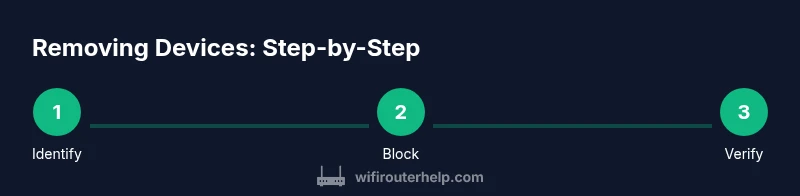
Review the connected devices list on your router and note the MAC addresses or device names you want to block. Mark any devices that are no longer used or belong to guests who should not have ongoing access. This pre-work prevents accidental disruption of legitimate connections.
Tip: Take a screenshot or write down MAC addresses for quick reference during configuration. - 2
Log in to the router admin interface
Open a browser and enter the router's management IP address. Enter your admin username and password. If you’ve never updated credentials, set a strong password now and enable any available two-factor authentication or notifications for changes.
Tip: Use a wired connection if possible to avoid losing access due to a momentary Wi‑Fi drop. - 3
Find the device list
Navigate to the section typically labeled Attached Devices, Device List, or LAN Clients. Identify the exact MAC address or device name that corresponds to the target device. If the router supports it, copy the MAC address for filtering.
Tip: If your device names are vague, rely on MAC addresses to avoid mistakes. - 4
Apply the removal method
Choose the appropriate method for each device: disconnect the session, enable MAC filtering to blacklist the MAC, or place the device on a restricted guest network. Save changes after configuring each rule.
Tip: If you’re unsure, start with MAC filtering and guest network isolation for safety. - 5
Save changes and reboot if required
Click Save or Apply in the router interface. Some models require a reboot to enforce new rules; perform a quick reboot if prompted and wait a couple of minutes for the network to stabilize.
Tip: Back up current settings before applying changes so you can restore if needed. - 6
Test and verify
From the blocked device, attempt to reconnect to the network and confirm it cannot access. Check the router’s device list again to ensure the entry no longer shows as connected. Monitor for a short period to ensure persistence.
Tip: Keep a known-good device connected to verify you haven’t locked yourself out.
People Also Ask
What’s the difference between removing and blocking a device on a router?
Removing ends the current session; blocking adds a policy to prevent future access. Both require saving changes. Isolation via a guest network is another option for minimizing risk while keeping access for legitimate use.
Removing ends the current connection; blocking adds a rule to stop future access. Isolation is another safe option.
Can I remove devices without affecting my own access?
Yes, as long as you block only the target device and keep a known-good device on the allowed list. Always double-check admin access after making changes.
Yes, just be careful to keep a trusted device connected.
What if a device reconnects after I block it?
Some devices spoof MAC addresses or reset network settings. Use a combination of MAC filtering and guest network isolation, and recheck the device’s identity.
If it keeps reconnecting, try MAC filtering plus isolation and re-check identity.
Is MAC filtering secure enough for home use?
MAC filtering adds a control layer but is not foolproof. Use it with strong admin passwords and guest networks for better protection.
MAC filtering helps, but isn’t perfect; combine with other protections.
Will removing devices affect other devices on the network?
If you apply rules per device, other devices stay connected. Group changes only impact targeted entries.
No, other devices stay connected when you block specific ones.
How often should I audit connected devices?
Regular reviews every 60–90 days help maintain security. Increase frequency if guests visit often or you share your network widely.
Review every 60 to 90 days to keep things secure.
Watch Video
What to Remember
- Identify devices and choose per-device controls
- Use MAC filtering and guest networks for persistent, safe blocks
- Verify changes by rechecking connectivity and logs
- Back up settings and audit regularly