How to Remove Users from Your WiFi Router: Step-by-Step
Learn to identify, block, and remove devices from your WiFi router, secure access, and prevent unauthorized users from reconnecting with a practical, step-by-step guide.


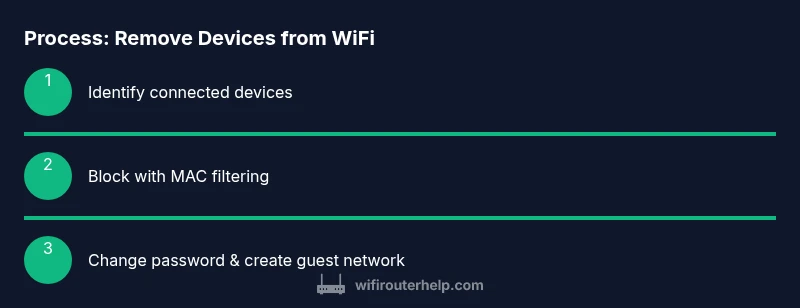
To remove users from your WiFi router, access the admin panel using a browser, locate the connected devices list, and block or remove the unwanted devices by MAC address or IP. For stronger control, change the Wi‑Fi password and/or enable a guest network with a time limit. Verify the changes and document the new settings for future audits.
Why removing unauthorized users matters
Keeping track of who is connected to your WiFi router is essential for privacy, speed, and security. If you regularly audit active connections, you can quickly spot unfamiliar devices and take decisive action without compromising your network. The process you’re learning about—how to remove users from wifi router—helps reduce bandwidth hogging, prevents rogue devices from accessing sensitive data, and minimizes the risk of interception. According to WiFi Router Help, a proactive approach to device management strengthens home network resilience and makes future troubleshooting faster and more predictable. By understanding the underlying controls, homeowners and tech enthusiasts can enforce boundaries between trusted family devices and uninvited guests, both offline and online.
Key concepts you’ll use include viewing a live clients list, recognizing legitimate devices, and applying access restrictions without disrupting your own connection. The goal is not to lock everyone out, but to ensure only authorized devices remain connected while preserving speed and reliability for critical tasks like streaming and remote work.
Before you start: gather credentials and prep firmware
Before diving into the steps, make sure you have the essentials at hand. You’ll need access to the router’s admin interface (username and password), a device with a web browser, and a way to identify devices (MAC addresses or names). If possible, confirm your router’s firmware is up to date, since recent updates improve MAC filtering and guest-network management. Being prepared reduces downtime and avoids accidental lockouts. If you’re unsure which login details to use, check the router label or your original setup notes.
In this guide, you’ll learn how to remove users from wifi router in a way that preserves access for trusted devices. If you face a login issue, you’ll find troubleshooting tips later in this article to regain entry without resetting your router, which could erase your settings.
Step 1: Identify who is connected to your network
Start by locating the list of currently connected devices in the router’s admin interface. Look for sections labeled "Connected Devices", "Attached Devices", or "DHCP Client List". Note each device’s name (as shown in the UI), IP address, and MAC address. Some routers display vendor names next to MAC addresses, which can help you distinguish between phones, laptops, smart TVs, and IoT devices. If you recognize none of the devices, that’s a clear sign you may need to block or quarantine unfamiliar entries. Optionally, take screenshots or write down the MAC addresses for later reference. This is the first practical step in learning how to remove users from wifi router without disrupting legitimate devices.
Step 2: Decide how you’ll block or remove devices
You have several options, depending on your router model. The most common methods are mac filtering (deny list), device blacklist, and IP-blocking rules. MAC filtering is effective for preventing specific devices from reconnecting, but remember that MAC addresses can be spoofed by advanced users. IP blocking can be more flexible but may require updates if devices obtain new IPs from DHCP. Some routers offer a guest network that you can disable or restrict; this is a safer approach when you want to temporarily revoke access without altering your main network’s settings. Take note of the target MAC addresses you plan to block and prepare a plan that minimizes disruption to your household.
Step 3: Block devices using MAC filtering or a blacklist
Access the MAC filtering or blacklist feature in the router’s security or parental controls section. Add each target device’s MAC address to the deny list or blacklist, and apply the rule to the main network (not the guest network) if you want to restrict access broadly. After applying the settings, reboot the router if prompted. When done correctly, those devices won’t be able to reconnect, even if they still know your password. Keep a copy of the MAC addresses you blocked so you can review them later if needed.
Step 4: Strengthen authentication and consider a password change
Even after removing specific devices, it’s prudent to change your WiFi password to prevent re-connection by previously authenticated devices. Choose a strong passphrase—ideally 20+ characters with a mix of letters, numbers, and symbols—rather than a short string. If your router supports WPA3, enable it; otherwise, WPA2 with AES is the next best option. Disable WPS if you haven’t already, as it can be exploited to gain access quickly. This step makes it harder for anyone still within range to reconnect without you noticing, and it complements MAC filtering by stopping rogue devices from rejoining.
Step 5: Create a guest network or segment access
To minimize ongoing friction for trusted guests while keeping main devices protected, enable a guest network with a separate SSID and password. Set strict access controls for the guest network (no file sharing with your main network, no access to local devices, and a reasonable bandwidth limit if available). Some routers support guest network auto-expiry—enable this feature if you want temporary access that automatically revokes after a set period. This approach provides a safer, auditable way to share internet access without giving out your primary network credentials.
Step 6: Apply changes, verify, and document
After applying the changes, save or apply the configuration and, if prompted, reboot the router. Then re-scan the connected devices list to confirm the blocked devices aren’t listed anymore. If you used MAC filtering, test a blocked device by attempting to connect. Document the changes in a simple network log with the blocked MAC addresses, the new password, and the date of modification. A quick audit trail helps you track who was removed and when you should repeat the process in the future, reinforcing your network’s ongoing security posture.
In summary, regular checks and clear access rules reduce risk and maintain network performance. The goal is to remove users from wifi router when needed while preserving a seamless experience for legitimate devices.
Step 7: Troubleshooting and common issues
If a legitimate device appears as unknown or you’re unable to access the admin panel, check for common problems such as incorrect login credentials, wrong interface language, or cached credentials in your browser. For login issues, try a different browser or clear cookies, then attempt the login again. If you’ve forgotten your admin password, use the router’s reset procedure as a last resort and reconfigure your settings from scratch. Always back up your current configuration if your router supports exporting settings, so you can restore quickly if something goes wrong.
Step 8: Optional: automate and future-proof your network
Schedule periodic reviews of connected devices and update your password yearly or after adding new devices. Consider enabling router logging or alert emails so you’re notified when a new device connects. You can also set up a time-based lock for certain hours or days when you don’t expect household members to use the network heavily. These steps provide ongoing protection and make it easier to answer future questions like how to remove users from wifi router again with minimal friction.
Final checks and ongoing management
With the blocks in place, you should have a cleaner, more secure network. Double-check that you can still reach the internet from your own devices, confirm the guest network behaves as intended, and make sure your regular devices can reconnect without issues. Keep a simple log of MAC addresses you blocked, password changes, and dates of any guest-network changes for future reference. Regular maintenance is a key part of working with home networks and reduces the risk of future unauthorized access.
Tools & Materials
- Web browser and a device (phone, tablet, or PC)(Use an up-to-date browser for compatibility with modern router interfaces)
- Router admin username and password(If you don’t know them, check the router label or original setup guide)
- List of devices you trust(Names and MAC addresses help you distinguish trusted devices)
- MAC address list of devices to block (optional)(Useful if you have a few clearly identified devices to deny)
- Current firmware version(Check for updates and plan to apply them if available)
Steps
Estimated time: 20-40 minutes
- 1
Open the router admin panel
Launch a web browser and enter the router’s IP address (commonly 192.168.0.1 or 192.168.1.1). Log in with your admin credentials. If you’re unsure, consult the router’s manual or manufacturer support page. This step is critical because you won’t be able to manage connected devices without access.
Tip: Bookmark the login page and consider enabling two-factor authentication if supported. - 2
Review the connected devices list
Navigate to the section that lists Attached or Connected Devices. Record names, IPs, and MAC addresses. Compare against your trusted device list to identify unfamiliar entries. If you see a device you don’t recognize, prepare to block it in the next step.
Tip: Take screenshots for your records and to help with future audits. - 3
Block the unknown device(s) with MAC filtering
Find the MAC filtering or blacklist feature and add the MAC addresses you want to deny. Apply the setting to the main network and save your changes. Some routers require a reboot to apply MAC filtering.
Tip: Double-check you’ve saved the correct MACs before rebooting to avoid locking yourself out. - 4
Change your WiFi password
Update your WiFi password to a strong passphrase. Prefer a long, unique string with a mix of characters. If available, enable WPA3 and disable WPS to reduce risk.
Tip: Document the new password securely and avoid using it for other accounts. - 5
Create or tighten a guest network
If your router supports it, enable a guest network with its own password and isolation from the main network. Set an expiry if possible to automatically revoke access for guests after a set period.
Tip: Limit guest bandwidth to prevent saturation from guest devices. - 6
Apply, reboot, and test
Save changes, reboot if prompted, and test the network by attempting to connect with both a trusted device and a blocked one. Ensure your own devices reconnect automatically.
Tip: Keep a change log for future reference and audits. - 7
Document changes for future audits
Create a simple log entry with blocked MACs, new password, and date of change. Schedule periodic reviews every 3–6 months to maintain security hygiene.
Tip: Use a dedicated notebook or a secure note app with encryption. - 8
Optional: automate and enhance controls
Explore features like automatic device alerts, time-based access, or parental controls to manage who uses your network and when they can connect.
Tip: Test automation gradually to avoid misconfigurations.
People Also Ask
Can I remove a user without changing the WiFi password?
Yes, you can block specific devices via MAC filtering or blacklist without changing the password. However, changing the password adds a stronger, network-wide lock that prevents any previously connected devices from reconnecting.
You can block specific devices first. If you suspect broader access issues, consider updating the password for stronger protection.
How do I block a device by MAC address?
Open the router’s admin panel, locate MAC filtering or blacklist, add the device’s MAC address, save, and reboot if required. Verify by attempting to connect the blocked device.
Add the MAC address to the blacklist, save, and test the connection to confirm it’s blocked.
What if I can’t access the admin panel?
Try a different browser, clear cache, or use the router’s reset procedure as a last resort. If you reset, you’ll need to reconfigure your network settings from scratch.
If you can’t log in, reset the router only after backing up settings and trying other login options.
Is it better to disable guest access entirely or just tighten it?
Tightening guest access—setting a time limit and strong password—often balances security and convenience better than disabling guest access altogether.
Use a controlled guest network with a password and expiry to keep guests connected safely.
How often should I audit my network?
Aim for a quarterly audit at minimum, or monthly if you have many IoT devices. Regular checks help catch unknown devices early.
Do a quick check every few months to keep your network secure.
What features improve ongoing control beyond MAC filtering?
Consider enabling alerts for new device connections, disable WPS, and use client isolation on the guest network to protect devices from each other.
Enable alerts and disable WPS for stronger protection.
Watch Video
What to Remember
- Audit connected devices regularly to spot unknown users.
- Block by MAC address plus update the WiFi password for defense in depth.
- Use a guest network to separate trusted visitors from your main devices.
- Document changes and maintain an ongoing network security routine.