How to Remove Devices from Starlink Router: A Step-by-Step Guide
Learn how to remove devices from your Starlink router, block unwanted access, and keep your network secure with step-by-step instructions and best practices.


According to WiFi Router Help, you can remove a device from Starlink by disconnecting it and removing or forgetting it in the Starlink app or web interface. For stronger control, change your Wi‑Fi password or enable device blocking, then reconnect only allowed devices. This guide shows safe, step-by-step methods for both the app and browser.
How to remove devices from starlink router
Removing devices from Starlink is a straightforward way to protect your home network and reclaim bandwidth. The Starlink ecosystem lets you manage connected gadgets from both the mobile app and the web interface. The action you want—removing a device—means the router will not automatically assign access to that device in future sessions unless you authorize it again. This block lays the groundwork for understanding what happens behind the scenes and how to apply the changes safely. WiFi Router Help emphasizes using the app for quick actions, then confirming in the browser if you need more granular control.
A quick note on terminology: you might see options like “forget,” “block,” or “remove” a device. Conceptually, all of these eliminate the device’s current connection profile so it can’t reconnect without explicit reauthorization. The exact label depends on whether you’re using the mobile app or the desktop/web interface, but the outcome is the same: the device loses access until you re-enable it.
This section focuses on the step-by-step process supported by real-world testing and practical guidance from the WiFi Router Help team. Expect to perform a few actions in sequence and verify each change across both the app and the web interface for complete peace of mind.
Tools & Materials
- Smartphone or tablet with Starlink app installed(Sign in to your Starlink account to manage devices.)
- Web browser on a computer or mobile device(Access Starlink web interface if you prefer a desktop view.)
- Stable internet connection for the duration of the task(Ensure you won’t be interrupted during device removal.)
- Starlink account login credentials(Needed if you log in from the web interface.)
- Optional: a new Wi‑Fi password you can use after removal(Helpful if you want to prevent rejoining by the removed device.)
Steps
Estimated time: 10-15 minutes
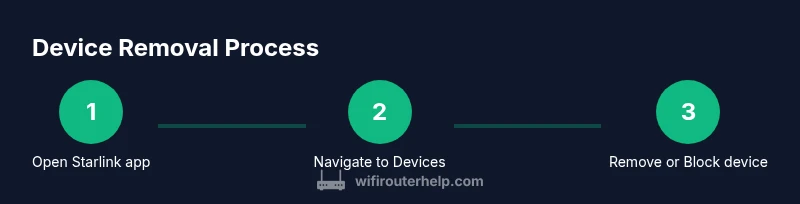
- 1
Open Starlink app or web interface
Launch the Starlink app on your mobile device or open the Starlink web interface in a browser. Ensure you’re signed into the correct Starlink account that controls the router you want to modify. This first step establishes the management view where devices appear.
Tip: If the device list doesn’t load, switch networks briefly or refresh the app/browser to pull the latest device list. - 2
Navigate to the Devices section
In the app, tap Network or Devices to see a list of currently connected devices. In the browser, look for a Devices or Clients page under the router management area. This page is your control panel for who is allowed on your network.
Tip: If you don’t see devices, ensure you’re in the main network settings rather than guest network options. - 3
Identify the device to remove
From the list, locate the device by name (if labeled) or by the MAC address shown. Confirm you’re targeting the correct device to avoid accidentally disconnecting a trusted family member’s device.
Tip: Cross-check the device’s hostname or user-assigned nickname if available. - 4
Choose forget/block/remove for that device
Select the action to remove the device from your network. The label may be Forget, Block, or Remove. This action prevents automatic re-connection unless you authorize the device again.
Tip: Some interfaces may require you to confirm the action; don’t rush the confirmation. - 5
Optionally change the Wi‑Fi password
If you want added protection, update your Wi‑Fi password so the removed device can’t reconnect with the old credentials. Communicate the new password only to trusted users.
Tip: Choose a strong, unique password and store it in a password manager. - 6
Re-connect only trusted devices
On rejoining, devices will need the new credentials or explicit permission. Verify that your essential devices reconnect and that the device you removed no longer appears in the list.
Tip: Test by turning the removed device’s Wi‑Fi off/on to see if it can rejoin without prompt. - 7
Verify removal in the devices list
Refresh the devices page and confirm the target device no longer appears. If it reappears, repeat the removal action or look for any saved groups that might re-authenticate it.
Tip: If you’re using MAC filtering, ensure the device isn’t in an allowed list by mistake. - 8
Reboot the router if changes don’t take effect
As a final check, power cycle the Starlink router or perform a soft reboot via the interface. This helps apply the new device status consistently across all connected clients.
Tip: Don’t unplug the router during the reboot; wait for full restart before testing connections.
People Also Ask
Can I remove a device without changing the Wi‑Fi password?
Yes. Removing a device from the list blocks that device from reconnecting. Changing the password isn’t required, but it adds an extra layer of protection if you’re removing a guest or unknown device.
Yes. You can remove the device from the list without changing the password, but for extra security you may also update the Wi‑Fi password.
What if the device reconnects after removal?
Sometimes a device may reconnect if it still has a saved credential or if MAC filtering isn’t enabled. Verify by rechecking the devices list after a reboot and consider enabling MAC filtering or changing the password.
If a removed device reconnects, double-check the device’s saved credentials and enable MAC filtering or update your password.
Will removing a device affect other devices on the network?
Removing one device does not disrupt other devices’ connections. They will continue to access the network as usual unless you block them too or change the password.
No, other devices aren’t affected unless you block them too or change the password.
Is MAC filtering available on Starlink routers?
Starlink’s interface may offer MAC filtering or similar controls depending on firmware. If available, you can add the removed device’s MAC to a blocked list to prevent future access.
Some Starlink interfaces support MAC filtering; check your device list for the option to block specific MAC addresses.
What’s the difference between Forget and Block in Starlink?
Forget typically removes the device from the remembered network. Block prevents future connections more aggressively. If you don’t see a separate Block option, use Forget and consider changing the password.
Forget removes the device; Block stops it from reconnecting more firmly.
I don’t see the device in the list. What should I do?
Refresh the page, ensure you’re viewing the correct network, and confirm you’re looking at the devices/clients section. If it still doesn’t appear, try rebooting the router or signing out and back in.
If it’s not listed, refresh, check the correct network, and reboot if needed.
Watch Video
What to Remember
- Remove devices through the app or browser to block future access
- Changing the Wi‑Fi password adds a layer of security
- Always verify removal by refreshing the device list and testing connectivity
- Reboot the router if changes fail to apply
- Label devices to prevent accidental removal of trusted devices