How to Disable a Router: A Practical Guide
Learn how to safely disable a router, manage Wi‑Fi broadcasting, remote access, and bridge-mode options with clear, practical steps for homeowners and tech enthusiasts.


This guide provides safe, practical methods to disable a router’s wireless network and remote features. You’ll learn how to turn off Wi‑Fi, disable remote management, and, if needed, switch to bridge mode so your network services continue under a controlled setup. Be prepared with admin access, the router’s IP, and a plan to re‑enable access if required.
What does it mean to disable a router?
Disabling a router means selectively turning off or restricting specific services and features rather than unplugging the device entirely. Common targets include the wireless radios (to stop Wi‑Fi broadcasts), remote management (to prevent access from outside your local network), UPnP, DHCP, and NAT in certain configurations. Understanding these categories helps you tailor a reversible change that meets your goals—whether you want to secure the network, reduce interference, or repurpose the hardware as an access point. For homeowners and tech enthusiasts, the key is to be precise about what you disable and why, so you can undo it later without surprises.
- Wireless radio (Wi‑Fi) on/off
- Remote management (WAN access)
- UPnP and port triggering
- DHCP/NAT when using bridge mode
Note: “disabling” is not the same as a factory reset. Always document what you changed to revert later.
Why you might want to disable features (and what to disable first)
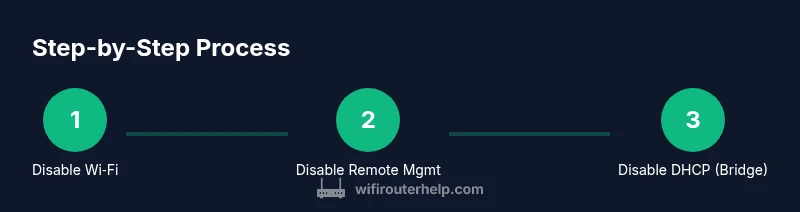
There are legitimate reasons to disable router features: enhancing security, reducing interference, or repurposing the device as an access point. Start with the least disruptive changes and test connectivity after each step. A typical order is to disable Wi‑Fi broadcasts first, then remote management, followed by UPnP, and finally DHCP/NAT only if you’re converting the device into a bridge. Prioritize changes you can reverse easily so you don’t lose network access.
- Prioritize Wi‑Fi off first when you want network-wide silence
- Disable remote management to block off-site access
- Consider UPnP if you want tighter control over devices and ports
- Use bridge mode only if you intend the router to behave as a passthrough device
Step-by-step: disable Wi‑Fi broadcast via the router’s web interface
The most visible form of disabling is turning off the wireless network. Log in to the router’s admin page, usually at a private IP like 192.168.0.1 or 192.168.1.1. Navigate to Wireless settings, then locate the SSID Broadcast option and disable it for both 2.4 GHz and 5 GHz bands if available. Save changes and reboot if prompted. After this, your devices won’t see the SSID, but wired devices will stay connected if enabled. If you forget the admin password, refer to the reset procedure in your manual.
- Verify that both bands’ SSIDs are hidden or disabled
- Ensure you note the new state in your network plan
- If you rely on mobile hotspots, monitor any devices that only connect via SSID
Step-by-step: disable remote management and UPnP
Remote management lets you reach the router’s admin page from outside the local network. If you want to prevent external access, disable WAN/remote management in the router’s admin interface—often under Administration or Remote Access. Do the same with UPnP (Universal Plug and Play) to reduce automatic port mappings. After changes, test from a device outside your home network if possible (e.g., on a cellular connection) to confirm access is blocked. Keep a local admin path available in case you need to revert.
- Turn off Remote Management (WAN access) and UPnP
- Maintain LAN-based admin access for future changes
- Document the change so you won’t be locked out
Step-by-step: disable DHCP/NAT or switch to bridge mode
If you’re turning the router into an AP or bridging your network, disable the DHCP server on the router to avoid IP conflicts with another DHCP server on the network. In bridge mode, the router acts as a passthrough device rather than a router. Note that enabling bridge mode can affect features like parental controls and guest networks. Consult the router’s manual for exact bridge mode steps, since terminology varies by model. After saving, test that devices obtain IPs from the intended DHCP server.
- Disable DHCP server on the router
- Check IP address distribution from the primary router
- Consider bridge mode only if you require unified routing from another device
Step-by-step: disable guest networks and isolate devices as needed
Guest networks provide isolation from the main LAN. If you want tighter control, disable the guest network entirely or rename and restrict it. Some routers separate Guest network settings under Wireless or Advanced settings. After disabling, test guest devices to ensure they can’t access the main network while still allowing required local access. If you need guest access later, you can re-enable with different passwords or time limits.
- Disable guest network or set strict isolation
- Change passwords for guest access if you re-enable later
- Verify device segmentation remains intact
Step-by-step: power-off, schedules, or hardware-based controls
Powering off the router is the most drastic option but not always practical for ongoing service. If you need a temporary measure, use a smart plug with a schedule to cut power during specific hours. This approach preserves your configuration when power is restored. If you rely on smart devices, ensure their hubs or controllers are on a separate, permanent network or are adjusted to reconnect when the router powers back up.
- Use a smart plug with a schedule or manual power-off
- Maintain static settings to simplify re-enabling
- Avoid frequent power cycling to reduce device wear
Step-by-step: verify changes and test connectivity
After any change, validate that devices connect (or don’t) as intended. Check wired connections, then test Wi‑Fi status by attempting to connect from a laptop or phone. Use the router’s status page to confirm which services are active: Wi‑Fi off, remote management off, DHCP server off (if applicable). If something doesn’t look right, revert the most recent change or perform a factory backup restore if you’ve saved one.
- Confirm Wi‑Fi is not broadcasting (or is restricted)
- Confirm admin access from LAN only if remote access was disabled
- Run a quick speed and connectivity test on at least one wired and one wireless device
Recovery and re-enabling features later
Disabling features should be reversible. Keep a written changelog with the exact steps you took, plus the original settings. To re-enable, reverse the steps in the opposite order: re-enable Wi‑Fi broadcast, turn remote management back on, re-enable UPnP if needed, and toggle DHCP/NAT as required. Consider performing a quick reboot after each major re-enabling step to ensure the network stabilizes cleanly. Regular back-ups of configuration help you recover quickly if you misstep.
Best practices and maintenance
- Make small, reversible changes rather than sweeping changes
- Document every modification for future reference
- Use a test device to validate each change before leaving it in place
- Avoid making changes remotely if you risk losing admin access
- Plan a clear reversion path in case you need to restore normal operation
Tools & Materials
- Web browser (Chrome, Edge, Safari, etc.)(For accessing the router admin page.)
- Admin credentials for the router(Username and password to login.)
- Router IP address or URL(Typically 192.168.x.1 or router.local.)
- Computer or smartphone(To login and apply changes.)
- Ethernet cable (optional)(Useful if Wi‑Fi is down or you want a stable connection.)
- Router manual or model-specific guide (optional)(Consult for model-specific steps.)
Steps
Estimated time: 30-60 minutes
- 1
Prepare and login
Gather admin credentials and the router’s IP. Open a web browser and enter the IP address to access the login page. Log in with admin credentials and confirm you have sufficient privileges to change settings.
Tip: If you’re unsure of the IP, check the label on the router or the manual. - 2
Back up current configuration
Before making changes, export or copy the current router configuration if the option exists. This gives you a quick way to revert to the original state if needed.
Tip: Save the backup to a safe local location. - 3
Disable Wi‑Fi broadcast
Navigate to Wireless settings and turn off SSID broadcasts for both 2.4 GHz and 5 GHz networks. Save changes and reboot if prompted.
Tip: Note which SSIDs were active before disabling so you can re-enable later. - 4
Disable remote management
Find Remote Management or WAN Access in Administrative settings and disable it. Apply and test from a device outside your LAN if possible.
Tip: Keep LAN-based admin access enabled so you can revert later. - 5
Disable UPnP and NAT where appropriate
In the Advanced or Networking section, disable UPnP. If you’re not using bridging, ensure NAT remains as needed for your network structure.
Tip: Disabling UPnP reduces automatic port mappings and potential exposure. - 6
Configure DHCP/Bridge mode if needed
If you intend to convert the router to a bridge or access point, disable the DHCP server and enable bridge mode as instructed by your model's manual.
Tip: Bridge mode often requires adjustments on the primary router as well. - 7
Disable guest network (optional)
If you don’t need a guest network, disable it entirely or apply stronger isolation. Save changes and reboot.
Tip: If you re-enable later, consider time-based access limits. - 8
Test and verify connectivity
Test wired and wireless devices to ensure they behave as expected. Use the status page to verify services are disabled or isolated.
Tip: Keep a note of the exact changed settings to simplify future troubleshooting.
People Also Ask
Is it safe to disable a router, and will I lose internet access?
Disabling a router can enhance security or simplify a network, but it may temporarily affect internet access. If you disable Wi‑Fi or remote management, wired devices usually remain connected if the router is powered. Always have a plan to revert changes and a backup configuration.
Disabling a router can improve security, but you may temporarily lose wireless access. Wired devices stay connected if the device remains powered. Have a reversion plan ready.
How do I re-enable Wi‑Fi after disabling it?
To re-enable Wi‑Fi, log back into the router’s admin page, re-enable the wireless radios for 2.4 GHz and 5 GHz, and save the settings. If the SSID was hidden, restore the broadcast option so devices can discover it again.
You re-enable Wi‑Fi by logging in and turning the wireless radios back on, then saving the settings.
Will disabling remote management affect smart home devices?
Disabling remote management usually does not affect devices on your local network, but it prevents you from reaching the router’s admin page from outside your network. Ensure you can still access the router from inside LAN to revert settings if needed.
Remote management is off-limits from outside the network, but local admin access should still work.
Can I disable DHCP server and still have internet access?
Yes, if you’re using the router as a bridge or AP, you should disable DHCP on that device and let the main router assign IPs. If you keep DHCP on, ensure there is no IP conflict on the network.
If the router is in bridge mode, DHCP should be off on that device and handled by the main router.
What should I do if I lock myself out after changes?
Use a wired connection or reset the router to factory defaults only as a last resort. If possible, keep the default credentials documented and a recovery process ready before making changes.
If you get locked out, you may need to reset the router, which reverts settings.
Should I disable the guest network first or last?
Disabling the guest network can be safer if you rely on it for visitors. Do it after the primary Wi‑Fi is managed, and ensure you have alternative access options if you need guest access again.
Disabling guest networks last gives you time to adjust main access first.
Watch Video
What to Remember
- Disable Wi‑Fi broadcast first for minimal disruption
- Turn off remote management to protect against external access
- Bridge mode and DHCP changes require careful planning
- Test connectivity after each change to avoid lockouts
- Keep backups and a clear reversion path