How to Disable a Router Firewall: A Practical Guide
A safe, practical guide to temporarily disabling a router firewall for troubleshooting, with safer alternatives and a clear step-by-step process. Learn risks, prep, and how to re-enable protections quickly.


Learn how to temporarily disable a router firewall for targeted testing and troubleshooting. This guide covers when it’s appropriate, essential safety precautions, safer alternatives, and a clear step-by-step process to minimize risk. You’ll also find how to re‑enable protections quickly and verify your network remains secure after testing. This answer emphasizes planning, backup, and responsible testing practices.
What a router firewall does and why you might temporarily disable it
According to WiFi Router Help, a router firewall inspects traffic at the network edge and blocks unwanted connections, protecting devices and data. In many homes, the firewall acts as a first line of defense against port scans and malware trying to reach devices. When you’re troubleshooting how to disable a router firewall for a short, controlled period, you should understand the risks and have a plan. This guide explains when temporary disablement makes sense and how to approach it with minimum risk. You’ll learn to balance practical testing needs with the responsibility of keeping your home network protected.
Risks and considerations when turning off the firewall
Turning off the firewall—even briefly—opens your network to threats. An open port can be scanned, exploited, or used as an entry point for malware, especially if you are on untrusted networks or using weak credentials. A disabled firewall may also affect remote management, VPN reliability, and inbound connections you rely on. If you proceed, you must monitor for unusual activity and keep devices updated. The goal is to perform a controlled test and return to a secured state as quickly as possible.
Safer alternatives to turning off the firewall completely
You don’t always need to disable the firewall to test essential features. Safer options include:
- Create targeted rules to allow specific ports or protocols rather than a blanket disable.
- Use port forwarding to expose a single service while keeping protection on for other services.
- Enable a DMZ for a single device during testing, then disable it immediately.
- Adjust QoS or NAT settings to test performance without removing broad protections.
These approaches let you verify required functionality while preserving network security.
Prep work before you begin
Plan a defined testing window and back up your router configuration before making changes. Note the exact model, firmware version, and current firewall settings so you can restore them precisely. Ensure you are connected to the router via a wired connection or a trusted network to avoid losing access during changes. Decide how long testing will last and set a reminder to re-enable protections promptly.
The safe, temporary disable process (high-level overview)
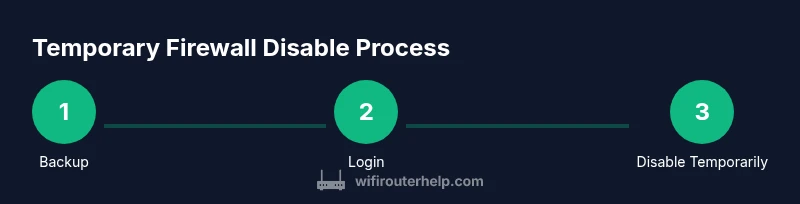
This section provides a high-level roadmap and is not a substitute for brand-specific, step-by-step instructions. Typical flow: access the router’s admin interface, locate the firewall or security section, and apply a temporary off setting or a precise rule for the needed port. Perform the tests, then immediately re-enable firewall protection and verify services resume normally. If your UI lacks a temporary option, prefer the safer alternatives described earlier.
After testing: re-enable and verify
When testing finishes, re-enable the firewall at once. Reboot if prompted and verify that DNS, VPN, and remote management (if used) operate as expected. Review any new rules or exceptions created during testing and remove anything no longer needed. Conduct a quick security check: ensure firmware is up to date and all devices on the network have current protections. This helps prevent lingering exposure after testing.
Authoritative sources for router security
For authoritative guidance on network security while performing testing, you can consult:
- https://www.cisa.gov
- https://www.nist.gov/cyberframework
- https://www.ftc.gov
Tools & Materials
- Computer or smartphone with a web browser(To access the router's admin page)
- Router model information and admin credentials(Login username/password; know your model to locate exact settings)
- Router manual or model documentation(Helps locate firewall options quickly)
- Backup of current router configuration(Save a configuration export if available)
- Ethernet cable(Recommended for a stable, direct connection during changes)
- Notepad or digital note(Record current settings and changes)
Steps
Estimated time: 15-45 minutes
- 1
Back up current router settings
Log into the router admin interface and create a full backup/export of the current configuration. This preserves your exact state so you can restore quickly if something goes wrong.
Tip: Label the backup with date and purpose; store it safely on your computer. - 2
Log in to the router admin page
Connect via Ethernet if possible, then enter the router’s IP address in a browser and sign in with admin credentials.
Tip: If you forget credentials, consult the manual or perform a safe reset if necessary. - 3
Find the firewall or security settings
Navigate to the firewall, security, or advanced settings section. UI labels vary by brand; use the manual or online support to locate the exact path.
Tip: Take screenshots of current options before making changes. - 4
Disable firewall temporarily
Toggle off the firewall or apply a very limited rule set that affects only the necessary ports during testing.
Tip: If your UI offers a timer or temporary mode, use it rather than a manual disable. - 5
Run your tests
Perform the required checks (port reachability, VPN, gaming, etc.) while the firewall is disabled or the rule is in place.
Tip: Keep testing to the minimum needed duration to reduce risk. - 6
Re-enable firewall and verify
Turn protections back on and confirm all services work as expected. Re-check any services changed during testing.
Tip: If anything fails after re-enabling, revert to the backup and retry with targeted rules.
People Also Ask
Is it safe to disable a router firewall?
Disabling the firewall increases exposure to threats; only do so for a clearly defined testing purpose and re-enable promptly. Consider safer alternatives first.
It's risky to disable the firewall. Use it only when necessary and re-enable quickly after testing.
What are safer alternatives to turning off the firewall completely?
Use targeted port rules, enable DMZ only for testing on one device, or adjust NAT/QoS settings to test without a full disable.
Try targeted rules or a DMZ for testing before turning off the firewall entirely.
How long should I keep the firewall disabled?
Only for the minimum time needed to complete testing, then re-enable protections immediately.
Disable only as long as necessary, then re-enable right away.
Will disabling the firewall affect VPN or gaming performance?
Yes, some traffic may be blocked or misdirected. Test with VPN and gaming services after re-enabling and adjust rules as needed.
Yes, VPN and gaming can be affected. Re-check after re-enabling with proper rules.
What should I do if services stop working after re-enabling?
Power cycle the router, restore the previous configuration from backup if needed, and re-test with restricted changes.
If you see issues after turning protections back on, restore from backup and retry with targeted rules.
Watch Video
What to Remember
- Plan a backup before changing firewall settings
- Disable only briefly and for a defined purpose
- Prefer targeted rules over a full firewall disable
- Re-enable immediately after testing and verify security