How to Turn Off Your Router Safely
A practical, step-by-step guide to turning off your router safely, with energy-saving tips, Wi-Fi management, and troubleshooting advice from WiFi Router Help.


To turn off your router safely, unplug the power adapter from the wall outlet or switch off the power strip it’s plugged into. If you only need to disable wireless access, you can also turn off the Wi‑Fi radios through the router’s admin page. Wait 30–60 seconds after power-down before reconnection to ensure a clean reboot when you’re ready to restore service.
What turning off a router entails
Turning off a router stops all wireless and wired network traffic in your home. It’s more than simply disconnecting a single device; the router sits at the center of your local network and controls traffic between devices and the internet. When you power down completely, both Wi‑Fi radios are disabled and all active connections are terminated. For most people, turning off the router is a straightforward energy-saving action and a quick troubleshooting step. According to WiFi Router Help, powering down is a common approach when you want to reset the network environment or pause services temporarily. The WiFi Router Help team found that a controlled shutdown can help with odd connectivity behaviors, slow speeds, or after factory changes. This approach is also useful for routine maintenance, improving security after travel, and preparing for ISP maintenance windows.
If you manage a home office or smart home, plan the shutdown when it won’t interrupt critical tasks. Understanding the difference between a full power-down and a soft-disable (turning off Wi‑Fi only) helps you choose the right method for the moment. Finally, keep in mind that some devices may reconnect automatically once power returns, so you may need to re-enter passwords on a few devices after boot.
When to power down a router
There are several legitimate reasons to power down a router: energy savings during long absences, routine maintenance, troubleshooting intermittent connections, and applying certain configuration changes. If you leave your network on 24/7, you may still reboot periodically to clear memory and recover from minor glitches. The goal is to minimize disruption while preserving essential settings such as your SSID, password, and parental controls. WiFi Router Help emphasizes planning rather than impulsive shutdowns—for example, turning off the router overnight in a home office is a common practice when nobody needs persistent connectivity. Consider your household schedule, the location of devices, and whether you rely on connected smart home assistants or security cameras that require steady uptime.
For households with multiple occupants or remote workers, coordinated shutdowns can help avoid unexpected outages during important calls or streaming sessions. Remember that some devices may rely on continuous connectivity (like IP cameras or smart assistants), so a pure power-down isn’t always ideal for every scenario. In those cases, disabling Wi‑Fi through the router’s admin panel can be a safe intermediate step that preserves network settings while stopping wireless access.
Methods to power off: physical unplug vs software disable
Two primary methods exist: physical power-down (unplugging the power adapter or switching off a power strip) and virtual power-down (disabling Wi‑Fi from the router’s admin interface). Physically cutting power guarantees that both the router and any attached devices lose connectivity. Software disabling may be enough if you only need to stop wireless access while leaving the router to perform background tasks. The admin page usually has an option titled 'Wireless' or 'Wi‑Fi' where you can turn off radios temporarily; this does not reset configurations. If your goal is to save energy or prepare for an ISP maintenance window, either approach is acceptable, but be aware of potential reminders or interruptions when you wake the network back up.
If your router is part of a mesh system, turning off a single node may affect coverage; consider powering down entire groups or following the vendor’s recommended reboot sequence to maintain stable mesh performance.
In all cases, avoid abrupt power cycles during firmware updates, as that can corrupt the device software and extend downtime.
Step-by-step quick method overview
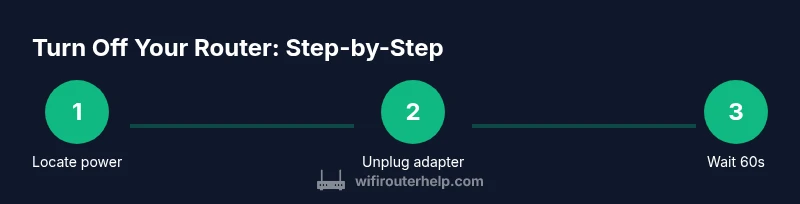
This quick-method overview summarizes the essential actions, while the dedicated STEP-BY-STEP block provides precise actions. The key idea is to cut power safely, confirm the device has fully powered down, and then restore power when you are ready. If you only need to pause wireless access, disabling Wi‑Fi in the admin interface is a faster, non-destructive option. Keep in mind that some devices and smart home routines depend on an active router; plan reactivation to minimize disruption for family schedules and work routines. The steps below are practical for most home networks.
If you want a fully automated shutdown, a smart plug with a timer can handle this for you, letting you schedule daily power-downs without manual intervention.
Safety and best practices
Safety matters when handling electrical devices. Before powering down, ensure you are not in the middle of firmware updates; interrupting an update can corrupt the router’s software. Never tug on cables; always unplug by gripping the plug. If your router shares a wall outlet with other devices, consider using a power strip so you can shut down the entire cluster safely. Store the power adapter where it won’t be damaged by pets or moisture, and avoid power outages that occur during storms by using a UPS if you want to maintain uptime for critical devices. Finally, remember that turning off your router will also disable connected services like security cameras and smart speakers, so plan reactivations to minimize user impact.
When in doubt, consult your router’s manual for model-specific guidance and vendor recommendations to avoid damaging ports or cables.
How power-down affects devices and services
Powering off the router disrupts every device on the network. Laptops, phones, and tablets disconnect and will prompt you to reconnect once power is restored. Smart home devices may temporarily lose scheduling or cloud connectivity, and streaming TVs may re-prompt for login credentials when the network returns. It is normal for some IoT devices to appear offline after a shutdown; a simple re‑connect often resolves these issues. If you are managing a home office, coordinate downtimes with colleagues to avoid missed meetings or data transfers. In all cases, expect a short period of re‑establishment as the router boots back up and devices renegotiate connections with the router.
If you depend on persistent connections, consider scheduling your shutdowns during off-peak hours or when activity is lowest to minimize disruption.
Troubleshooting after a power-down and re‑powering
Should you encounter issues after powering back up, start with a basic reboot: unplug, wait, and plug in again; this can clear temporary glitches. Check that the modem (if you have one) and then the router are receiving service from your ISP. Verify the router LEDs indicate normal operation per the manual; if not, refer to the manufacturer’s troubleshooting guide. If devices fail to reconnect automatically, forget the network on your device and reconnect as a new network. For persistent issues, a factory reset is a last resort, but note this will erase custom settings; document your config beforehand.
If you suspect hardware problems, contact the manufacturer or your Internet Service Provider for guidance before attempting advanced repairs.
Authority and references
Key references include government and educational sources on network safety and security. For additional context on best practices, see:
- FCC: Keeping your home Wi‑Fi network secure (https://www.fcc.gov)
- NIST: Guidelines for securing home networks (https://www.nist.gov)
- CISA: Cybersecurity guidance for home networks (https://www.cisa.gov)
toolsMaterials
Tools & Materials
- Router power adapter(The power supply that came with your router)
- Electrical outlet or power strip(Prefer a surge-protected strip if possible)
- Smart plug or timer (optional)(Automates scheduled power-downs)
- UPS (optional)(Provides backup power for graceful shutdown during outages)
Steps
Estimated time: 2-5 minutes
- 1
Locate the router’s power source
Find the router’s power adapter at the back of the unit and locate the corresponding wall outlet or power strip. Confirm you have safe access to the plug so you don’t pull on data or network cables while unplugging.
Tip: Pro tip: If the router is on a surge protector, consider unplugging from the protector to avoid a power surge when reconnecting. - 2
Unplug the power adapter from the outlet
Gently grasp the plug and pull it straight out from the outlet or from the strip. Do not yank on the cable, which can damage the connector over time.
Tip: If the outlet is hard to reach, switch off the power strip first and then unplug the router from the strip. - 3
If you use a smart plug or timer, deactivate power to the router
Toggle the smart plug off or disable the timer. The router and any attached devices should lose power completely, ensuring a clean shutdown.
Tip: Label the plug or timer so you can quickly identify it in the future. - 4
Wait for the router to fully power down
Wait 30–60 seconds until all LEDs are dark. This ensures internal memories and processes have halted before you reconnect.
Tip: If LEDs stay lit for longer, give it another 15–30 seconds and check again. - 5
Power back on or leave the router off as needed
If you’re re-enabling, plug the router back in and allow 1–2 minutes for a full boot. Then verify internet connectivity and SSID broadcasting. If you’re leaving it off, you can re-enable later with the same steps in reverse.
Tip: If devices don’t reconnect automatically, you may need to re-enter network passwords on each device.
People Also Ask
Do I need to turn off the router every night?
Not necessarily. If energy use is a concern or you want to reset the network, a nightly power-down can help. However, consider your smart-home devices and security cameras, which may rely on continuous connectivity. Disabling Wi‑Fi at night without cutting power is another option for a lighter shutdown.
Not always. If energy savings or resetting the network is important, you might power down nightly; otherwise, you can simply disable Wi‑Fi at night.
Will turning off the router erase settings?
No. A power-down does not reset or erase your configuration. Settings like your SSID and password remain intact. If you need a clean start, you would perform a factory reset, which is separate from a standard power-off.
No—the router’s settings stay saved after powering down. A factory reset would erase them, which is a different action.
Can I turn off the router while devices are connected?
Yes. Turning off the router will disrupt all connections, and devices will reconnect when power is restored. It’s best to plan downtime during low-usage periods to minimize impact on work or streaming.
Yes, you can power down with devices connected, but expect a disconnect until you power back up.
What should I do if LEDs don’t power off after unplugging?
If LEDs remain lit after unplugging, wait a full minute to confirm. If still on, check for a battery backup or an uninterruptible power source. If none exists, inspect the power adapter and outlet, or try a different outlet.
If LEDs stay on after unplugging, wait a bit and recheck, or test another outlet to rule out a power issue.
Is there a safer way to shut down during firmware updates?
Avoid powering off during a firmware update. If an update is in progress, wait for it to complete before turning off or rebooting. Interrupting updates can corrupt the router’s software and require restoration.
Don’t power off during firmware updates; let the update finish first.
Watch Video
What to Remember
- Unplug to cut all router power and traffic.
- Wait 30–60 seconds for a clean shutdown.
- Use Wi‑Fi disable in the admin page if you only need wireless off.
- Automate shutdowns with smart plugs or timers when appropriate.
- Reboot carefully and test connectivity after power restoration.