How to Turn Off Router from Phone: A Step-by-Step Guide
Learn how to turn off your router from your phone using apps, web interfaces, or voice assistants. Step-by-step instructions, safety tips, and troubleshooting for reliable remote control in 2026.


By using your phone, you can turn off your router via the manufacturer’s mobile app, a web-based admin panel, or supported voice assistants. If you’re wondering how to turn off router from phone, this quick turn-off can disable Wi‑Fi temporarily or power down the device fully. You’ll need a compatible phone, your router’s login credentials, and internet access to proceed. According to WiFi Router Help, this is safer than unplugging.
Why turning off router from phone matters
In many homes, controlling the router from a phone is a convenient way to manage access, save energy, and enforce digital boundaries. A mobile-first approach means you can disable Wi‑Fi during meetings, bedtime, or when guests arrive, without reaching for a wall outlet. For 2026 households, remote control features are common on most modern routers, making it simple to adjust settings on the fly. The WiFi Router Help team notes that understanding the difference between turning off Wi‑Fi and powering down the device entirely helps avoid accidental losses of internet access during important tasks. This method fits into everyday network management by giving you quick options to pause internet access or fully power down the device when needed. Common scenarios include parental controls after curfew, energy-saving during the workday, and rapid response to device-specific issues. Planning ahead helps maintain privacy and accountability across all connected devices.
How modern routers support remote control
Most contemporary routers offer remote management through a dedicated mobile app, a web-based admin panel, or integrated voice assistants. The app provides a quick toggle to disable wireless networks, pause guest networks, or power down the router remotely. If you prefer not to install an app, the browser-based admin page is accessible from your phone's web browser using the router's IP address or a remote-management URL. It is important to know your model's capabilities: some devices only allow Wi‑Fi on/off, while others permit a full reboot or shutdown. In many cases, you can schedule Wi‑Fi pauses or set automatic rules for bedtime shutdowns. The WiFi Router Help analysis emphasizes that enabling remote management securely is essential to prevent unauthorized access.
Preparing to turn off from your phone
Before initiating a remote-off, collect what you need: your phone with the router’s official app installed, valid admin credentials, and a stable internet connection on your phone. Confirm that your router supports remote management and that you have the most recent app update. If you are using a shared or guest network, inform household members about the planned shutdown to avoid confusion. It’s also wise to check if your router's firmware supports secure remote connections and that your account has multi-factor authentication enabled for extra protection. The goal is a safe, reversible action that you can undo easily if you need internet access again.
Safety, privacy, and troubleshooting
Remote control is powerful but must be used responsibly. Always ensure you’re using official apps or web interfaces, avoid third-party tools, and monitor for any unexpected changes when performing power-off or Wi‑Fi disable actions. The FCC and federal cybersecurity guidance recommend enabling encryption, changing default passwords, and turning off remote management when not needed to reduce exposure. For more technical context and recommendations, review sources from national cybersecurity and telecommunication authorities. This approach protects your home network while enabling convenient control from a mobile device.
Authority sources and practical next steps
To deepen your understanding, consult authoritative sources about router security and remote management. Always prefer official vendor documentation for your specific model, and align practices with general security best practices outlined by government guidelines. Using a mobile device to manage your router should be part of a broader strategy that includes strong passwords, firmware updates, and secure remote access when appropriate. This block helps anchor practical steps with credible sources and recommended safety measures.
How to proceed in practice (summary)
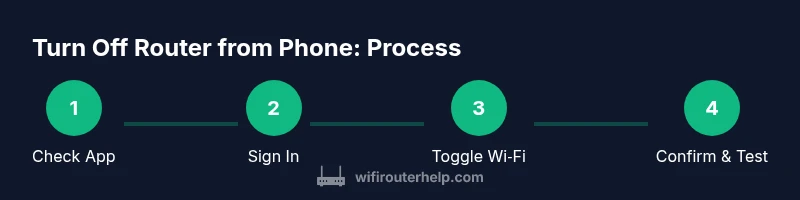
First, verify your router model supports mobile control and install the correct app. Sign in with admin credentials, locate the Wi‑Fi or power controls, and choose the off option you prefer. If you simply want to pause Wi-Fi, use the dedicated toggle rather than power off. Finally, test that the device and other apps respond as expected after the change, and keep a record of the steps you took for future reference. Remember, you can always re-enable access later using the same path. The goal is to be precise, reversible, and secure every time you adjust your home network from your phone.
Tools & Materials
- Smartphone (iOS or Android)(Ensure it can install the router’s official app)
- Router official app installed(Download from App Store or Google Play; ensure latest version)
- Router admin credentials(Username and password for admin panel)
- Active internet connection on phone(Mobile data or home Wi-Fi to reach interface)
- Web browser (optional)(Used if app is unavailable)
Steps
Estimated time: 20-40 minutes
- 1
Verify compatibility and install the router app
Check your router model in the app store and install the official manufacturer app. Create or sign in to your account, and ensure you have the latest update. This step confirms you can perform remote actions from your phone and reduces the risk of unsupported features.
Tip: If your model isn’t supported by the app, skip to the web interface. - 2
Open the app and sign in with admin credentials
Launch the app on your phone and enter the router’s admin username and password. If you enable password management, consider a password manager for secure storage. Successful sign-in grants access to the device controls.
Tip: Enable two-factor authentication if your router supports it for extra security. - 3
Navigate to the Wi‑Fi or device controls
Within the app, locate the section labeled Wi‑Fi, Network, or Gateway. Depending on the model, you may see a global Wi‑Fi toggle, separate guest network controls, or a Power/Restart option. This is where you’ll choose how you want to disable connectivity.
Tip: If you don’t see controls, confirm you’re logged into the correct admin account and that remote management is enabled. - 4
Turn off Wi‑Fi or power down from the app
Use the on/off toggle to disable Wi‑Fi, or select Power/Shutdown to completely power down the router. Disabling Wi‑Fi preserves the device while stopping wireless access; power down stops all network activity but may require physical reboot to re-enable.
Tip: Choosing Wi‑Fi off is safer if you need to reconnect quickly without fully restarting the hardware. - 5
Confirm changes and test connectivity
After applying the change, test by connecting a phone or laptop to see if Wi‑Fi is paused or if the router is offline. If Wi‑Fi returns once you sign back in, you may need to re-enable it or reboot. This step verifies that the action worked as intended.
Tip: Keep a quick reference of your steps for future use. - 6
If the app can’t reach the router, use the web interface
Open a browser on your phone and enter the router’s local IP address or remote-management URL. Sign in with admin credentials and repeat the previous steps to disable Wi‑Fi or power down. The web interface often mirrors app controls.
Tip: If remote access isn’t enabled, enable it now, then test from a separate device before depending on it.
People Also Ask
Can I turn off my router from my phone if I don’t have the app installed?
Most routers support a web-based admin panel accessible from a phone's browser. You can log in using the router’s IP address and admin credentials to disable Wi‑Fi or power down. If your model doesn’t provide a web interface, use the vendor’s app or check for remote management options in the documentation.
You can usually access a web admin panel from your phone to disable Wi‑Fi or power down if the app isn’t installed.
What’s the difference between turning off Wi‑Fi and powering down the router?
Turning off Wi‑Fi stops wireless access but leaves the router powered, which keeps admin access available. Powering down removes all network activity and requires a reboot to regain service.
Wi‑Fi off just stops wireless access; power down turns everything off and needs a reboot.
Will turning off the router affect other devices that are connected?
Yes. Connected devices will lose network access until Wi‑Fi or the router is re-enabled. If you use guest networks, those devices may be affected differently depending on their network assignment.
Yes, devices will lose internet until you turn the router or Wi‑Fi back on.
Is it safe to turn off a router via a mobile app?
Yes, when you use the official app and credentials, turning off or re-enabling from your phone is safe. Avoid third-party tools and always ensure you’re connected to the legitimate network during changes.
Safe if you use the official app and proper credentials.
What should I do if remote management isn’t available for my model?
If remote management isn’t available, you’ll need to use the web interface from a connected device or perform a manual reboot by unplugging and re-plugging the router. Check for firmware updates that add remote options.
If remote mgmt isn’t available, use the web interface or reboot manually.
How can I ensure my changes don’t lock me out of the router?
Always keep a backup of admin credentials and confirm at least one device can reconnect after changes. If you enable remote access, ensure MFA and keep credentials secure.
Keep a backup login and test reconnection after changes.
Watch Video
What to Remember
- Turn off router from phone via official app or web interface.
- Distinguish between pausing Wi‑Fi and powering down the device.
- Secure remote access with strong credentials and MFA when available.
- If issues arise, use the web interface as a fallback.