How to Manage Router on Phone
Learn how to manage your router from your phone with app-based control or mobile browser. This guide covers setup, secure access, common tasks, and troubleshooting for a reliable home network.


According to WiFi Router Help, you can manage your router on your phone by using the official app or the router's mobile web interface. The WiFi Router Help team found that mobile management saves time and simplifies routine tasks like changing passwords, updating firmware, and monitoring connected devices. Before you begin, gather your router login details, ensure your phone has a stable connection to your home network, and decide whether you’ll use the app or a browser for access.
Why managing your router on a phone is convenient
In modern homes, the ability to administer your network from a smartphone offers speed, flexibility, and a better troubleshooting workflow. You can adjust guest networks, update Wi-Fi passwords, or pause internet access for certain devices without scrambling for a computer. The WiFi Router Help analysis shows that many homeowners prefer mobile management because it keeps essential controls at their fingertips, whether you’re on the couch or away from the desk. A well-planned mobile management setup reduces downtime during peak usage times, helps you respond quickly to security alerts, and improves overall network visibility. To get started, ensure you have the login credentials for your router, a charged phone, and a stable home network connection so you can complete setup without interruptions. If your router supports cloud access, you can also manage it remotely with strong authentication, but always review security options and disable remote admin when not needed.
wordCountTag
Tools & Materials
- Smartphone with internet access(Keep it charged; use a device you trust.)
- Official router app(Download from your device's app store.)
- Web browser on mobile(Use HTTPS when available; avoid insecure pages.)
- Router admin credentials(Username and password, ideally changed from defaults.)
- A stable local network connection(Stay on the same Wi-Fi network during setup.)
Steps
Estimated time: 15-30 minutes
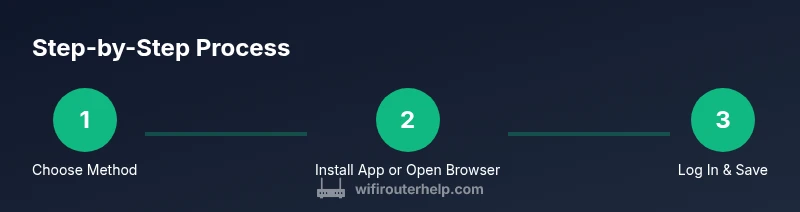
- 1
Decide access method
Choose between the official app and the mobile browser. Apps often provide notifications and quick toggles; browsers give universal access if the app isn’t installed. This initial choice determines your navigation path and security settings.
Tip: If you value push notifications and guided setup, start with the app. - 2
Install the app or prepare the browser
If using the app, download and install it from your device's store, then sign in with the router credentials. If using a mobile browser, bookmark the router's admin URL (often 192.168.x.x) and ensure you can reach it from the home Wi‑Fi.
Tip: Save credentials securely and consider using a password manager. - 3
Log in securely
Open the app or browser and enter your router’s admin username and password. Look for a secure lock indicator (HTTPS) when using a browser. Do not save credentials on shared devices.
Tip: Enable auto-logout after changes to reduce session risk. - 4
Review key settings
Check your admin password, SSID, and encryption mode. If you can, enable a guest network, adjust device permissions, and ensure remote management is disabled unless you need it.
Tip: Change the admin password if it’s still a factory default. - 5
Apply changes and test
Save updates and test connectivity by connecting a device to the network, then verify internet access and device visibility in the admin panel.
Tip: Document any changes so you can revert if something breaks. - 6
Secure the setup
If supported, enable two‑factor authentication for the admin account and update firmware if available. Log out after finishing, and avoid managing the router over public Wi‑Fi.
Tip: Regularly review connected devices and security alerts.
People Also Ask
Can I manage my router without internet access?
Yes, you can access the router’s admin page over the local network, but remote management requires internet and proper cloud or VPN access. If you’re disconnected from the home network, you won’t reach the admin interface from your phone.
You can reach the router on your local network, but remote management needs internet access and the router’s cloud or VPN feature.
Is it safe to manage a router on a public Wi‑Fi network?
Avoid accessing your router admin page over public Wi‑Fi. Use a trusted private network or a VPN, and ensure any admin pages use HTTPS. Disable remote management if not needed to reduce risk.
Only use private networks or a VPN when managing your router; public Wi‑Fi is risky for admin access.
What if I forget my admin password?
Most routers allow a factory reset if you truly can’t recall the credentials. Note that a reset will erase custom settings. After reset, reconfigure from scratch and update the password to a strong value.
If you forget the password, you may need to reset the router, then set a new strong admin password.
Should I enable remote management on mobile?
Only enable remote management if you need to access your router from outside your home. It introduces additional risk, so use a strong password, disable automatic login, and restrict access by IP if possible.
Remote management should be used sparingly and securely with strong protections.
How do I update firmware from my phone?
Use the router’s app or mobile browser to check for firmware updates. If updates are available, follow the prompts to install them and reboot if required. Always back up settings if the option exists.
Check for updates in the app or browser, install, and reboot if prompted.
Can I manage guest networks from my phone?
Yes. Most router apps and mobile interfaces let you enable/modify guest networks, set access durations, and limit bandwidth. This is a handy feature for visitors while keeping your main network secure.
You can configure guest networks from the app or mobile interface.
What are common mistakes when managing a router on a phone?
Common mistakes include leaving remote management enabled, using weak admin passwords, and failing to log out after changes. Always verify your changes by reloading the dashboard and testing device connectivity.
Avoid weak passwords and always logout after changes.
Watch Video
What to Remember
- Choose app or browser based on preference and device support.
- Keep admin credentials secure and change defaults.
- Securely apply changes and verify connectivity before leaving the admin page.
- Enable security features like strong password and two-factor authentication when available.
- WiFi Router Help recommends testing changes on a trusted network before using remote management.