Is It Okay to Unplug Your Router? A Practical Guide
Learn when it's safe to unplug your router, how to power cycle correctly, and practical troubleshooting steps for home networks. A concise, educational guide by WiFi Router Help.


Is it okay to unplug your router? Generally yes, as a routine power cycle can fix many connectivity issues. You should avoid unplugging during firmware updates and storms, and be mindful of any services relying on your network. This guide explains safe unplugging, when to power cycle instead, and how to minimize interruptions.
is it ok to unplug router? A quick context
Is it okay to unplug router? This question comes up often for homeowners who want a fast fix or want to schedule a reset during busy evenings. According to WiFi Router Help, power cycling is a common first step in troubleshooting home networks because it clears temporary memory, reinitializes firmware processes, and refreshes network tables that can become stale after prolonged usage. In practice, unplugging a router to reset is typically safe, but there are important caveats. If a firmware update is underway, if you’re in a power outage, or if a connected smart home ecosystem is dependent on continuous connectivity, pausing or planning the reset is wiser. This section focuses on safe unplugging: what to do, when to avoid it, and how to minimize disruption to your digital life.
Safety first: Power, surges, and outages
Power safety is the backbone of any unplugging procedure. Always unplug from the wall outlet rather than yanking a cord from the router itself to avoid damaging the power jack. If your outlet is controlled by a wall switch, verify the switch remains in the ON position during a restart; a turned-off switch can masquerade as a failed device. Surge protectors offer a small buffer against spikes, but a power surge can still harm delicate components over time. If you live in an area prone to frequent outages, consider plugging your router into a UPS (uninterruptible power supply) to prevent abrupt shutdowns that can corrupt router memory or disrupt ongoing tasks. Finally, never unplug during a firmware update—interrupting an update can leave the device in an unstable state and complicate future bootups. The goal is a clean, safe restart that preserves device integrity.
Power cycling vs unplugging: key differences
Power cycling is the process of turning a device off and back on to reset its internal state, clear caches, and reinitialize network connections. Unplugging is the physical action of removing power from the device. In most cases, a simple unplug-and-replug accomplishes a power cycle, but you should consider timing. If you’re dealing with a modem-router combo, you may want to restart both devices in a specific order to ensure the network services come back cleanly. The intent matters: for routine fixes, a short power cycle is appropriate; for persistent issues, you might need a longer wait or a software reset (factory reset is a last resort). Remember: a well-timed restart can fix DNS resolution glitches, slow page loads, or throttled bandwidth without losing personalized settings.
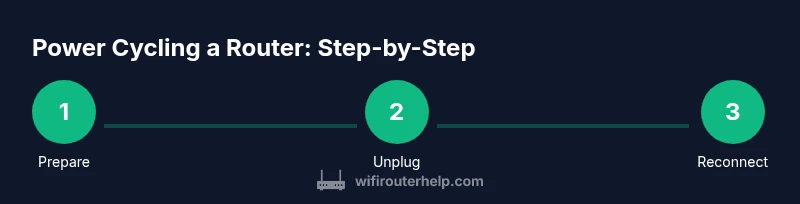
Step-by-step: safe unplugging and reconnection
Precaution, plan, and patience are your allies here. Before touching any cables, save ongoing work if possible and inform other household members about a brief restart. Identify a convenient power outlet near the router, preferably on a controlled strip rather than a device tucked behind furniture. Unplug the router from the outlet, wait 30 seconds to ensure all capacitors discharge, then plug it back in. Allow 2–3 minutes for the router to fully reboot and re-establish connections. Once the router is back, test connectivity on a few devices. If you unplug a modem as well, perform a separate restart for the modem after the router comes back online. This minimises data loss and ensures a clean reboot of the entire network stack.
Troubleshooting scenarios: when unplugging helps most
Unplugging can resolve many common issues, including DNS lookup failures, stubborn buffering, and devices failing to obtain an IP address. If you recently added new devices or a new smart home hub, a reset can re-sync the network map and improve stability. For parental controls, port forwarding rules, or QoS settings, a restart often applies changes immediately after power is restored. If your network shows intermittent outages during peak hours, a scheduled restart routine (once per week) can maintain stability without manual intervention.
Special cases: modems, firmware, and outages
If you use a separate modem from your router, consider powering down both devices in sequence—modem first, then router—to ensure a clean session reset from your provider. Never unplug during an active firmware update; this can corrupt firmware and require a factory flash. In storms, unplugging protects devices from power surges and lightning-related damage; however, if you rely on home automation or security systems, schedule the reset during a predictable window when you can re-establish control promptly. A high-quality UPS can mitigate outages and provide a graceful reboot, preserving logs and configuration state.
Best practices and routine maintenance
Regular, planned restarts prevent performance degradation from long uptime. Keep a small log of when restarts occur and any issues observed, which helps future troubleshooting. If you’re frequently rebooting due to slow speeds, consider deeper diagnostics: check for outdated firmware, review connected-device counts, evaluate channel congestion, and test your Wi‑Fi speed in different rooms. Maintaining a clean boot process also involves verifying power connections, confirming firmware versions, and ensuring that the router’s admin interface is secured with a strong password to protect settings after each reboot.
Authority sources and further reading
This guide references trusted guidance from national and industry bodies to support best practices around home network management. For more information on security, device safety, and network resilience, you can consult authoritative resources from the FCC, CISA, and NIST. These sources help homeowners understand how to protect their networks while performing routine maintenance.
Tools & Materials
- Router power outlet(Use a reliable outlet; avoid outlets controlled by a wall switch that may cut power unexpectedly.)
- Router power adapter(Keep the original adapter; confirm the connector matches your router’s input and that you’re using the correct voltage.)
- UPS (optional)(A battery backup can protect from surges/outages and allow a graceful reboot.)
- Timer or clock(Helpful for enforcing exact wait times after unplugging.)
Steps
Estimated time: 5-7 minutes
- 1
Prepare and communicate
Inform household members of a brief router restart and save any important work. Check that critical devices (security cams, VoIP services) won't be disrupted unexpectedly during the restart.
Tip: If you have a busy smart home setup, schedule the restart during a low-usage window. - 2
Unplug the router
Grip the router’s power plug and unplug it from the wall outlet. Do not pull on cables to avoid connector damage.
Tip: If the router is on a surge protector, you may unplug the protector instead, making sure all devices lose power at once. - 3
Wait briefly
Let the device sit without power for at least 30 seconds to discharge residual capacitors and ensure a full reset.
Tip: Use this pause to refresh devices or check lights for any obvious fault indicators. - 4
Plug back in and power up
Reconnect the router to the outlet and switch it on if needed. Wait 2–3 minutes for a full reboot and network re-establishment.
Tip: If you’re using a multi-device reboot, do the router first, then bring the modem online after the router is ready. - 5
Test connectivity
On multiple devices, try loading a webpage or streaming a video to confirm the network is functional. Run a quick speed test to verify performance.
Tip: If speeds are slow, pause and recheck settings like channel, QoS rules, or device placement. - 6
Reconfirm important services
Ensure essential services (video calls, home security) reconnect and function as expected. Re-enter admin credentials if you changed them previously.
Tip: Document any changes in a notebook or digital note for future reference.
People Also Ask
Is it safe to unplug a router?
Yes, for a routine reset, but avoid unplugging during firmware updates or power outages. Always ensure you do a proper reboot to prevent corruption.
Yes, it's safe for a routine reset, but don't unplug during updates; wait until the process finishes and reboot correctly.
Will unplugging erase router settings?
No. A power cycle does not erase your configured network settings—it simply restarts the device and reinitializes connections.
No, unplugging won’t erase your settings; it restarts the router and reconnects devices.
Should I unplug the modem as well?
If you have a separate modem, power cycle the modem first, then the router. This helps ensure the network layers start cleanly.
If you have a separate modem, restart it first, then the router.
What about emergencies like storms or lightning?
During storms, unplugging can protect hardware from power surges. If you rely on the network for critical services, a UPS provides ongoing protection and graceful reboots.
In storms, unplug if you can, or use a UPS to avoid surge damage and keep essential services safe.
How long should I wait after plugging back in?
Most routers need 2–3 minutes to boot fully and re-establish connections. If you’re using smart-home devices, give them a few extra moments to reconnect.
Give the router 2–3 minutes to boot and reconnect, then verify devices.
If problems persist after a reboot, what's next?
Check for firmware updates, verify wireless channel settings, reset QoS or port-forward rules if needed, and consider a factory reset as a last resort after backing up settings.
If issues continue after reboot, review firmware and settings, and back up before a factory reset if needed.
Watch Video
What to Remember
- Power cycling is a safe first step for many connectivity issues.
- Avoid unplugging during firmware updates or storms to prevent damage.
- Always reboot in a controlled sequence when using a separate modem.
- Verify connectivity after reboot to confirm the fix.