How to Block Router Access from Internet: A Step-by-Step Guide
A comprehensive guide for homeowners to block router access from the internet: disable remote management, restrict WAN access, verify protections, and maintain secure local control.


Block router access from the internet by disabling remote management, restricting WAN access to LAN-only, and applying firewall rules. This guide shows you exactly what to click, what to watch for, and how to verify the change. You’ll need admin access, a web browser, and a backup of your current settings to revert if needed.
Why block router access from internet matters
If your goal is how to block router access from internet, you’re strengthening your home network against unauthorized intrusions and misconfigurations. Leaving remote access enabled exposes the router's management interface to anyone who can reach your public IP, which can create risk if credentials are weak or if your device has known vulnerabilities. According to WiFi Router Help, disabling remote administration on consumer routers is a foundational security measure that reduces the attack surface and makes it harder for attackers to hijack your network. By taking control of who can reach your router’s settings, you can prevent attackers from changing DNS, redirecting traffic, or opening ports that expose devices on your LAN.
In practice, blocking remote access does not shut down your internet, nor does it disrupt regular device usage on your local network. You will still manage the network from a trusted device connected to your LAN, and you can continue to access the router’s admin page from within your home network. The key is to ensure that the router’s management interface is not reachable via the internet. The changes are usually straightforward, but they require careful verification because different brands and firmware versions place the relevant settings in different places. The goal is a configuration that preserves local management while preventing remote administration from WAN. This is especially important as more devices become internet-enabled and as fashionably simple cloud-based management options can inadvertently bypass the protections you put in place.
How remote management works on consumer routers
Most household routers offer a remote management feature that lets you access the admin interface from anywhere over the internet. This typically runs on the WAN side, using HTTP/HTTPS (port 80/443) or occasionally a vendor-specific port. Some devices also expose SSH or Telnet for advanced configurations. When remote management is enabled, a request from outside your local network may reach the router’s login page if the public IP and port are known and not blocked by other devices on the way. Even when you don't intend to manage your router remotely, attackers can attempt to reach this interface using default credentials or known vulnerabilities.
Understanding how this feature is implemented helps you decide where to apply the block. In many routers, the setting is labeled Remote Management, WAN Access, or Web Access from WAN. Some models offer per-port controls or a whitelist approach, letting you specify which IPs can reach the router. Others rely on more complex cloud-based management services that bypass traditional WAN restrictions entirely. In either case, the safest default for most households is to disable remote access from WAN and to keep LAN-based management as the only permitted path. This reduces the risk that an external actor can guess or brute-force your login credentials. For best results, review both IPv4 and IPv6 configurations, because some devices enable remote access over IPv6 even when IPv4 is blocked. The bottom line: turning off remote management on the WAN side is a fundamental security step that pays off in reduced exposure.
Verifying whether remote access is enabled on your router (checkpoints and testing)
To verify whether remote administration is enabled on your router, start by logging into the admin interface from a device on your LAN. Look specifically for settings titled Remote Management, WAN Access, Web Access from WAN, or Internet Access to the admin page. If you find any option that allows access from WAN, disable it and save the changes. Next, perform a test from an external network (for example, cellular data) to access your router’s login page using its public IP address or dynamic DNS hostname. If the login screen is reachable, continue adjusting settings or choose a different port if your model supports port-based restrictions. WiFi Router Help analysis shows that many routers default to enabling remote management only after a firmware update, so checking firmware versions and release notes is important. Finally, ensure you have a working LAN path to the router by attempting to access the interface from a device on your home network. If you cannot reach the interface via LAN after changes, re-check the LAN IP, the admin port, and whether any firewall rules in the router or on your router’s WAN gateway block local access. Confirm that DNS, VPN, and other remote services remain unaffected for legitimate users on the LAN.
What you’ll gain by blocking remote access (security and control)
Blocking router access from the internet reduces exposure to brute-force attacks against the admin login, mitigates the risk of misconfiguration by external actors, and helps keep your network isolated from untrusted networks. You maintain full control over the local network while ensuring that only devices on your LAN can reach the router’s management page. The trade-off is a slight reduction in convenience: you will not be able to manage the router from outside your home or from a guest network unless you re-enable remote management or configure a controlled remote-access method, which should be done with caution and only for trusted use cases. The practice aligns with best practices for home network security, including least privilege and defense in depth, to minimize risk while preserving access for the devices and family members who need it. The WiFi Router Help team recommends keeping a local change log and testing after each adjustment, so you can revert quickly if you encounter unexpected issues.
Caveats, edge cases, and multi-device homes
Block access is straightforward on many brands, but some models intertwine remote management with cloud-based features that are harder to disable cleanly. In multi-router setups, you may need to disable remote management on each device or on the primary gateway, and ensure that any satellite nodes do not reintroduce WAN-based access. Some consumer routers also allow management over IPv6 from WAN, which should be disabled separately. If you rely on a cloud-based management app, explore whether there is a local-only mode that keeps the app functional while removing WAN exposure. Finally, after blocking, maintain a routine of firmware updates and security scans to catch vulnerabilities that could still expose your network to intrusions. If you lose access due to misconfiguration, having a backup of your current settings will help you restore quickly.
Post-change checks and maintenance
Establish a recurring habit of checking your router’s settings every few months or after a firmware update. Document the current configuration and any changes to remote access so you can audit who modified what and when. Monitor your router’s logs for unsuccessful login attempts, and consider enabling alerts if supported by your firmware. For households with more stringent requirements, consider configuring a LAN-only management whitelist that allows administration only from specific local devices. This helps ensure ongoing control even in case of power outages or misconfigured remote services. The goal is to maintain a robust, auditable security posture without sacrificing the essential management capabilities you rely on daily.
Authoritative sources and further reading
For deeper, standards-aligned guidance on network security and router hardening, consider reputable resources from government and academic institutions. Use trusted references to inform ongoing configuration and risk assessment. This section provides recommended starting points for further reading and best-practice alignment.
Tools & Materials
- Admin access credentials for the router(Have current admin username/password ready; avoid using default credentials.)
- Web browser or mobile app for the router(Use a device connected to the LAN to access the router’s admin page.)
- Backup/export of current router configuration(Save settings before making changes so you can restore if needed.)
- Notebook or digital log for changes(Record what you changed and when for auditing.)
- Optional wired Ethernet connection(Wired connection can reduce risk of accidental disconnect during changes.)
Steps
Estimated time: 30-60 minutes
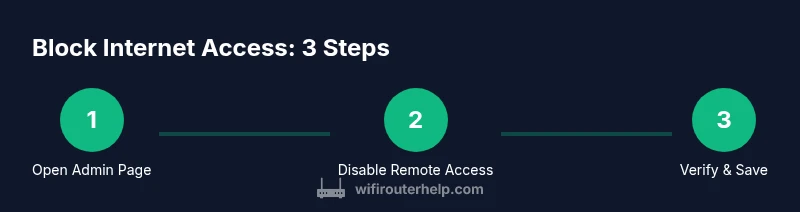
- 1
Access the router admin page
Open a web browser and enter the router's LAN IP address (often 192.168.0.1 or 192.168.1.1). Log in with admin credentials. Confirm you can reach the admin interface from a device on your LAN before making changes.
Tip: If you cannot reach the login page, verify your device is on the correct network and check that you entered the IP correctly. Try a wired connection if Wi-Fi is unstable. - 2
Find remote management or WAN access settings
Navigate to sections usually labeled Remote Management, WAN Access, Web Access from WAN, or Internet Access to the admin page. Read the on-screen help if available to locate the exact toggle.
Tip: Some brands place these options under Advanced Settings or Security; don't assume the label is identical across models. - 3
Disable remote management from WAN
Switch off or disable the option that allows access to the router’s admin interface from the internet. Save or Apply changes. If your device supports per-port controls, disable WAN for all admin ports.
Tip: After saving, re-check the LAN page to confirm the change was applied and that you can still access the router from the LAN. - 4
Disable or limit other remote access features
Turn off features like UPnP, cloud-based management, and remote SSH/Telnet if present. Consider tightening IPv6 remote access if your router supports it. These steps reduce exposure even further.
Tip: UPnP can be convenient but is a common attack vector; disable it unless you specifically need it for a device. - 5
Configure a local-only management approach
If available, configure management to be accessible only from the LAN or from a specific trusted IP range. This preserves local administration while blocking external access.
Tip: Whitelisting a known device (like your main admin laptop) can simplify ongoing access while maintaining security. - 6
Save, reboot if necessary, and back up the new config
Apply changes and reboot the router if required. Export or save the new configuration to a secure location for quick restoration if needed.
Tip: Label the backup with date and purpose (e.g., Block WAN admin access 2026-02-15). - 7
Verify the change from outside your network
From a mobile network or a device on a different network, attempt to access the router’s admin page using the public IP or DDNS name. It should fail or be blocked.
Tip: If you still reach the login page, re-check WAN access settings and any firewall rules that could permit external access. - 8
Document the process and needed rollback plan
Record what you changed, where, and why. Keep a rollback plan that restores previous settings if something breaks.
Tip: Regularly audit remote access settings after firmware updates or major network changes.
People Also Ask
What does blocking router access from the internet actually do?
Blocking router access from the internet disables remote administration, preventing unauthorized users on the internet from reaching your router’s login page. You can still manage the router from devices on your LAN. This reduces risk without impacting daily network usage.
Blocking remote access disables the router's admin page from outside your home, so you can manage it only on your local network. You can still manage it from inside your LAN.
Will disabling remote management affect my devices?
Disabling remote management from WAN should not affect devices on your LAN or your ability to connect to the internet. It only blocks external access to the router’s admin interface.
It won’t affect your devices’ normal internet use; it just stops outsiders from reaching your router’s admin page.
Can I still manage my router remotely if I need to?
Some routers offer controlled remote management with IP whitelists or time-based access. If you need remote management, enable it only for trusted IPs and monitor access logs closely.
If you must manage it remotely, use a restricted, trusted IP and keep an eye on logs.
What should I do if I lose LAN access after changes?
If you lose LAN access, revert the backup configuration or use a wired Ethernet connection to restore settings. Always keep a copy of the pre-change and post-change configurations.
If you’re locked out on LAN, restore from backup to regain control.
How often should I audit remote access settings?
Audit remote access settings after firmware updates or major network changes, and periodically as part of a security checklist.
Check after updates and as part of routine security checks.
Does blocking WAN access affect cloud-based router features?
Yes, some cloud-based features may require WAN access to function. If you rely on cloud management, re-enable those features cautiously and with strong protections.
Blocking WAN access may disable cloud management; re-enable carefully if needed.
Watch Video
What to Remember
- Disable remote management from WAN to block internet access to the router.
- Verify changes by testing via cellular data, not just from LAN.
- Keep a backup of current and new configurations for quick rollback.
- Document changes and monitor logs for unauthorized access attempts.
- The WiFi Router Help team recommends following a structured rollback plan for safety.