How to Block a Router: A Step-by-Step Guide for Home Networks
Learn safe, legal ways to block a router on your home network. This WiFi Router Help guide covers MAC filtering, guest networks, and firewall rules with practical steps, tips, and risks to avoid.


According to WiFi Router Help, you will learn how to block a router to restrict devices from your network using safe, legal methods. Start by logging into the router’s admin interface from a trusted device, then apply access controls such as MAC filtering, a guest network, or firewall rules. This quick guide covers practical, low-risk steps and safety considerations for home networks.
What blocking a router means
Blocking a router means restricting devices from communicating with your home network by controlling how devices can connect to the router's administration or LAN. It doesn't physically disable the hardware; rather, it uses software rules to limit access. The goal is to keep unauthorized devices out while preserving access for your own devices. In many households, the simplest approach is to set a strong admin password, enable a guest network for visitors, and apply access controls to the main network. Changes on one device can affect all connected devices, so proceed slowly and verify each step. According to WiFi Router Help, planning before you act reduces the risk of accidental lockouts.
Why you might want to block a router
There are legitimate reasons to block access at the router level: to limit internet access for guests or children, isolate a compromised device, or prevent neighbor devices from piggybacking on your bandwidth. A properly configured router can enforce these policies without replacing hardware. WiFi Router Help analysis shows that practical blocking methods such as MAC filtering and guest networks are popular choices for homeowners seeking granular control while maintaining broad network availability. Always balance security with usability to avoid frustration and support calls.
Methods to block access: hardware and software approaches
Blocking can be implemented through multiple routes, each with trade-offs. Hardware-based approaches sit in the router itself, while software-based options live in the router’s firmware or mobile apps. Common methods include MAC filtering (deny listed devices), creating a separate guest network (isolate guests from the main network), and firewall rules (block specific traffic). For some routers, parental controls add scheduling and filtering capabilities. The best approach depends on your model and your goals. Always start with the least disruptive method and test before expanding.
Safe, legal considerations and risks
Only block devices on networks you own or administer. If you share a home with others, communicate planned changes to avoid user confusion or accidental lockouts. Back up current settings before making changes so you can revert quickly if something goes wrong. Be mindful that some devices can spoof MAC addresses, so relying on a single method may not be sufficient. Keeping firmware up to date reduces risk of bypasses and ensures compatibility with security features. Finally, never disable emergency access or admin privileges for yourself.
Quick method comparisons: MAC filtering vs. guest network vs. firewall rules
MAC filtering is precise—it blocks specific devices by their hardware address—but it can be bypassed by spoofing or by users who know how to read your network. A guest network offers isolation, keeping visitors away from your main devices while providing internet access; this is often the simplest, user-friendly option. Firewall rules give you granular control over traffic, but they can be complex to configure correctly. In most homes, starting with a guest network and then layering MAC filtering or firewall rules provides a balanced mix of security and usability. WiFi Router Help recommends testing each method on a single device to validate effects before applying broadly.
Security best practices after blocking a router
After implementing any block, review your security posture. Ensure your admin password is strong and unique, and enable automatic updates for firmware. Maintain a network map so you can quickly identify which devices are affected and adjust as needed. Schedule periodic reviews to re-confirm that blocks still align with your goals and that there are no unintended side effects on essential devices like printers or smart home hubs.
Tools & Materials
- Router admin login credentials(Username and password to access the router's admin interface)
- Trusted device (computer or smartphone)(Used to log in securely to the router UI)
- Web browser or router app(Chrome/Edge/Safari or the router's companion app)
- MAC addresses list (optional)(Useful for MAC filtering if you plan to block specific devices)
- Router manual or model number(Helps with model-specific feature names and steps)
Steps
Estimated time: 30-60 minutes
- 1
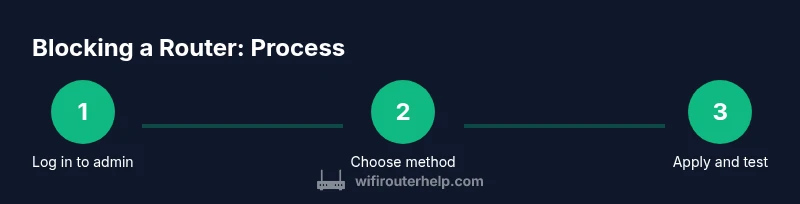
Log in to the router admin panel
Connect a computer or phone to the router via Ethernet or Wi‑Fi and open the router’s admin interface. Enter your admin username and password, and verify you can access the configuration pages. If you cannot access the interface, double-check your network connection or try a wired connection first.
Tip: Keep a backup of current settings before making changes. - 2
Identify your blocking goal and method
Decide whether you want to block by device (MAC filtering), create a separate guest network, or apply firewall rules. This upfront choice prevents conflicting changes and reduces the chance of accidentally locking yourself out.
Tip: Consult the router manual for exact feature names; vendors label features differently. - 3
Enable MAC filtering (if chosen)
Enter the MAC addresses of the devices you want to block and set the rule to deny access. Save the settings and test by attempting to connect a blocked device. Ensure you have at least one trusted device whitelisted to avoid being locked out.
Tip: Whitelisted devices should always include your own admin device. - 4
Set up a guest network for controlled access
Create a separate SSID for guests and enable internet access while keeping the main network private. Disable device discovery if you want stronger isolation from your primary network.
Tip: Do not reuse your main Wi‑Fi password on the guest network. - 5
Configure firewall rules (optional)
If your router supports it, add a rule to block traffic from the target device or to specific ports. This provides another layer of control without removing the device entirely from the network.
Tip: Test one rule at a time to observe exact impact. - 6
Apply changes and reboot if required
Save the configuration and reboot the router if the UI prompts you to do so. Rebooting ensures all rules take effect and rolling back is easier if needed.
Tip: Allow 2–3 minutes for the router to come back online. - 7
Test connectivity and document changes
Verify blocked devices cannot reach the LAN or internet and confirm your admin access remains intact. Document what you changed, when, and why for future reference.
Tip: Keep a copy of the current configuration in a secure location.
People Also Ask
Is blocking a router legal on my own network?
Yes, on networks you own or administer; ensure you have authorization and do not disrupt others' access.
Blocking a router is legal if you own or administer the network and you don't disrupt others' access.
Will blocking devices cut me off from the internet?
Blocking specific devices may still leave your own admin device connected; test connections after applying changes.
Blocking devices can affect connectivity; test with a known-good device after applying settings.
What if I forget my router admin password?
Use the router’s password recovery or factory reset as a last resort; note that reset will erase custom settings.
If you forget the password, use recovery options or reset as a last resort.
Can I block all internet access temporarily?
Yes, using firewall rules or a temporary guest network can restrict internet access without changing main settings.
You can temporarily block internet with a guest network or firewall rule.
How do I revert blocking changes?
Keep a record of changes and restore settings from a backup or reset to default if needed.
Keep a backup and revert to a saved configuration if needed.
Watch Video
What to Remember
- Identify the blocking goal and choose a method.
- MAC filtering can control devices but may be bypassed.
- Guest networks provide isolation without altering main network.
- Always verify changes and keep admin access.
- Keep firmware up to date for security.