Router Firewall: A Step-by-Step Home Network Guide
Learn how to enable and configure a router firewall, craft practical rules, and validate protections to guard your home network from common threats. A practical, step-by-step approach for beginners and enthusiasts.


Learn how to enable and tune your router firewall to block unauthorized traffic while keeping legitimate services accessible. This guide covers built-in firewall features, basic rule creation, and how to test your settings. According to WiFi Router Help, a correctly configured router firewall is a first line of defense for home networks.
What is a router firewall and why it matters
A router firewall sits at the boundary between your home network and the internet, filtering traffic before it reaches your devices. It applies rules that determine which data can pass through and which should be blocked. A well-configured router firewall reduces exposure to common threats, blocks unsolicited traffic, and helps protect sensitive devices such as smart home hubs and work laptops. For homeowners and tech enthusiasts, understanding the basics—like how firewall rules, NAT, and SPI interact—provides clarity on what happens when a packet arrives at your edge. The WiFi Router Help team emphasizes that the firewall is a central piece of network hygiene, not a set-and-forget feature. Regular checks ensure that protections stay aligned with changes in your devices and usage patterns.
Key terms to know include NAT (network address translation), SPI (stateful packet inspection), and port filtering. NAT hides internal IPs from the internet, while the firewall controls which ports and services are exposed. SPI tracks connection state, preventing some types of unsolicited traffic from completing a connection. By default, many consumer routers block unsolicited inbound traffic, but a strong rule set is still necessary to avoid dropping legitimate services and to support remote access when needed.
This section also anchors the reader in practical expectations: a router firewall is an essential layer, but not a silver bullet. Complementary practices—keeping firmware current, using strong passwords, and segmenting networks—fortify your overall security posture.
Core concepts: NAT, DPI, and firewall rules
NAT, or network address translation, is how most home networks share a single public IP among multiple devices. While NAT helps with address conservation, it does not automatically protect every device; the firewall adds rules to intercept unwanted traffic before it reaches devices. DPI, or deep packet inspection, enables more granular checks beyond basic filtering by examining payload characteristics and traffic patterns. In practice, DPI helps distinguish legitimate traffic from suspicious activity, though it can increase latency and may be limited by hardware.
Firewall rules are the actionable part of the setup. A rule defines a direction (incoming or outgoing), a protocol (TCP/UDP/ICMP), a port or port range, and a target (specific device or subnet). A common baseline rule is to block all inbound traffic by default and only allow anticipated services (such as port 80/443 for a web server) on specified devices. Outbound rules typically allow normal internet access while restricting access to known bad destinations when supported by the router. The rule order matters—more specific rules should come before broader ones to avoid unintended blocks.
When configuring rules, plan for both essential services (remote desktop, VPN, gaming consoles) and future needs. If you introduce a rule that blocks a necessary service, you’ll encounter symptoms like devices failing to reach a service or apps that won’t connect. Maintaining a clear rule hierarchy and labeling rules helps you troubleshoot quickly and avoid confusion later on.
Home network threat landscape and why a firewall helps
Home networks face a spectrum of threats, from opportunistic scanning by automated bots to targeted attacks on exposed services. A router firewall reduces the attack surface by blocking unsolicited traffic and by enforcing policies at the network edge. Even simple measures—such as disabling UPnP, restricting inbound connections, and segmenting guest networks—can significantly reduce risk. While no security control is perfect, layering protections—firewall rules, firmware updates, strong passwords, and network segmentation—creates multiple barriers for attackers and increases the time and effort required to breach devices.
In practical terms, a well-tuned router firewall helps protect connected cameras, smart speakers, and personal devices from external probes. It also minimizes the chance that malware on a compromised device can pivot to other devices by blocking risky inbound traffic and limiting lateral movement. Based on WiFi Router Help analysis, readers benefit most from a defense-in-depth mindset: configure a sensible default-deny firewall, apply essential allow rules, and monitor for unexpected activity. This layered approach aligns with ongoing security best practices and user-friendly maintenance routines.
Selecting a router firewall: built-in vs standalone
Many modern routers come with robust built-in firewall functionality, including NAT, SPI, and port filtering. For most homes, a well-supported consumer router with up-to-date firmware provides adequate protection when paired with sensible rules. Standalone or “software-based” firewall solutions on a router can offer deeper customization, better logging, and more granular control, but often require more expertise and ongoing maintenance. When deciding which path to take, consider your network size, the types of devices you manage, and how comfortable you are with manual rule editing.
A built-in firewall is convenient for quick protection and routine home use. If you manage a small business home office or have a complex network with multiple subnets, a dedicated firewall appliance or an advanced router may offer better control, visibility, and features like intrusion detection, VPN integration, and centralized logging. Regardless of the choice, guardrails like disabling UPnP by default and enabling strong authentication will help reduce misconfigurations and accidental exposure.
Practical takeaway: start with the router’s built-in firewall, document your baseline rules, and only add advanced features or third-party devices if you truly need them and are prepared to maintain them.
Configuring basic rules: allow/deny, ports, and services
The core exercise is translating your network needs into concrete firewall rules. Begin with a default-deny inbound policy and then add explicit allow rules for services you intentionally expose. For example, if you host a web server on a device, create an inbound rule that allows TCP port 80 (and 443 if you enable TLS) to that device’s IP. For home usage, you typically keep outbound access broad to allow updates and cloud services while restricting access to suspicious destinations with domain or IP allowlists where supported by the router.
Label each rule clearly: a short name, target device, protocol, port range, and direction. If you use dynamic IP devices (like a laptop that changes its address), consider binding rules to MAC addresses or using DHCP reservations to maintain predictable filtering. After configuring, test each rule by attempting the allowed and blocked actions from both internal devices and a remote network to confirm the firewall behaves as expected. Finally, ensure you have a policy for VPN access and remote management so legitimate needs don’t get blocked unintentionally.
Advanced protections: IDS/IPS, VPN, QoS integration
For more robust protection, many routers offer IDS/IPS features, VPN server capabilities, and Quality of Service (QoS) controls. IDS/IPS helps identify and block known attack signatures or abnormal traffic patterns, though enabling these features may impact throughput. A VPN server integrated into the router provides secure remote access to your home network, ensuring encrypted traffic for outside connections. QoS lets you prioritize latency-sensitive applications (video calls or gaming) to maintain performance even when the firewall is actively filtering traffic.
When enabling these features, start with official documentation and test in a controlled manner. Keep in mind that IDS/IPS and VPN configurations can be intricate and may require additional ports to be opened or specific routing rules. Always keep firmware current and back up a known-good configuration before making significant changes. The goal is tighter security without introducing unintentional performance bottlenecks or access problems.
Common pitfalls and maintenance routines
Common mistakes include leaving UPnP enabled, using weak admin credentials, and failing to update firmware. Regular maintenance tasks—checking for firmware updates, reviewing firewall rules every few months, and exporting a backup of the current configuration—keep protections effective over time. Document any changes you make so you can trace their impact and reverse them if needed. Finally, consider a network diagram that maps devices to subnets and documents which devices require open ports. This practice makes troubleshooting easier and reduces the risk of misconfigurations that could block legitimate traffic or expose devices to risk.
By staying proactive and methodical about routine checks, you reduce the likelihood of creeping vulnerabilities and ensure your router firewall continues to shield your home network as devices and services evolve.
Tools & Materials
- Router with built-in firewall(Ensure it supports SPI, NAT, and packet filtering.)
- Laptop or smartphone with a web browser(Used to access the router's admin interface.)
- Ethernet cable(Helpful for stable, wired configuration during setup.)
- Latest firmware update for your router(Check for updates before modifying firewall rules.)
- Network diagram or IP addressing plan(Helps map rules to devices and subnets.)
Steps
Estimated time: 60-90 minutes
- 1
Open the router admin interface
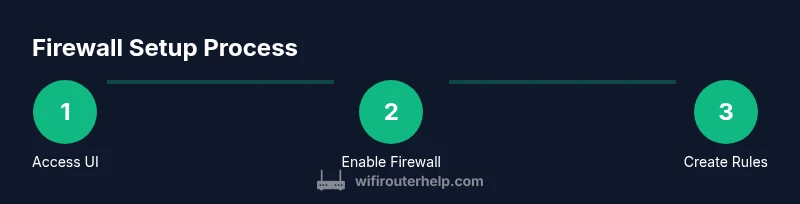
Access the router’s web UI via a browser or app using the device's gateway IP. Log in with an admin account and ensure you have a current backup of the existing configuration. This step establishes the control point for all firewall changes.
Tip: If you can’t reach the UI, verify network connections and confirm you’re not on a guest network with restricted access. - 2
Enable firewall and set default-deny
Navigate to the Firewall or Security section and enable the firewall. Set a default-deny inbound policy so unsolicited traffic is blocked unless explicitly allowed. This creates a baseline that protects all devices by default.
Tip: Do not disable the firewall during this step; aim to establish a secure baseline before adding exceptions. - 3
Create essential allow rules
Add rules that permit trusted services (e.g., reputable DNS, email, or VPN) to reach their respective devices. Bind rules to specific IPs or MAC addresses when feasible to avoid unintended exposure.
Tip: Keep rules narrowly scoped to the device and port to minimize risk. - 4
Block risky inbound traffic
Harden your inbound posture by denying inbound traffic from known bad ports or IP ranges. Consider enabling geo-blocking or reputation-based lists if your router supports it. This reduces exposure to automated probes.
Tip: Avoid blanket blocks that could disrupt legitimate services; test after applying. - 5
Configure NAT and service exposure
If hosting services, use precise NAT rules or port forwarding for required paths. Disable universal port forwarding and review DMZ exposure. This helps prevent open doors to the internet that attackers could exploit.
Tip: Prefer VPN or remote access methods over exposing services directly to the internet. - 6
Test rules from inside and outside
Validate rules by attempting allowed connections from a local device and by testing from an external network. Use tools or services to confirm known ports are reachable only as intended. Document any unexpected results and adjust as needed.
Tip: Perform tests after each major change to isolate issues quickly. - 7
Back up and monitor
Save a configuration backup and enable logging if available. Review firewall logs periodically to identify anomalies and to confirm that legitimate traffic is flowing as expected. Plan periodic audits for ongoing protection.
Tip: Automate backups if your router supports it and store copies securely.
People Also Ask
What is a router firewall and why do I need it?
A router firewall sits at the network edge and filters traffic before it reaches devices. It helps block unsolicited inbound connections and restricts risky outbound traffic. By configuring rules, you reduce exposure to common threats and improve overall home network security.
A router firewall sits at the edge of your network and filters traffic to block unwanted connections, helping protect your devices and data.
Should I enable the router firewall by default?
Yes. Enabling the firewall with a default-deny inbound posture provides baseline protection. Then add explicit allow rules for necessary services. Regularly review and adjust as your network changes.
Yes, turn on the firewall with a safe default posture and tailor rules as needed.
What is the difference between firewall rules and UPnP?
Firewall rules selectively allow or block traffic based on protocols and ports. UPnP automatically opens ports for devices, which can introduce risk. Disable UPnP if you want tighter control over what openings exist.
Firewall rules control traffic; UPnP opens ports automatically. Disable UPnP for tighter security.
How do I test if the firewall blocks traffic?
Test by attempting both allowed and blocked connections from internal devices and via external networks. Use port checking tools and direct app tests to confirm rules behave as expected. Document results for future reference.
Test from inside and outside your network to see what passes and what is blocked.
What should I back up after changes?
Export or save the current firewall configuration so you can restore it if a change creates issues. Regular backups help you recover quickly after a misconfiguration or firmware update.
Always back up your firewall settings so you can restore them if something goes wrong.
What if nothing works after changes?
Revert to the last known-good backup and re-check the default-deny stance. Remove or adjust any rules that may be blocking essential services. Incrementally reintroduce access while testing.
If things go wrong, restore a known good backup and test changes one by one.
Watch Video
What to Remember
- Enable default-deny inbound rules to start with solid protection
- Create narrowly-scoped allow rules for trusted services
- Regularly test rules from internal and external networks
- Back up configurations and monitor firewall logs
- Defer advanced features until you fully master basic controls