Parental Control for Router: Setup, Scheduling & Safety
Learn to set up router-level parental controls to manage screen time, block categories, and regulate device access across all home devices with a practical, step-by-step guide.


With parental control for router, you will limit when and what devices can access the internet, block inappropriate sites, and enforce bedtimes across the home. This guide shows you how to enable controls in your router’s admin panel, create per-device profiles, set schedules, and test the setup on phones, tablets, and computers.
What is router parental control and why it matters
According to WiFi Router Help, router parental controls allow you to implement protective rules at the network edge rather than on individual devices. The WiFi Router Help team found that settings baked into the router often provide a stronger, more consistent baseline than app-based controls, especially in homes with kids who use multiple devices. By configuring the router, families can enforce bedtimes, content filters, and pause times for all devices that connect to the home network, even when a child uses a borrowed tablet or a friend's phone. In practice, this means you set a few global rules that apply to every device, across every room, without having to chase settings across dozens of apps. This approach can reduce fights around late-night browsing and help parents model healthy digital habits.
Router-based controls take effect at the point where devices join your network, making it harder for kids to bypass restrictions by using cellular data or guest networks. They also simplify policy management for households with mixed devices, such as iOS, Android, laptops, and smart TVs. While not a silver bullet, router-level controls provide a solid, auditable baseline that reinforces other safety practices.
A practical takeaway is to pair router controls with ongoing conversations about online safety. Set clear expectations, explain why certain sites or times are restricted, and review rules together at regular intervals. By combining policy with visibility, families tend to experience fewer conflicts and better adherence to rules.
How router parental controls differ from device-level controls
Device-level controls (on each phone, tablet, or computer) can be powerful but are often inconsistent, especially when children use many personal devices or borrowed gear. Router-level parental controls operate at the network boundary, applying a uniform policy to every device that connects. This central control reduces gaps where kids circumvent restrictions by using other apps or changing settings on individual devices. It also makes it easier for parents to enforce rules across the home without needing to configure dozens of apps. However, device-level controls can be stronger for app-specific restrictions or location-based limits when devices switch networks. In practice, use router controls for broad policies and supplement with device controls for high-risk apps or critical times.
Core capabilities you should look for in router-level parental controls
A robust router parental-control feature set includes user/child profiles, per-device targeting, time-based schedules, content filtering (categories and domains), pause or downtime options, and usage logs. Look for responsive dashboards, clear device grouping, and the ability to override or pause rules from a parent device. Strong privacy controls matter: you should be able to view activity without compromising users’ private information. Some routers offer remote management, but that feature should be secured with a strong password and, ideally, two-factor authentication.
Beyond basics, consider integration with DNS-based content filtering, safe-search modes for search engines, and the ability to create exception lists for trusted sites. A good solution supports multiple devices simultaneously and updates its filtering rules automatically as new sites appear online. This helps maintain protection as your household grows or changes over time.
Preparing your network: prerequisites and checks
Before you start, confirm your router supports built-in parental controls or firmware options that enable them. Check that your router is connected to the internet and that you have administrative access to the router’s web interface. Update the firmware to the latest version to ensure security patches and bug fixes are in place. If your router lacks native parental controls, you can still implement protection by configuring a DNS-based filter or installing compatible third-party firmware on supported models. Gather a list of devices in the home that will participate in the policy, including phones, tablets, gaming consoles, and smart TVs. Finally, decide on a simple naming convention for profiles (for example, “Kids-Tablets,” “Parents-Laptops”) to keep management straightforward.
If you’re uncertain about firmware compatibility, consult your router’s documentation or the manufacturer’s support site. A cautious approach—updating firmware in a maintenance window—helps prevent mid-setup outages. This stage is essential to ensure you don’t lose access to the admin interface after applying new rules.
Profiles and device groups: organizing access
Creating profiles helps you tailor rules to each user or device type. For younger children, you may want stricter time windows and broader content filters, while teens might require more flexible access with occasional curfews. Group devices into profiles such as “Kids,” “ Teens,” and “Guest Devices.” Attach each device to its corresponding profile by MAC address or IP reservation so rules persist after reboots. This organization makes it easier to modify policies later without reconfiguring dozens of entries.
Keep a master list of all devices and their assigned profiles. If a device moves between network environments (for example, a gaming console taken to a friend’s house), profiles stored on the router ensure consistency when reconnecting to the home network.
Time-based rules: scheduling internet access
Time-based rules are the most impactful way to structure healthy online habits. Define daily windows when internet access is allowed and schedule outages for homework time, meals, or bedtime. Consider a predictable routine that aligns with family commitments and school schedules. Some routers let you create exceptions for legitimate needs (homework research, occasional extra gaming on weekends). When designing schedules, start with a conservative baseline and adjust after a week of observation.
Document the schedule so both children and guardians understand expected access times. This clarity reduces miscommunication and helps you enforce rules consistently.
Content filtering: categories, safesearch, and exceptions
Content filtering helps reduce exposure to adult material, violence, or other inappropriate content. Many routers offer predefined categories (adult content, gambling, social media, etc.) and allow custom URL whitelists or blacklists. For households with younger children, enable only age-appropriate categories and ensure safesearch or safe browsing modes are active where available. If a needed site is blocked mistakenly, use exception lists to grant access while continuing general protections. Be cautious when relying on filters alone; youthful users can still bypass some filters with VPNs or by using cellular data.
Regularly review the filtered categories to adapt to new sites and apps. Combine domain-level controls with app-level awareness where possible to create a layered defense.
Privacy, security, and bypass risks
Router-based parental controls must be balanced with privacy and security considerations. You’ll collect usage metrics and apply policies to multiple devices, which requires careful handling of personal data. Use strong router credentials, enable remote-management restrictions if not needed, and keep firmware up to date. Be aware that tech-savvy household members may attempt to bypass rules by using VPNs, changing DNS settings, or connecting via mobile networks. The best defense is a combination of policy, education, and technical controls that cannot be easily circumvented.
If a child is discovering a workaround, review the underlying reasons for the restriction and adjust rules to maintain safety without eroding trust. Communicate clearly about what the rules protect and invite feedback to improve the setup.
Testing, validating, and adjustments
Testing is essential to ensure everything works as intended. After applying policies, connect each target device to confirm the rules take effect. Check that time-based blocks trigger at the correct times and that content filters block unwanted categories while allowing permitted sites. If a device has trouble connecting, verify profile assignments, MAC bindings, and IP address reservations. Review the router’s logs or usage reports for signs of blocked attempts and adjust the white/blacklists as needed. A periodic review—quarterly or after major app updates—helps keep protections current.
Common mistakes and how to avoid them
Rushing through setup without firmware checks is a common pitfall. Always verify that you are using the latest firmware and that you have admin access to the router before making changes. Another mistake is creating overly aggressive rules that disrupt legitimate activity; start with conservative schedules and expand as you observe how your family uses the network. Finally, avoid relying on a single control method; combine router-level rules with conversations about safe online behavior and incremental access rules that evolve with your children’s maturity.
AUTHORITY SOURCES
- https://www.fcc.gov/consumers/guides/parental-controls
- https://www.consumer.ftc.gov/articles/online-safety
- https://www.nist.gov/topics/cybersecurity
Tools & Materials
- Router admin access credentials(Needed to enter the web interface and modify parental-control settings)
- A computer or smartphone connected to the network(Used to log in to the router dashboard and configure profiles)
- Current router firmware(Check for the latest version to ensure compatibility and security)
- List of devices to configure(Gather MAC addresses or device names for per-device profiles)
- Notebook or digital notes(Document settings and schedules for future updates)
Steps
Estimated time: 25-60 minutes
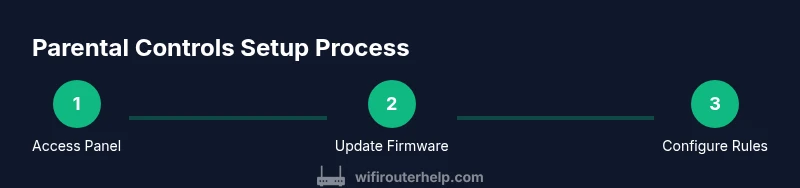
- 1
Access the router admin panel
Open a web browser and enter the router's IP address. Log in with administrator credentials. If you don’t know the IP, check the label on the router or the user manual. This step establishes the gateway for all controls.
Tip: Write down the login URL and credentials in a secure place. - 2
Update the router firmware
Navigate to the firmware update section and apply any available updates. Updates fix security gaps and bring new parental-control features that improve reliability.
Tip: Perform updates during a maintenance window to avoid interruptions. - 3
Enable parental controls
Turn on the router’s parental-control feature if it isn’t already active. Some models require you to enable it under Security or Advanced settings before you can create profiles.
Tip: If remote management is enabled, disable it unless you specifically need it for away-from-home controls. - 4
Create master profile and per-device profiles
Create a main profile for household-wide rules and then add per-device profiles for individual kids or devices. This separation makes it easier to tailor schedules and filters.
Tip: Use clear names like Kids_Tablet or Teen_Phone to avoid confusion later. - 5
Add devices to appropriate profiles
Bind each device to its corresponding profile using MAC addresses or device names. Consistency ensures rules apply automatically after reconnects.
Tip: Double-check that devices aren’t duplicated under multiple profiles unless intentional. - 6
Configure time-based rules
Set daily allowed windows and outage periods. Start with realistic defaults (e.g., homework and bedtime windows) and adjust after a week based on feedback.
Tip: Document the schedule to share with the family so expectations are clear. - 7
Set content filters and safe browsing
Choose categories to block and enable safe-search modes if available. Add essential sites to an allow-list if needed to avoid over-blocking.
Tip: Test multiple sites from different devices to ensure filters work as intended. - 8
Apply and save configuration
Review all changes, then save and apply. Some routers require a restart for changes to take effect.
Tip: Capture a screenshot of the final settings for future reference. - 9
Test across devices
Have each user try to access the internet during different times to confirm rules apply consistently. Check both allowed and blocked attempts.
Tip: Use both common browsers and apps to verify behavior. - 10
Review logs and adjust as needed
Inspect usage logs to see if rules behave as expected. Refine schedules or filters based on real activity patterns.
Tip: Schedule a quarterly review to keep policies aligned with changing needs.
People Also Ask
Do I need to change my Wi‑Fi password after enabling router parental controls?
Enabling parental controls does not automatically require a Wi‑Fi password change, since controls operate at the router level. If you enable remote management or suspect a credential exposure, consider updating the admin password and revising access permissions.
Enabling the controls doesn’t usually require changing the Wi‑Fi password unless you’ve shared admin access or enabled remote management.
Can router parental controls block apps or games?
Router controls typically block sites or categories rather than individual apps. Some apps use multiple domains or VPNs, so you may need a layered approach with device-level settings or DNS filtering to reduce bypass risks.
Most router controls block categories and domains, not specific apps. For apps that use many domains or VPNs, add device-level controls for better coverage.
Will these controls affect every device on my network?
Yes, when applied at the router, the policies generally affect all devices that connect to the home network. If you want exceptions, assign those devices to a separate profile with different rules.
Router-based rules apply to all devices on your network unless you create exceptions for certain devices.
What if my router doesn’t have built-in parental controls?
If your router lacks built-in controls, you can use DNS-based filtering or consider upgrading to a model with supported parental-controls features. Some third-party firmware options may also offer control capabilities if your hardware supports them.
If your router lacks built-in controls, use DNS filters or consider upgrading to a model with parental-control features.
How do I test the rules effectively?
Test by connecting each target device during different times and attempting typical allowed and blocked activities. Check logs or reports after testing and adjust schedules or filters accordingly.
Test each device at different times and review logs to confirm the rules work as intended.
Are router parental controls private and secure?
Parental controls are a privacy-sensitive feature. Use strong credentials, disable unnecessary remote access, and monitor what usage data is collected. Regular firmware updates help protect against vulnerabilities.
They can be private and secure if you use strong credentials and keep firmware updated.
Watch Video
What to Remember
- Implement router-level controls for consistent protection.
- Create clear profiles and device groupings for easy management.
- Balance time rules with content filters to shape healthy habits.
- Regularly test, review, and adjust settings.