Router for Parental Controls: Setup, Features, and Troubleshooting
Discover how to choose and configure a router with robust parental controls, set up profiles and time limits, filter content, and troubleshoot common issues for a safer home network.


By the end you will know how to choose a router for parental controls and configure profiles, time limits, content filters, and device whitelists. You’ll need a compatible router, access to its admin interface, and a clear family policy to enforce. This guide covers built-in controls, best practices, and practical setup steps for households.
Why a router for parental controls matters
According to WiFi Router Help, a router with built-in parental controls provides a centralized, transparent way to manage family access, making it simpler to apply consistent rules across all devices. Rather than juggling multiple apps or browser extensions, you gain visibility into when and what is accessible on your network. This centralization reduces the chance that a child bypasses safeguards by switching devices or networks and helps you enforce a predictable digital routine. The goal is not to blame technology but to create a safer, calmer online environment where you can guide healthy online habits. When you choose a router with robust parental controls, you also gain the ability to implement schedules, block unsafe sites, and tailor access for each household member without micromanaging every phone or tablet individually.
Core features that matter for parental controls
When evaluating a router for parental controls, look for per-user profiles, time-based access rules, and content filtering that covers categories commonly found on the web. A good option should support:
- Profiles for each family member with distinct permissions
- Time scheduling that aligns with daily routines (homework, bedtime, screen-free meals)
- Content filtering with safe search, category blocking, and custom allowed/blocked lists
- Device-level controls or account-based policies that apply even when devices move between networks
- Easy remote management via a mobile app or web UI
- Visibility into connected devices and their activity, with simple reporting
Having these capabilities in one device makes enforcement straightforward and enforceable, especially for busy households.
How to evaluate routers for parental controls
Begin by confirming the router’s firmware supports parental controls natively. Check whether controls are applied per user, per device, or per network profile. Assess how easy it is to create schedules and content filters, and whether you can apply rules to guest networks without disabling parental controls on your main network. Consider the user experience for both adults and kids: a clean, intuitive interface reduces the chance of misconfigurations. Finally, verify compatibility with your devices and your internet plan, and read reviews focusing on reliability and ongoing support.
Step-by-step overview (before the detailed steps)
Before diving into configurations, map out your family’s needs. Decide who gets what access, which hours require restrictions, and which content categories are off-limits. If you use multiple devices, determine which should be included in shared rules versus individual profiles. This planning saves time and reduces the likelihood of accidental rule gaps when devices are added or moved around the home.
Troubleshooting common issues
Even well-planned setups encounter hiccups. If a device can bypass controls, verify that it remains connected to the intended network and that VPNs or proxy services aren’t circumventing filters. Ensure your router’s firmware is up to date, because updates often fix bugs that degrade parental controls. If rules seem inconsistent across devices, double-check profile assignments and ensure the correct network is selected on each device. Persistent issues may require resetting certain settings or reapplying configurations to ensure rule integrity.
Security and privacy considerations
Parental controls are a privacy-sensitive feature. Limit who can access the admin interface and change settings, and enable two-factor authentication if available. Regularly review the privacy options offered by the router, especially around data collection and reporting. When configuring content filters, balance safety with privacy by avoiding overly aggressive rules that reveal child behaviors or usage patterns to third parties. Document your configuration changes so you can audit them later and adjust as needed.
Real-world scenarios: family plans and edge cases
Every family is unique, so tailor your approach. For younger children, you might block most social and gaming sites except a small whitelist. For teens, you may allow more freedom but enforce strict bedtime and location-based rules. If you have devices that belong to shared spaces (e.g., a living room tablet), place them under a shared profile with clear expectations. For guests, consider a guest network that inherits basic safety rules without exposing your private configurations.
Testing and refinement: verify and adjust
After applying initial rules, test across multiple devices and browsers. Confirm that content filters block inappropriate sites, that time restrictions apply correctly, and that devices outside your main network still respect policies when roaming. Schedule periodic reviews (e.g., monthly) to adjust blocked categories as needs evolve, such as during school breaks or holidays. Use the router's logs to identify any gaps and refine rules accordingly.
Quick maintenance tips
Keep firmware updated, review user profiles periodically, and back up your configuration. Document changes and restore points so you can revert if a rule overreaches. When adding new devices, update relevant profiles to ensure consistent protection across the network. Finally, train family members on how these controls work so they understand the intent and benefits, not just the rules.
Tools & Materials
- Router with built-in parental controls(Ensure firmware supports profiles, time limits, and content filtering)
- Computer or smartphone for admin access(Wired or wireless connection to the router's admin interface)
- Strong internet connection(Stable link to apply and test settings)
- Family plan or policy outline(Document allowed times, sites, and device rules)
- List of devices and owners(Helps assign profiles to each family member)
- Optional: parental control app(Some routers offer companion apps for easier management)
Steps
Estimated time: 15-25 minutes
- 1
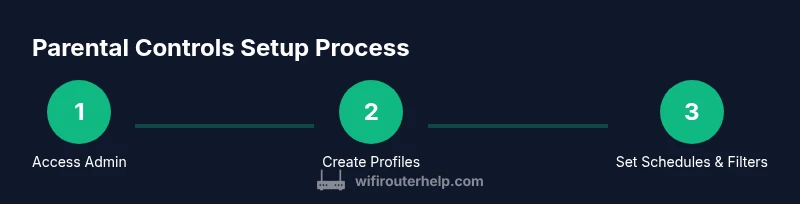
Access the router admin page
Connect a computer to the router and open the admin URL (usually 192.168.1.1 or similar). Log in with the admin credentials. If you don’t know them, check the router’s label or manual. This is the gateway to all parental controls.
Tip: Use a wired connection during initial setup to avoid wireless dropouts. - 2
Create per-user or per-device profiles
Create profiles for each family member or device group. Assign devices to the appropriate profile so rules apply automatically when they connect.
Tip: Name profiles intuitively (e.g., “Alice-Phone” or “Kids-Tablets”). - 3
Enable time-based restrictions
Set daily or weekend schedules to limit internet access during homework hours, meals, and bedtime. Apply the schedule to relevant profiles.
Tip: Start with conservative hours and adjust based on real-world needs. - 4
Configure content filters
Choose filtering levels or category blocks (adult content, gambling, social media, etc.). Add any critical sites to a whitelist or blacklist.
Tip: Test both typical sites and edge cases to ensure rules behave as expected. - 5
Apply device-level controls
If available, set rules at the device level so a child’s phone or tablet cannot bypass rules by connecting to a different SSID.
Tip: Enable guest network restrictions if guest devices should remain safe by default. - 6
Enable remote management and backup
Turn on remote access for monitoring and create a backup of your configuration. This helps recover quickly if settings are lost.
Tip: Write down admin login details and save a backup file securely. - 7
Test across devices and adjust
Test on smartphones, tablets, and laptops. Verify that filters block, schedules apply, and access is timely aligned with expectations.
Tip: Document any exceptions and adjust profiles accordingly. - 8
Document and communicate rules
Explain the rationale and the expected behavior to your family. Share how to request exceptions and where to find the settings.
Tip: Create a one-page guide for your home to reduce questions.
People Also Ask
Do router-based parental controls work on all devices?
Router-based controls apply at the network level and affect devices when they are connected to your home network. Some devices may bypass them if they use cellular data or VPNs. Always test on each device and communicate expectations with your household.
Router controls work across devices on your home network, but VPNs or cellular data can bypass them, so test and discuss usage with your family.
Can parental controls be bypassed by guests or neighbors?
Guest devices on a dedicated guest network can have separate rules. If guests require internet access, ensure the guest network still respects your safety settings and avoid sharing admin credentials.
Guest networks can be configured to follow different rules, keeping your main network secure.
How do I keep parental controls up to date?
Regularly check for firmware updates and re-evaluate policies as children grow and routines change. Firmware updates can fix bugs and improve filtering accuracy.
Update firmware when available and review policies as family needs evolve.
Are there free options, and when should I upgrade?
Many routers include basic controls at no extra cost. Upgrading may be warranted for more granular schedules, stronger filtering, or easier remote management.
Free options exist, but upgrades unlock more precise controls and remote management.
How do I apply controls to specific devices?
Assign devices to profiles or create per-device rules. This ensures a child's tablet or phone has the intended limits regardless of location.
Assign devices to individual profiles for precise control.
Will parental controls affect streaming or gaming performance?
Controls may introduce slight latency or block content during peak times. Test after setup to balance safety with performance.
Expect minor impact; test and adjust to minimize disruption while maintaining safety.
Watch Video
What to Remember
- Choose a router with built-in parental controls.
- Create profiles, schedules, and filters to automate rules.
- Test across devices and adjust for real-world use.
- Keep firmware updated and document changes for accountability.