ExpressVPN Router Setup: A Complete Step-by-Step Guide
A complete, step-by-step guide to configure an ExpressVPN-enabled router for whole-network protection, including compatibility checks, three setup paths, performance tips, and troubleshooting.


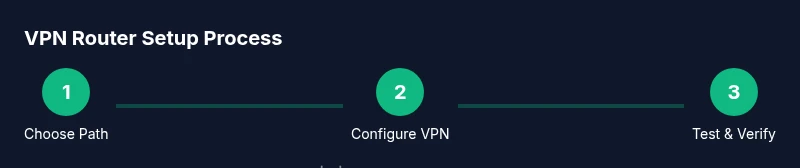
This guide shows you how to configure an ExpressVPN-enabled router to protect all devices on your home network. You'll verify compatibility, choose a setup path (official ExpressVPN router app, OpenVPN manual config, or third‑party firmware), and test connectivity. Before you begin, you'll need a VPN-enabled router, an active ExpressVPN subscription, and access to your router's admin panel.
What is an ExpressVPN router and why use one
An ExpressVPN router is a standard home router configured to route all traffic through the ExpressVPN network. This setup protects every connected device, from phones to smart TVs, by encrypting data at the edge of your network. Benefits include simpler management (one VPN across all devices), consistent security when guests join, and the ability to bypass geo-restrictions on all wired and wireless devices. According to WiFi Router Help, a VPN-enabled router can significantly reduce the number of devices you must configure individually. The WiFi Router Help team found that a router-level VPN minimizes inconsistent protection caused by app-by-app VPN installs and protects devices that don’t support VPN apps. The approach also centralizes DNS handling, which can reduce leakage risks if your devices aren’t configured correctly. The trade-offs include potential speed reductions on far-away servers and extra setup time, especially if you’re new to router firmware changes. Consider your home network size and whether you need split-tunneling or full coverage for all devices.
Compatibility and prerequisites
Before you begin, confirm you have a VPN-enabled router or a router that supports flashing firmware with VPN capabilities. ExpressVPN supports several setup paths, including official router firmware, OpenVPN-based configuration, or compatible third-party firmware (e.g., OpenWrt or DD-WRT) that supports VPN routing. You’ll also need an active ExpressVPN subscription and administrative access to the router. Non-technical users may prefer pre-flashed ExpressVPN-enabled devices offered by partners. Make sure your network hardware can run the chosen firmware, and back up current settings. Finally, ensure your internet plan offers adequate speed to accommodate VPN encryption, and keep your router’s default login credentials secure.
Methods to configure ExpressVPN on a router
There are three common paths to get ExpressVPN routed across your home network. First, use your router’s built-in VPN support if it ships with ExpressVPN’s official firmware or a compatible version. Second, configure OpenVPN manually by downloading the ExpressVPN OpenVPN configuration files and importing them into your router’s VPN client. Third, flash compatible third-party firmware (such as OpenWrt or DD-WRT) that supports VPN routing, then install ExpressVPN via the provided steps. Each path has trade-offs between ease of use, performance, and long-term maintenance. Start with the simplest option that meets your needs and be prepared to troubleshoot if devices fail to route traffic as expected. For most households, a router with official ExpressVPN firmware or a straightforward OpenVPN setup offers a reliable balance of security and usability.
Security and privacy considerations when routing via VPN
Router-level VPNing protects every device, including those without VPN apps or those with limited OS capabilities. This reduces the chance of unprotected endpoints and helps prevent DNS leaks by centralizing DNS handling on the router. Enable a kill switch to ensure traffic stops if the VPN drops, and review the router’s firewall settings to block local network access when the VPN is disconnected. Remember to update credentials and disable WPS to minimize attack vectors. If you routinely allow guest networks, segregate them from your primary network to maintain privacy and reduce potential risk exposure.
Performance optimization and troubleshooting
VPN encryption can introduce latency and reduce throughput. To mitigate this, connect your router to your modem with a wired Ethernet link, place the router closer to the primary internet source, and consider a router with robust CPU power for VPN work. If you notice significant slowdowns, test with a nearby VPN server and switch to a different protocol if available. When troubleshooting, verify the VPN status on the router’s admin page, confirm the correct configuration files are loaded, and check for firmware updates. If devices still don’t route through the VPN, re-check DNS settings and ensure there are no conflicting VPN profiles on individual devices.
Validation and ongoing maintenance
After setup, test from multiple devices to confirm traffic is routed through the VPN. Use a reliable IP check or a geolocation test to confirm the VPN’s effect. Maintain regular firmware updates for both your router and the VPN firmware, and periodically recheck DNS and leak protection settings. Document changes to simplify future maintenance and upgrades. Scheduling a quarterly review helps ensure continued protection as devices and networks evolve.
Verdict: a practical, scalable path for most homes
A VPN-enabled router delivers broad, maintenance-friendly security that covers all devices without begging users to install apps on every gadget. Start with the simplest supported path and scale to advanced firmware if you need features like deeper firewall controls or network segmentation. The WiFi Router Help team recommends validating protection with a baseline test and then iterating based on your network performance and household needs. With careful setup and regular maintenance, a VPN router provides strong, ongoing privacy for most homes.
Tools & Materials
- VPN-enabled router(Must support VPN client or be flashable with VPN firmware)
- Active ExpressVPN subscription(You’ll need login credentials and access to setup guides)
- Ethernet cable(s)(For stable, wired connections during setup)
- Computer or mobile device(Used to access the router admin interface)
- Backup of current router settings(Prevent loss if you need to revert)
Steps
Estimated time: 60-90 minutes
- 1
Choose setup path
Decide whether you’ll use official ExpressVPN firmware, OpenVPN manual configuration, or flash third-party firmware. This choice drives the exact steps you’ll follow and helps you estimate the time required.
Tip: Start with the simplest supported path to minimize troubleshooting. - 2
Back up current configuration
Log into your router’s admin panel and export the current settings. This backup lets you roll back quickly if you encounter issues during VPN setup.
Tip: Save the backup to a local drive or cloud storage for safety. - 3
Update firmware
Check for the latest firmware compatible with your chosen path and apply updates. Updated firmware improves security, stability, and VPN compatibility.
Tip: Ensure continuous power during the update to avoid brick risk. - 4
Install ExpressVPN on the router
Follow the path you chose to install the VPN: use the ExpressVPN router app, upload OpenVPN config, or flash new firmware with VPN support.
Tip: Double-check that VPN credentials and server selections are correct before testing. - 5
Configure network security
Set a strong admin password, disable WPS, enable firewall rules, and configure a secure DNS (preferably VPN-provided DNS).
Tip: Document the new admin password and DNS settings. - 6
Test VPN connection
Connect a device, verify VPN status on the router, and run a DNS leak test. Confirm traffic routes through the VPN and that local devices can still access the internet.
Tip: Test from multiple devices on both 2.4 GHz and 5 GHz bands. - 7
Fine-tune and monitor
If speed is an issue, consider a nearer server, different protocol, or guest network isolation. Schedule periodic checks for updates and leak tests.
Tip: Set up automatic firmware updates if available.
People Also Ask
Can I run ExpressVPN on any router, or do I need a special device?
Not every router supports VPN clients. Look for routers that list VPN support or are compatible with OpenVPN/OpenWrt/DD-WRT firmware. If you’re unsure, start with a model that ExpressVPN explicitly documents as compatible and upgrade if you hit performance or feature limits.
Most routers that support VPN clients will work; check the list of compatible devices and consider upgrading if you need more features.
What setup paths does ExpressVPN offer for routers?
ExpressVPN supports official router firmware, OpenVPN configuration, and compatible third-party firmware. Each path has different steps and maintenance needs, so choose the one that aligns with your comfort level and hardware.
There are three main paths: official firmware, OpenVPN config, or third-party firmware like OpenWrt. Pick the simplest one that meets your needs.
Will a VPN router slow down my internet?
VPN encryption typically reduces raw throughput and adds latency. The impact depends on router CPU, VPN server distance, and chosen protocol. You can mitigate by selecting nearby servers and a capable router.
Yes, VPNs can slow speeds a bit, but choosing a closer server and a capable router helps mitigate that.
How do I verify that all devices are using the VPN?
Test by checking the IP address from multiple devices and performing a DNS leak test. Ensure the router status shows VPN connected and that traffic routes through the VPN server.
Test with several devices to confirm the VPN is active across the network.
Is split tunneling available on VPN routers?
Some VPN configurations support split tunneling on routers, but availability depends on firmware and VPN version. If supported, you can route only select devices through the VPN.
Split tunneling may be possible with certain firmware; check your router’s capabilities.
What maintenance is needed after setup?
Regularly update firmware, monitor VPN uptime, and recheck DNS and leak protection after firmware changes. Keep documentation of changes for easier troubleshooting.
Keep firmware updated and periodically verify VPN status.
Watch Video
What to Remember
- Choose the simplest VPN path that fits your router.
- Back up settings before making changes.
- Test VPN coverage across multiple devices.
- Maintain security by updating firmware regularly.