OpenVPN Router Guide: Secure Your Home Network
Learn to configure an OpenVPN router to secure every device on your home network. This step-by-step guide covers prerequisites, setup, testing, and best practices for OpenVPN on your router in 2026.


OpenVPN router setup lets you secure every device on your home network by routing traffic through a VPN tunnel. You’ll learn how to enable OpenVPN on your router, upload configs, and verify connectivity. Requirements include a VPN service with OpenVPN support, a compatible router, and admin access to the router settings.
What is an OpenVPN router?
An OpenVPN router is a device that runs OpenVPN client or server software at the router level, so every device on your home network can send traffic through a single encrypted tunnel. According to WiFi Router Help, this setup provides centralized VPN management and consistent security without needing to install VPN apps on every device. With an openvpn router, you gain privacy, access to geo-restricted services, and simplified remote access for family laptops and smart devices. This approach also helps standardize firewall rules and DNS settings across all connected equipment, reducing configuration drift across desktops, tablets, and smart TVs. When you’re evaluating hardware, look for processor power, memory, and supported firmware that explicitly mention OpenVPN compatibility to avoid post-purchase headaches.
VPN coverage for every device
Using an openvpn router means your phone, laptop, streaming stick, and smart home gear automatically benefit from encryption, reducing the risk of data exposure on public networks or guest Wi-Fi. While this centralized approach is powerful, it can introduce latency if your router’s CPU is underpowered or your VPN server is far away. Real-world results depend on your internet plan, the VPN provider’s performance, and the router’s hardware. The WiFi Router Help team notes that selecting a model with adequate processing capability will minimize slowdowns during peak hours, keeping streaming and gaming experiences smooth.
Planning prerequisites and compatibility
Before you begin, verify that your VPN service supports OpenVPN and that your router firmware can run OpenVPN client or server software. Some consumer-grade routers ship with limited VPN support out of the box, while others rely on third-party firmware like OpenWrt or DD-WRT for full OpenVPN functionality. WiFi Router Help analysis shows that compatibility hinges on your router’s CPU architecture, available RAM, and the ability to install or upgrade firmware. For best results, pick a device with official OpenVPN support or broad third-party firmware compatibility, and ensure you have admin access to the router.
How an OpenVPN router interacts with your network
In this setup, the router becomes the VPN endpoint, tunneling outbound traffic to the VPN server and routing responses back through the same channel. DNS requests can be sent through the VPN or kept local for speed, depending on your privacy needs. A properly configured OpenVPN router can prevent IP leaks and protect devices that don’t run VPN software directly. Remember, privacy improvements hinge on reliable DNS handling, leak protection, and correct routing Rules on the router.
Common considerations for performance and security
The performance impact of a VPN on a home router largely depends on the router’s processing power, the VPN cipher selected, and the chosen VPN server location. For security, always use modern ciphers, enable authenticated encryption, and regularly update firmware to patch vulnerabilities. If you plan to access resources remotely, consider dynamic DNS services and secure remote access policies. In short: balance security with performance by choosing the right hardware and configuring optimal VPN settings.
Tools & Materials
- OpenVPN-capable router (client or server mode)(Ensure firmware supports OpenVPN and is up to date)
- VPN service with OpenVPN support(Obtain login credentials and .ovpn configuration files)
- OpenVPN configuration files (.ovpn, keys, certificates)(Organize with a secure backup plan)
- Computer or tablet with admin access to the router(Used to upload configs and modify settings)
- Secure storage for backups (external drive or encrypted cloud)(Back up router configurations)
- Network cables and power supply(Keep handy for physical setup and recovery)
Steps
Estimated time: 25-45 minutes
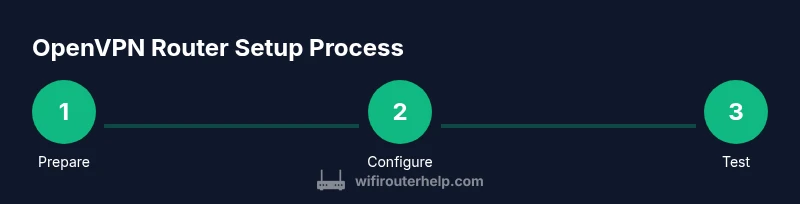
- 1
Prepare VPN credentials and files
Collect the OpenVPN configuration files, certificates, and login credentials from your VPN provider. Verify you have the correct config for client or server mode and make a secure local copy before making changes to your router.
Tip: Keep a backup of original files in a secure location. - 2
Choose mode: client or server
Decide whether the router will act as an OpenVPN client (forwarding traffic to VPN) or as a server (accepting VPN connections from devices). Client mode is most common for home setups.
Tip: Client mode is typically simpler and recommended for most households. - 3
Access the router admin interface
Log in to your router’s admin page using a wired connection for reliability. Locate the VPN or Advanced Settings section. If you need firmware changes, perform them before uploading VPN files to avoid conflicts.
Tip: Use a strong admin password and disable remote admin exposure if not needed. - 4
Upload configurations and set authentication
Upload the .ovpn file, certificate, and key as provided by your VPN service. Choose the correct VPN protocol, encryption, and authentication settings recommended by your provider.
Tip: Double-check file paths and ensure the VPN tunnel is set as the primary default route. - 5
Test the VPN connection
Connect a client device, run a leak test, and verify your IP and DNS are routed through the VPN. Check for DNS leaks by using a web-based tool and ensure traffic routes through the VPN as intended.
Tip: Test on multiple devices to confirm universal coverage. - 6
Securely save and back up configurations
Export the router’s current configuration to a secure backup location. Consider encrypting the backup and storing it offline. Document changes you made for future reference.
Tip: Maintain a changelog and rotate credentials periodically.
People Also Ask
What is OpenVPN and why use an OpenVPN router?
OpenVPN is a VPN protocol that creates secure tunnels over the internet. An OpenVPN router runs the client/server software at the router level to protect all devices.
OpenVPN creates secure tunnels, and using a router to run it protects every device on your network.
Do I need a special router to run OpenVPN?
Most modern routers support OpenVPN as a client or server, but check official docs; some models require firmware upgrades.
Most modern routers can run OpenVPN with the right firmware.
Can I enable OpenVPN server mode on a consumer router?
Yes, some consumer routers support server mode, but it may require advanced firmware or specific hardware.
Some consumer routers can run OpenVPN server, but it’s easier with compatible models.
How do I update OpenVPN client configurations safely?
Obtain updated .ovpn files from your provider and replace old ones via the router UI; back up first.
Get new config files from your provider and swap them carefully.
What are common issues and fixes when using OpenVPN on a router?
Common issues include DNS leaks, IP leaks, and misconfigured routes. Verify DNS settings, run leak tests, and review routing rules.
Look for leaks and misconfigurations, then adjust DNS and routes.
Will VPN speed on a router be as fast as direct VPN apps on devices?
VPN speeds depend on the router CPU and VPN cipher; high-performance models minimize bottlenecks compared to budget hardware.
Router VPN can be slower on weaker hardware; test speeds to know for sure.
Watch Video
What to Remember
- OpenVPN router centralizes VPN control across all devices
- Verify compatibility and update firmware before configuring
- Test thoroughly to prevent DNS/IP leaks
- Back up configs and monitor performance for stability