Router VPN: Step-by-Step Guide to Secure Your Home Network
Learn how to securely route all home traffic through a VPN-enabled router. This practical guide covers benefits, setup options, firmware choices, and common troubleshooting for homeowners and tech enthusiasts. WiFi Router Help explains router VPN clearly with practical steps and tips.


By enabling a VPN on your router, you encrypt traffic for every connected device, all the time. This quick answer outlines what a router VPN does, when it’s worth it, and what you’ll need to get started. You’ll require a VPN service, a VPN-capable router (or compatible firmware), and a computer to configure the settings. WiFi Router Help can guide you through the setup.
What a router VPN does and who should use it
A router VPN encrypts traffic at the network edge, securing every device that connects to your home network. Instead of installing a VPN app on each laptop, phone, or smart device, you configure the VPN on your router, and all traffic passes through the encrypted tunnel. This centralization is especially valuable for households with multiple devices, guests, or IoT gadgets that may not support VPN software. By handling encryption at the router, you gain consistent privacy, easier management, and fewer per-device configurations.
That said, not every router is VPN-friendly out of the box. Some require flashing third-party firmware such as OpenWrt or DD-WRT, or purchasing a model with built-in VPN support. When evaluating hardware, consider your bandwidth needs, the VPN provider’s server locations, CPU power for encryption, and the number of concurrent connections you expect. If you want to prevent IP leaks when the VPN drops, enable a kill switch and DNS leak protection. Ensure your plan complies with local law and your ISP terms.
In this article, we’ll cover what a router VPN is, who benefits most, and how to pick hardware and configurations that fit your home network. We’ll also highlight common pitfalls and concrete fixes so you can get started quickly.
VPN vs individual device apps: pros and cons
Using a router VPN offers several advantages. It provides coverage for every device on your network, including TVs, gaming consoles, and smart home gadgets that might not have VPN apps. It simplifies ongoing security because you don’t need to configure VPN on each device, and you can centrally manage access and settings. For households with guests, a single router-level VPN can be easier to audit than dozens of device apps. On the downside, router-level VPN can introduce some speed overhead, especially on older hardware or with resource-intensive encryption. Compatibility issues may arise with certain devices or apps, and VPN setup can be more technical than installing a mobile app. In some cases, you may need to flash new firmware or upgrade to a more powerful router.
From a privacy perspective, router VPN centralizes control but depends on your VPN provider’s policies. A trustworthy provider with a clear no-logs policy and strong DNS handling will deliver the best results. Always test for DNS leaks and IP leaks after setup, and monitor performance to avoid noticeable slowdowns during peak hours. Overall, router VPN is a strong option for unified protection and simpler device management when you have compatible hardware and a reliable service.
How to assess your router's VPN capabilities
To determine if your router can run a VPN, start with the basics: confirm hardware specifications, firmware options, and CPU headroom for encryption. Look for built-in VPN support in the stock firmware or the ability to flash third-party firmware like OpenWrt or DD-WRT. A router’s CPU power and RAM determine how well it handles encryption without stalling throughput; high-end devices can sustain faster speeds with VPN overhead. Check the manufacturer’s documentation for supported VPN protocols (OpenVPN, WireGuard, or IPsec) and any known compatibility notes with popular VPN providers. The WiFi Router Help analysis emphasizes validating whether your current router can handle the desired VPN protocol without overheating or throttling. Also verify that your chosen VPN service offers robust router support, including multi-device configurations and reliable DNS handling.
Choosing a VPN protocol and firmware approach
OpenVPN is widely supported and highly configurable, but WireGuard often provides faster speeds and lower CPU load. Decide based on your hardware and provider compatibility. For firmware, you can use the stock firmware if it includes VPN features; otherwise, flashing OpenWrt or DD-WRT can unlock broader options. Each route has trade-offs: stock firmware is simpler and more stable but limited in customization; custom firmware offers flexibility but requires careful installation and ongoing maintenance. Consider starting with OpenVPN on a compatible router to maximize compatibility, then assess whether WireGuard could deliver better performance on your hardware.
Hardware prerequisites: what you need before you begin
Before starting a router VPN, ensure you have a router with sufficient horsepower, a reliable VPN subscription, and a computer or mobile device for configuration. A wired Ethernet connection during setup minimizes interruptions. Keep a backup power source in case of outages, especially if your area experiences intermittent power. If your stock firmware lacks VPN features, you may need to flash a compatible third-party firmware such as OpenWrt or DD-WRT, which requires careful steps and a recovery plan. Gather all credentials, server addresses, and configuration files from your VPN provider before you begin.
Step-by-step overview
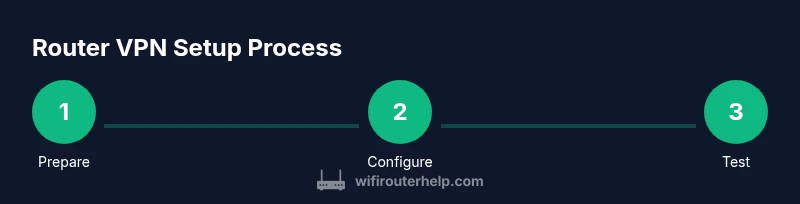
This section provides a high-level view of the process; the detailed step-by-step guide is in the dedicated STEP-BY-STEP block. 1) Verify hardware compatibility and back up current settings. 2) Choose a VPN protocol (OpenVPN or WireGuard) and obtain the configuration details. 3) Update or flash firmware if necessary, then access the router admin interface. 4) Import the VPN configuration or manually enter server address, credentials, and keys. 5) Connect a test device and verify your external IP shows the VPN server. 6) Enable firewall, DNS protection, and kill switch settings. 7) Save and reboot, then monitor performance and stability. 8) Document your configuration for future maintenance.
Security and privacy considerations when using a router VPN
Security hinges on choosing a trustworthy VPN provider and configuring settings correctly. Ensure DNS requests are forced through the VPN to prevent leaks, and enable a kill switch to block traffic if the VPN drops. Review the provider’s privacy policy and logging practices; a no-logs stance is preferable, but you should verify what data is collected and how long it’s retained. Regular firmware updates are essential to patch vulnerabilities and improve performance. If you share your network with guests, consider isolating guest devices from your main LAN and applying access controls. Finally, be mindful of legal and contractual constraints that might affect VPN usage with your ISP.
Troubleshooting common issues
Common issues include VPN dropouts, reduced speeds, and DNS leaks. Start by checking whether the VPN server is reachable and whether credentials are correct. If speeds drop noticeably, test with different servers or switch between OpenVPN and WireGuard if supported. Ensure the router firmware and VPN client are up to date. Misconfigured NAT or firewall rules can block traffic; review port forwarding and allow-list VPN protocols. For DNS leaks, verify that DNS requests are sent through the VPN tunnel and consider forcing DNS settings to the VPN provider’s servers. If problems persist, consult the provider's knowledge base or WiFi Router Help for device-specific guidance.
Performance optimization and maintenance
VPN overhead can affect throughput, especially on lower-end hardware. To optimize performance, ensure the router runs the latest firmware, choose a high-performance VPN protocol, and pick VPN servers near your location. Disable unnecessary services on the router to free CPU resources, and consider enabling hardware acceleration if available. Regular maintenance includes updating firmware, rotating credentials, and periodically testing for DNS or IP leaks. Document changes to simplify troubleshooting and future upgrades. Finally, schedule routine checks to ensure your VPN remains aligned with your privacy goals and network usage patterns.
Tools & Materials
- VPN-compatible router(Supports OpenVPN/WireGuard or can run VPN firmware like OpenWrt/DD-WRT.)
- VPN service subscription(Ensure it supports router configurations and offers reliable DNS handling.)
- Computer or mobile device for configuration(Used to access the router admin UI and apply VPN settings.)
- Ethernet cable (Cat5e or better)(Use a wired connection for the initial setup to avoid drops.)
- Optional: custom firmware image (DD-WRT/OpenWrt)(Needed if stock firmware lacks VPN features.)
- Backup power source (UPS)(Maintain VPN connectivity during short outages.)
Steps
Estimated time: 30-60 minutes
- 1
Verify compatibility and back up current settings
Check your router's specifications to confirm VPN support or the ability to install compatible firmware. Back up the current configuration to make recovery easy if something goes wrong.
Tip: Create a full backup before flashing anything to avoid losing existing settings. - 2
Choose protocol and collect configuration details
Decide between OpenVPN and WireGuard based on hardware support and desired performance. Gather server addresses, keys or certificates, and any required credentials from your VPN provider.
Tip: OpenVPN is widely supported; WireGuard offers faster speeds on capable hardware. - 3
Update firmware or prepare VPN-enabled firmware
If needed, update to the latest official firmware or flash a compatible custom firmware. Do a factory reset after flashing to ensure a clean slate.
Tip: Follow vendor or community guides precisely to avoid bricking the device. - 4
Access router admin interface and locate VPN settings
Connect via Ethernet and log into the router’s admin page. Navigate to the VPN section and choose the protocol you’ll use (OpenVPN/WireGuard).
Tip: Use a wired PC during setup to prevent disconnects. - 5
Import configuration or enter credentials
Input server address, port, protocol, and authentication data. If using OpenVPN, import the .ovpn profile or paste client config; for WireGuard, add private/public keys and peers.
Tip: Double-check server address and credentials to avoid connection failures. - 6
Test the VPN connection on a client device
Connect a laptop or phone to the network and verify the external IP reflects the VPN location. Check for DNS leaks using a reputable test site.
Tip: If the IP doesn’t change, recheck credentials or try a different server. - 7
Enable kill switch and DNS protection
Configure a network kill switch to block traffic if the VPN disconnects. Route DNS requests through the VPN to prevent leaks.
Tip: DNS leaks undermine VPN privacy; confirm DNS traffic routes correctly. - 8
Save, reboot, and monitor
Apply changes, reboot the router, and monitor for stability and throughput. Document the configuration for future maintenance.
Tip: Expect a short stabilization period after first boot.
People Also Ask
What is a router VPN and why should I use it?
A router VPN runs at the router level, encrypting all traffic from devices on your network. It’s convenient for households with multiple devices and those without VPN apps. It also centralizes privacy settings and can simplify management.
A router VPN runs at the router level to encrypt all traffic from your devices, making setup easier for households with many devices.
Will a router VPN slow down my Internet?
Encrypting traffic and routing through a VPN can reduce throughput. The impact depends on your router’s hardware, VPN protocol, and server location. Close servers and strong CPUs minimize slowdowns.
Yes, there can be some speed impact, but choosing a good provider and hardware helps keep performance reasonable.
Do I need a new router to use a VPN?
Not always. If your current router supports VPN or can run compatible firmware, you can enable VPN without buying a new device. Otherwise, upgrade to a VPN-capable model.
You might not need a new router if yours can run VPN software or firmware.
Which VPN protocol should I use on a router?
OpenVPN is widely supported and very secure; WireGuard offers faster speeds on the right hardware. Choose based on hardware support and provider compatibility.
OpenVPN is commonly used, but WireGuard can be faster if your hardware supports it.
What privacy concerns should I consider with router VPN?
Check the VPN provider’s logging policy and DNS handling. A reputable provider minimizes data collection and ensures DNS requests stay inside the VPN tunnel.
Look at the provider’s logs and DNS handling to protect your privacy.
How do I test for DNS leaks after setup?
Use online DNS leak tests and IP checks to confirm that DNS requests are routed through the VPN and that your apparent IP matches the VPN server.
Run a DNS leak test to verify your DNS is protected.
Watch Video
What to Remember
- Choose a VPN-enabled router or compatible firmware.
- OpenVPN or WireGuard offer trade-offs in compatibility and speed.
- Verify DNS and IP leaks after setup.
- Regularly update firmware and credentials.
- Document configuration for future maintenance.