VPN WiFi Router: Setup, Security & Optimization
Learn how to set up a VPN on your WiFi router, secure your home network, and optimize performance with practical steps and checks.


By following this guide, you’ll learn how to securely route all home traffic through a VPN by configuring VPN on your WiFi router. You’ll understand when to run a VPN client or server, how to choose a compatible router and service, and the essential, step-by-step setup and testing practices for a private, reliable home network.
What is a VPN WiFi Router and Why It Matters
A VPN WiFi router is a router with built-in VPN client support or the ability to run VPN software through compatible firmware. When enabled, all devices connected to that router automatically route their traffic through the VPN tunnel. This means phones, laptops, smart TVs, and IoT devices all gain VPN protection without configuring each device individually. For homeowners, this approach reduces the number of per-device apps and passwords to manage. For privacy-focused households, a router-level VPN minimizes exposure from apps and browser leaks by centralizing encryption. According to WiFi Router Help, modern consumer routers increasingly offer VPN features natively or via official firmware updates, lowering the barrier to universal protection. Remember that a VPN encrypts traffic between your network and the VPN server, masks your external IP address, and can help you access geo-restricted content when used responsibly. Verify compatibility with your VPN provider and your router hardware before starting.
How VPNs Enhance Privacy and Security at Home
A VPN on your home network creates an encrypted tunnel between your router and the VPN service, so every device that connects benefits from added privacy. Even when devices operate on untrusted networks, your traffic appears as outbound to the VPN server rather than directly to your ISP. This matters for households with multiple users and smart devices that occasionally communicate with cloud services. The VPN also masks your real IP address, making it harder for advertisers or trackers to build a precise profile. From a security perspective, the tunnel prevents casual eavesdropping on local networks, such as in apartment buildings or cafés. For families, this reduces the risk when guests connect to your WiFi. The WiFi Router Help team also notes that router-based VPNs simplify consistent policy enforcement—one setting governs all connected devices, reducing setup errors and forgotten VPNs on individual devices.
Key Benefits for Households and Small Offices
A VPN on a router provides broad coverage with a single configuration, improving consistency across devices. You gain centralized control over which devices use the VPN and when it is enabled, which helps with parental controls and compliance in shared networks. For small offices, a VPN router can secure guest networks and protect sensitive work traffic without separate software on every computer. While this approach can require more initial setup, the ongoing maintenance is typically simpler than managing VPN apps on dozens of devices. The result is a cleaner, more auditable security posture for the whole network and easier compliance with privacy-minded practices in today’s connected homes. WiFi Router Help emphasizes choosing hardware that can handle VPN processing without creating bottlenecks and keeping firmware up to date for security patches.
VPN Router vs VPN App: Trade-offs
Running a VPN on your router centralizes protection but can introduce some trade-offs. A router-based VPN eliminates per-device setup and can reduce inconsistencies, yet it often introduces some latency and reduced peak throughput, depending on hardware and server distance. In contrast, VPN apps running on individual devices may offer more granular control and potentially better performance on strong devices but create a patchwork of connections that are harder to monitor. The best choice depends on your goals: broad coverage with minimal per-device configuration (VPN router) or per-device customization with potential performance optimizations (VPN apps). The WiFi Router Help team recommends evaluating your hardware capacity, your VPN provider’s protocols, and your family’s usage patterns before deciding which approach to adopt.
Choosing a VPN-Compatible Router: Firmware and Hardware Requirements
To run a VPN on your WiFi router, you need hardware that can handle encryption overhead and compatible firmware. Many modern consumer routers offer native VPN clients or servers, while others require flashing to a compatible firmware like OpenWrt or DD-WRT. Check CPU speed, RAM, and flash storage as indicators of whether a router can handle simultaneous VPN connections for all devices on the network. Firmware support often dictates which VPN protocols you can use (OpenVPN, WireGuard). Budget devices may struggle with sustained VPN loads, leading to noticeable slowdowns. When selecting a router, look for multi-core processors and ample RAM, and review official VPN provider guides for supported models. This upfront investment pays off in smoother performance under load and longer device lifespans.
Step-by-Step Setup: Installing a VPN on Your Router
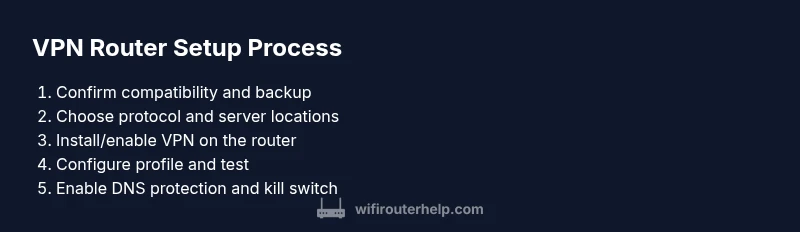
Getting a VPN running on your router involves several important phases. First, ensure you have a compatible router and an active VPN subscription. Then choose the protocol you’ll use (OpenVPN or WireGuard) and gather server location data. Next, enable the VPN client on your router or flash a compatible firmware, followed by importing the VPN profile or entering manual configuration details. Finally, test the connection from a connected device, verify DNS behavior, and enable a kill switch if available. This overview aligns with best practices for a robust, home-wide VPN setup and helps avoid common misconfigurations that can leak data if the tunnel drops.
Configuring VPN Client vs VPN Server on Your Router
A VPN client on the router routes all traffic to the VPN service, while a VPN server on the router allows you to accept connections from remote clients. Client mode is ideal for home networks that want to protect all devices with a single profile. Server mode is useful if you want to access devices on your home network from outside or provide remote access to a secure network during travel. Both approaches require careful configuration of authentication methods, port forwarding (if needed), and firewall settings. Begin with client mode for most households, then explore server mode only if you have a clear use case and the hardware to support it.
DNS, Kill Switch, and Leak Protections
DNS leaks undermine VPN privacy by revealing your true DNS queries outside the VPN tunnel. Enable DNS leak protection and, if possible, route DNS queries through the VPN to prevent leaks. A kill switch ensures that if the VPN disconnects, all traffic is blocked rather than routed through the unencrypted default path. Regularly verify the setup by using a DNS leak test and a simple IP check. The goal is to maintain consistent privacy without interrupting normal browsing.
Performance Considerations and Troubleshooting
VPN overhead can impact speed, especially on lower-powered routers or distant servers. If you notice slowdowns, try a closer server, a different protocol, or a router with a stronger processor and more RAM. Check for firmware updates that optimize VPN performance and ensure your network devices aren’t competing for resources. When troubleshooting, verify that all devices use the VPN tunnel and that there are no conflicting firewall rules. If all else fails, revert to a previous known-good configuration and reapply the VPN setup step-by-step, documenting changes for future reference.
Real-World Scenarios: Home, Travel, and Remote Access
A VPN router shines in a home with multiple occupants and smart devices by providing consistent protection. When traveling, you can connect to your home VPN remotely for secure access to home resources, as long as you configure port forwarding and dynamic DNS properly. In small offices, a VPN router can protect client traffic while enabling secure remote work for employees. Practice scenarios such as streaming from a geo-restricted service, accessing a home file server, or securely updating IoT devices over a VPN to maintain privacy and security across your network.
Tools & Materials
- VPN service subscription(Choose a provider that supports router-level VPN with OpenVPN or WireGuard.)
- Router with VPN support or compatible firmware(Built-in VPN client support or flashable firmware like OpenWrt.)
- Computer or smartphone for configuration(Used to access the router admin page and install VPN profile.)
- Ethernet cable(For stable wired configuration and testing.)
- Power supply and backup(Keep a spare adapter and battery backups if possible.)
- Backup storage for configs(USB drive for exporting current settings before flashing.)
Steps
Estimated time: 60-90 minutes
- 1
Verify VPN compatibility
Confirm your router supports a VPN client or supports flashing compatible firmware. Check the VPN provider's guidance for router compatibility and ensure you have a backup of current settings.
Tip: If unsure, consult the router's manual or vendor support before flashing. - 2
Choose protocol and server locations
Decide on the VPN protocol (OpenVPN or WireGuard) and pick server locations that fit your privacy and performance needs.
Tip: WireGuard usually offers faster speeds but ensure your provider supports it. - 3
Apply firmware or enable VPN client
If your router has built-in VPN, enable the client and input credentials. If you need custom firmware, follow flashing instructions precisely.
Tip: Always backup before flashing and verify the firmware matches your router model. - 4
Configure VPN profile on the router
Enter the VPN configuration (server address, credentials, and crypto settings) into the router's VPN section. Save and reboot.
Tip: Double-check DNS settings to prevent leaks. - 5
Test the VPN connection
After boot, verify the VPN tunnel is active by checking the router status page and testing IP address from a connected device.
Tip: Use a trusted check site to confirm your IP and DNS are leaking-free. - 6
Enable DNS protection and kill switch
If available, enable DNS leak protection and a kill switch to prevent traffic leaks if the tunnel drops.
Tip: DNS requests should resolve to your VPN provider's DNS servers. - 7
Lock down access and backups
Change the router admin password, enable encryption, and export the configuration for future restoration.
Tip: Store backups securely and document the steps you performed.
People Also Ask
What is a VPN router and how does it differ from a VPN app on a single device?
A VPN router runs VPN software on the router itself, protecting all devices on the network. A VPN app configures VPN only on one device. A router-based VPN simplifies coverage and reduces per-device setup effort.
A VPN router covers your whole network, while a VPN app protects just one device.
Which routers support VPNs natively without flashing?
Many modern routers offer built-in VPN clients or servers. Check your model’s specifications and firmware options to confirm native support before buying.
Look for models that advertise built-in VPN clients or servers.
Will routing all traffic through a VPN slow down speeds?
Using a VPN can introduce additional overhead, which may reduce raw speeds depending on server location, protocol, and hardware. Testing with your provider helps determine real-world impact.
Expect some speed change when using a VPN, varying by location and hardware.
Is flashing custom firmware risky?
Flashing can brick a router if done incorrectly. Only flash models that are explicitly supported and follow the official instructions precisely.
Flashing has risks; follow instructions carefully.
How can I verify there are no DNS leaks after setup?
Use a DNS leak test site after connecting to the VPN and ensure queries resolve to the VPN provider’s DNS servers.
Run a DNS leak test to confirm protection.
Watch Video
What to Remember
- Install VPN on router for whole-home protection.
- Verify compatibility before flashing.
- Test for leaks and performance after setup.
- Secure router with strong credentials and backups.
- Keep firmware updated for ongoing security.