How to Enable VPN on Your Router: A Step-by-Step Guide
Learn how to enable VPN on your router, compare firmware options, and optimize performance with step-by-step instructions, practical tips, and troubleshooting advice from WiFi Router Help.


According to WiFi Router Help, learn how to enable VPN on your router (router enable vpn) to encrypt all traffic and protect your devices at home. This quick guide covers compatibility checks, selecting a service, and configuring firmware or built-in VPN features, plus safety and performance tips so you can securely route every device through a VPN.
Why enabling VPN on your router matters
Protecting privacy at the network edge starts with the router. When you router enable vpn, every device that connects to your home network automatically routes traffic through your chosen VPN, so you don’t have to configure individual apps or devices. This approach reduces setup complexity and helps ensure consistent protection across laptops, phones, smart TVs, and IoT devices. In addition to encryption, a router-based VPN can help you maintain access to geo-restricted services from multiple devices without repeated sign-ins, while also masking your home network from local snooping on public Wi-Fi. However, there are trade-offs: VPNs can introduce some latency and reduce peak speeds depending on server load, hardware, and protocol. The key is to plan for your speed baseline, choose a provider with appropriate server coverage, and configure the router to balance protection with performance. For many households, a well-configured router-level VPN offers a practical, scalable path to privacy that individual app-level VPNs can’t always achieve. As you proceed, you’ll learn how to select a provider, check compatibility, and apply a configuration that keeps your network secure without complicating everyday use.
VPN vs device-level VPN: what changes when you enable at the router
A router-level VPN covers every device by routing traffic through the VPN tunnel at the gateway, rather than requiring each device to run VPN software. This means fewer setup steps for family members and fewer missed connections on smart devices that lack native VPN apps. You’ll typically need to configure a VPN profile on the router and rely on the router’s firmware to handle encryption, authentication, and tunnel management. While device-level VPNs can offer per-application control, a router VPN provides uniform protection and can simplify parental controls and policy enforcement across the network. Real-world impact depends on your hardware and chosen protocol; plan for at least a modest performance hit and adjust server location to minimize latency. This approach aligns with the idea that privacy is a network-wide concern, not a single device problem. WiFi Router Help emphasizes thoughtful provider selection and mindful tuning to keep speeds usable while preserving security.
How to choose a VPN service that works at the router level
When selecting a VPN provider for router enable vpn, prioritize services that explicitly support OpenVPN or WireGuard on routers, have ample server coverage, and provide good documentation for common router firmwares. Look for features like split tunneling, DNS leak protection, and a no-logs policy. Ensure the service offers configuration files or profiles compatible with your router’s firmware and that you can revoke access if a device is lost or compromised. Compatibility matters for both stock firmware and third-party builds; a provider with clear setup guides across multiple router types will save you time and frustration.
Firmware options: stock vs third-party firmware for VPN support
Many consumer routers offer native VPN clients or server functionality in stock firmware, which makes setup simpler but may limit advanced features. In other cases, enthusiasts turn to third-party firmware such as DD-WRT or OpenWrt to unlock more robust VPN options, custom routing policies, and granular firewall settings. Each route has trade-offs: stock firmware tends to be more user-friendly and stable, while third-party firmware can deliver deeper control and better VPN performance when properly configured. Before flashing, back up settings, verify your model’s compatibility, and be prepared to reconfigure. If you don’t want to flash, consider routers that ship with built-in VPN support or vendor-supported profiles.
Prerequisites before you start
Before you begin the router enable vpn process, gather essential details and ensure you have a stable baseline network. Confirm your internet plan’s speed and latency so you can measure VPN impact. Have a VPN subscription with OpenVPN or WireGuard support, along with any necessary configuration files. Make sure your router is running current firmware and that you can access the admin interface via a wired connection for the setup phase. Create a recovery plan and backup your current router configuration in case you need to revert changes. These steps reduce the risk of lockouts or misconfigurations that can disrupt legitimate traffic.
Step-by-step overview for popular router firmware
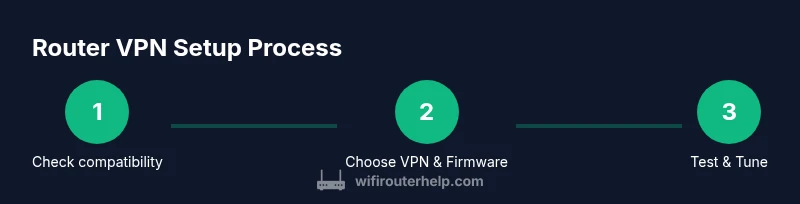
Across firmware families—stock, DD-WRT, or OpenWrt—the core steps remain similar: verify compatibility, obtain VPN config, enable VPN in the router interface, import or paste configuration, adjust DNS and routing settings, and test the connection. Some firmware variants require installing a VPN client package, while others accept prebuilt profiles. In all cases, you’ll want to ensure your firewall rules and NAT are preserved, test with a few devices, and monitor performance. Documentation from the VPN provider, plus guidance from your router’s vendor, will be invaluable as you tailor settings to your home network.
Performance considerations and tuning tips
VPN encryption adds overhead, so expect some impact on throughput, especially on lower-end hardware. To mitigate slowdowns, place the VPN server geographically close to your location, choose a protocol that balances speed and security (WireGuard often wins on speed; OpenVPN provides broad compatibility), and disable unnecessary features that add processing load. If you notice streaming or gaming stutter, test with split tunneling to route only sensitive traffic through the VPN, or enable QoS rules to prioritize latency-sensitive applications. Regularly monitor CPU usage on the router during peak times and adjust MTU settings to reduce fragmentation, which can improve stability.
Troubleshooting common issues after enabling VPN
Post-setup issues are common, from DNS leaks to IP address not showing the VPN network. Start by confirming the VPN tunnel is active in the router status page and verify that your external IP matches the VPN endpoint. Check for DNS leaks by querying a DNS service that reveals your actual resolver, not the VPN’s. If devices report no internet after enabling VPN, re-check the gateway and DNS server settings, and ensure the MTU is configured correctly for OpenVPN or WireGuard. Logging and provider knowledge bases are invaluable here. If you still have trouble, test a different server location and, as a last resort, revert to a previous backup and retry with alternate configuration files.
Security best practices when using router VPN
Security is not a one-and-done task; apply defense-in-depth. Use a strong, unique admin password for the router and enable two-factor authentication if available. Keep firmware updated and monitor for known vulnerabilities related to your VPN protocol or firmware version. Avoid exposing your VPN credentials on devices that travel between networks, and use a minimal, well-defined firewall policy to restrict unnecessary inbound traffic. Consider enabling DNS security features to prevent spoofing and ensure that your VPN provider’s DNS servers do not leak queries. Regularly audit connected devices and review access logs to detect unusual activity.
Real-world example: a home network with VPN enabled
Consider a household with multiple devices, including a smart TV, work laptops, and mobile phones. After selecting a provider with robust WireGuard support, the router is flashed to a compatible firmware, and a VPN profile is imported. All home traffic routes through the VPN by default, ensuring privacy even when guests connect via Wi‑Fi. Performance testing shows a modest 15–25% speed drop on a mid-range router, which is acceptable for streaming and browsing. You’ll adjust server locations to balance latency for streaming services while keeping work-related traffic fast. The overall result is blanket protection without configuring each device individually, providing peace of mind for all family members.
Tools & Materials
- VPN service subscription(Choose a plan with OpenVPN or WireGuard support and adequate server coverage)
- Router with VPN support(Native VPN client/server or flashable to DD-WRT/OpenWrt)
- Computer or smartphone(For admin access to the router web UI or app)
- Ethernet cable(Wired connection reduces setup interruptions)
- Firmware update file or knowledge(Needed if flashing third-party firmware)
- Backup/restore method(Back up current router settings before changes)
Steps
Estimated time: 30-60 minutes
- 1
Check router compatibility
Verify that your router can run a VPN client or be flashed with a compatible firmware. Review model documentation and confirm OpenVPN or WireGuard support exists. If your device is not compatible, plan to upgrade to a model that supports VPN reliably.
Tip: Back up current settings before making any changes. - 2
Choose a VPN service and plan
Select a provider with router-friendly configurations and clear setup instructions. Ensure the plan provides per-user licenses if you have multiple devices and supports the protocol you prefer (OpenVPN or WireGuard).
Tip: Prefer providers with detailed router setup guides and good server coverage. - 3
Gather credentials and config files
Obtain your VPN login credentials and download the OpenVPN or WireGuard configuration files or profiles. If using WireGuard, collect public keys and endpoint information; for OpenVPN, you’ll typically receive a .ovpn file or a zipped set of files.
Tip: Keep these files in a secure location during the setup. - 4
Access the router admin interface
Connect your computer via Ethernet to the router and open the admin page in a browser. Log in with the admin credentials, and locate the VPN settings section, which often sits under Advanced or WAN/Network sections.
Tip: If you cannot reach the interface, reset the router to factory defaults only as a last resort. - 5
Install/enable VPN or flash firmware
Enable the VPN client or install the chosen firmware (DD-WRT or OpenWrt) if required. Follow on-screen prompts to apply the VPN profile, ensuring you select the correct tunnel type and server location.
Tip: Confirm the firmware you install matches your router model to avoid bricking the device. - 6
Import configuration and adjust settings
Import the VPN profile files or paste configuration details into the router. Configure DNS settings to prevent leaks, enable an active firewall, and check for any NAT or port-forwarding requirements the VPN provider recommends.
Tip: Disable features that conflict with VPN routing, such as upnp, unless you explicitly need them. - 7
Test the VPN connection
Connect a device to the router and verify the VPN is active by visiting an IP checker site to confirm the VPN’s IP. Switch server locations to ensure the tunnel stays stable across different regions.
Tip: Test with multiple devices to confirm consistency. - 8
Tune for performance
Evaluate throughput and adjust MTU, protocol choice, and, if supported, split tunneling rules to optimize speed for non-sensitive traffic. Monitor CPU load on the router during peak usage and adjust settings accordingly.
Tip: If you notice buffering during streaming, try a closer VPN server or a different protocol. - 9
Document and monitor
Document the VPN configuration, including server locations, credentials, and changes. Establish a schedule to verify VPN functionality and perform periodic firmware updates to maintain security.
Tip: Keep a copy of the working configuration in a secure backup.
People Also Ask
What is the difference between router VPN and device VPN?
A router VPN protects every device on the network by routing traffic through the VPN at the gateway, while a device VPN runs on individual devices. Router VPN simplifies management but may require more setup effort and can affect performance differently.
A router VPN covers all devices at once, while a device VPN protects each device separately. The router approach is simpler for families but may require more upfront config.
Do all routers support VPN?
Not all routers have built-in VPN clients. Some support VPN through stock firmware, while others require third-party firmware like DD-WRT or OpenWrt. Check your model’s documentation or consult the provider’s setup guides.
Most modern routers offer VPN support, either natively or via supported firmware, but you should verify compatibility first.
Which VPN protocol should I use on a home router?
WireGuard is typically faster and simpler to configure than OpenVPN, but OpenVPN has broader compatibility with older devices. Choose the protocol supported by your router and VPN provider, balancing speed and security.
WireGuard is usually faster, but OpenVPN might work better on older hardware. Pick what your router and VPN provider support best.
Will enabling VPN slow down my internet?
Yes, VPN encryption adds overhead which can reduce throughput. The impact depends on your router hardware, VPN server location, and protocol. You can mitigate by selecting nearby servers and adjusting settings.
Enabling VPN can slow speeds a bit, mainly due to encryption and distance to the server. Picking a nearby server often helps.
Do I need to update firmware to enable VPN?
Often yes, especially if your router’s stock firmware has limited VPN features. If you’re using DD-WRT or OpenWrt, ensure you’re on a supported build. Always back up before flashing.
Sometimes you’ll need a firmware update or third-party firmware to enable VPN functionality.
Is it safe to flash third-party firmware?
Flashing third-party firmware carries risk if done incorrectly and can void warranties. Use supported models, follow official guides, and keep a recovery plan ready in case you need to revert.
Flashing can be risky if not done carefully, but with the right model and steps, it’s a safe option for advanced users.
Can I use split tunneling with a router VPN?
Split tunneling lets certain traffic bypass the VPN, preserving speed for non-sensitive tasks. Availability depends on your router firmware and VPN provider. Use it if performance is a priority for streaming or gaming.
Split tunneling can help keep speeds up for non-VPN traffic, if your router supports it.
Watch Video
What to Remember
- Enable router-level VPN for all devices by default.
- Choose VPN provider and firmware with solid router support.
- Back up your current settings before changes.
- Test thoroughly and monitor performance after enabling VPN.
- Maintain security with strong passwords and updated firmware.