ZTE WiFi Setup: Step-by-Step Guide
A thorough, educational guide to configure, secure, and optimize ZTE WiFi routers for reliable home networking. Learn to set SSID, password, guest networks, firewall, QoS, and troubleshoot common issues.


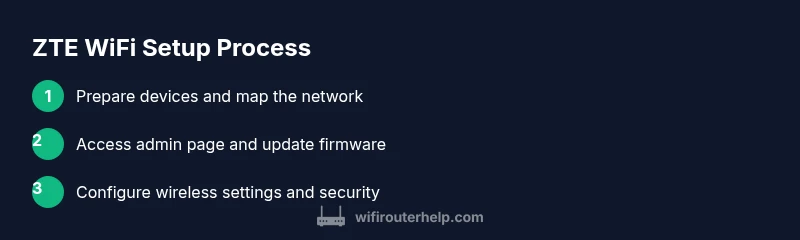
This guide shows you how to set up a ZTE WiFi router, secure it, and optimize performance. You’ll need your ZTE router, a modem (if separate), a device to access the admin page, and a working internet connection. Follow the step-by-step process to improve coverage, speed, and stability. This will also help with guest networks and parental controls.
Understanding ZTE WiFi Routers: What They Do and Why It Matters
ZTE WiFi routers are common choices for home networks because they combine modem functionality (where applicable) with a robust wireless access point. When we talk about the term zte wifi, we’re referring to the router hardware that creates your local network and provides wireless access to devices like smartphones, laptops, cameras, and IoT gadgets. The WiFi standards supported by ZTE devices typically include common environments such as 2.4 GHz and 5 GHz bands, with encryption options like WPA2 and WPA3. Understanding these basics helps homeowners optimize coverage, reduce interference, and improve security. A well-configured ZTE WiFi setup minimizes dead zones and prevents unauthorized access. According to WiFi Router Help, investing a little time in initial configuration yields long-term payoff in reliability and peace of mind. This guide is designed for homeowners who want predictable performance, stable connections, and clear steps to troubleshoot when things go awry. As you work through the setup, you’ll learn practical tactics to strengthen your network, tailor it to your home layout, and maintain it with routine checks. The goal is to make your home network both resilient and easy to manage, even as devices multiply across rooms.
Getting Ready: What You’ll Need for a Smooth Setup
Before you begin, gather the essentials and plan your layout. You’ll want: a ZTE WiFi router that matches your service type, a power adapter, an Ethernet cable, a connected device (phone, tablet, or computer), and access to the modem if your ISP uses a separate device. It’s also wise to have a notebook or digital document to log the final settings, firmware version, and network map. Knowing your internet plan and speed helps you set expectations for coverage and throughput. Having a clear floor plan can guide where to place the router for optimal signal distribution. WiFi Router Help’s practical guidance emphasizes starting with a clean slate: record current network names, default admin credentials, and any existing customizations before you change anything. This reduces the risk of losing access or having to redo configurations. Plan for guest access and parental controls if you have visitors or family members who need restricted access. A methodical setup reduces long-term headaches and makes future upgrades smoother.
Accessing the Admin Page: Login and Initial Checks
To configure a ZTE WiFi router, you’ll need to access its admin page. Connect your computer or mobile device to the router via Ethernet or WiFi, then open a browser and enter the router’s default IP address (commonly 192.168.1.1 or 192.168.0.1). If prompted, enter the default username and password shown on the device label or in the manual. If you can’t reach the page, verify that you’re connected to the router’s network and try a different browser. It’s normal to see a splash screen asking you to change the default credentials—the first security step is to set a strong password for the admin account. If your model supports HTTPS, enable it to encrypt traffic to the admin interface. At this stage, WiFi Router Help recommends configuring an initial backup of the current settings so you can revert if something goes wrong later.
Securing the Admin Page: Firmware, Passwords, and Encryption
Security starts with the admin password and the firmware you run on the device. After logging in, immediately change the default admin password to a long, unique combination of letters, numbers, and symbols. Enable HTTPS if available and disable remote administration unless you truly need it. Next, check for firmware updates in the router’s UI or via the manufacturer’s support page. Updated firmware patches vulnerabilities and improves performance. Back up the current configuration before applying updates, so you can restore if something doesn’t go as planned. If your router supports automatic updates, enable this feature to keep protection current without manual intervention. As you tighten security, consider enabling the router’s firewall, enabling UPnP only if you know you need it, and disabling WPS, which can be a common intrusion vector.
Customizing Your Wi‑Fi: SSID, Password, and Guest Network
A clear, unique SSID helps distinguish your network in crowded spaces and reduces accidental connections to neighbors’ networks. Change the SSID to something memorable but not personally identifying. Create a strong wireless password, using WPA2 or WPA3 encryption depending on what your device supports. If possible, enable separate networks for 2.4 GHz and 5 GHz bands and name them differently to help devices connect to the best band. If you frequently have visitors, set up a guest network with its own password, restricted access to local resources, and separate bandwidth from your main network. This keeps your primary devices safe while still offering internet access to guests. Throughout this phase, log changes to the notebook and label any new default credentials that appear in the UI.
Performance Tuning: Channel, Band, QoS, and Coverage
After securing the basics, you can optimize performance. For 2.4 GHz, select a channel that has the least interference in your area (channels 1, 6, and 11 are common references). For dual-band routers, ensure 5 GHz is enabled and used by devices that benefit from higher speeds, while 2.4 GHz covers longer ranges with lower throughput. If your router supports QoS (Quality of Service), configure it for latency-sensitive activities like video calls and gaming, prioritizing traffic for those devices. Consider enabling band steering if available to guide devices to the best band automatically. If you notice weak coverage in certain rooms, reposition the router to a central, elevated location away from thick walls and metal appliances. Running continuous speed tests helps you confirm improvements and identify dead spots to address with repeaters or a mesh setup if needed.
Troubleshooting and Maintenance: Regular Checks and Common Fixes
No network is perfect forever. Practice a routine to keep your ZTE WiFi router healthy: periodically check firmware, review connected devices, and audit firewall and parental controls. When you experience slow speeds, start with a simple reboot of the router and modem, then re-check the network. If issues persist, verify cables and power adapters, and check for interference from microwave ovens or neighbor networks. Logs in the admin interface can reveal clues about dropped connections or configuration conflicts. Documenting changes helps with future troubleshooting and simplifies upgrades. A clean, well-documented setup reduces downtime and helps you quickly restore service after power outages or resets. WiFi Router Help emphasizes that maintenance is cheaper than replacement and yields better long-term stability.
Maintenance and Long-Term Care: Staying Ahead of Changes
Treat your ZTE WiFi setup as an evolving system rather than a one-off task. Schedule quarterly reviews to update firmware, revisit security settings, and refresh guest network credentials as needed. Keep a current map of devices and their network access, and implement strong password hygiene across devices. Regularly test coverage in rooms with weak signal and adjust placement or add a range extender or mesh node if necessary. With thoughtful maintenance, your ZTE WiFi network remains reliable for new devices and increased bandwidth demands. The key is proactive planning, consistent checks, and clear documentation. The WiFi Router Help team recommends keeping a simple, repeatable setup routine to ensure long-term success.
Tools & Materials
- ZTE WiFi Router(Model may vary; verify compatibility with your internet plan)
- Power adapter(Original or compatible power supply)
- Ethernet cable (Cat5e or better)(For initial wired setup)
- Smartphone, tablet, or computer(To access the admin page and tests)
- ISP modem (if applicable)(Only if your service uses a separate modem)
- Notebook or digital document(Record credentials, IPs, and settings)
- Stable internet connection during setup(Helps verify firmware and features)
Steps
Estimated time: 30-60 minutes
- 1
Verify connections and power up
Before touching the ZTE WiFi router, confirm all cables are secure and the device has power. Connect the router to the modem if your service uses a separate device. This ensures a clean starting point for the setup.
Tip: Label the current cable connections with tape to avoid mixing ports during setup. - 2
Log in to the admin page
Use a browser on a connected device and enter the router’s default IP address. If prompted, use the default username and password shown on the device label or the manual to access the admin interface.
Tip: If you can’t reach the page, try resetting the network adapter or clearing the browser cache. - 3
Update firmware and back up settings
Check for firmware updates in the router’s interface and apply them if available. Back up your current configuration in case you need to revert changes.
Tip: Firmware updates improve security and stability; back up first. - 4
Secure the admin account
Change the default admin password to a strong, unique one. Enable HTTPS if the option exists to protect your login. Disable remote admin access unless you need it.
Tip: Use a password manager to generate and store the credentials. - 5
Configure wireless settings
Set a unique SSID and a strong wireless password. Choose the recommended encryption (WPA2 or WPA3). Prefer a different network name for guest access to isolate devices.
Tip: Consider using a different SSID for 2.4 GHz and 5 GHz bands if your router supports it. - 6
Enable guest network and security features
Turn on a guest network with separate credentials for visitors. Enable firewall options within the router UI, and review any parental controls you may want to deploy.
Tip: Guest networks reduce risk if visitors bring infected devices. - 7
Tune performance and push tests
Adjust channel selection, enable QoS if you stream videos or game online, and test speed across devices. Reboot after changes to apply configurations.
Tip: Auto channel selection is useful if your area has interference. - 8
Document and maintain your setup
Record the final settings, firmware version, and network map. Schedule periodic checks to refresh passwords and firmware, ensuring long-term stability.
Tip: Keep a copy of settings in a safe place.
People Also Ask
How do I access the ZTE router admin page?
To access the admin page, connect a device to the router via Ethernet or Wi‑Fi, then open a browser and enter the typical IP address 192.168.1.1 or 192.168.0.1. Log in with the credentials found on the device label or in the manual. If login fails, verify your connection and try a different browser.
Open a browser on a device connected to the router, type the IP address, and sign in with the credentials on the label.
How do I change the Wi‑Fi name and password on a ZTE router?
Navigate to the wireless settings, change the SSID to a unique name, and set a strong password. Enable WPA2 or WPA3 encryption and save changes. Reconnect your devices using the new credentials.
Go to wireless settings, set a new SSID and a strong password, and reconnect your devices.
How can I enable a guest network on a ZTE router?
In the admin panel, find the Guest Network option, enable it, set a separate password, and limit access to the local network resources from guest devices. This keeps your main devices safer while guests stay connected.
Enable the guest network in the admin panel and use separate credentials for guests.
How do I reset a ZTE router to factory defaults?
Use the reset button on the back of the device and hold it for about 10-15 seconds until the lights flash. After resetting, you’ll need to reconfigure the router from scratch using the setup guide.
Press and hold the reset button for 10-15 seconds, then set up again from scratch.
How do I update firmware on a ZTE router?
Check the router’s admin interface for firmware updates or visit the manufacturer’s support page. Apply the update and reboot the router. Keeping firmware current protects against known vulnerabilities.
Look for firmware updates in the admin page or on the support site, update, and reboot.
What are best practices for securing a ZTE router long-term?
Disable remote admin, enable the firewall, update firmware regularly, and use strong, unique passwords for all accounts and networks. Regularly audit connected devices and reissue guest credentials as needed.
Disable remote admin, keep firmware updated, and use strong passwords.
Watch Video
What to Remember
- Plan your network layout before changing settings.
- Secure admin access with a strong password and up-to-date firmware.
- Use separate SSIDs for 2.4 GHz and 5 GHz bands when possible.
- Enable guest networks to isolate devices and protect main devices.
- Document changes and perform periodic maintenance.