ZTE Router Setup: A Complete Step-by-Step Guide
Learn how to set up and optimize a ZTE router for a secure, fast home network. This educational guide covers unboxing, initial configuration, wireless optimization, security practices, firmware updates, and troubleshooting.


By following this guide, you will confidently set up and optimize a ZTE router for a fast, reliable home network. You’ll learn how to unbox, connect, secure, update firmware, and tune wireless performance. This step-by-step approach covers common pitfalls and practical tips to get the most from your ZTE router and protect your family online.
Understanding the ZTE router landscape
ZTE routers are common in many households due to their affordability, decent performance, and easy-to-use interfaces. When you start with a ZTE router, you’re entering a device that functions as the central point for both your internet connection and your local Wi-Fi. In practice, the administrator interface is accessed via a web browser at a private IP address, commonly something like 192.168.1.1. While model variations exist, most ZTE routers share a familiar layout: a setup wizard, sections for internet settings, wireless, security, and advanced features. For homeowners and tech enthusiasts, the key is to understand the terminology used in these menus: WAN/Internet settings, LAN, SSID, password, WPA/WPA2/WPA3, DHCP, NAT, and UPnP. The WiFi Router Help team notes that taking a few minutes to identify which model you own and referencing the quick-start guide for that model reduces frustration later. Also keep in mind that many ZTE devices support both 2.4 GHz and 5 GHz bands, with band steering sometimes available to improve client distribution. By understanding the basics, you can make informed decisions during setup and avoid common misconfigurations that degrade performance or security.
Preparing for setup: prerequisites and planning
Before you touch the router, gather essential items and plan your network layout. Ensure you have a working modem, the ZTE router, and a stable power source. Have a computer or smartphone with a modern web browser ready to access the admin interface. Write down the current network name (SSID) and any existing passwords, so you can reuse or adjust as needed. Decide on your internet connection type (DHCP, PPPoE, or static IP) and choose a new SSID that’s easy to recognize but not personally identifying. If you have smart home devices, consider a separate guest network to minimize cross‑traffic and keep devices isolated. Finally, enable automatic firmware updates if your model supports them to maintain security and performance over time.
Initial hardware setup and basic configuration
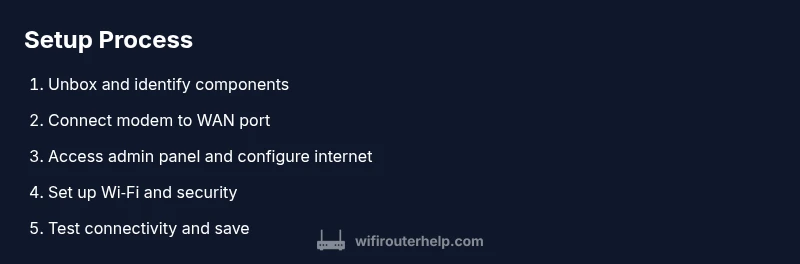
To begin, connect the modem to the ZTE router’s WAN/Internet port with a standard Ethernet cable. Plug in the router and wait for the LEDs to stabilize. On a computer or mobile device, connect to the router’s default Wi‑Fi or use a direct Ethernet link. Open a web browser and enter the default admin URL or IP (commonly 192.168.1.1) to access the login screen. Use the credentials printed on the device label or in the quick-start guide. If the setup wizard appears, use it to select your internet type (DHCP, PPPoE, or static IP) and confirm basic LAN settings. Create a strong admin password immediately, then back up the current configuration. Disabling remote management, if not required, reduces risk. Confirm you have a valid WAN IP and that the router is reachable from your local network.
Wireless optimization: channels, band steering, and QoS
With the basic connection in place, focus on wireless performance. Prioritize one SSID per band: separate 2.4 GHz and 5 GHz networks if your model doesn’t support automatic band steering. For most homes, auto channel selection is sufficient, but you can manually set channels to avoid interference from nearby networks. A 20–40 MHz channel width on the 2.4 GHz band usually balances range and speed; on the 5 GHz band, wider widths can improve throughput if you have a clear channel. Enable band steering if available to help devices move between bands automatically for better coverage. QoS features let you prioritize latency-sensitive tasks like video conferencing or gaming; configure a basic priority rule for critical devices first, then broaden rules as needed. Periodically review connected devices to identify bandwidth hogs and adjust allocations accordingly.
Security, updates, and maintenance
Security should be an ongoing priority. Ensure your Wi‑Fi uses WPA2‑WPA3 Personal with a long, unique passphrase. If your model supports WPA3, enable it for stronger protection. Disable WPS if possible, as it can be exploited by attackers. Turn on the firewall, and consider enabling intrusion prevention if your router offers it. Set the router to check for firmware updates automatically or schedule monthly checks. Create a backup of your configuration after major changes so you can restore quickly if something goes wrong. Finally, document any changes you make, including the SSID, password, and admin credentials, in a secure note. Regular maintenance reduces the risk of vulnerabilities and helps maintain performance over time.
Advanced tips for unique scenarios
Every home has unique needs. For guests, enable a dedicated guest network with a separate password and restricted access to your main LAN. If you need broader control, enable IP address reservation for devices that require stable IPs, such as printers or smart hubs. In environments with slow or unstable internet, consider enabling DNS over HTTPS or switching DNS servers to improve responsiveness. If you’re integrating with a larger home network, explore bridge mode or a mesh extender for seamless roaming across spaces. Finally, keep a simple recovery plan: know how to reset the router and re-enter basic settings without depending on software prompts.
Tools & Materials
- ZTE router(Model not required, but ensure you have the exact unit you’re configuring.)
- Power adapter(Keep connected during setup to avoid boot issues.)
- Modem(Active connection from your ISP.)
- Ethernet cable(Used to connect the modem to the router (WAN port) and optionally a PC for wired setup.)
- Laptop or smartphone(Web browser access to the router admin page.)
- Notepad or digital notes(Record SSID, passwords, and settings for future reference.)
Steps
Estimated time: 30-60 minutes
- 1
Connect the modem and power up
physically connect your modem to the ZTE router’s WAN port using an Ethernet cable. Plug in the router and wait for all status LEDs to stabilize, indicating the device is ready. This establishes the reference point for all other settings.
Tip: Ensure the modem is functioning and providing an active internet signal before starting the router setup. - 2
Join the router’s default network
On a computer or phone, connect to the router’s default Wi‑Fi network or use a wired Ethernet connection. This initial link allows you to access the admin interface without relying on the internet connection which may not be configured yet.
Tip: Keep your device close to the router during this step to ensure a strong, uninterrupted connection. - 3
Open the admin interface and log in
Open a browser and enter the router’s default IP (commonly 192.168.1.1). Sign in with the default username/password found on the device label or in the quick-start guide. If prompted, run the setup wizard to guide you through the first configuration.
Tip: If you can’t access the page, double-check your device is connected to the router and that you typed the correct address. - 4
Change the admin password
Navigate to the administration or security section and replace the default password with a strong, unique passphrase. This is a critical security step to prevent unauthorized access.
Tip: Use a mix of upper/lowercase letters, numbers, and symbols; avoid single-word passwords. - 5
Configure internet connection type
Select DHCP, PPPoE, or static IP as provided by your ISP and input required credentials or settings. Save changes and verify WAN connectivity is active.
Tip: If unsure, contact your ISP to confirm which method to use before proceeding. - 6
Set up Wi‑Fi name (SSID) and password
Create a recognizable, unique SSID for each band if needed and set a strong password. Apply encryption (WPA2 or WPA3) and disable features you don’t use.
Tip: Avoid using personal information in the SSID; keep passwords separate from the SSID to prevent exposure. - 7
Enable essential security features
Turn on firewall protections, enable automatic firmware updates if available, and disable remote management unless required for remote administration.
Tip: Regularly check for and apply firmware updates to patch security vulnerabilities. - 8
Test connectivity and performance
Run speed tests over wired and wireless connections, verify device access, and check for dead zones. Adjust antenna orientation or relocate the router if signal is weak in key areas.
Tip: Document test results and plan adjustments to optimize coverage. - 9
Back up settings and document changes
Create a backup of the router configuration and record all changes, including SSID, passwords, and firmware version, so you can restore quickly if needed.
Tip: Store backups securely and update records after any major change.
People Also Ask
How do I access the ZTE router admin page?
Open a web browser and enter the router’s IP address (commonly 192.168.1.1). Log in with the credentials on the device label or in the quick-start guide. If you can’t access it, confirm you’re connected to the router and try again.
Open your browser, go to the router’s IP address, usually 192.168.1.1, and sign in with the credentials on the label.
How can I reset my ZTE router to factory settings?
Locate the reset button on the back of the router, press and hold for 10-15 seconds until the lights flash. Reconfigure the device from scratch using the setup guide.
Find the reset button, hold it for about 10-15 seconds, then re-enter the setup process from the start.
What security settings should I enable on a ZTE router?
Enable WPA2 or WPA3, use a strong password, disable WPS if available, and turn on the firewall. Regularly check for firmware updates to protect against vulnerabilities.
Turn on WPA2/WPA3, set a strong password, disable WPS if possible, and keep the firmware updated.
How do I change the Wi‑Fi name and password on a ZTE router?
Log in to the admin page, go to Wireless settings, edit the SSID and password for each band, save changes, and reconnect your devices using the new credentials.
Go to Wireless settings, update the SSID and password, save, and reconnect your devices with the new details.
How often should I update firmware?
Check for updates monthly or enable automatic updates if your model supports it. Updates fix bugs, add features, and close security gaps.
Check for updates monthly or enable auto-update to stay secure and stable.
Why is my Wi‑Fi slow after setup?
Causes include interference, weak signal, or congested channels. Try changing channels, minimizing obstacles, or using the 5 GHz band for high‑bandwidth devices.
If it’s slow, check interference and try a channel change or use the 5 GHz band for fast devices.
Watch Video
What to Remember
- Change default admin credentials immediately
- Separate guest network to protect primary devices
- Use WPA2/WPA3 encryption for Wi‑Fi
- Regularly update firmware and back up settings
- Test coverage and document changes for future troubleshooting