Router Networking: A Comprehensive Home Setup Guide
Learn step-by-step how to set up and optimize your home router networking. This guide covers hardware basics, security, QoS, and troubleshooting for a fast, reliable network.


Set up and optimize a reliable home network by configuring your router, securing connections, and tuning performance. You’ll learn hardware choices, security settings, QoS tweaks, and troubleshooting steps to keep all devices connected smoothly. This quick-start assumes a modem, a router, and basic internet access.
Understanding router networking
In modern homes, router networking is the foundation of how devices share internet access, print to printers, stream video, and collaborate on work. At its core, a router directs traffic between your local devices (laptop, phone, smart TVs, smart home hubs) and the wider internet. Framed this way, router networking combines hardware, software, and settings that control who can connect, how fast they go, and which services stay secure. According to WiFi Router Help, a clear understanding of the basics helps you diagnose problems quickly and choose the right improvements without overspending. In this guide, you will learn the terminology (SSID, LAN, WAN, DHCP, NAT, QoS) and how each control affects your everyday experience. You’ll also see how modern routers support dual-band or tri-band operation, guest networks, and firmware updates that patch vulnerabilities. The goal is to create a stable, fast network that adapts to device density, streaming needs, and smart-home activity. By mastering router networking, you gain control over coverage, privacy, and performance rather than leaving it to luck.
Core components of a home network
A typical home network includes a modem (provided by your ISP or a standalone device), a router, and optional add-ons like mesh nodes or a switch. The modem connects you to the internet, while the router creates a local network and routes traffic between devices. A wired Ethernet switch can extend your wired connections, and mesh extenders improve coverage in larger spaces. Good practice is to separate essential devices on wired links when possible for stability, while keeping wireless devices on a strong Wi‑Fi signal. WiFi Router Help emphasizes documenting devices and keeping firmware up to date to preserve security and performance. Understand the difference between LAN (your local network) and WAN (the connection to the wider internet) and how NAT translates private addresses to public ones for external communication.
Planning your network layout
Effective planning reduces dead zones and interference. Start by mapping your home’s floor plan and noting areas where devices cluster, such as living rooms and home offices. Consider channel planning: 2.4 GHz bands travel further but are crowded; 5 GHz bands offer higher speeds with shorter range. For larger homes, a mesh or multi-router setup can maintain even coverage without sacrificing performance. Think about future growth: smart speakers, security cameras, and gaming consoles all add load. A thoughtful layout, plus steps like proper antenna positioning and minimizing barriers, will yield more reliable router networking across the home.
Choosing the right hardware
Hardware choices shape long-term performance. Look for a router with sufficient CPU power, at least 1–2 GB of RAM for modern firmware, and support for the latest security standards (prefer WPA3). Dual-band routers work for many homes, but larger households or heavy streaming may benefit from tri-band models or mesh capabilities. When evaluating, check USB ports, QoS features, parental controls, and firmware update frequency. WiFi Router Help analysis shows that keeping firmware current is one of the most impactful steps for security and stability, so choose a model with automatic updates and robust vendor support. Also consider future-proofing: support for mesh expansion, adequate Ethernet ports, and easy administration.
Basic configuration checklist
Once you have your hardware, focus on foundational settings. Change the default admin password, update firmware, and enable a strong WPA3 (or WPA2 if WPA3 isn’t available) security protocol. Create a unique SSID for your main network and a separate guest network to isolate visitors. Enable DHCP and set a reasonable IP range, while reserving static IPs for printers or servers. Disable WPS, turn on the firewall, and ensure remote administration is disabled unless you need it. After applying these settings, save and reboot to ensure all changes take effect. Documentation and a network map help keep track of devices and configurations over time.
Advanced settings for performance and reliability
With basics in place, dive into performance tuning. Enable QoS to prioritize latency-sensitive traffic for gaming or video calls. If you have multiple devices, consider MU-MIMO support and appropriate channel widths (e.g., 80 MHz on 5 GHz). Use beamforming if your router supports it to focus signals toward devices. If interference persists, you may switch 2.4 GHz to a non-overlapping channel and keep 5 GHz band for high-speed devices. For larger homes, enabling a mesh network or additional satellite nodes helps uniform signal strength. Documenting settings is critical so you can replicate them if you replace hardware later.
Security and privacy considerations
Security should guide every router configuration. Enable automatic firmware updates, disable UPnP unless needed, and hide your network’s SSID if appropriate. Use a strong, unique admin password and enable two-factor authentication if available. Consider enabling a guest network with isolated access to your primary LAN to protect personal devices. Regularly review connected devices and remove unfamiliar ones. Privacy-conscious users should disable services that phone home unnecessarily and limit IoT devices’ exposure by using network segmentation.
Troubleshooting common issues
When issues arise, a structured approach helps. Slow speeds might be due to interference, outdated firmware, or misconfigured QoS rules. Dropped connections often result from range limitations or overheating hardware. If you can’t access the internet, verify the modem is online, check the WAN status, and reboot both modem and router. For stubborn problems, perform a factory reset and reapply a clean configuration, keeping a backup of your prior settings. Regular speed tests and device-by-device checks can pinpoint bottlenecks.
Monitoring and ongoing maintenance
The best routers stay healthy through ongoing monitoring. Enable logs if your device supports them and periodically review them for unusual activity. Schedule firmware checks and automatic updates to close security gaps. Maintain a simple inventory of devices and their IPs, update passwords on a routine cadence, and back up your configuration file. Finally, re-evaluate your network layout every 12–18 months or after major home renovations to preserve optimal router networking performance.
Tools & Materials
- Router(Primary device for network management; ensure it supports your internet speed and security features.)
- Modem(If your ISP provides a separate modem, keep it connected to the router's WAN port.)
- Ethernet cables (Cat5e/Cat6)(For wired backhaul and reliable connections to critical devices.)
- Computer or smartphone(Used to access the router's admin interface and apply settings.)
- Power strip with surge protection(Stable power supply to prevent resets during configuration.)
- Cable organizer and labels(Helps keep network cables tidy during setup.)
- Network diagram or notebook(Document IP ranges, SSIDs, and device mappings for future reference.)
Steps
Estimated time: 60-90 minutes
- 1
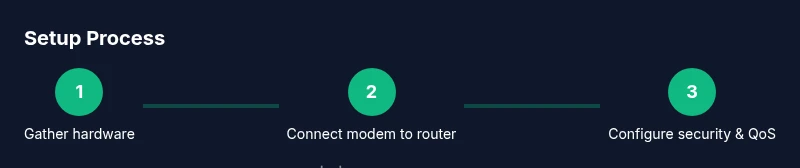
Gather hardware and prepare space
Collect the modem, router, Ethernet cables, and a device to configure the router. Clear a safe, ventilated workspace near outlets to avoid overheating during setup.
Tip: Have everything within arm’s reach to avoid mid-task trips. - 2
Power cycle devices and connect
Power off the modem and router. Connect the modem to the router’s WAN port using an Ethernet cable, then power both devices back on.
Tip: Wait 2–3 minutes for each device to boot fully before continuing. - 3
Access the router admin page
Open a browser on your computer or phone and enter the router’s default IP address (usually found on the device label or manual). Log in with the default credentials and prepare to change them.
Tip: If the address doesn’t load, consult the manual or the device’s sticker for the correct URL. - 4
Change the admin password
Set a strong, unique admin password to prevent unauthorized changes. Save the new credentials in a secure password manager.
Tip: Use a long passphrase with a mix of upper/lowercase letters, numbers, and symbols. - 5
Update firmware
Check for firmware updates and install them. Reboot if required to apply improvements and security patches.
Tip: Firmware updates often fix bugs that can cause drops or instability. - 6
Configure wireless settings
Set up your SSID and WPA3 (or WPA2 if unavailable) encryption. Create a separate guest network if you frequently have visitors.
Tip: Use a unique, non-identifying SSID and a strong guest password. - 7
Set up DHCP and device reservations
Configure the DHCP range to cover your devices. Reserve static IPs for printers or servers to guarantee stable access.
Tip: Document reserved addresses to prevent conflicts later. - 8
Enable security features
Turn on the firewall, disable WPS, and consider disabling remote administration unless you need it.
Tip: The firewall reduces exposure to external threats; keep admin access local. - 9
Optimize for performance
Enable QoS for latency-sensitive devices, adjust channel settings, and enable beamforming if supported.
Tip: Test speeds after each change to gauge impact. - 10
Create backups and test connectivity
Back up the configuration, reboot, and connect devices to verify everything works. Run speed tests and wired/wireless checks.
Tip: Keep a copy of your configuration in a secure location. - 11
Document and maintain
Record network names, passwords, and device mappings for future maintenance.
Tip: Review settings annually or after adding new devices. - 12
Consider future expansion
If your home grows or your devices increase, plan for mesh extenders or a secondary access point.
Tip: Plan now to avoid redoing configurations later.
People Also Ask
What is router networking and why do I need it?
Router networking describes how a router creates a local network, assigns IP addresses, and routes traffic between devices and the internet. It’s essential for stable Wi‑Fi, device management, and security within your home. Proper setup improves speed, reliability, and privacy.
Router networking is how your devices connect to each other and the internet through a router, giving you a stable, secure home network.
How do I secure my router effectively?
Begin with a strong admin password, enable WPA3 or WPA2, update firmware regularly, and disable unnecessary features like WPS or remote administration. Create a separate guest network and monitor connected devices for unexpected activity.
Secure your router by updating firmware, using a strong password, and enabling a guest network to isolate visitors.
What’s the difference between a router and a modem?
A modem connects your home to the internet from your ISP, while a router creates your local network and routes devices’ traffic. Some devices combine both functions, but most homes use separate units to maximize flexibility and security.
A modem links you to the internet; a router creates your home network and directs traffic between devices.
Should I enable QoS in my network?
QoS prioritizes traffic for critical tasks (gaming, video calls) to reduce lag. Use it when you have multiple high-demand devices, but avoid over-restricting non-critical apps. Test and adjust to find the right balance.
QoS helps prioritise important traffic like gaming or calls to reduce lag.
Is it worth using a mesh network in a small apartment?
For small spaces, a single modern router may be enough, but a compact mesh system can simplify coverage without dead zones. Weigh cost against your current reliability and future needs.
A mesh system can help in larger or irregularly shaped spaces but may be unnecessary in small apartments.
How often should I update my router’s firmware?
Check for updates at least quarterly and enable automatic updates if available. Firmware updates fix security holes, improve performance, and add features.
Update firmware regularly to protect against new threats and improve performance.
Watch Video
What to Remember
- Configure a secure base: change admin password and update firmware.
- Separate networks for guests to protect main devices.
- Use QoS and appropriate bands to balance speed and coverage.
- Document settings to simplify maintenance and future upgrades.