Xfinity WiFi Router: Setup, Optimize, and Troubleshoot
A practical, step-by-step guide to setting up, optimizing, and troubleshooting your Xfinity WiFi router. Learn security basics, performance tweaks, and bridging options for a reliable home network.


Learn how to set up, optimize, and troubleshoot your Xfinity WiFi router with a clear, step-by-step approach. This quick guide covers verifying compatibility, securing your network, improving coverage, selecting the best channels, and choosing between the gateway and a separate router. By the end, you’ll have a reliable home network with fewer dropouts.
Understanding Your Xfinity WiFi Router
Your Xfinity WiFi router is the gateway device that brings internet access to your home and handles local networking tasks such as DHCP, NAT, and wireless broadcasting. This article provides a clear path from unboxing to a secure, well-structured network. According to WiFi Router Help, many homeowners underestimate the importance of changing the default admin password and selecting the right wireless channel for their 2.4 GHz network. The WiFi Router Help team found that placement, firmware updates, and sensible security settings yield noticeable improvements in speed, range, and reliability. In practice, most homes benefit from a well-placed router at a central height, a clearly named SSID, and a strong password. Understanding these basics helps you decide between using the Xfinity gateway as your primary router or bridging to a separate, more capable device. This section sets the foundation for the hands-on steps that follow, including security practices, bridge-mode considerations, and practical tips for network visibility and device management.
Planning Your Setup: What You Need
Before you touch the device, gather the essentials: your Xfinity account, a computer or phone, and a stable power outlet. You’ll want a web browser (Chrome, Edge, Safari) and a recent device to connect for configuration. Keep the router and your devices away from walls, microwaves, and large metal objects that can block signal. If you’re replacing an existing gateway, decide whether you’ll use it in gateway mode or set up a separate router behind it. The aim is a clean network with predictable SSIDs and password handling. If you’re unsure about compatibility, check your service plan or call Xfinity support to confirm feature availability, such as bridge mode and advanced security. Based on WiFi Router Help research, having a plan reduces setup iterations and frustration.
Step-by-Step Preparation and Access
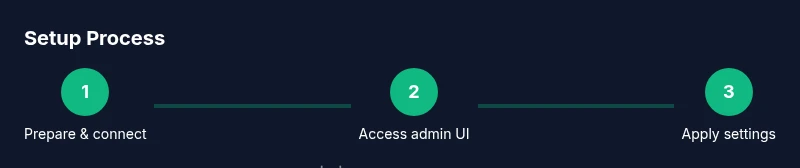
Preparation for setup involves a structured sequence that minimizes interference and errors. Start by powering down the modem and any existing router, then connect the Xfinity gateway to the modem using the provided coax or Ethernet as required. Next, bring a computer or mobile device within range and connect to the gateway’s default Wi-Fi or directly via Ethernet for the initial configuration. This initial connection ensures you can access the admin interface without wireless disruption. According to WiFi Router Help, documenting your current settings and saving a screenshot of the default network details helps you revert if needed later. You should then locate the admin address on the device label (commonly a local IP such as 10.0.0.1) and prepare a strong, unique admin password before proceeding.
Wireless Network Basics: 2.4 GHz vs 5 GHz
Most home Wi-Fi uses two bands: 2.4 GHz and 5 GHz. The 2.4 GHz band offers better range and wall penetration but is more prone to interference from household devices like microwaves and Bluetooth gadgets. The 5 GHz band provides higher speed with shorter range, which makes it ideal for streaming, gaming, and video calls in rooms closer to the router. If your Xfinity router supports both bands, enable separate SSIDs for each band so you can explicitly assign devices to the 5 GHz network for speed or keep 2.4 GHz for compatibility with older gear. Band steering can help devices connect to the best band automatically when available. For best results, position the router centrally, away from obstructions, and test signal strength in high-use areas.
Security and Access Control Best Practices
Security should be a primary consideration from day one. Change the default admin password to a strong, unique passphrase and enable WPA2 or WPA3 encryption. Disable features you don’t use, such as WPS, to reduce attack surface. Create a dedicated guest network to isolate visitors’ devices from your main network, and enable a firewall and basic parental controls if needed. Regularly review connected devices and revoke access for unfamiliar items. Keeping firmware up to date closes security gaps and protects against emerging threats. If you’re sharing your network with guests, routinely rotate passwords and monitor usage patterns to detect unusual activity.
Performance Tuning and Troubleshooting
Coverage gaps are common in multi-story homes or spaces with many walls. Start with a central, elevated location and avoid placing the router near metal appliances or large reflectors. Use a wired Ethernet backhaul when possible for devices that require reliable low-latency connections. If speeds drop or devices stall, check for firmware updates and verify QoS rules if you use them. Rebooting the gateway and router in a controlled manner can resolve transient issues. If a specific room remains slow, consider adjusting channel selection on the 2.4 GHz band (try channels 1, 6, or 11 where interference is lowest) or enabling band steering to balance clients across bands. In some homes, enabling guest networks and shaping traffic can improve overall performance by reducing congestion.
Advanced Configurations and When to Use Them
Bridge mode is an option if you want a separate router handling network traffic while the Xfinity gateway acts purely as a modem. This setup can improve performance for power users who want advanced features like custom DNS, sophisticated QoS, or dedicated VPN support. When bridging, remember to disable the gateway’s Wi-Fi to avoid interference and ensure NAT is handled by your own router. If you’re not ready for bridging, consider configuring a wired backhaul, enabling a second access point, or using mesh networking features if your router supports them. Advanced users may also set up static IP addresses for servers, configure port forwarding for specific games or services, and tailor firewall rules to balance security with accessibility.
Authority Sources and Further Reading
For deeper technical guidance, consult credible sources on wireless network security and home network management. These references can help you understand best practices and validate your setup decisions:
- https://www.cisa.gov/identifying-and-managing-home-network-security
- https://nvlpubs.nist.gov/nistpubs/SpecialPublications/NIST.SP.800-153.pdf
- https://stanford.edu
Tools & Materials
- Xfinity account(Active service and login credentials)
- Computer or mobile device(Web browser or mobile app for setup)
- Ethernet cable(Wired setup helps precision during configuration)
- Power outlet(Near the router and modem for power stability)
- Stable internet connection(Initial activation and firmware checks)
Steps
Estimated time: 30-45 minutes
- 1
Prepare hardware and power up
Power down the modem and existing router (if applicable). Connect the Xfinity gateway to the modem as required by your service and plug the unit into a stable power source. This initial preparation reduces interference and ensures the device boots cleanly.
Tip: Wired connections during setup minimize wireless interference. - 2
Connect a configuration device
Using a computer or smartphone, connect to the gateway’s Wi‑Fi or to the gateway via Ethernet so you can access the admin interface without hiccups. Having a wired link during this phase speeds up login and reduces dropouts.
Tip: If you use Wi‑Fi, temporarily disable any VPNs that might block local admin pages. - 3
Access the admin interface
Open a web browser and navigate to the gateway’s admin page (commonly http://10.0.0.1). Log in using the credentials on the device label. If prompted, accept any firmware update notices.
Tip: If you don’t see the login page, confirm the device is connected to power and the correct IP address is being used. - 4
Change the admin password
Create a strong, unique password for the admin account and save it in a secure password manager. This step prevents unauthorized changes to your network.
Tip: Use long passphrases with a mix of letters, numbers, and symbols. - 5
Configure wireless settings
Set distinct SSIDs for 2.4 GHz and 5 GHz, enable WPA2/WPA3, and create strong wireless passwords. Avoid using easily guessable names that reveal personal details.
Tip: Do not reuse your admin password for the Wi‑Fi password. - 6
Update firmware and security features
Check for firmware updates and apply them. Enable firewall protections, disable WPS, and consider enabling a guest network for visitors.
Tip: Automatic updates are safer; keep the option enabled if available. - 7
Decide on bridging or gateway mode
If you plan to use a separate router, enable bridge mode on the Xfinity gateway so NAT is handled by your own device. If you’re sticking with the gateway, optimize settings and save changes.
Tip: Bridge mode disables the gateway’s routing features; verify your ISP's support guidance first. - 8
Test, tweak, and finalize
Run speed tests in multiple rooms, verify device connectivity, and adjust channel settings if interference is observed. Document the final network names and passwords for easy future access.
Tip: Move devices closer to the router temporarily to verify performance before finalizing positions.
People Also Ask
Can I use my own router with Xfinity?
Yes. You can use your own router by turning off the gateway’s Wi‑Fi or enabling bridge mode. Some ISP services require a reboot after changes.
Yes, you can use your own router if you disable the gateway’s Wi‑Fi or enable bridge mode.
How do I access the Xfinity router admin page?
Open a browser and go to the gateway’s IP address (commonly 10.0.0.1). Log in with the device label credentials and follow on-screen prompts to configure settings.
Open 10.0.0.1 in your browser and log in with the label credentials to start configuration.
Should I enable WPS?
WPS is convenient but less secure. If possible, disable WPS and configure devices manually using a strong password.
WPS is convenient but less secure—disable it and use manual device setup with strong passwords.
What’s the best channel for 2.4 GHz?
If interference is low, channels 1, 6, or 11 are typically best. Use a wireless scanner or your router’s auto‑select feature if available.
For 2.4 GHz, try channels 1, 6, or 11 to avoid overlap.
How often should I update firmware?
Check for updates monthly or enable automatic updates. Firmware upgrades improve stability, security, and feature access.
Check monthly or enable automatic updates to keep the router secure and stable.
What if a device can’t connect after setup?
Double-check that the device is within range, uses the correct SSID and password, and that the network isn’t hidden. Reboot the router if needed.
If a device won’t connect, verify the SSID, password, and proximity, then reboot the router.
Watch Video
What to Remember
- Identify gateway vs. bridge needs and plan accordingly
- Secure your network with a strong password and current encryption
- Use separate SSIDs for 2.4 GHz and 5 GHz when possible
- Regularly update firmware and review connected devices
- Test coverage and adjust settings to maximize reliability