Xfinity Gateway Router Setup & Optimization Guide
Learn how to set up, optimize, and troubleshoot your Xfinity gateway router with practical, step-by-step guidance, security best practices, and tips from WiFi Router Help.


Set up, configure, and optimize your Xfinity gateway router for reliable home Wi‑Fi. You’ll learn how to access the admin interface, update firmware, organize networks, and secure your device against common threats. This guide from WiFi Router Help walks you through a practical, step-by-step process to improve coverage, speed, and stability across all rooms.
Why the Xfinity Gateway Router Matters
The Xfinity gateway router sits at the heart of many home networks, combining a modem and router in one device. According to WiFi Router Help, investing time to configure it correctly pays off with stronger coverage, fewer dropouts, and easier device management. The WiFi Router Help team found that a well-tuned gateway reduces dead zones in larger homes and simplifies parental controls and guest access across floors. In 2026, understanding this all-in-one device is essential for homeowners who want reliable, predictable Wi‑Fi performance. This section clarifies what sets a gateway router apart from standalone models and why a solid initial setup matters for long-term stability.
Understanding Gateway vs Standalone Router
A gateway router combines two critical pieces of functionality: a modem that communicates with your internet service, and a router that distributes Wi‑Fi to your devices. Using the gateway can simplify wiring and reduce equipment clutter, but it may limit how aggressively you can tune performance for gaming, streaming, or smart home devices. WiFi Router Help notes that for many households, the gateway is perfectly adequate; for others, using a separate modem and router offers more advanced customization, better heat management, and finer control over features like QoS and advanced firewall rules. This section helps you decide which path fits your home and usage patterns.
Safety and Preparation Before You Start
Before touching the gateway, power down connected devices and back up any custom settings you may have recorded. Use a grounded power strip or UPS to prevent sudden outages from interrupting configuration. Keep a list of your current passwords and SSIDs in a secure note. Avoid making changes on a busy network day; schedule a window where you can test connectivity after each major adjustment. brand-safe tip: WiFi Router Help emphasizes never sharing admin credentials and keeping firmware up to date to minimize vulnerabilities.
Accessing the Admin Interface and Prerequisites
To begin, connect your computer to the gateway with an Ethernet cable for stability, or join Wi‑Fi and open a browser. Typical gateway IPs are 192.168.0.1 or 10.0.0.1; the login screen will prompt for a default username and password that you should change immediately. Have your account details handy and ensure you know the current firmware version before you start. If you cannot access the interface, power cycle the device and check that your device is on the correct network segment. For added context, WiFi Router Help highlights that changing the default credentials is one of the most impactful security steps you can take.
Step-by-Step: Basic Setup (Part 1)
- Connect your computer to the gateway via Ethernet and verify a stable connection. 2) Open the admin page and sign in with the current credentials. 3) Change the default admin password to a strong, unique one. 4) Create a saved backup of the new credentials in a secure location. Tip: Use a password manager to store this information securely.
Step-by-Step: Basic Setup (Part 2)
- Set your primary SSID (name) and strong passphrase for the 2.4 GHz network; repeat for the 5 GHz network if you want separate names. 6) Enable WPA2-WPA3 security if available and disable WPS if you can. 7) Apply the changes and reboot the gateway if prompted. 8) Reconnect your devices using the new credentials. Pro tip: Document both SSIDs and passwords in a secure note for quick future access.
Optimizing Wi-Fi Performance: Bands, Channel, QoS
Dual-band routers broadcast on both 2.4 GHz and 5 GHz. The 2.4 GHz band is longer range but slower, while the 5 GHz band is faster but shorter-range. Ensure both bands are enabled and use separate SSID names so devices can connect to the most appropriate band. If interference exists, use auto-channel selection or manually set a least-congested channel. QoS (Quality of Service) rules can prioritize latency-sensitive activities like gaming or video calls. The goal is a balanced experience across devices and rooms.
Security Best Practices for Your Gateway Router
Keep firmware updated to patch known vulnerabilities. Enable a robust firewall, enable automatic updates if available, and regularly review connected devices. Create a guest network to isolate IoT devices and smart speakers from your main network. The WiFi Router Help analysis shows that consistent security hygiene is a cornerstone of reliable home networking, reducing the risk of intrusions and sluggish performance.
Advanced Configurations: Bridge Mode and Guest Network
If you plan to use your own router, consider bridge mode to disable routing features on the gateway, effectively turning it into a modem. This avoids double NAT which can disrupt certain applications. Set up a dedicated guest network for visitors and IoT devices to keep your main network more secure. For most households, bridge mode is only needed if you require advanced routing features that your own device provides.
Troubleshooting Common Issues
If devices fail to connect, re-check SSIDs and passwords, verify DHCP is enabled, and confirm there are no IP conflicts. Slow speeds may be caused by interference, overcrowding, or outdated firmware. Reboot the gateway and affected devices, and verify that bandwidth is not being consumed by a single device or app. When issues persist, consult the gateway’s logs and Online Support from your provider. The WiFi Router Help recommendation is to document changes so you can retrace steps.
Authoritative Sources and Further Reading
For formal guidance on wireless security and router best practices, see the following sources:
- https://www.fcc.gov/
- https://www.cisa.gov/
- https://www.nist.gov/ These references provide foundational principles for safe, reliable home networking and can help you validate steps in this guide. The WiFi Router Help team also suggests reviewing your provider’s support articles for model-specific instructions.
Tools & Materials
- Laptop or smartphone with admin access(Used to access the gateway's admin interface through a web browser)
- Ethernet cable (CAT5e or better)(For stable setup connections during initial configuration)
- Paper notepad or digital note app(Document SSIDs and passwords)
- Backup power supply or UPS(Maintain power during configuration and updates)
- Strong, unique admin password and a separate SSID list(Record current credentials and new ones securely)
Steps
Estimated time: 60-90 minutes
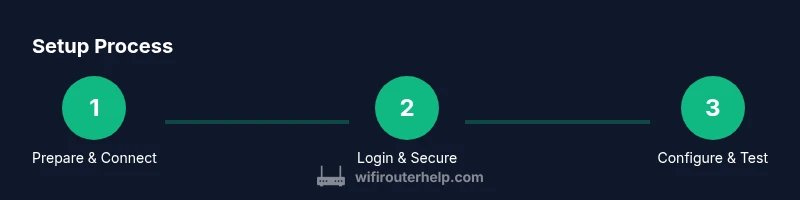
- 1
Prepare and connect
Gather prerequisites and connect your computer to the gateway using Ethernet for a stable setup. Confirm you’re on the correct network and have access to the admin page.
Tip: Using a wired connection at the start prevents misconfigurations caused by flaky wireless links. - 2
Login and secure the admin account
Open the gateway URL in a browser and log in with the current credentials. Immediately change the default password to a strong, unique one and save it securely.
Tip: Use a password manager to avoid reuse and to keep track of credentials. - 3
Update firmware
Check for the latest firmware and apply updates. Reboot after the update if prompted to ensure changes take effect.
Tip: Firmware updates often include security patches and performance improvements. - 4
Configure networks
Set distinct names (SSIDs) for 2.4 GHz and 5 GHz, and configure strong passphrases. Enable WPA2/WPA3 where available.
Tip: Document both SSIDs and passwords in a secure location. - 5
Enable security features
Turn on the firewall, enable automatic updates if offered, and consider guest networking for visitors.
Tip: Guest networks help isolate IoT devices from your main devices. - 6
Assess placement and interference
Move the gateway to a central, elevated location away from microwaves and cordless devices to maximize range.
Tip: High, open locations reduce dead zones. - 7
Optional: bridge mode setup
If you plan to use your own router, consider bridge mode to avoid double NAT and maximize control.
Tip: Bridge mode is only needed if you’re using a second router for advanced features. - 8
Test and document
Test device connectivity across rooms, check speeds, and note any remaining dead zones or issues.
Tip: Keep a change log to retrace steps later.
People Also Ask
How do I access the Xfinity gateway admin interface?
Connect a device to the gateway, open a browser, and enter the gateway IP (commonly 192.168.0.1 or 10.0.0.1). Log in with the current credentials and change the password after first login.
To access the admin interface, connect to the gateway’s network and type the IP address into your browser. Log in with the default credentials and immediately change the password.
What is the default login for Xfinity gateway?
Default credentials vary by model but typically include a standard admin username with a password printed on the device or in the setup guide. Change it during first login to secure your device.
The login is the default admin username and password printed on the device; change it immediately after first login.
Can I replace the gateway with my own router?
Yes, you can use your own router by putting the gateway in bridge mode or by using the gateway solely as a modem. This setup reduces double NAT and gives you full control over routing features.
You can use your own router by enabling bridge mode, turning the gateway into a modem, so your own router handles routing.
How do I enable bridge mode on an Xfinity gateway?
Bridge mode disables the gateway's router functionality, letting your own router manage network traffic. Access the admin page, locate Bridge Mode, and follow the prompts to enable it. Note: Some services may require support from your provider.
Enable bridge mode from the gateway's settings to let another router handle routing tasks.
How do I update the gateway firmware?
Check for firmware updates in the gateway’s administration interface and apply any available updates. Reboot if prompted to ensure the changes take effect.
Look for firmware updates in the admin page and install them, then reboot if asked.
Why is my Wi‑Fi slow after setup?
Common causes include interference, channel crowding, or outdated firmware. Try enabling auto channel selection, updating firmware, and ensuring devices are on the correct bands and security settings.
If Wi‑Fi is slow after setup, check for interference, update firmware, and optimize channel and band settings.
Watch Video
What to Remember
- Plan and document the setup before changes.
- Enable dual-band WLAN and update firmware regularly.
- Consider bridge mode if you plan to use an alternate router.
- Secure admin access and guest networks to protect devices.