Router Settings for Xfinity: A Practical Guide
Step-by-step guide to optimize Xfinity router settings for speed, security, and reliability. Learn gateway access, bridge mode, Wi‑Fi configuration, and troubleshooting for home networks.


You'll learn how to configure router settings for Xfinity, covering access to the gateway, choosing between gateway mode and bridge mode, optimizing Wi‑Fi bands and channels, setting a strong password, enabling WPA3 where available, and applying practical performance tweaks. This guide uses clear, step-by-step instructions suitable for homeowners and tech enthusiasts.
Why router settings for xfinity matter
In a typical home, the Xfinity gateway handles both modem and router functionality. The choices you make in router settings for xfinity directly influence speed, range, reliability, and security for every connected device. When you optimize these settings, you reduce buffering, improve coverage in dead spots, and minimize interference between devices. According to WiFi Router Help, a deliberate configuration plan yields the most consistent results across multiple rooms and floors. The phrase router settings for xfinity anchors the discussion to the exact equipment most households use when subscribing to Xfinity service. You’ll learn how to access the gateway, how to select gateway mode versus bridge mode, how to name networks and secure them, and how to avoid common mistakes that degrade performance. The goal is clear: a robust home network that stays responsive under load, even when streaming, gaming, or working from home. This article uses practical steps, visual cues, and safety reminders so homeowners—whether new or experienced—can manage their own network with confidence.
Basic network blueprint for Xfinity
Xfinity provides a gateway that can operate as a combined modem and router, but many users prefer a separate router for advanced features. Understanding the basic network blueprint helps you decide the right path. The gateway can be left in its default mode for simplicity, or configured in bridge mode if you plan to run a separate router. In either case, you still manage essential items such as the local IP range, DHCP assignments, NAT behavior, and firewall rules. When you plan, label your networks clearly (for example, Home WiFi 2.4G and Home WiFi 5G), and decide whether devices should roam between bands automatically. If you use your own router, keep the gateway’s Wi-Fi off to prevent dual networks and interference. By mapping your devices, you’ll reduce conflicts and identify which devices should stay on the 5 GHz band for best performance. This blueprint aligns with common home setups and ensures that your changes stay organized as you experiment with settings.
Accessing the Xfinity gateway admin page
To change router settings, you must access the Xfinity gateway admin page. Start by connecting your computer or phone to the gateway via Wi-Fi or a wired Ethernet cable. Open a web browser and sign in with your Xfinity account credentials, or use the dedicated Xfinity app if supported. If you have trouble logging in, ensure you are using the correct username and password—these are often the same credentials used for your account. Some models require you to enter a security verification or to confirm access on a linked mobile app. After login, look for sections labeled 'Gateway', 'Wi‑Fi', or 'Advanced' to find settings related to network name, password, security, and LAN options. Remember that changes may reset after a reboot, so plan a short maintenance window and save your work frequently.
Common settings to adjust
Starting with the basics helps most households notice immediate gains. In the Wi‑Fi section, set clear, unique SSIDs for the 2.4 GHz and 5 GHz networks. Choose a strong password using a mix of letters, numbers, and symbols, and enable WPA2 or WPA3 encryption depending on what your devices support. If your router supports SIMPLE band steering or smart connect features, enable them to help devices switch bands automatically for best performance. Consider turning off unused features such as remote management, WPS, or UPnP if you don’t need them, because they can introduce risk. For guests, enable a guest network with separate credentials to isolate visitor traffic from your main devices. Finally, assign a sensible DHCP range and ensure NAT is enabled if you’re using the gateway as the primary router. Save your changes and test connectivity on multiple devices.
Advanced optimizations
Beyond the basics, there are several optimizations that deliver tangible performance gains. If you plan to use your own router, enabling bridge mode on the Xfinity gateway eliminates double NAT and improves compatibility. In any case, set QoS (Quality of Service) rules to prioritize latency-sensitive activities like video calls and gaming. Some gateways support WMM (Wi‑Fi Multimedia) which helps prioritize traffic on the wireless channel; turn this on if available. For home networks with many devices, consider reserving an IP address for key devices (printer, NAS, gaming console) using DHCP reservations. Disable features you don’t need, such as remote management or DMZ, unless you are troubleshooting. Regularly check for firmware updates and apply them when possible to keep security and features current.
Wi-Fi channel optimization and interference
Channel selection and bandwidth settings influence both range and speed. Use separate network names for 2.4 GHz and 5 GHz to avoid confusion. If you experience interference from neighbor networks, try manual channel selection rather than auto; for many homes, selecting the least used channels yields the best results. In the 2.4 GHz band, avoid wide channel widths that cause overlap; on the 5 GHz band, wider channels (such as 80 MHz) can improve throughput if your devices support it. Position the gateway or your primary router in a central location away from walls and metal objects to maximize coverage. Wi‑Fi analyzers or smartphone apps can help you identify crowded channels and optimize placement.
Security considerations
Security should be a foundational priority when configuring router settings for xfinity. Use a strong, unique password for each network and enable WPA3 if supported. Disable UPnP if you don’t rely on devices that require it, and keep the firewall enabled to monitor inbound connections. For guests, a separate guest network prevents visitors from accessing your main devices. Consider enabling a password-protected admin log, or at least keep a separate admin account with a strong password. Regularly review connected devices and remove unknown clients. Finally, keep a backup of your configuration in case you need to restore settings after a factory reset or a firmware update.
Troubleshooting common issues
When things go wrong, a structured approach helps. If devices report weak Wi‑Fi, re-run the channel optimization steps and test from multiple rooms. If you can’t login to the admin page, verify you are using the right URL and credentials; clear browser cache or try a different device. If speeds drop, run a wired speed test to determine whether the issue is wireless or the gateway; reboot the gateway if necessary, but avoid frequent power cycling. If you recently updated firmware and saw new behavior, check for known issues in the vendor’s support pages and consider reverting to a previous version if a problem persists. Finally, if you suspect a misconfiguration is the root cause, reapply the baseline settings and test again.
Final checks and ongoing maintenance
After configuring, perform a final checklist to ensure your settings remain stable. Verify both 2.4 GHz and 5 GHz networks, confirm guest network isolation, and ensure DHCP assignments are correct. Keep a written record of your network plan and the current firmware version. Set reminders to check for firmware updates every few months, and re-test network performance after any major household changes (new devices or increased load). If you ever reset the gateway, reapply the preferred settings from your backup. This disciplined approach helps maintain a robust home network over time.
Tools & Materials
- Xfinity gateway login credentials(Username and password to access the admin page; may be the same as your Xfinity account credentials.)
- Smartphone or computer(Device to access the admin interface and run speed tests.)
- Ethernet cable(Wired connection for stable setup and testing.)
- Paper and pen(Optional for noting down settings and changes.)
- Backup plan(A known-good configuration backup or a saved screenshot of current settings.)
Steps
Estimated time: 60-90 minutes
- 1
Plan your network topology
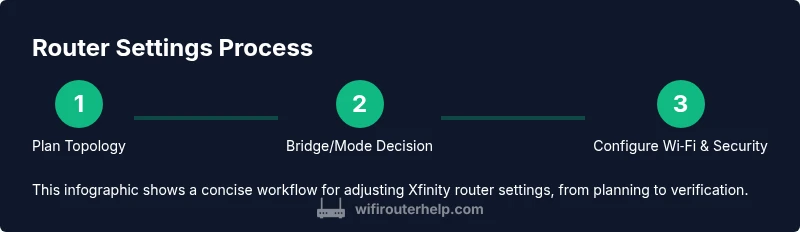
Decide whether you will rely on the Xfinity gateway for routing, or pair it with a separate router. Mapping devices and labeling networks helps prevent confusion during tweaks and troubleshooting.
Tip: Create a simple diagram showing which devices connect to which network. - 2
Log in to the gateway admin page
Connect to the gateway via Wi‑Fi or Ethernet, then sign in with your Xfinity credentials. If you use two-factor authentication, complete the verification step.
Tip: If login fails, reset the gateway briefly or try a different browser. - 3
Decide gateway mode vs bridge mode
If you’ll use an external router, enable bridge or pass‑through mode on the gateway to avoid double NAT. If you’re sticking with the gateway, you can skip this step.
Tip: Bridge mode may temporarily disrupt internet until devices reconnect. - 4
Update firmware
Check for and apply any available firmware updates to the gateway and connected router. Updates improve security and performance.
Tip: Schedule updates during off-peak hours to minimize disruption. - 5
Configure Wi‑Fi names and passwords
Set distinct SSIDs for 2.4 GHz and 5 GHz networks and create strong, unique passwords. Enable the strongest supported encryption (WPA3 if available).
Tip: Avoid common names; use a mix of characters for your password. - 6
Set security and access controls
Enable the firewall, disable unnecessary features (remote management, UPnP if not needed), and consider a separate admin account. Create a guest network for visitors.
Tip: Limit admin access to trusted devices only. - 7
Tune channels and bandwidth
Choose appropriate channel settings, prefer auto only if your environment is stable, and consider narrower 2.4 GHz channels to reduce overlap.
Tip: Check for neighbor interference using a Wi‑Fi analyzer. - 8
Enable QoS and device reservations
If your gateway or external router supports QoS, set rules to prioritize video calls or gaming. Reserve IPs for critical devices via DHCP reservations.
Tip: Test with a few high‑load devices to confirm improvements. - 9
Test, back up, and document
Test speed and stability on multiple devices, back up the configuration, and note any changes for future reference.
Tip: Keep a changelog; it simplifies future troubleshooting.
People Also Ask
Can I use my own router with Xfinity, and do I need bridge mode?
Yes, you can use a third‑party router with Xfinity by placing the gateway in bridge or pass‑through mode to avoid double NAT. This often improves compatibility and performance with advanced features. If you rely on the gateway for basic routing, you can skip bridge mode but will have a secondary home network.
Yes. You can use your own router by enabling bridge mode on the gateway to avoid double NAT and improve compatibility.
Do I need to reset the gateway if I forget my login?
If you forget the login, you can try password recovery through your Xfinity account. If necessary, a factory reset on the gateway will restore default credentials, but you will lose custom settings—back up first. After reset, set up again from scratch.
If you forget the login, try account recovery first; a factory reset is a last resort.
What is the best security setting for most devices?
Use WPA3 where available for modern devices; if not supported, WPA2‑AES is the next best option. Avoid WPS. Enable the firewall and keep guest networks isolated from your main network to reduce risk.
Use WPA3 if possible; otherwise WPA2‑AES, and keep the firewall on with a separate guest network.
How often should I update firmware?
Check for updates monthly or when the vendor releases security or performance fixes. Enable automatic updates if offered, but monitor for issues after any upgrade.
Check for updates monthly and apply when available to keep security current.
Why won’t my devices see the 5 GHz network?
The 5 GHz band has shorter range and may be blocked by walls. Ensure the 5 GHz network is enabled and not hidden, and move devices closer to the router or adjust antenna direction. Consider using a separate 2.4 GHz for far-away devices if needed.
The 5 GHz network sometimes has limited range; check that it’s enabled and position devices nearer to the router.
What should I do if my speeds drop after changes?
Run a wired speed test to determine if the issue is wired or wireless. Recheck channel settings and QoS rules, and revert any recent changes if necessary. A reboot can help, but avoid frequent resets.
Test using a wired speed test; review recent changes and revert if needed.
Watch Video
What to Remember
- Plan topology before changing settings
- Use strong WPA3 where possible
- Bridge mode is preferred when using your own router
- Backup configurations and update firmware regularly
- Test performance after each change and document results