Modem with Router for Xfinity: A Practical Setup Guide
Learn how to choose, install, and optimize a modem with router for Xfinity. This step-by-step guide covers compatibility, setup, security, and troubleshooting for a reliable home network.


This guide shows you how to select, install, and optimize a modem with router for Xfinity. You’ll verify compatibility with Comcast, choose between a combo gateway or separate devices, activate the service, configure security and Wi‑Fi settings, and diagnose common performance issues to keep your home network fast and reliable.
Why a Combined Modem with Router Matters for Xfinity
According to WiFi Router Help, using a modem with a built‑in router (or a compact modem/router gateway) can simplify your home network, reduce clutter, and make management easier. For Xfinity customers, a single device often translates to fewer boxes, quicker setup, and a straightforward path to firmware updates and parental controls. In practice, a combined device can improve reliability by reducing the number of potential points of failure and ensure you have a consistent Wi‑Fi signal across living spaces. However, there are trade‑offs to consider, such as up‑front cost, potential heat, and the need to choose a device that supports your speed tier. This section lays the groundwork: what a modem with router does, how it differs from a traditional separate modem and router, and when you should consider going all‑in with a single unit.
How Comcast/Xfinity Gateways Work
Xfinity has historically used gateways that combine cable modem functionality with a wireless router. When you rent their gateway, you receive activation via your Xfinity account and automatic firmware updates. If you replace it with your own hardware, you may need to put the gateway into bridge mode or disable its routing features to avoid double NAT. The activation process with Xfinity for a modem-router combo is usually straightforward: connect the device, power it up, and run the activation wizard on a connected device. Having a single device for both modem and Wi‑Fi can simplify port forwarding, QoS settings, and guest networks, but you’ll want to confirm you can maintain reliable service with your chosen hardware.
Key Compatibility Factors for a Modem with Router for Xfinity
When selecting a modem-router device for Xfinity, verify compatibility with your plan and service area. Check the DOCSIS standard (3.0 vs 3.1) and ensure the device supports your expected speeds. Not all routers inside a gateway are equally powerful, so look for features like dual‑band AC or AX, MU‑MIMO, OFDMA, and WPA3 security. Activation often requires a MAC address and a service account, so keep your account ready. If you’re using a separate modem and router, you may need to configure the modem in bridge mode so the router handles NAT and firewall. The goal is a stable, fast, and secure network that can keep up with modern devices and streaming workloads.
Choosing Between a Standalone Modem + Router vs All-in-One
A standalone modem plus a dedicated router gives you the flexibility to upgrade each component independently. If you frequently upgrade devices or want the best Wi‑Fi coverage with mesh extenders, a separate router system can be advantageous. All‑in‑one gateways tend to be easier for beginners and often include simplified parental controls and unified management, but they may lag behind in advanced features or customization. For Xfinity, ensure you pick a device that is compatible with your plan and offers a good cooling profile to prevent throttling. Evaluate your home size, the number of connected devices, and your desired level of control when making the choice.
Recommended Specs for Speed and Coverage
To maximize performance, target devices with current Wi‑Fi standards (Wi‑Fi 6/6E or Wi‑Fi 7 in the future), robust beamforming, and solid hardware for 2.4 GHz and 5 GHz bands. Aim for at least a dual‑core CPU, 256–512 MB RAM for the router, and 4–6 external antennas for larger homes. If you’re using a separate modem, verify DOCSIS 3.1 compatibility for gigabit service. For Xfinity XFi, enabling QoS, separate guest networks, and firewall settings can improve reliability. Plan for growth: more devices, smart home gadgets, and streaming in multiple rooms. WiFi Router Help’s analysis shows that real-world speeds depend on cable quality, plant noise, and router placement, so use this as a baseline while testing in your home.
Step-by-Step Overview (Bridge to Full Setup)
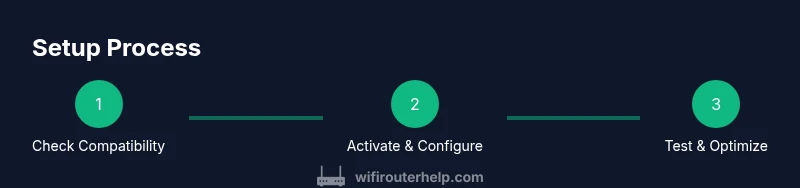
This overview walks through the major milestones without getting lost in details. Start by confirming your service plan and the hardware you’ll use. Then, physically connect the modem-router device, power it, and access its setup interface from a connected computer or phone. Next, run activation with Xfinity, configure the network name (SSID) and password, and apply basic security settings. Finally, test connectivity in key rooms, adjust channel settings, and enable guest networks if needed. In the end, you’ll have a resilient network that serves streaming, gaming, and remote work without constant reboots.
Network Security and Privacy When Using Your Own Router
Security should be a top priority when replacing an Xfinity gateway. Change default admin credentials, enable WPA3 or at least WPA2‑AES encryption, disable WPS, and keep firmware updated. Create a strong, unique Wi‑Fi password and consider separate networks for guests and IoT devices. Regularly review attached devices and monitor logs for unfamiliar activity. If you enable bridge mode, be mindful of exposing devices directly to the internet; configure a strong firewall and consider a VPN for sensitive devices. These steps reduce the risk of intrusions and keep your home network safe as new devices join the network.
Common Pitfalls and How to Avoid Them
Double NAT, weak Wi‑Fi, and inconsistent activation are common issues when using third‑party equipment with Xfinity. Avoid these by putting your router in bridge mode when using a separate modem, or disable router functionality when using a combo gateway. Confirm you’re on the correct speed tier and that your plan supports multi‑gig connections if you’re aiming for top speeds. Keep cables tidy to reduce interference, place routers centrally, and avoid stacking devices in closed spaces.
Troubleshooting Common Issues After Setup
If your devices fail to obtain an IP address, check the DHCP settings and ensure the router is the primary NAT device. For Wi‑Fi problems, test both 2.4 GHz and 5 GHz bands, verify channel width, and inspect interference from microwaves or cordless phones. Slow speeds may result from ISP outages, faulty cables, or outdated firmware; run a speed test and update firmware. If problems persist, consult your Xfinity account status and review port forwarding rules or QoS policies for conflicting configurations.
Maintenance and Long-Term Considerations
Keep firmware up to date, back up configuration files, and monitor network usage to anticipate bottlenecks. Time‑based access controls and parental controls may require regular tweaks as your household grows. Consider mesh extenders or additional access points to cover dead zones, and re‑evaluate your gear every 2–3 years to keep pace with new standards. A well‑built modem-router setup can scale with your home’s needs while preserving security and performance over time.
Real-World Scenarios: Cost Savings and Reliability
Many users find that owning their own modem-router can save money over renting a gateway from Xfinity, especially for households with multiple devices or smart home ecosystems. A durable, well‑placed router may provide more consistent coverage in challenging spaces than a rental unit. WiFi Router Help’s experience suggests that thoughtful placement and regular maintenance often yield tangible improvements in throughput and reliability, reducing headaches and service calls.
Next Steps and Best Practices
With the basics in place, schedule regular firmware checks, test speeds at different times of day, and consider joining a mesh network if you have a large home. Document your network settings for future changes, and keep a spare Ethernet cable and power adapter on hand. For most households, a modern modem-router with good Wi‑Fi performance and strong security is a reliable, future‑proof foundation for Xfinity service.
Tools & Materials
- Xfinity-compatible modem-router device(DOCSIS 3.0/3.1 compatibility; supports Wi‑Fi 6/6E; ensure it fits your speed tier)
- Ethernet cables (Cat 5e or better)(For wired connections and backhaul where needed)
- Coaxial cable (if reusing coax outlet)(Verify no damage and minimal signal loss)
- Power supply and outlet(Surge-protected if possible)
- Laptop or mobile device for configuration(Used to access setup pages and activation portal)
- Xfinity account information(Credentials ready for activation and management)
- Documentation/manual for hardware(Helpful for advanced settings and recovery steps)
Steps
Estimated time: 30-60 minutes
- 1
Verify compatibility and plan
Confirm your Xfinity plan supports your chosen modem-router, and verify DOCSIS version and Wi‑Fi standard. Review the device’s supported features (Security, QoS, guest networks) before purchasing.
Tip: Check official compatibility lists and customer reviews for real-world performance. - 2
Gather required accessories
Collect the modem-router device, coaxial cable, Ethernet cable, and a configuration device. Have your Xfinity account details handy for activation.
Tip: Label cables to avoid mix-ups during setup. - 3
Connect the hardware
Connect the modem to the coax outlet, then power on the device. Attach a computer or phone to the unit via Ethernet or Wi‑Fi to begin configuration.
Tip: Avoid placing devices in enclosed spaces or behind furniture to maximize signal reach. - 4
Activate through Xfinity
Open the activation page from a connected device, follow prompts to register the MAC address, and complete the activation flow.
Tip: If activation stalls, reboot the device and retry the activation step from a wired connection. - 5
Configure basics (SSID/password)
Set a friendly network name and a strong password. Enable WPA3 if available; otherwise use WPA2‑AES.
Tip: Avoid easily guessed names and reuse of default credentials. - 6
Tweak security and features
Enable firewall, disable WPS, and update firmware to the latest version. Consider enabling guest networks and a separate IoT network.
Tip: Regularly check for firmware updates and apply them promptly. - 7
Test coverage and performance
Walk around the home with a mobile device to test signal strength in key rooms. Use speed tests to verify you’re getting expected speeds on both 2.4 GHz and 5 GHz bands.
Tip: Relocate the router to a central, elevated spot if coverage is weak. - 8
Document and plan for future upgrades
Record your network settings and consider adding mesh extenders if you have dead zones or many devices.
Tip: Keep a spare ethernet cable and power adapter on hand for quick recovery.
People Also Ask
Do I need to rent a gateway from Xfinity if I buy my own modem-router?
No. You can use your own modem-router, but activation and support are best handled through Xfinity. You may need to bridge the modem or disable its router features to avoid double NAT. Be sure to confirm service compatibility and plan limits with your account.
You can use your own device, but activation and support may be limited. You might need bridge mode to avoid double NAT.
Is it better to use a combo gateway or separate devices?
It depends on your needs. Combo gateways are easier to set up, while separate modem and router offer flexibility and often better performance, especially if you want to upgrade Wi‑Fi or mesh capabilities independently.
Combo is simpler; separate devices give more upgrade paths and control.
How do I activate my own modem-router with Xfinity?
Connect the device, power it up, and use the Xfinity activation portal to register the MAC address. If activation fails, reboot and try again, ensuring you’re connected to the device directly.
Plug in, open the activation page, and follow prompts to register the device.
What is bridge mode and when should I use it?
Bridge mode disables the gateway’s routing functions so your separate router handles NAT and firewall. Use it when you want to avoid double NAT with a separate router.
Bridge mode disables routing on the gateway so your own router can manage the network.
Will my existing router work with Xfinity gig service?
A capable router that supports high-speed Wi‑Fi and a DOCSIS 3.1 modem (if using a separate modem) should handle gig plans. Always verify the exact speed tier and device capabilities with Xfinity.
Yes, if your gear supports the higher speeds and DOCSIS 3.1 if you’re using a separate modem.
What security settings should I enable first?
Enable WPA3 or WPA2‑AES, disable WPS, update firmware, and create strong, unique passwords. Segment sensitive devices on a separate network if possible.
Turn on strong encryption, update firmware, and use unique passwords.
Watch Video
What to Remember
- Choose a compatible modem/router for your Xfinity plan.
- Bridge or disable double NAT when mixing devices.
- Secure your Wi‑Fi with modern encryption and strong passwords.
- Test coverage in every room and adjust placement.
- Keep firmware updated and maintain a simple, documented setup.