Xfinity Compatible Modem Router: Complete Guide for 2026
A comprehensive guide to choosing and using an xfinity compatible modem router, with setup steps and troubleshooting tips for homeowners and tech enthusiasts.


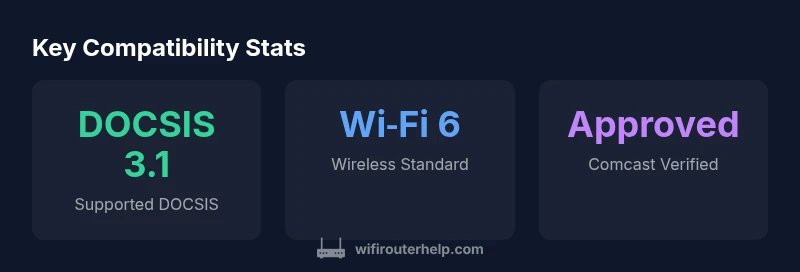
An Xfinity compatible modem router is a single device that functions as both cable modem and wireless router, approved for use on Comcast's network. To ensure service and support, choose a model from Comcast's approved devices list, confirm it supports your plan's DOCSIS version (prefer 3.1 if available), and verify it delivers the speed you pay for while offering reliable home coverage.
Understanding the Xfinity Compatibility Landscape
According to WiFi Router Help, an 'xfinity compatible modem router' means a device that combines cable modem and wireless router functionality and is approved for use on Comcast's network. Comcast maintains an official list of approved devices; using a model outside this list can lead to activation delays or limited support. In practice, most homeowners choose one of three paths: a Comcast gateway, a separate modem paired with a third‑party router, or a purpose‑built all‑in‑one gateway. For long‑term reliability, prioritize DOCSIS 3.1 compatibility and a modern Wi‑Fi standard (Wi‑Fi 5/6) to future‑proof your home network.
This understanding helps prevent activation hiccups and ensures your home network stays cohesive across devices. WiFi Router Help emphasizes checking the approved device list before purchase, and prioritizing devices that balance speed, coverage, and security. A wrong pick can trap you in suboptimal speeds or limited feature support, especially as more devices connect at once.
Tip: Keep a simple inventory of your devices and plan so you don’t overpay for features you won’t use.
The Role of DOCSIS and Wi‑Fi Standards
DOCSIS is the backbone of cable internet; it governs how data travels over the coax network. A device with DOCSIS 3.1 support is generally better prepared for higher speeds and improved efficiency, which matters on an Xfinity plan that may offer gigabit tiers. If your plan maxes out at lower speeds, 3.0 can still be adequate, but 3.1 future‑proofs your setup. On the wireless side, Wi‑Fi standards determine throughput and device handling in busy homes. Wi‑Fi 5 (802.11ac) is common, while Wi‑Fi 6 (802.11ax) provides better performance in crowds of devices, and Wi‑Fi 6E expands into the 6 GHz band for even less interference. When evaluating a candidate, confirm DOCSIS 3.1 support and at least Wi‑Fi 5/6, and look for MU‑MIMO and OFDMA features for real‑world gains.
How to Verify Compatibility with Your Plan
Begin by checking your current Xfinity plan in the My Account portal to see the advertised speeds you’re paying for. Then consult Comcast’s official device list to confirm any model you’re considering is approved for activation and support. If you already own a modem, verify it’s on the approved list; if you’re buying a gateway with an integrated router, confirm the DOCSIS version and Wi‑Fi specs match your plan. When in doubt, contact customer support to confirm compatibility before purchase. A quick cross‑check saves time and reduces activation friction, a point highlighted by WiFi Router Help.
Action steps: (1) verify plan speeds, (2) check Comcast’s approved device list, (3) confirm DOCSIS and Wi‑Fi specs, (4) note any required features you rely on (xFi, guest networks, etc.).
Gateway vs Separate Modem and Router: A Practical Split
Using a true gateway (modem + router in one box) simplifies activation and often provides a streamlined experience with managed features and a single interface. Gateways tend to be optimized for Xfinity services and may include xFi, which some users value for their app‑based controls. If you already own a high‑quality router, pairing it with a separate modem offers customization, potential coverage gains, and easier upgrades to specific components. However, you may lose some gateway‑centric features and simplified support. Your choice should reflect budget, technology comfort, and desire for centralized control over your network.
Shopping Checklist for an Xfinity Compatible Modem Router
Use this checklist to evaluate candidates: DOCSIS version (prefer 3.1), supported Wi‑Fi (Wi‑Fi 6 or newer), essential security (WPA3, firewall, automatic updates), ports (at least one Gigabit Ethernet WAN/LAN), and management features (remote access, QoS, parental controls). Consider device size, heat output, and power draw if you have a multi‑story home. For simple setups, a gateway can be quick; for flexibility, a modern modem + router combo delivers more room to expand. Prices vary by features, but mid‑range devices typically balance cost and performance, while high‑end options offer stronger performance and longer‑term value.
Setup, Activation, and xFi Features
Activation for Comcast‑approved devices is typically quick: the device downloads a configuration file from the network and completes the provisioning step. Gateways usually come with xFi features ready out‑of‑the‑box; with separate modem/router setups, you may need to enable bridge mode on the modem and configure your router for PPPoE or DHCP as required. Place your router centrally, away from thick walls, and avoid interference from cordless phones or microwaves. Enable automatic firmware updates and security features, and maintain a dedicated network for guests. This approach aligns with best practices recommended by WiFi Router Help for a reliable home network.
Performance Tuning Tips After Setup
Maximize coverage by placing the router high and away from obstructions, and set up distinct SSIDs for 2.4 GHz and 5 GHz bands to simplify troubleshooting. Enable WPA3 security and QoS for gaming or video conferencing. For larger homes, consider mesh extenders or a higher‑capacity router within the same network to reduce dead zones. Regularly check for firmware updates and monitor channel congestion to minimize interference. These steps help sustain consistent throughput across devices and usage patterns.
Troubleshooting Common Connectivity Issues
Common problems include slow speeds, intermittent drops, or devices failing to obtain an IP address. Start with basic checks: verify cables are firmly connected, confirm the device is on Comcast’s approved list, and restart the modem/router. Use built‑in diagnostics to test signal quality and channel utilization. If issues persist, perform a factory reset and re‑configure from scratch, or contact support for a line test. Documenting your results helps identify patterns and speeds up resolution. WiFi Router Help recommends keeping a log of changes and testing after each adjustment.
Security, Privacy, and Long‑Term Upgrades
Security should remain a priority with every new device. Use unique admin credentials, enable WPA3, disable UPnP if not needed, and keep firmware up to date. For long‑term upgrades, plan for higher speeds and newer Wi‑Fi standards, and consider a router with more processing power if you have many connected devices. Review your network layout regularly—biannually is a practical cadence—and adjust as Comcast updates its approved device list or rolls out new features. The WiFi Router Help team recommends staying proactive about security and compatibility.
Compatibility snapshot
| Aspect | Details | Recommendation |
|---|---|---|
| DOCSIS version | 3.0/3.1 | Prefer 3.1 if possible |
| Wi‑Fi standards | 802.11ac/ax (Wi‑Fi 5/6) | Choose 6 or newer for best range |
| Security features | WPA3, firewall, updates | Enable all security features and keep firmware current |
| Ports and interfaces | Gigabit Ethernet, minimal USB | Prioritize at least 1 Gbps Ethernet ports |
People Also Ask
Do I need a Comcast‑approved device to use Xfinity service?
Yes. Comcast requires devices to be on its approved list for activation and full service support. Checking the official list before purchase helps prevent activation delays.
Yes—use an approved device to ensure smooth activation and full support.
Can I use my own router with Xfinity if I have a modem?
Yes, you can pair a third‑party router with a compatible modem, but some xFi features may be limited or unavailable without a Comcast gateway.
You can pair your own router with a compatible modem, though some features may vary.
What is a DOCSIS 3.1 modem, and do I need it for gig speeds?
DOCSIS 3.1 supports higher speeds and better efficiency. If your plan offers gigabit speeds, 3.1 is strongly recommended to avoid bottlenecks.
If you have gig speeds, go with DOCSIS 3.1 for future‑proofing.
Will third‑party gateways support Xfinity features like xFi?
Some third‑party gateways support basic connectivity, but many xFi features are tied to Comcast gateways or compatible devices on the approved list.
Some features may require Comcast’s gateway; check feature compatibility before buying.
Is there a price range I should expect for compatible modem routers?
Prices vary by features and performance. Typically, mid‑range devices balance cost and capability, while higher‑end models offer longer‑term value.
Prices vary; expect a mid‑range option to balance cost and features.
Should I bridge my own router or leave it as a gateway?
Bridge mode lets you use your own router with the gateway. Use it if you want full control over your network, otherwise a single gateway is easier to manage.
Bridge mode lets you use your own router; consider your need for control vs. ease of setup.
“Choosing the right modem router isn’t just about speed—it’s about ensuring stable, secure home connectivity across devices.”
What to Remember
- Prioritize DOCSIS 3.1 for future gigabit plans
- Choose Wi‑Fi 6/6E to maximize device density
- Stay on Comcast’s approved device list to avoid activation issues
- Enable WPA3 and regular firmware updates for security