Comcast Router Compatibility: A Practical Guide to Using Your Own Modem and Router
Learn how Comcast router compatibility works, how to choose a compatible modem and router, and step-by-step setup to optimize home networks with clear, practical guidance.


By understanding Comcast router compatibility, you can run your own modem and router for better control, speed, and features. Verify modem compatibility on Comcast’s list, ensure your router supports your plan’s speeds, and decide between bridge mode or using a separate modem. This guide covers verification, setup, and troubleshooting.
Understanding Comcast Router Compatibility
According to WiFi Router Help, comcast router compatibility describes how your home networking gear fits with Comcast's internet service. In practice, it boils down to two pieces of hardware: a modem that connects to the external network and a router that creates your local Wi‑Fi. When you own both devices, you decide how your network behaves, from parental controls to guest networks and per‑device QoS. The most common issues stem from using a gateway that isn’t provisioned to work with a third‑party device, or from bridging not being enabled when you want your own router to handle routing. For residential setups, you typically need a modem that appears on Comcast’s approved list and a router that can handle your subscribed speeds. Understanding comcast router compatibility means knowing when to opt for the Comcast gateway, when to bridge it, and how to configure your own gear for reliable performance. This section sets the stage for a practical, step‑by‑step approach you can apply at home.
Comcast Gateways vs Third-Party Routers: What Changes
Comcast commonly provides a gateway device that combines modem and router functions. If you keep this gateway, you can still introduce your own router by placing it behind the gateway and configuring it for exclusive routing, or by enabling bridge mode on the gateway so your router handles all routing duties. The key difference is where NAT, firewall rules, and DHCP are managed. In a typical home network, the gateway handles the external connection, while your own router manages internal traffic. When bridge mode is active, bridges disable the gateway’s router to avoid double NAT, giving your own router full control over IP addressing and traffic management. This can improve stability, especially if you’re running multiple devices, a mesh system, or demanding applications. Remember: enabling bridge mode or pass‑through might affect certain Comcast services, so consult the official support resources if you rely on features like voice services or security features tied to the gateway.
How to Check Compatibility: Quick Checks Before You Buy
Start by identifying whether you plan to use a separate modem and router or rely on a Comcast gateway. If you opt for your own modem, verify that its model is on Comcast’s list of approved modems for your plan. The list is typically organized by DOCSIS version (3.0 or 3.1) and by max supported speeds. Next, confirm that your router supports the speeds you’re paying for and offers features you value—such as robust parental controls, guest networks, and reliable coverage. For mesh setups, ensure the router nodes can integrate with existing gear and that the modem’s connection is stable. By focusing on official compatibility lists and your own performance needs, you can minimize surprises during activation and avoid potential service restrictions. This practical approach aligns with your goal of achieving smooth, dependable home networking under Comcast.
Choosing Equipment: Modem, Router, and Activation
When deciding between using Comcast’s gateway or a separate modem and router, weigh cost, control, and futureproofing. If you want maximum control and potentially stronger performance, a modern DOCSIS 3.0/3.1 modem paired with a capable router is a solid choice. Ensure the modem is listed as compatible with your service tier, and pick a router with features you’ll actually use, such as good coverage, easy management, and security options. If you prefer simplicity, the gateway can be convenient, but you won’t have the same flexibility as a standalone router. Activation steps vary depending on setup: a new modem will require activation through Comcast’s portal, while a bridge mode configuration demands access to the gateway’s admin interface to switch to pass‑through.
Troubleshooting Common Issues and Performance Tips
After setup, test your network for stability and speed. If devices show inconsistent connections, consider repositioning your router for better coverage, updating firmware, or adjusting router channels to reduce interference. Check for double NAT issues if you’re not in bridge mode, which can cause gaming and streaming problems. If you’re using a mesh system, ensure all nodes are properly linked and that the uplink to the modem remains stable. For persistent problems, recheck compatibility lists, verify activation status, and confirm that any software on your router is up to date. The goal is a clean, fast, and reliable network with minimal dropouts and consistent performance across devices.
Tools & Materials
- DOCSIS 3.0/3.1 compatible modem(Choose a model on Comcast's approved list for your plan)
- Wi‑Fi router (dual‑band or better)(Supports features you need (e.g., QoS, guest network, parental controls))
- Ethernet cable (Cat5e or better)(Needed to connect modem to router (or to the gateway if used) and for wired devices)
- Access to Comcast account/portal(Activation or bridge‑mode changes may require login)
- Optional: bridging instructions or pass‑through settings(Useful when you want your own router to handle routing)
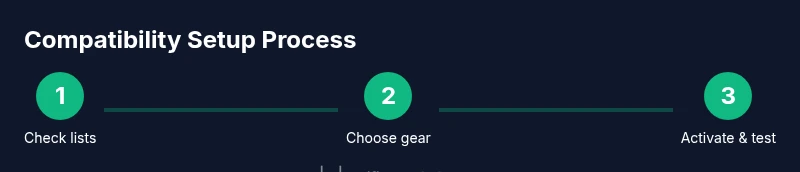
Steps
Estimated time: 45-90 minutes
- 1
Identify your setup goal
Clarify whether you want to use a separate modem and router or the Comcast gateway. This determines activation steps and how you’ll configure routing features.
Tip: Write down your speed tier and coverage goals before purchasing. - 2
Check Comcast’s compatibility lists
Visit Comcast’s official support pages to confirm your chosen modem model is approved for your service tier. If you plan to use a gateway with bridge mode, verify that option is available for your account.
Tip: Filter by your service plan to avoid unsupported configurations. - 3
Decide on bridge mode or separate devices
Bridge mode disables the gateway’s routing functions so your own router can manage NAT and firewall rules. If you’re unsure, start in gateway mode and test performance after a few days.
Tip: Bridge mode can reduce double NAT issues and improve gaming. - 4
Physically connect the hardware
Connect the modem to the wall outlet, then run an Ethernet cable to the router’s WAN port. If using bridge mode, configure accordingly in the gateway admin page.
Tip: Power cycle devices after connections and wait a minute for stabilization. - 5
Configure basic router settings
Access the router’s admin interface to set the WAN connection (DHCP), update firmware, create a strong SSID, and enable security features. If bridging, disable the gateway’s router features.
Tip: Choose a unique network name and strong password; enable WPA3 if available. - 6
Test, monitor, and optimize
Run speed tests, check device connectivity, and adjust channels or placement to maximize coverage. Keep firmware up to date and monitor for dropouts or latency issues.
Tip: Place the router high and central for best coverage; use mesh nodes if necessary.
People Also Ask
Do I need to replace the Comcast gateway to use a third‑party router?
Not always. You can use a compatible modem with your own router, or enable bridge mode on the gateway to let your router handle routing. This preserves flexibility without removing Comcast equipment entirely.
You can often use your own modem and router, or enable bridge mode on the gateway to let your router take over.
Can I use any router with Comcast service?
Most routers work behind a compatible modem, but some advanced features may require bridging and correct configuration. Always check the modem’s compatibility and ensure you configure the gateway for bridge or pass‑through if needed.
Most routers work behind an approved modem, but you may need to bridge the gateway for full control.
What is bridge mode and when should I use it?
Bridge mode turns off the gateway’s routing functions, so your own router acts as the primary NAT and firewall. Use it when you want full control over your home network and to avoid double NAT.
Bridge mode lets your router handle routing, avoiding double NAT.
How do I activate a new modem with Comcast?
Connect the modem, then use the Comcast activation page or app to register the device. You may need to sign in to your account and follow on‑screen prompts to complete activation.
Connect the modem and follow Comcast's activation prompts online.
Will using my own router affect my speeds?
Using a capable modem and router should not reduce speeds below your plan; ensure your hardware supports your subscribed speeds and keep firmware up to date.
Your speeds should stay consistent if you use capable hardware and keep firmware updated.
Where can I find the official compatibility list?
Check Comcast’s official support site for a list of approved modems by plan and region. This helps ensure activation goes smoothly and avoids service issues.
Look up Comcast’s approved modem list on their support site.
Watch Video
What to Remember
- Verify compatibility with Comcast before buying hardware.
- Bridge mode can improve performance with third‑party routers.
- Keep firmware updated and test speeds after setup.
- Use official lists to avoid activation or service issues.