Best WiFi Router for Comcast: Setup and Optimization
Learn how to choose, install, and optimize a wifi router for comcast. Practical steps, security tips, and troubleshooting for a fast home network.


According to WiFi Router Help, a reliable wifi router for comcast can dramatically improve home coverage. This guide shows how to select a compatible router, enable bridge mode when using your own gateway, and fine-tune settings for speed and security. Follow practical steps to install, optimize, and troubleshoot your network for consistent performance.
Why a Dedicated WiFi Router for Comcast Matters
For many households, the default gateway from Comcast is enough for basic browsing, streaming, and light gaming. But if you want consistent coverage across a multi-story home, more reliable throughput on multiple devices, and features like parental controls and advanced QoS, a dedicated wifi router for comcast is worth considering. A standalone router can push higher performance by using newer Wi‑Fi standards (like Wi‑Fi 6) and by letting you choose a top-tier antenna layout and beamforming strategies that match your living space. The WiFi Router Help team emphasizes that investing in a capable router often yields fewer dead zones, better stability during peak hours, and improved compatibility with new smart-home devices that rely on robust wireless connections. If you’re replacing an aging gateway or expanding a small network into a larger home, plan for a setup that supports your devices, your internet plan, and your future needs.
Compatibility and Bridge Mode: Do You Need the Comcast Gateway?
When you opt for a third-party router, you’ll typically run your Comcast modem into bridge mode so your own router handles the network address translation and routing. Bridge mode eliminates double NAT and can improve performance, but it can affect certain services that rely on the gateway’s features. Before enabling bridge mode, confirm that your chosen router supports modern security protocols and has a straightforward setup process. If you’d rather avoid bridging, you can configure the third-party router as an access point (AP mode). In AP mode, the Comcast gateway remains the router but your devices connect to the secondary router for better wireless coverage. This approach reduces potential compatibility pitfalls and keeps basic services intact while still expanding coverage.
Key Features to Look For in a Comcast-Friendly Router
When shopping for a new router to pair with Comcast, prioritize features that improve coverage, speed, and reliability. Look for at least Wi‑Fi 6 (802.11ax) or newer for efficiency with many devices, and consider Wi‑Fi 6E if you have devices that can take advantage of the 6 GHz band. Look for dual-band (2.4 GHz and 5 GHz) as standard, with MU‑MIMO and OFDMA to improve multi-device performance. If your budget allows, tri-band models can help with many smart devices and high-bandwidth use like 4K streaming and gaming. Security features matter: WPA3, automatic firmware updates, a built-in firewall, and guest-network options. Check the number and type of ports (at least one gigabit WAN and a handful of LAN ports) and ensure the manufacturer provides clear bridge-mode documentation and robust customer support.
Choosing the Right Model: Core Specs and Budget Ranges
A practical approach is to match hardware capabilities with your home’s usage patterns and budget. For a typical family home with several streaming devices and a few gaming consoles, a mid-range router provides solid performance without frequent bottlenecks. Budget considerations vary, but you can categorize options into three rough tiers: low, mid-range, and premium. Use these ranges as a guide rather than a price tag. The important part is to choose a model with stable performance, strong antennas, simple setup, and a solid warranty. In addition, verify that the device supports bridge-mode documentation from the vendor and offers straightforward resets if you need to revert to factory defaults.
Setup: Step-by-Step Wiring and Network Configuration
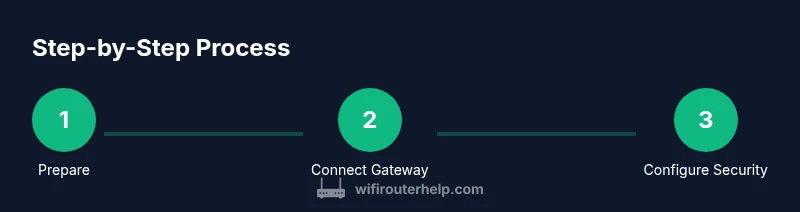
Begin by organizing your gear: a compatible third-party router, the Comcast gateway, a Cat5e/6 Ethernet cable, and a computer or phone for configuration. Decide in advance whether you’ll use bridge mode or AP mode, and confirm you have access to the gateway’s admin interface. Connect the gateway to the router’s WAN port with the Ethernet cable, then power both devices and wait for a stable connection to the internet. Use your computer to access the router’s admin page, and follow the on-screen wizard to configure basic network settings, including SSID names and a strong WPA3 password. Save the configuration before rebooting and test connectivity from multiple devices.
Optimizing Your Network: Placement, Channel Selection, and QoS
Placement is critical for coverage. Place the router in a central, elevated location away from microwaves, cordless phones, and metal appliances. For channel selection, set 2.4 GHz to auto initially and use 5 GHz for high-speed devices; if interference occurs, manually choose less congested channels. Enable QoS to prioritize latency-sensitive tasks like gaming and video calls, and set up at least one guest network to isolate visitors’ devices. After setup, run speed tests near your primary devices to verify performance and adjust as needed. Regular firmware updates are essential for security and stability.
Security: Firewalls, Guest Networks, and Access Controls
Security is essential for a home network. Enable WPA3 if your router supports it; otherwise use WPA2‑AES. Disable WPS to reduce risk from weak PINs. Create a separate guest network for visitors and IoT devices to keep your main network secure. Use a strong, unique password for admin access and consider changing it periodically. Review connected devices occasionally and remove unfamiliar connections. Turn on automatic firmware updates to patch vulnerabilities and improve performance over time.
Troubleshooting Common Issues and Quick Fixes
If you notice slow speeds after setting up your router, first confirm your internet plan and check the gateway-to-router connection. If you’re using bridge mode, verify that the bridge is truly active by disabling NAT on the gateway and checking your public IP. Double NAT is a common symptom when bridge mode isn’t properly configured. For wireless issues, test with a wired connection to isolate whether the problem is Wi‑Fi or ISP-related. Adjust placement, reboot devices, and re-run a speed test. If problems persist, reset the router to factory defaults and reconfigure, ensuring you’ve saved your security settings.
Tools & Materials
- Compatible third-party router(Supports Wi‑Fi 6 (or newer) and has bridge/AP mode options.)
- Comcast gateway (modem(Keep if you plan to bridge; otherwise may be replaced by separate modem/router combo.)
- Cat5e/6 Ethernet cable(For reliable wired backhaul between modem and router.)
- Computer or smartphone for configuration(Used to access the router admin interface and update settings.)
- Power supply adapters(Ensure stable power during setup.)
Steps
Estimated time: 45-75 minutes
- 1
Gather gear and plan
Collect the router, gateway, Ethernet cable, and a device for configuration. Review whether you’ll bridge or AP mode and note your desired SSIDs and security settings.
Tip: Label ports and save default credentials for quick recovery. - 2
Decide bridging vs AP mode
Choose bridge mode if you want your own router to handle NAT and routing. If bridging is tricky, consider AP mode to extend coverage with fewer changes.
Tip: Check vendor documentation for exact steps to enable bridge/AP mode. - 3
Connect gateway to router
Connect the gateway’s Ethernet port to the router’s WAN port with a Cat5e/6 cable, then power both devices and wait for a stable link.
Tip: Use a wired connection for the initial setup to avoid wireless dropouts. - 4
Access the router admin
Open a browser and login to the router’s admin page using the default IP and credentials. Update the admin password before changing other settings.
Tip: Enable two-factor or keep a secure password stored safely. - 5
Configure wireless and security
Set up two SSIDs (2.4 GHz and 5 GHz) with strong WPA3 passwords. Enable the firewall and update firmware if prompted.
Tip: Disable WPS to close a common attack vector. - 6
Test, optimize, and save
Run speed tests on multiple devices, adjust placement and QoS rules as needed, then save and back up the configuration.
Tip: Document settings in a simple network diary for future updates.
People Also Ask
Should I use a third-party router or stick with the Comcast gateway?
Using a third-party router often provides better performance, features, and control. Bridge mode or AP mode helps integrate the router with Comcast equipment while avoiding double NAT. If simplicity is key, the gateway may suffice, but you’ll trade some advanced options.
A third-party router usually offers more control and features. Bridge mode helps you keep performance while using your own device.
What is bridge mode and do I need it?
Bridge mode turns off the gateway’s routing features so your own router can manage the network. It’s usually needed when using a separate router to avoid double NAT. If you rely on the gateway for multiple services, AP mode can be a safer alternative.
Bridge mode lets your router handle traffic; if you’re unsure, try AP mode first.
Will upgrading my router improve my Comcast speeds?
A newer router can improve wireless speed, coverage, and reliability, especially with Wi‑Fi 6/6E. Your actual internet speeds still depend on your plan and the modem’s performance, but a better router often reduces congestion and improves device support.
Yes, a newer router can improve wireless speeds and reliability, though overall speeds still depend on your plan.
Should I use 2.4 GHz, 5 GHz, or both for Comcast?
Use both bands: 2.4 GHz for farther range and compatibility with older devices; 5 GHz for higher speeds on modern devices. If interference is high, adjust channel selection or enable smart connect on the router.
Use both bands for better coverage and speed; 2.4 for range, 5 for speed.
How can I secure my home network effectively?
Enable WPA3 if available, use strong unique passwords, disable WPS, create a guest network for visitors, and keep firmware updated. Regularly review connected devices and remove anything unfamiliar.
Use WPA3, strong passwords, guest networks, and keep firmware current.
What should I do if I see a Double NAT error?
Double NAT occurs when two devices perform NAT. Enable bridge mode on the gateway or configure the secondary router as an AP to minimize NAT layers. Reboot both devices after changes and recheck connectivity.
Bridge the gateway or set the secondary router to AP mode to fix Double NAT.
Watch Video
What to Remember
- Choose a router that supports bridge mode and current standards.
- Place the router centrally for best coverage.
- Enable WPA3 and keep firmware current.
- Test speeds and adjust QoS for priority tasks.
- Document changes and monitor performance after updates.