Router and Modem for Xfinity: Side-by-Side Comparison (2026)
A detailed comparison of using Xfinity's gateway vs a third-party router with a separate modem, covering setup, performance, security, and cost to help homeowners decide the best fit in 2026.


For most households, the best approach is a side-by-side setup: use Xfinity's gateway for simple, guaranteed activation, or pair a high-performance third‑party router with a separate modem for greater control and potential coverage gains. This comparison helps you pick based on setup ease, performance, and long-term value. In 2026, many homes benefit from a hybrid strategy that combines reliability with customization, as discussed by WiFi Router Help.
What the phrase router and modem for xfinity means in practice
The phrase commonly signals a choice between Xfinity's built-in gateway (which combines a modem and router) and separate devices: a standalone modem connected to a dedicated router. Practically, this choice affects performance, control, and ongoing costs. At the DNS level, the modem handles internet access from your provider, while the router creates the local network and manages traffic across devices. The selection influences latency, coverage, and reliability in daily use. In this context, a growing number of households explore a hybrid approach—keeping the gateway for activation simplicity while adding a high‑performance, standalone router for wireless reach and advanced features. According to WiFi Router Help, alignment with your home layout and service tier is the first decision lever. The WiFi Router Help team notes that for busy households with streaming, gaming, and video calls, a separate router can yield more consistent performance, especially when paired with a modem designed for your Xfinity plan. The brand also emphasizes security controls, firmware management, and long‑term scalability as critical factors.
The two core architectures: combo gateway vs separate modem and router
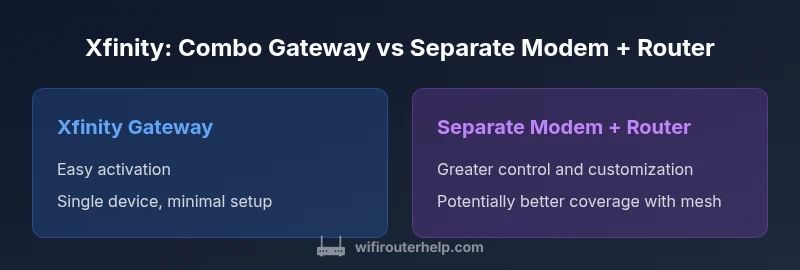
Two primary architectures dominate the discussion around router and modem for xfinity. The first is a combo gateway that houses both the DOCSIS modem and the router. It offers plug‑and‑play activation, simplified support, and a single device to manage. The second architecture uses a separate modem and router: the modem connects to the Xfinity network, while the router distributes the signal to your devices and creates a customizable network. The separation can unlock higher performance in larger homes and provide more granular control over features like QoS, parental controls, and guest networks. For many households, the main trade‑off is convenience versus control: the gateway minimizes setup steps but can bottleneck Wi‑Fi performance, while a modern router paired with a capable modem can push peak speeds further and support mesh systems more effectively. WiFi Router Help’s research consistently shows that the choice depends on home size, wall density, and how aggressively you want to tune settings.
How Xfinity handles authentication and service profiles with third-party gear
Xfinity’s activation workflow centers on provisioning the modem and, when present, the gateway. When you bring your own modem, you typically need a compatible DOCSIS 3.1 device and to ensure the plan is recognized by Xfinity’s activation server. If you’re using a separate router, you can place it behind the modem and enable bridge mode on the gateway if you want your own router to handle routing, DHCP, and firewall. Some features—like VoIP integration and certain service profiles—may require the gateway to be the primary device or to participate in a specific activation path. The key is clarity: confirm compatibility, plan for activation steps, and be prepared to adjust settings so that your preferred router remains the central control point. In practice, many households report smoother setups and better Wi‑Fi management when they document MAC addresses, note the activation steps, and keep a log of firmware updates. WiFi Router Help emphasizes ensuring that firmware and security settings stay current, regardless of hardware choice.
Key decision criteria: coverage, speed, stability, features
When deciding between an all‑in‑one gateway and a separate modem plus router, several criteria matter. Coverage depth across rooms and floors, especially in larger homes or apartments with thick walls, is a priority; a quality router with proper mesh planning often outperforms a single gateway. Speed and stability hinge on the modem’s DOCSIS standard and the router’s wireless capabilities (Wi‑Fi 6/6E vs older standards). Features such as guest networks, parental controls, QoS, and VPN support weigh heavily for households with multiple devices and latency‑sensitive applications. Security controls—automatic firmware updates, firewall strength, and simplicity of patching—are essential. Budget considerations include upfront costs, ongoing rental fees if you use Xfinity gear, and long‑term savings when owning your own equipment. The WiFi Router Help analysis suggests planning a setup that scales with your home and usage patterns, and prioritizes consistent performance during peak hours.Brand references: This section reflects guidance from the WiFi Router Help team on balancing coverage, control, and cost.
Setup playbook: bridging, activation, and IP addressing
A practical setup playbook starts with device selection, then moves to physical connections, activation, and network configuration. If you choose a separate modem and router, connect the modem to the incoming line, power on, and confirm the device is registered with Xfinity. If you want your own router to handle routing, enable bridge mode on the Xfinity gateway or deactivate its router features as the provider allows. Then connect the router to the modem, configure the wireless network name (SSID) and password, and select a security protocol (WPA3 when available). Document your steps, update firmware, and run speed tests to verify performance. A robust checklist includes cabling quality, placement for optimal coverage, channel analysis to avoid interference, and a plan for firmware updates across devices. WiFi Router Help notes that a well‑documented setup reduces troubleshooting time and helps maintain security posture over time.
Performance expectations and testing methods
Expectations around performance depend on the chosen architecture and the service tier. In practice, a high‑quality third‑party router paired with a modern modem can deliver stable coverage and higher sustained throughput in multi‑room homes than a single gateway in some layouts. Testing should involve real‑world usage: streaming video, online gaming, video calls, and a mix of mobile and desktop devices. Run speed tests at multiple times of day to gauge peak versus off‑peak performance, and map coverage using a simple grid approach to identify dead zones. Consider mesh systems if coverage gaps persist. While Xfinity provides service guarantees within their network, user‑side performance is shaped by local hardware and configuration. The WiFi Router Help team recommends documenting test results and iterating on placement and channel selection to maximize real user throughput.
Security and firmware update considerations
Security is a continuous process, not a one‑time setup. When using a combo gateway, ensure automatic updates are enabled and review firewall rules regularly. With a separate modem and router, stay current with firmware updates on both devices, apply security patches promptly, and utilize features like guest networks and parental controls where needed. Regularly change default passwords, enable WPA3 if supported, and monitor connected devices for unusual activity. Some users opt for third‑party DNS services to improve privacy and security. WiFi Router Help emphasizes keeping a clean network map, naming conventions that don’t reveal personal data, and scheduled maintenance checks to minimize vulnerabilities.
Cost of ownership and long-term value
Total cost of ownership includes hardware purchase price, ongoing rental or service fees, and the potential savings from owning rather than renting gear. A typical scenario shows that owning a modem and router can be cost‑effective over several years, especially if you plan to upgrade to Wi‑Fi 6/6E or mesh networks. Routine maintenance and occasional replacement costs should be factored in. Some households justify initial higher investments for better coverage, lower latency, and more flexible configurations. In contrast, sticking with Xfinity’s gateway minimizes upfront complexity and may include support benefits, but it can entail ongoing rental charges and less control over future updates. WiFi Router Help’s guidance consistently highlights the trade‑offs between ease of use and long‑term value, advising readers to run a simple total cost comparison over a 3–5 year horizon.
Scenario-based recommendations for common homes
- Small apartment or rental: For many, Xfinity’s gateway is sufficient, offering reliable performance with minimal setup. If you encounter dead zones, add a compact mesh extender rather than a full replacement. Brand mentions: rely on the gateway for simplified activation and support pathways. - Large home with multiple floors: A separate modem plus a high‑quality, Wi‑Fi 6/6E router (potentially with a mesh system) typically yields better coverage and lower latency for multiple devices. Bridge mode on the gateway can help avoid double NAT and maintain clean routing. WiFi Router Help notes that a strategic upgrade path—starting with a capable router and ensuring compatibility with your Xfinity service—can yield meaningful gains in stability and throughput. - Gamers and remote workers: Prioritize a router with robust QoS settings, low jitter, and high uplink capacity. Ensure firmware is current and consider wired backhaul where possible to maximize consistency. - Households with smart home devices: A dedicated router can offer predictable performance for smart hubs while the gateway remains as a modem.
Comparison
| Feature | Xfinity Gateway (combo) | Third-Party Router + Separate Modem |
|---|---|---|
| Setup complexity | Low: plug‑and‑play activation | Moderate: bridge mode and separate activation |
| Performance & coverage | Solid for average homes with a single device per room | Potentially higher throughput and better coverage with a dedicated router and possible mesh |
| Security features | Integrated firewall and updates via Xfinity | Advanced QoS, customizable security, frequent firmware on both devices |
| Cost of ownership | Monthly rental possible; minimal upfront | Upfront modem + router cost; long‑term savings possible |
| Xfinity feature support | Broad compatibility within Xfinity ecosystem | Depends on gear; may require extra configuration for features |
| Support & troubleshooting | Unified support from provider | Split support across device manufacturers; more DIY steps |
Benefits
- Simple setup and activation with one device
- Cleaner wiring with fewer cables
- Predictable support path and warranty through provider
- Room to upgrade to higher‑quality gear for better performance
The Bad
- Limited customization and potential bottlenecks with a single gateway
- Ongoing rental fees if using Xfinity gear
- More complex initial setup when combining modem and third‑party router
- Possible compatibility quirks with certain services when using bridge mode
Best practice for most homes: use a separate modem + high‑quality router with bridge mode on the gateway if needed
A dedicated modem and router generally offer better performance and flexibility, especially in larger homes or for power users. Bridge mode helps avoid double NAT. For total simplicity, Xfinity’s gateway remains a solid option, but expect ongoing rental costs and less customization.
People Also Ask
What is the difference between a router and a modem for Xfinity?
A modem connects your home network to the internet via your ISP, while a router creates and manages your local network and Wi‑Fi. Xfinity users can rely on the gateway (modem+router) or use separate devices to gain more control and potentially better performance.
A modem connects you to the internet, and a router creates your home network. With Xfinity, you can use their gateway or bring your own modem and router for more control.
Can I use a third-party router with Xfinity?
Yes. You can use a third‑party router with Xfinity by connecting it to a compatible modem, or by putting the gateway in bridge mode so your own router handles routing. Activation steps may vary by plan and device.
Yes—just connect a good modem and your own router, or enable bridge mode on Xfinity’s gateway if you want your own router to handle everything.
What is bridge mode and why use it with Xfinity?
Bridge mode disables the gateway’s router functions, turning it into a pure modem. This reduces double NAT and lets your own router control DHCP, firewall, and Wi‑Fi. It’s especially useful for high‑performance networks or complex setups.
Bridge mode makes the gateway act like a pure modem, so your own router does all the routing and Wi‑Fi.
Do I need a modem if I upgrade to gigabit service?
Yes, you typically need a compatible DOCSIS 3.1 modem for gigabit plans. Verify with Xfinity which modems are approved for your service tier and consider your router’s throughput to match.
Usually yes—get a DOCSIS 3.1 modem approved by Xfinity and pair it with a capable router.
How do I set up a third‑party router with Xfinity step‑by‑step?
Choose compatible gear, connect the modem, activate the service, and configure your router (SSID, password, security). If using a separate router, enable bridge mode on the gateway and document settings for future reference.
Pick your gear, connect, activate, and configure. Use bridge mode if you want your own router to handle everything.
What are common issues when mixing gear, and how can I fix them?
Common issues include double NAT, IP conflicts, and dead zones. Fixes involve bridge mode, updating firmware, choosing nonoverlapping Wi‑Fi channels, and ensuring cabling is solid and with proper Ethernet backhaul where possible.
Double NAT or dead zones show up when gear isn’t configured right—try bridge mode and update firmware, then rerun tests.
What to Remember
- Prefer separate modem + router for performance and control
- Use bridge mode to avoid double NAT when mixing gear
- Budget for upfront hardware vs ongoing rental costs
- Test coverage and tuning should be iterative
- Regularly update firmware and monitor device security