How to set up and optimize your wireless router and home network
Learn how to set up a wireless router and optimize your home network with practical, expert guidance. From placement and security to firmware updates and troubleshooting, this guide covers everything homeowners need for reliable, fast Wi‑Fi in 2026.


Goal: set up a wireless router and achieve reliable home Wi‑Fi. This guide walks you through hardware prep, basic configuration, and ongoing optimization. You’ll need a modem, a router, at least one Ethernet cable, and a computer or phone to configure settings. We cover SSIDs, passwords, guest networks, firmware updates, and security to minimize risks.
Why wireless router and home networking basics matter
According to WiFi Router Help, a strong home network starts with a well‑chosen wireless router and a plan for how devices will use it. This guide explains why the right router matters, how interference reduces performance, and how to balance speed, coverage, and security in 2026. When you understand the basics of a wireless router and its role in your home, you can design a network that scales as your devices multiply. A solid foundation reduces dead zones, improves streaming, and makes smart home features reliable rather than frustrating. Across households, the biggest wins come from clear placement, regular maintenance, and thoughtful security practices that keep visitors and devices safe. We’ll walk through practical steps you can take this week to move from uncertain Wi‑Fi to dependable, consistent performance that you can test and repeat.
What a wireless router does and why it matters
A wireless router acts as the traffic director for your home network. It assigns IP addresses, routes data to the right devices, and broadcasts the Wi‑Fi signal. The right setup balances speed, coverage, and security so that streaming, gaming, work video calls, and smart devices don’t fight for bandwidth. For many households, the decision to buy a capable router is as important as the decision to buy a modem: you often get far more value from improved routing than from buying a faster plan alone. A well‑chosen router also supports future features such as mesh extensions and guest networks, keeping your network resilient as devices multiply.
Early planning: your home network goals
Before you power up, list your goals: what rooms need coverage, how many devices will connect, and which activities matter most (4K streaming, gaming, remote work). This clarity guides device placement, the choice between dual‑band vs tri‑band hardware, and whether you’ll rely on a single router or a mesh setup later. A shared plan helps prevent overkill on features you won’t use and ensures you allocate budget to critical components like a solid router and reliable cables. Planning also reduces the need for expensive rework after setup. The WiFi Router Help team suggests starting with a simple floor plan and marking potential problem areas like kitchens and basements where interference is common.
Tools & Materials
- Modem(Connects to your ISP and feeds the router with internet.)
- Wireless router(Prefer a model supporting at least Wi‑Fi 6 (802.11ax) or later; consider mesh options if you have a large home.)
- Ethernet cables (Cat6 recommended)(Used for a fast, stable connection between modem and router and for wired devices.)
- Computer or smartphone for setup(Needed to access the router’s admin interface and configure settings.)
- Power strip with surge protection(Nice to have for stable power, especially if you’re placing a router in a closet or hard-to-reach spot.)
- Paper and pen or digital note app(Document SSIDs, passwords, and updated firmware details for future reference.)
Steps
Estimated time: 60-90 minutes
- 1
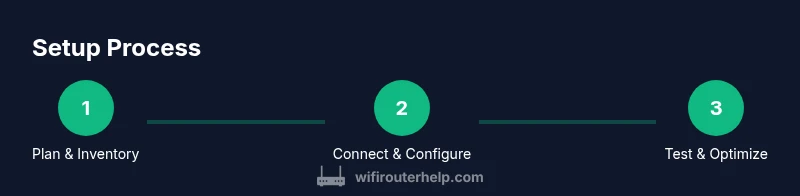
Inventory devices and plan network
Take stock of all devices that will connect to Wi‑Fi and map their usage. Note which rooms require coverage, potential interference sources, and where you will place the router for optimal signal. This planning reduces trial‑and‑error and speeds up the actual setup.
Tip: Sketch a quick floor plan with distance estimates to visualize coverage gaps before wiring anything. - 2
Connect modem to router and power
Plug the modem into its power source and connect an Ethernet cable from the modem’s LAN port to the router’s WAN/Internet port. Power on both devices and wait for the lights to indicate a connection. This establishes the data path for your home network.
Tip: Use a wired laptop or computer for the first setup to avoid dropouts on mobile devices. - 3
Access router admin page and create credentials
Open a web browser and enter the router’s default IP address. Create a strong admin username and password, and record them securely. This step locks down your configuration so others cannot alter settings.
Tip: Do not reuse common passwords; store credentials in a password manager for safety. - 4
Configure wireless settings (SSID and security)
Set a unique SSID for your network and enable WPA3 (or at least WPA2 if WPA3 isn’t available). Create a long, strong passphrase and consider separate networks for guests and IoT devices. If your router supports band steering, enable it for easier client connections.
Tip: Avoid revealing your real name in the SSID to reduce targeted attacks; use a neutral name. - 5
Enable guest network and device isolation
Create a guest network to keep visitors off your main network. Enable client isolation if available so guests can browse without accessing your shared files or devices.
Tip: Disable guest access to sensitive devices (printers, NAS) when not needed. - 6
Update firmware and secure configuration backups
Check for firmware updates and apply them. Save or export a backup of your working configuration so you can recover quickly if you need to reset.
Tip: Enable automatic updates if you prefer hands‑off security, but verify compatibility after updates. - 7
Test speeds and optimize placement
Run a quick speed test in multiple rooms to verify coverage. If speeds are weak in certain areas, adjust antenna orientation, router height, or switch to a mesh extension where needed.
Tip: Place the router high and central; avoid stacking electronics directly on top of it. - 8
Document settings and plan for maintenance
Write down the SSID, password, firmware version, and backup recovery steps. Schedule periodic checks every 3–6 months to review performance and security.
Tip: Keep a living document handy near your router for quick reference during future changes.
People Also Ask
What is the difference between 2.4 GHz and 5 GHz bands, and when should I use each?
The 2.4 GHz band travels farther but is more prone to interference, while the 5 GHz band offers higher speeds over shorter distances. Use 2.4 GHz for roaming devices far from the router and 5 GHz for devices near the router or in high‑bandwidth tasks.
2.4 gigahertz covers more area but is slower and busier; 5 gigahertz is faster but shorter range. Use both if your router supports dual‑band or tri‑band capabilities.
Should I enable a guest network?
Yes. A guest network keeps visitors on a separate path from your main network, protecting your devices and data while allowing internet access.
Yes—guest networks isolate visitors from your devices and improve security.
How often should I update router firmware?
Regular updates address security vulnerabilities and performance improvements. Check monthly or enable automatic updates if available.
Check for updates monthly or enable automatic updates.
How do I reset my router if something goes wrong?
If you encounter issues, use the reset button to restore factory defaults, then re‑enter your configuration. This can resolve persistent problems caused by misconfigurations.
Use the reset button to restore factory defaults, then reconfigure.
Is WPS safe to enable on my router?
WPS can be convenient but has known security weaknesses. Prefer manual setup with a strong password and disable WPS if security is a priority.
WPS is convenient but less secure—use manual setup with a strong password instead.
What’s the best way to improve Wi‑Fi in a multi‑story home?
Place the router centrally on an upper floor, away from walls and metal appliances. If coverage remains poor, add a mesh node or range extender in the problem areas.
Center the main router on a higher floor, then consider a mesh node for dead zones.
Watch Video
What to Remember
- Plan network goals before buying gear.
- Prioritize secure, unique credentials and firmware updates.
- Balance 2.4 GHz and 5 GHz coverage for reliability.
- Document settings for easy future maintenance.
- Evaluate future expansion options (mesh vs single router).