Wireless Internet Router for Home: Setup, Security, and Performance
Learn how to choose, install, and optimize a wireless internet router for home. Explore setup steps, security measures, performance tips, and troubleshooting to ensure reliable Wi‑Fi across your home.


Goal: Set up a reliable wireless internet router for home and optimize coverage, security, and performance. This guide shows how to choose between router types, prepare your network, and complete a secure, high-performance configuration with step-by-step instructions and troubleshooting tips. Expect practical decisions about range, devices, and firmware, plus clear actions you can take today.
Why a wireless internet router for home matters
For homeowners and tech enthusiasts, a reliable wireless internet router for home is the central hub of digital life. It connects your modem to every laptop, phone, smart TV, and IoT device, shaping how quickly information travels through your house. A good router isn't just about speed; it's about coverage, reliability, and security. When you pair a capable router with a modern modem and a stable internet plan, you unlock smoother video calls, lag-free gaming, and more responsive smart-home routines. According to WiFi Router Help, most homes benefit from choosing a router that matches their living space, supports current Wi‑Fi standards, and includes straightforward setup and ongoing firmware updates. The right device adapts to your floor plan, device density, and usage patterns, rather than forcing you into a one-size-fits-all solution. In this guide, we’ll cover how to assess needs, select between form factors, and implement a setup that remains easy to manage as your home network grows. By the end, you’ll have a clear path to stronger signals, fewer dead zones, and better control over who uses what.
WiFi Router Help analysis shows that many households improve performance by enabling guest networks, prioritizing essential devices, and keeping firmware up to date. This emphasis on practical, actionable steps helps homeowners avoid common misconfigurations and security gaps."
Understanding the core specs: speed, bands, and range
When shopping for a wireless internet router for home, start with the core specs that influence everyday experience. Theoretical top speeds matter less than real-world performance, which depends on distance, wall materials, and interference from other wireless devices. Modern routers typically support 2.4 GHz and 5 GHz bands, with Wi‑Fi 6 (802.11ax) or Wi‑Fi 6E able to handle more simultaneous connections and provide better efficiency in busy homes. A key trade‑off is range versus speed: 2.4 GHz travels farther and penetrates walls better, while 5 GHz offers higher speeds for nearby devices. If you have many devices or smart home gadgets, look for features like MU‑MIMO, OFDMA, and beamforming that help manage multiple clients smoothly. In practice, map your home layout and device usage to determine whether a dual-band router suffices or if a mesh system would better cover the far corners of your home with consistent performance.
As you compare models, balance the number of client devices, the size of your living spaces, and your internet plan. The goal is a router that delivers reliable coverage and stable connections for streaming, gaming, and work-from-home tasks without constant buffering or dropped calls. WiFi Router Help’s guidance emphasizes choosing equipment that aligns with your home footprint and future needs rather than chasing the top advertised speed alone.
Choosing the right form factor: standalone router vs mesh vs hybrid
Home networks come in three common forms: a single robust router, a mesh network with multiple nodes, or a hybrid approach using a strong central router with optional extenders. Standalone routers are typically the most cost-effective and simplest to manage, ideal for smaller homes or apartments with a clear line of sight between rooms. Mesh systems excel in larger homes or ones with multiple floors and thick walls; they provide seamless roaming and more uniform coverage by distributing access points around the house. Hybrids offer a balance: a primary router plus a couple of strategically placed nodes or extenders to fill stubborn dead zones. When deciding, consider floor plan, the presence of stairs or basements, and whether you expect to expand your smart-home setup. WiFi Router Help recommends planning for future devices, ensuring your chosen system can scale without major overhauls. Keep in mind that mesh nodes can add latency if not properly configured for a dedicated backhaul; a strong single router with good placement can outperform a poorly implemented mesh in smaller spaces.
For most typical homes, a modern dual-band router with solid coverage, good security features, and a straightforward app or web interface is enough. If you regularly stream in multiple rooms or have a sprawling layout, a mesh system offers better reliability with fewer dead spots. The choice should be guided by your floor plan, device count, and willingness to manage multiple units versus a single point of failure.
Essential setup prerequisites and prep
Before you touch a single button, gather the essentials to streamline the setup process. You’ll need a modem (provided by your ISP or rented), a router that matches your home needs, and a device to configure settings (a laptop, tablet, or smartphone). An ethernet cable (Cat5e or better) helps establish a reliable initial connection to your router during setup. Have your ISP account information ready if your connection type requires authentication (for example, PPPoE). Make sure you have a secure power source and a quiet space free from interruptions while you perform the configuration. It’s also helpful to have paper and pen to log the new network name (SSID) and password so you don’t forget them. Finally, ensure you have the latest router manual or access to the manufacturer’s support site in case you need model-specific steps. With these items in hand, you’ll reduce back-and-forth during setup and minimize the chance of misconfigurations.
Having a plan for naming your networks and securing access will save time and help you maintain a clean, easy-to-manage home network from day one. Logging steps you take during setup also makes future troubleshooting faster and more predictable. WiFi Router Help emphasizes starting with a clean slate—new SSIDs, fresh passwords, and disabled default accounts—to set a solid foundation for years of reliable service.
Getting started: unboxing, connecting, and accessing the admin interface
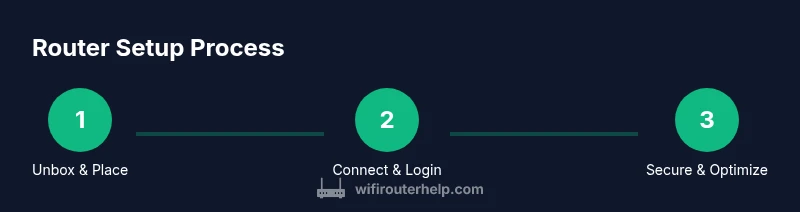
Once you’ve unboxed the router, place it in a central, elevated location with minimal obstructions for optimal coverage. Connect the router’s power, then connect the WAN port to your modem using an ethernet cable. Use a second ethernet cable to connect a computer or laptop to one of the router’s LAN ports for a stable setup session; many modern routers also support wireless setup via a smartphone app. Open a web browser or the manufacturer’s app and enter the router’s default IP address or scan the QR code from the manual to begin the configuration wizard. The first steps will typically prompt you to set a new admin password, choose your network name, and select a security method. Do not ignore the admin password prompt; using a strong, unique password blocks unauthorized access and protects your entire home network. After that, you’ll be guided to configure your internet connection type (DHCP, PPPoE, or static IP) as provided by your ISP. By completing these steps, you establish a solid foundation for a stable and secure home network.
During this phase, document the default credentials and your chosen admin password in a secure place. If your router supports a mobile app, consider enabling push notifications for firmware updates to stay current with security patches and performance improvements. This proactive approach saves time later when you need to troubleshoot or expand your network. WiFi Router Help highlights that the initial connection quality often predicts long-term reliability, so take an extra moment to verify you can reach the internet from multiple devices before continuing.
Security basics: encryption, passwords, guest networks, and firewall
Security is the backbone of a trustworthy home network. Start by enabling WPA3-Personal (or WPA2-Personal if WPA3 isn’t supported) to encrypt traffic between your router and devices. Create a strong, unique admin password for the router’s interface and never reuse passwords across sites or devices. Set up a separate guest network for visitors to keep your primary network isolated from their devices, reducing the risk of cross-network infections or bandwidth misuse. Enable the router’s firewall and disable remote management if you don’t need access from outside your home. Consider turning off WPS (Wi‑Fi Protected Setup) to prevent brute-force attacks on devices trying to join the network through this convenience feature. Regularly review connected devices and revoke access if you notice unfamiliar clients.
To keep things simple, use a password manager to generate and store complex passwords, and regularly rotate your network credentials. If you have smart devices, assign them to a dedicated IoT network with stricter rules to minimize exposure if one device is compromised. WiFi Router Help’s approach to security emphasizes strengthening authentication, segmenting traffic, and keeping firmware up to date to close gaps that attackers commonly exploit.
Performance optimization: placement, channel selection, QoS, and firmware updates
Placement is one of the most underrated performance levers. Elevate the router, avoid placing it behind furniture or inside cabinets, and position it away from thick walls or metal appliances that can block signals. If your router supports both 2.4 GHz and 5 GHz bands, place it where both bands can propagate—ideally centrally with few obstructions. Use auto channel selection or manually choose channels with the least interference in your area; many routers offer a channel scan feature to help with this. Quality of Service (QoS) rules let you prioritize traffic for essential activities (work video calls, gaming, or streaming) so they get the bandwidth they need when others are active. Finally, keep firmware up to date for security and performance improvements; many routers offer automatic updates, which simplify ongoing maintenance.
In practice, you’ll often find that small changes—like moving a node a few feet or enabling QoS for a family of devices—can produce noticeable gains. WiFi Router Help recommends treating your home network as a living system that you adjust over time, rather than a one-and-done setup. Regular checks bolster reliability, reduce frustration, and help you get the most from your internet plan.
Troubleshooting common issues: no internet, slow speeds, and dropped connections
If you’re not seeing internet access, begin with the basics: confirm the modem is online, ensure Ethernet cables are firmly connected, and power cycle both the modem and router. A common culprit behind slow speeds is overcrowding on the network or interference from nearby networks; using a lower channel on 2.4 GHz and ensuring devices aren’t competing for bandwidth can help. If connections drop intermittently, check for firmware updates and verify your devices are configured to obtain IP addresses automatically via DHCP. Misconfigured DNS settings can also cause slow or failed name resolution; switching to a reputable DNS provider can improve performance. For IoT devices, look for compatibility issues with your router’s security settings and ensure those devices aren’t blocked by QoS rules or firewalls. If you continue to experience problems, a factory reset (after backing up settings) can restore stability, followed by reapplying your chosen configuration.
In many cases, persistent issues point to signal dead zones or a need for hardware upgrades as your home network grows. WiFi Router Help reminds readers to diagnose step by step—start with basic connectivity, then test with different devices, and finally evaluate potential hardware limitations before considering a replacement.
Smart home integration and parental controls
A well-designed home router supports smart-home devices and provides robust parental controls to balance convenience with safety. When integrating a smart speaker, camera, or thermostat, ensure they’re on a separate network (guest or IoT network) to minimize cross-device exposure. Parental controls can block inappropriate content, schedule offline periods (e.g., at bedtime), and monitor connected devices. For families, consider a simple dashboard that shows active devices and data usage without exposing sensitive admin settings.
IoT devices often have specific requirements, such as predictable latency and consistent firmware. If your router supports a dedicated IoT network with firewall rules, enable it to isolate devices while preserving automation capabilities. WiFi Router Help stresses that smart-home setups benefit from clear network segmentation, regular firmware checks, and reasonable device permissions to reduce risk while preserving usability for family members.
Upgrading and future-proofing your home network
Technologies around wireless internet routers for home evolve quickly. Before purchasing a new router, assess whether your current plan and hardware meet your needs: enough coverage for the floor plan, sufficient device support, and the potential benefit of newer standards like Wi‑Fi 6/6E. If you plan to upgrade to faster broadband or add more smart devices, consider a mesh system or a high-performance router with scalable expansion options. Factor in the cost of future-proofing against the likelihood of device upgrades and ISP changes. When in doubt, choose a router with more memory, faster CPUs, and improved backhaul options to ensure reliability as speeds and devices grow. WiFi Router Help’s verdict is to prioritize long-term compatibility, solid security, and easy management features that reduce maintenance effort while delivering strong performance today and tomorrow.
Tools & Materials
- Modem (ISP-provided or own)(Ensure compatibility with your chosen router and service plan)
- Router(Prefer modern standards (Wi‑Fi 6/6E) for better future-proofing)
- Ethernet cable (Cat5e or better)(For reliable initial setup and backhaul connections)
- Device to configure (laptop/phone/tablet)(Browser or app for setup wizard)
- Power outlet near router(Stable power source to avoid resets during setup)
- Router manual or access to online support(Model-specific steps and backup procedures)
Steps
Estimated time: 30-60 minutes
- 1
Prepare and unbox
Unbox the router, modem, and any accessories. Verify you have all items and place the router in a central, elevated spot away from thick walls or metal appliances. This ensures maximum coverage while you configure.
Tip: Use a clean, open space to avoid placing the router behind obstacles. - 2
Connect hardware
Power up the router and connect the WAN port to your modem with an Ethernet cable. If you use a wired setup, connect a computer to a LAN port for stability during the initial configuration.
Tip: Avoid wireless-only setup until you confirm a stable wired link. - 3
Access the admin interface
Open a browser or the router’s app and log in with the default credentials. Change the admin password immediately to prevent unauthorized access.
Tip: Choose a strong, unique password and store it securely. - 4
Configure internet and admin settings
Set the internet connection type (DHCP/PPPoE/Static IP) as provided by your ISP. Update the admin username if available, and confirm remote management is disabled unless you need it.
Tip: If unsure, contact your ISP to confirm the correct type. - 5
Set up SSID and security
Create a unique network name (SSID) and enable WPA3-Personal or WPA2-Personal security. Consider separate SSIDs for 2.4 GHz and 5 GHz bands if your router supports it.
Tip: Avoid using personal information in the SSID. - 6
Enable guest network and IoT isolation
Set up a guest network for visitors and, if possible, place IoT devices on a separate network to improve security.
Tip: Disable sharing of printer or storage across networks if not needed. - 7
Update firmware and enable auto-updates
Check for firmware updates and apply them. Enable automatic updates if available to keep security patches current.
Tip: Updating during a quiet time reduces disruption. - 8
Test connectivity and performance
Test from multiple devices across rooms to verify coverage. Adjust placement or add a node if needed to fill dead zones.
Tip: Use a speed test to gauge real-world performance in different areas. - 9
Document settings and enable backups
Record your network name, password, and any custom settings. Back up the configuration if the router supports it.
Tip: Keep a secure copy of your configuration for quick recovery.
People Also Ask
What is the difference between a standalone router and a mesh system for home use?
A standalone router covers a smaller area with a single device. Mesh systems use multiple nodes to extend coverage across larger homes, providing seamless roaming. The choice depends on your home size, layout, and desire for simple management.
Standalone routers cover smaller spaces, while mesh systems extend coverage for larger homes.
Do I need a tri-band router for a typical home?
Most homes do not require tri-band routers. Dual-band routers are sufficient for everyday tasks, while tri-band networks primarily benefit high-demand setups like large mesh backhauls or many IoT devices.
Tri-band is usually not necessary unless you have many devices or a dedicated backhaul need.
How often should I update router firmware?
Update firmware whenever an update is released to benefit security and performance. Periodically check for updates if automatic updates are unavailable.
Update firmware when available to keep security and performance up to date.
What basic security steps should I take when setting up a router?
Change the default admin password, enable WPA3 (or WPA2) encryption, set up a guest network, and disable remote management unless needed. Regularly review connected devices.
Change the admin password and enable strong encryption to protect your network.
Where should I place my router for best coverage?
Place the router in a central, elevated location away from walls and large metal objects. Avoid placing it in closets or behind furniture for best signal propagation.
Keep it central and elevated for even coverage.
Is a wired backhaul necessary for a mesh system?
A wired backhaul can improve reliability and speed in mesh systems, but it’s not strictly required. Wireless backhaul works well in many homes depending on layout.
Wired backhaul helps, but wireless backhaul often suffices for typical homes.
Watch Video
What to Remember
- Choose a router that fits your home size and device load
- Prioritize security with strong passwords and guest networks
- Optimize placement and enable QoS for critical tasks
- Keep firmware up to date to maintain performance and protection
- Document settings to simplify future maintenance