Wireless Internet Router: Setup, Optimization, and Troubleshooting
Learn how to set up a wireless internet router, optimize coverage, secure your network, and troubleshoot common issues with clear, step-by-step guidance from WiFi Router Help.


You will learn how to set up a wireless internet router, secure your network, optimize coverage, and troubleshoot common problems. This guide walks you through gathering basic tools, connecting your modem, configuring internet and Wi‑Fi settings, enabling strong security, updating firmware, and testing performance across your home. By the end, you’ll have a reliable, guest-friendly network with clear steps to maintain it.
What is a wireless internet router?
A wireless internet router is a device that connects your home devices to the internet via Wi‑Fi or Ethernet and directs traffic between devices and the wider network. It sits at the center of your home network, translating signals from your modem into a local network and then routing data to the right devices. According to WiFi Router Help, the router combines routing, switching, and wireless access point capabilities into a single box for simplicity and reliability. The most important takeaway is that the router decides which devices can talk to each other, which devices can access the internet, and how fast they can go, all while enforcing basic security rules. In practice, you’ll place the router where it can cover most rooms, connect one Ethernet cable to your modem, power it up, and start configuring your network. A well-chosen and well‑placed router reduces dead zones and supports simultaneous streaming, gaming, and smart-home activity without constant reboots. This section lays the foundation for understanding why setup choices matter and how they affect daily performance for a wireless internet router.
How Wi‑Fi works in a home network
At its core, a home Wi‑Fi network is a small, dynamic ecosystem. The router acts as the traffic cop, using the local network address translation (NAT) function to share a single public IP with many devices. It also runs a DHCP server to assign unique IP addresses to phones, laptops, smart speakers, and bulbs as they join. SSIDs identify your network, while passwords protect access. When a device requests data from the internet, the router routes the request to the modem and then back again, ensuring replies reach the correct device. Modern routers can broadcast on multiple bands (typically 2.4 GHz and 5 GHz) and manage traffic with features like QoS to prioritize essential applications. WiFi Router Help analysis shows that 2.4 GHz signals tend to travel farther and cut through walls more easily, while 5 GHz signals offer higher speeds with shorter range. Understanding these basics helps you choose the right settings, place the router for best coverage, and troubleshoot stalls or dropouts more quickly.
Buying considerations: 802.11 standards, bands, and where to invest
When shopping for a wireless router, the first decision is the wireless standard you want to support. Newer standards—Wi‑Fi 6/6E (802.11ax) and Wi‑Fi 7 (802.11be)—offer higher speeds, better efficiency in crowded networks, and improved handling of multiple devices. If you have many smart home devices or a household with several high‑bandwidth uses, prioritizing a current standard can improve both throughput and reliability. Next, consider bands: 2.4 GHz travels farther and penetrates walls more easily but is more crowded and slower; 5 GHz provides higher speeds with shorter reach; Wi‑Fi 6E introduces the 6 GHz band for even less interference—assuming your devices support it. Antenna design (internal vs external) and CPU performance influence overall performance, especially under load. Look for features such as MU‑MIMO, beamforming, and Quality of Service (QoS) that help allocate bandwidth to important tasks like video calls or gaming. Finally, check for practical extras: guest networks, robust parental controls, simple app‑based setup, reliable firmware updates, and easy reset options. WiFi Router Help recommends balancing features with your budget and the size of your home to ensure consistent coverage without overspending.
Security basics: encryption, passwords, and guest networks
Security should be a cornerstone of your setup. Begin by enabling the strongest available encryption (prefer WPA3 or WPA2‑WPA3 mixed mode, if WPA3‑only isn’t supported by all devices). Change the default admin username and password to something unique, and disable insecure features such as WPS in most cases. Create a strong Wi‑Fi password using a long mix of uppercase, lowercase, numbers, and symbols. Use separate networks for guests and for trusted devices to protect your main network from unknown clients. If your devices support it, enable a firewall feature and consider enabling automatic firmware updates to reduce security gaps. Regularly review connected devices in the router's admin interface and revoke access for anything that should no longer be connected. A well‑secured router is not a one‑time setup but a continuous practice that reduces risk and protects personal data in a connected home.
Placement, interference, and channel selection
Placement is critical for coverage. Aim to place the router in a central, elevated location away from thick walls, microwaves, or metal furniture that can block signals. Keep it clear of dense objects and large metal appliances. If possible, position the router higher than eye level to improve line-of-sight to devices. In crowded apartment buildings, interference from neighbors’ networks is common; in such cases, manually selecting less crowded channels can improve performance. Most modern routers can auto‑select channels, but manual tuning often yields better results. Use the 2.4 GHz band for devices farther away or those with antennas optimized for range, and reserve the 5 GHz band for devices that demand higher speeds. If you have many devices, consider enabling the 5 GHz band for most devices and using the 2.4 GHz band for IoT gear that only needs modest bandwidth. WiFi Router Help notes that optimizing placement and channel selection can reduce buffering on streams and stuttering in games.
Setup basics: ISP, modem, and login details
Before you begin, confirm your internet service type with your ISP (DHCP, PPPoE, or static IP) and whether the modem needs to be bridged or placed behind your router. If you’re using a separate modem, connect the router’s WAN/Internet port to the modem via an Ethernet cable. Access the router’s admin interface using a browser or app, typically at an address like 192.168.1.1 or via the manufacturer’s app. You’ll be prompted to create or confirm a login and then configure your basic Internet settings. If your ISP requires a PPPoE login, enter your username and password exactly as provided by the ISP, and save. Ensure that you note any IP address settings or DNS information that your ISP may provide, in case you need to revert. This foundational step sets the stage for stable connectivity and robust wireless coverage throughout your home.
Performance tuning: QoS, MU‑MIMO, beamforming
To maximize responsiveness and reliability, tune the router’s performance features. Quality of Service (QoS) allows you to prioritize traffic for video conferencing, gaming, or VoIP calls, ensuring these applications receive bandwidth when the network is stressed. MU‑MIMO and beamforming technologies help multiple devices communicate efficiently and improve signal focus toward clients that need it most. Adjust transmission power to balance coverage with interference in larger homes. Some routers offer auto‑tuning features; if you prefer hands‑off management, enable them, but review results after a day. Regularly test speeds in the farthest rooms to verify coverage and adjust antenna positions or add a mesh node if needed. If you enable a guest network, isolate guest traffic from your main network to keep devices secure while visitors connect. A well‑tuned network reduces latency, improves responsiveness for games and calls, and maintains steady throughput during busy evenings.
Mesh vs single-router setups: when to choose
For larger homes, multi‑unit mesh systems can eliminate dead zones by placing nodes around the house and letting them work together seamlessly. A mesh setup is often easier to scale than upgrading a single router with higher‑powered antennas. If your home has several floors or thick walls, a mesh network can provide more uniform coverage than a single router. For smaller apartments or tight budgets, a high‑quality single router with a strong antenna may be sufficient, especially if you optimize placement and enable a booster or range-extender only when needed. When considering mesh, evaluate compatibility with your existing devices, the ease of setup, and the cost per coverage area. In many cases, a hybrid approach—one main router with a satellite module or a mesh node—delivers the best balance of performance and expense. The WiFi Router Help team recommends testing coverage before committing to a full mesh system to ensure the chosen solution meets your home’s layout and usage patterns.
Troubleshooting common issues and quick fixes
When problems arise, a structured approach helps. Start with the simplest checks: verify power status, ensure cables are firmly connected, and confirm the modem is online. If devices cannot connect, forget the network on the device and reconnect with the correct password. Slow speeds often come from interference, crowded channels, or outdated firmware—check for updates and try changing the channel or band. If video meetings stall, review QoS settings to prioritize real-time traffic. For devices that appear connected but have no internet, reboot the router and modem in the correct order (modem first, then router). If DNS resolution fails, try using alternative DNS servers like those from widely used public providers. For smart home devices that frequently disconnect, ensure they have stable IP addresses or that the DHCP pool isn’t exhausted. Document your changes, especially if you adjust settings, so you can revert if needed. These steps prevent minor glitches from becoming persistent problems and help you maintain a reliable wireless internet router network.
Maintenance and best practices for long-term reliability
Regular maintenance keeps your network secure and performing well. Schedule periodic firmware checks and apply updates promptly, as new features and fixes often improve stability and security. Change admin and Wi‑Fi passwords every six to twelve months or after a security incident. Periodically audit connected devices and revoke access for unknown clients. Back up your configuration settings if your router supports export options, which makes reconfiguring after a factory reset faster. Consider creating a dedicated guest network for visitors and enabling parental controls where appropriate. Finally, monitor your home’s needs: as you add devices or adopt new services, you may need to reposition your router, add a second AP or upgrade to a more capable model. A proactive routine keeps your wireless internet router working smoothly and safeguards your digital life.
Tools & Materials
- Computer, smartphone, or tablet with Wi‑Fi or Ethernet(To access the router admin interface and test connectivity)
- Ethernet cable (Cat5e/Cat6)(For a reliable initial setup and firmware updates)
- ISP account details and modem/terminal information(Needed to configure internet connection type (DHCP/PPPoE) and verify compatibility)
- Router manual or official setup guide(Helpful for model-specific steps and terminology)
- Pen and paper or a notes app(Record SSIDs, passwords, and settings for reference)
- Optional: spare power strip or surge protector(Safe electrical setup when plugging multiple devices)
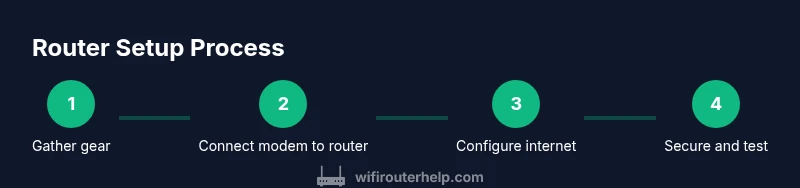
Steps
Estimated time: 60-90 minutes
- 1
Gather and prep equipment
Collect your modem, router, Ethernet cable, testing device, and your ISP login details. Verify you have access to the admin interface on a computer or mobile device. This reduces back-and-forth during the setup and helps you stay organized.
Tip: Place equipment near power outlets and the modem for a smooth workflow. - 2
Connect the modem to the router
Unplug devices if needed, connect the modem’s Ethernet port to the router’s WAN/Internet port using a Cat5e/Cat6 cable, and plug both devices back in. Give the modem a minute to boot, then the router. This establishes the path from the internet to your home network.
Tip: Ensure the Ethernet cable is firmly seated and using the correct ports. - 3
Power on and access the router interface
Power up the router and open a web browser or the router app. Enter the default IP address or follow the setup wizard to reach the admin panel. You’ll typically be prompted to create a login and begin basic configuration.
Tip: If you don’t see a page, check the manual for the exact address or use a manufacturer app. - 4
Configure internet connection type
Select DHCP or PPPoE based on your service. If PPPoE is required, enter the username and password exactly as provided by your ISP. Save the settings and confirm the router reports a live WAN status.
Tip: If you’re unsure, contact your ISP to confirm the correct connection type before proceeding. - 5
Set Wi‑Fi network name and password
Create a unique SSID for your 2.4 GHz and 5 GHz bands, or enable multiband names if offered. Use a strong, unique password with a mix of letters, numbers, and symbols. Save changes and reconnect to the new network.
Tip: Don’t reuse simple default passwords; consider separate SSIDs for each band. - 6
Enable security and disable WPS
Turn on WPA3 or WPA2‑WPA3 mixed mode if available. Disable WPS to avoid potential shortcuts that attackers could exploit. Review other security options like firewall and parental controls.
Tip: Record the new admin password in a safe place. - 7
Update firmware
Check for the latest firmware within the admin interface and apply updates. Firmware updates often fix security vulnerabilities and improve stability. Reboot if prompted after updates complete.
Tip: Enable auto‑updates if your router supports it, but review settings after updates. - 8
Test coverage and tune
Test wireless signal strength in multiple rooms using a smartphone or laptop. Move the router or adjust antenna positions to improve coverage. If gaps persist, consider a Wi‑Fi extender or a mesh node.
Tip: Run a speed test in the farthest rooms to verify performance improvements.
People Also Ask
Do I need a separate modem if I already have internet service?
In most homes you need a modem to connect to the ISP. If you already have a modem, your router's WAN port connects to it; otherwise contact your ISP for a compatible modem. A modem translates the internet signal for your local network, while the router shares that connection with multiple devices.
Most homes require a modem. If you already have one, plug the router into it; otherwise call your provider for a compatible modem.
What is the difference between 2.4 GHz and 5 GHz bands?
The 2.4 GHz band covers more distance and penetrates walls better but tends to be slower and more crowded. The 5 GHz band offers higher speeds and less interference but shorter range. Use both bands when possible and assign devices to the appropriate band.
2.4 GHz travels farther, 5 GHz is faster; place devices on the best band based on distance and speed needs.
Should I enable WPA3 security?
If all your devices support WPA3, enable it for the strongest protection. If some devices don’t, use WPA2‑WPA3 mixed mode so older devices still connect while newer devices stay secure.
Enable WPA3 when possible, and use mixed mode if some devices can’t support it.
How often should I update firmware?
Check for updates monthly and apply when available. Enable automatic updates if your router supports them, but review changes after each update to ensure compatibility.
Check for updates monthly or enable auto‑updates when available.
Why is my Wi‑Fi slow after setup?
Slow speeds are often caused by interference, crowded channels, or outdated firmware. Try changing channels, enabling a higher‑powered band, or upgrading to a more capable router if the problem persists.
Interference or outdated firmware is usually the culprit; adjust channels or upgrade if needed.
What is a guest network and when should I use it?
A guest network isolates visitors from your main devices and data. Use it for all guest connections to keep your primary network secure, and disable access to your local devices if possible.
Yes—use a guest network for visitors to protect your main network.
Watch Video
What to Remember
- Secure your router with a strong password and up-to-date encryption.
- Position the router centrally to maximize coverage and minimize dead zones.
- Keep firmware current to reduce vulnerabilities and improve performance.
- Use a guest network and QoS to balance security and performance.