TP-Link Archer AC1200 Setup Guide: Setup, Optimize, Troubleshoot
Learn how to set up the tp link archer ac1200, optimize dual-band performance, and troubleshoot common issues with practical, step-by-step instructions for a reliable home network.


You will set up and optimize the tp link archer ac1200 for solid home Wi‑Fi with a secure, dual‑band network. This step‑by‑step guide covers connecting, configuring the admin interface, securing your network, and tuning 2.4 GHz and 5 GHz performance. You’ll need a modem, the Archer AC1200 router, a browser, and a connected device.
Overview of tp link archer ac1200
According to WiFi Router Help, the tp link archer ac1200 is a versatile home router designed to deliver reliable dual‑band wireless coverage for typical households. The device combines a fast 2.4 GHz band with a capable 5 GHz band, enabling everyday tasks such as web browsing, video streaming, and online gaming to run smoothly when configured correctly. For homeowners and tech enthusiasts alike, understanding the dual‑band layout helps you assign devices to the best frequency to minimize interference and maximize throughput. The Archer AC1200 typically supports convenient features like guest networking, basic firewall protections, and parental controls, all accessible through a straightforward web interface. This guide focuses on practical, repeatable steps you can follow to get the most out of your router without needing professional help.
In practice, clear separation of networks and thoughtful placement of the router matter more than exotic settings. While the hardware is capable, real-world performance often comes from firmware updates, proper security defaults, and sensible channel choices. The WiFi Router Help team emphasizes starting with a clean baseline—enable WPA2, update firmware, and use unique admin credentials—before diving into advanced tweaks. If you’re migrating from an older router, you’ll appreciate the Archer AC1200’s balance of ease of use and features as a foundation for a robust home network.
Prerequisites and Safety
Before you begin, gather a few essentials to ensure a smooth setup and to avoid common pitfalls. You will need the tp link archer ac1200 router, a modem (if your internet signal comes through a separate device), a wired or wireless device to access the admin panel, an Ethernet cable (optional but helpful for initial setup), and a browser with JavaScript enabled. Make sure you have handy the default login information printed on the router’s label or in the manual, and set aside a few minutes to complete the process.
Safety notes: place the router on a stable, elevated surface away from heat sources and interference from microwaves or cordless phones. Do not attempt maintenance while power is connected to the device. If you share the network with others, consider enabling a guest network to keep your primary devices isolated while still providing internet access. Always back up current settings before making significant changes, and avoid disabling security features during the setup.
Accessing the router admin interface
To start, connect your computer or mobile device to the Archer AC1200 either via ethernet or by joining the router’s default wireless network. Open a web browser and enter the router’s IP address (commonly 192.168.0.1 or 192.168.1.1) or the TP‑Link web address (such as http://tplinkwifi.net). If prompted for credentials, use the default username and password printed on the device label, or refer to the manual if these were changed previously. Once logged in, you’ll land on the Quick Setup wizard or the main dashboard, depending on your firmware version. If something doesn’t load, ensure connections are secure and try a different browser or device to rule out local compatibility issues.
From the admin interface, you can begin the guided setup or switch to advanced settings for greater control. A quick tip: bookmark the admin URL for easy future access and avoid sharing admin credentials with other household members. If you encounter login problems after first setup, a factory reset (pressing and holding the reset button for about 6–10 seconds) can restore defaults, but you will lose all custom configurations, so use this as a last resort.
Run the Quick Setup wizard and set up WAN/Internet
Launch the Quick Setup wizard if your firmware provides it, and follow the on‑screen steps to configure WAN/Internet settings. The wizard typically asks you to select the type of internet connection (e.g., DHCP, PPPoE, or static IP) provided by your Internet Service Provider, then prompts you to set up a wireless name (SSID) for both 2.4 GHz and 5 GHz bands. Use distinct, memorable SSIDs and avoid including sensitive information in the network name. Enter a strong admin password when prompted and choose WPA2‑PSK or the recommended security option. After the wizard completes, the router will apply changes and reboot if necessary. Test connectivity from a connected device and ensure both bands are broadcasting.
If your ISP uses a modem‑router combo, you may need to bridge or place the Archer AC1200 in a separate network segment to avoid double NAT. Your goal is a clean path from the modem to the Archer AC1200 that yields reliable IP addressing and stable wireless performance.
Secure your network and enable essential protections
Security starts with locking down the router’s admin access and enabling solid wireless protections. Change the default admin password to a unique, strong passphrase that you don’t reuse elsewhere. Enable WPA2‑PSK AES (or the highest available security standard on your firmware) for both bands. Turn off WPS if the option is present, as it can be susceptible to brute‑force attacks. Create a separate guest network for visitors, with internet access only and no access to your main devices. Consider disabling remote management unless you truly need it, and review firewall settings to ensure they’re enabled. Finally, enable automatic firmware updates if available, or check for updates periodically to close known vulnerabilities.
To maintain ongoing security, avoid sharing your admin credentials, and periodically audit connected devices to ensure there are no unknown clients on your network.
Optimize wireless settings for performance and reliability
With the basics in place, you can optimize wireless performance for day‑to‑day tasks. Keep the 2.4 GHz and 5 GHz networks on separate SSIDs so you can assign devices to the appropriate band. If interference is detected on 2.4 GHz, try changing the channel to a less congested one (often 1, 6, or 11 in the US). Ensure the channel width is appropriate (20/40 MHz on 2.4 GHz, 80 MHz on 5 GHz if the router supports it). For best results, place the router in a central, elevated location away from walls and metal objects. If you have multiple devices streaming or gaming, consider enabling Airtime Fairness or QoS rules to prioritize latency‑sensitive traffic.
Your setup should reflect your household usage: more devices on 2.4 GHz for basic web browsing and a clear, fast 5 GHz for streaming and gaming. Regularly verify that devices connect to the intended band and adjust as needed to balance speed and coverage.
QoS, Parental Controls, and Guest Network considerations
Quality of Service (QoS) helps allocate bandwidth according to priority. You can assign higher priority to video calls, gaming, or business‑critical apps, and reduce bandwidth for lower‑priority devices when the network is busy. Parental controls provide a simple way to schedule internet access, filter content, and pause connections for devices on kids’ profiles. When configuring QoS or parental controls, test with real‑world usage to ensure the rules are effective without interrupting essential activities. A guest network is useful for visitors and IoT devices; keep it isolated with a separate password and limited access rights from your main network. Regularly review these settings as devices and usage patterns change over time.
Record your configurations or export a backup file if the router offers that option. This makes it easier to restore your setup after a firmware update or a reset.
Firmware updates, backups, and ongoing maintenance
Firmware updates bring bug fixes, performance improvements, and new features. Check for updates from the TP‑Link support site or within the router’s admin interface and apply updates when advised. After updating, verify that your wireless networks are still configured as desired, and re‑enable any preferences that might revert to defaults. Create a backup of your current configuration so you can restore settings quickly if you need to reset. Periodically re‑evaluate your network layout and adjust placements or channel assignments to accommodate new devices and household usage.
Regular maintenance reduces the risk of slowdowns and connectivity issues, helping you maintain a stable home network with the tp link archer ac1200.
Troubleshooting common issues and quick recovery steps
If devices cannot reach the internet, verify the modem is online and the Archer AC1200 is receiving an IP lease from your ISP. Recheck the WAN/Internet settings in the admin interface and confirm you’re using the correct connection type. If the admin page is unreachable, try a direct Ethernet connection to the router, or reset the router to factory defaults and re‑run the Quick Setup. For slow speeds, test wired versus wireless performance to isolate the problem, and consider updating firmware or adjusting channel settings to reduce interference. If a particular device won’t connect, forget the network on that device and reconnect, ensuring the correct password is used.
Final checks and best practices
After configuration, perform a quick network health check: test internet access on multiple devices, confirm both wireless bands are broadcasting, and ensure guest and main networks are isolated as intended. Periodically review connected clients and update credentials if you notice unauthorized devices. Maintain a simple, repeatable backup routine so you can restore your preferred setup after major updates or resets. With consistent maintenance, the tp link archer ac1200 can deliver a dependable home network for everyday tasks and light gaming.
Tools & Materials
- tp link archer ac1200 router(Ensure you have the model with the latest SKU on the device label or packaging)
- modem (if separate from router)(Only needed if your ISP does not provide a combined gateway)
- Ethernet cable(Helpful for stable initial setup when connecting a device directly to the router)
- smartphone or computer(Used to access the router admin interface and run the setup wizard)
- web browser(Chrome, Edge, Safari, or Firefox work well; ensure JavaScript is enabled)
- stable power outlet(Keep the router plugged in during setup; avoid unplugging during configuration)
Steps
Estimated time: 25-45 minutes
- 1
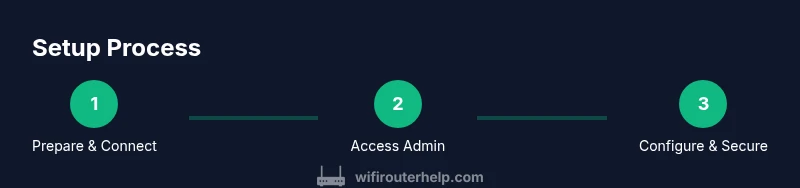
Prepare and connect
Unbox the Archer AC1200, place it on a stable surface, and connect the modem (if separate) to the WAN port with the provided cable. Power on the router and allow it to boot completely. Use a device to connect to the router’s default wireless network or to its admin IP via ethernet.
Tip: Label the default Wi‑Fi names and admin address if printed on the device; this helps in later reminders. - 2
Access the admin interface
Open a browser and navigate to the router’s IP (commonly 192.168.0.1 or 192.168.1.1) or the TP‑Link address on the label. Enter the default credentials to log in and reach the dashboard. If you cannot access the page, try a direct cable connection or reset the router.
Tip: If you have changed the login before, use those credentials or perform a factory reset as a last resort. - 3
Run Quick Setup
Follow the on‑screen prompts to configure WAN/Internet, create two wireless networks (2.4 GHz and 5 GHz), and set initial passwords. The wizard will guide you through language, time zone, and security choices. Save settings at each step.
Tip: Give each band a distinct, memorable name to help devices connect to the best network automatically. - 4
Secure admin access
Change the router administrator password to a strong, unique passphrase. Enable WPA2‑PSK AES on both bands, and disable remote management if not needed. Create a separate guest network for visitors.
Tip: Use a password manager to store the admin credentials securely. - 5
Tune wireless performance
Adjust channels to a clear option, enable appropriate channel width (20/40 MHz on 2.4 GHz, 80 MHz on 5 GHz where supported), and consider enabling Airtime Fairness if available. Place the router centrally and elevated to improve coverage.
Tip: Run a quick speed test in different rooms to verify coverage before finalizing positions. - 6
Configure QoS and parental controls
Set up QoS profiles for latency‑sensitive devices (gaming, video calls) and schedule limits if needed. Enable parental controls for devices used by children and configure a nightly cut‑off or content filters.
Tip: Test QoS with a live gaming session to confirm responsiveness remains high. - 7
Create and test a guest network
Enable a separate guest network with its own password. Confirm guests can access the internet without reaching your primary devices. Consider limiting guest bandwidth if you have a slow connection.
Tip: Disable access to your main LAN from the guest network for security. - 8
Update firmware and back up
Check for firmware updates and install if available. After updates, back up the configuration to a safe location. Re‑test both bands and guest network to ensure settings persist.
Tip: Keep a local backup of your settings after every major change. - 9
Verify and document
Test all critical devices—phones, laptops, smart TVs, and IoT gadgets—to ensure stable connections. Document your SSIDs, passwords, and any custom QoS rules for future maintenance.
Tip: Update your notes whenever you adjust network configurations.
People Also Ask
What is the default IP address for TP-Link Archer AC1200, and how do I access it?
The default IP is usually 192.168.0.1 or 192.168.1.1. Open a web browser and enter the IP, then log in with the credentials printed on the router label. If those values were changed, use the current login or perform a factory reset as a last resort.
Use the router's label to locate the default IP and credentials, then log in to access setup. If in doubt, consult the manual.
How do I set up separate 2.4 GHz and 5 GHz networks on the Archer AC1200?
During setup, enable both wireless networks and assign distinct SSIDs for each band. This helps devices choose the best frequency and reduces interference. You can rename them later in the wireless settings.
Enable both bands, give them different names, and test to ensure devices connect to the best one.
What security settings should I enable on this router?
Enable WPA2‑PSK AES on both bands, use a strong password, disable WPS if available, and consider turning off remote management unless required. Regular firmware updates also strengthen security.
Use strong WPA2 encryption, disable WPS if possible, and keep firmware current.
How can I create a guest network on the Archer AC1200?
Enable the guest network option, assign a separate password, and restrict access to local devices on your main network. This provides visitors Internet access while protecting your primary devices.
Enable a guest network with its own password and isolate it from your main network.
What should I do if I can’t access the admin page after setup?
First ensure you’re connected to the router. Try a wired connection, clear browser cache, and use the correct IP address. If needed, perform a factory reset and re‑run the setup.
Check your connection, use the right IP, and reset if necessary to regain access.
How often should I check for firmware updates?
Check for updates monthly or when you notice performance issues. Apply updates as advised by the router’s interface or TP‑Link support resources.
Check monthly for updates and apply them when recommended.
Can I use the Archer AC1200 with a modem in bridge mode?
Yes, if your setup requires a single router handling routing duties. Put the modem into bridge mode if your ISP supports it, and connect the Archer AC1200 as the main router.
Bridge mode can simplify routing when using a separate modem.
What is the best placement for maximum coverage?
Place the router high and near the center of the home, away from walls and metal objects. Elevation and central positioning typically yield the most even coverage.
Center and elevate the router for the broadest coverage.
Watch Video
What to Remember
- Start with secure defaults and a clean baseline.
- Separate 2.4 GHz and 5 GHz networks for better device management.
- Use QoS to protect latency‑sensitive tasks and keep guests isolated.
- Keep firmware up to date and back up settings regularly.