TP-Link Archer AX1500 Setup and Optimization Guide
Learn how to set up, optimize, and troubleshoot the TP-Link Archer AX1500 for reliable home WiFi. This step-by-step guide covers placement, security, firmware updates, and common issues for homeowners and tech enthusiasts.


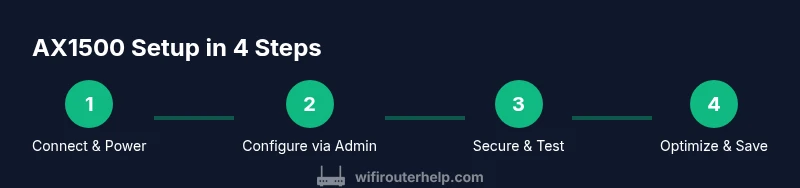
In this guide you will set up and optimize the tp link archer ax1500 to maximize coverage, speed, and reliability in a typical home. You’ll need the AX1500 router, a device to configure it, and a stable internet connection. The steps below cover initial setup, wireless security, firmware updates, and simple troubleshooting.
Why the tp link archer ax1500 matters for home WiFi
According to WiFi Router Help, the tp link archer ax1500 provides a solid foundation for reliable home WiFi, combining modern WiFi 6 technology with practical features aimed at homeowners and tech enthusiasts. This router offers improved efficiency in crowded environments and better performance for everyday tasks like streaming, video calls, and gaming. The AX1500 family is designed to balance cost with solid range, ease of setup, and user-friendly management. By understanding its core capabilities — such as beamforming, stable wireless bands, and straightforward parental controls — you can plan placements and configurations that reduce dead zones without needing aggressive hardware upgrades. Throughout this guide, we’ll reference real-world tips that help you translate technical specs into tangible, measurable improvements in your home network.
-s
-s
Tools & Materials
- tp link archer ax1500 router(Unbox and inspect for cosmetic damage; ensure all accessories are present (power adapter, quick start guide))
- Ethernet cable (Cat5e or better)(Use for the initial modem-to-router connection and for a wired setup when needed)
- Configure device (smartphone, tablet, or computer)(Modern browsers or TP-Link app can be used for setup)
- Stable internet connection from modem(Required for initial provisioning and testing)
- Power outlet nearby(Keep router elevated and away from large metal objects)
Steps
Estimated time: 25-40 minutes
- 1
Power on and connect the router to your modem
Plug the AX1500 into a power outlet and connect the router to your modem with an Ethernet cable. Ensure the modem is online before making the wired connection. This establishes the path for your home network.
Tip: Use a wired connection for the initial setup to avoid misconfigurations from wireless interference. - 2
Connect a configuring device to the router
On your smartphone or computer, connect to the router’s default Wi‑Fi network or use the default IP address printed on the label to access the admin page. This creates a reliable link for the setup wizard.
Tip: If you don’t see the default network, reset the router’s factory defaults and retry. - 3
Open the admin interface and run Quick Setup
Open a browser and enter the router’s IP (commonly 192.168.0.1 or 192.168.1.1) or use the TP-Link app to start Quick Setup. Follow the prompts to configure basic settings and your internet connection.
Tip: Choose the recommended region and time zone to ensure correct scheduling and updates. - 4
Set a strong admin password and enable secure access
Change the default admin credentials and enable secure access methods. This reduces the risk of unauthorized changes to your network.
Tip: Avoid common passwords and consider two-factor authentication if available. - 5
Configure your Wi‑Fi name (SSID) and passphrase
Create a descriptive SSID and a strong WPA2/WPA3 passphrase. This is the primary line of defense against unauthorized access and helps family members recognize your network.
Tip: Use a unique SSID for your network to distinguish it from neighbors’ networks. - 6
Choose security settings (WPA2/WPA3) and enable firewall
Select the highest available security protocol and ensure the router’s firewall is turned on. These choices help protect devices on your network from external threats.
Tip: If WPA3 isn’t available on a legacy device, choose WPA2 mixed mode rather than leaving it open. - 7
Update firmware and back up your configuration
Check for the latest firmware and apply updates. After updating, back up the configuration so you can restore settings quickly if needed.
Tip: Enable automatic updates if the option is available to keep protection current. - 8
Create a guest network for visitors
Offer a separate network for guests to prevent access to your main devices and data. Name the guest network clearly and set a separate password.
Tip: Disable access to your local network from the guest network for tighter security. - 9
Enable QoS and optimize channel selection
Turn on Quality of Service (QoS) to prioritize essential traffic like video calls and gaming. Consider auto-channel optimization or manual channel selection to reduce interference.
Tip: Test speeds on both 2.4 GHz and 5 GHz bands to ensure optimal performance across devices. - 10
Test connectivity and document credentials
Verify that all devices can access the internet and connect to the guest network if needed. Record the SSID, password, and admin credentials securely for future reference.
Tip: Keep a written or encrypted digital copy of credentials in a secure place. - 11
Optional: extend coverage with additional nodes
If you have a large home, consider using a mesh extender or additional access points to fill coverage gaps. Place extenders halfway between the router and the weak area for best results.
Tip: Avoid placing extenders right next to the router—relocate for broader coverage.
People Also Ask
Do I need to use the TP-Link app to set up the AX1500?
No, you can complete setup via a web browser using the router’s IP. The TP-Link app offers convenience, especially for ongoing management, but it is optional for initial configuration.
You can set up using a browser; the TP-Link app adds convenience for ongoing tweaks.
Can the Archer AX1500 support Wi‑Fi 6, and what does that mean for me?
Yes, the AX1500 supports Wi‑Fi 6 (802.11ax), which improves efficiency in busy homes and provides better performance on compatible devices. Real-world gains depend on device capabilities and network layout.
It uses Wi‑Fi 6 for better performance with compatible devices.
How can I improve coverage in a large home without buying new hardware?
Optimize placement by placing the router centrally, away from obstructions, and use a guest network or QoS to prioritize critical devices. If needed, consider a mesh system or extenders to fill gaps.
Placement and QoS can help; mesh extenders are options for bigger homes.
Is UPnP safe to enable on my AX1500?
UPnP can simplify device discovery but may introduce security risks if left on. If you don’t need it, disable UPnP and manually configure port forwarding when required.
UPnP is convenient but has security trade-offs; disable if not needed.
What should I do if I forget the admin password?
Use the reset button on the router to restore factory defaults, then set a new admin password. Make sure to reconfigure your wireless settings afterward.
Use the reset button to recover access, then set a new password.
Watch Video
What to Remember
- Place router centrally for even coverage
- Enable WPA3 or WPA2 security and strong admin passwords
- Keep firmware updated and back up config
- Use guest network for visitors to protect devices
- Test and adjust channel settings for speed and reliability