TP-Link Archer AX50: Setup, Optimize, Troubleshoot
A complete, step-by-step guide to setting up the TP-Link Archer AX50, optimizing Wi‑Fi performance, securing your network, and troubleshooting common issues for a reliable home network in 2026.


According to WiFi Router Help, the tp link archer ax50 is a solid dual‑band router for most homes, delivering reliable coverage and straightforward setup. This quick answer outlines what you’ll accomplish: set up the Archer AX50, secure your network with strong passwords and WPA3 where available, optimize performance with practical settings, and troubleshoot common connectivity issues using a roadmap you can follow today.
What the tp link archer ax50 brings to a home network
The tp link archer ax50 is designed to balance performance, ease of use, and security for typical household networks. As a modern 802.11ax-capable router, it handles multiple devices streaming video, gaming, and smart-home traffic with a single device at the center of your home. In practice, this model supports fast, reliable wireless connections across both the 2.4 GHz and 5 GHz bands, providing a strong baseline for most family homes. WiFi Router Help analysis shows that many households see meaningful gains in stability and throughput when they place the AX50 in a central location and keep firmware up to date. Keep in mind that real-world speeds depend on your internet plan, home layout, and interference from neighboring networks. The key is to leverage the AX50’s modern features without overcomplicating the setup, so you get consistent performance without a steep learning curve.
Hardware, ports, and status indicators
The Archer AX50 exposes a clean set of ports and indicators that simplify setup and maintenance. On the rear you’ll typically find a WAN port for your internet connection, several LAN ports for wired devices, and a power input. The router uses external antennas to help with signal distribution, though the symbol LEDs on the front give you instant feedback on status, activity, and any fault conditions. For many users, the straightforward design means you can get a secure network up within 15–25 minutes, then start fine-tuning later as needed. A dedicated reset button and a factory-default option ensure you can recover quickly if something doesn’t go as planned. When you’re evaluating placement, aim for a central location away from large metal objects or thick walls, which can impede signal.
Placement and coverage optimization for tp link archer ax50
Optimal placement is often more impactful than higher hardware specs. Place the AX50 in a central area of your home, elevated (on a shelf rather than the floor), and away from obstructions like dense walls or metal appliances. Many users see the biggest gains by avoiding closets and placing the router away from microwaves or cordless phones, which can create interference on the 2.4 GHz band. If you have a large home or multiple floors, consider a single-router layout with a strong middle anchor and, if needed, a simple mesh strategy or access point for dead zones. The Archer AX50 supports smart connect features that can help balance devices automatically, but in crowded environments you may prefer manual band selection and a fixed channel. In short, smart placement beats expensive gear when you want reliable coverage without complexity.
Initial setup: web UI vs TP-Link Tether app
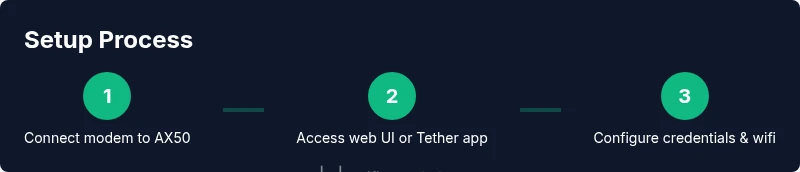
Getting started with the Archer AX50 is a guided process that you can complete with either a web interface or the TP-Link Tether app on a mobile device. Connect your computer or smartphone to the router’s default network, then open a browser and navigate to the typical TP-Link management URL (often tplinkwifi.net or the router’s IP address). The setup wizard will walk you through admin password creation, network name (SSID), and password. For a smoother experience, update the firmware after the initial configuration to ensure you have the latest security and performance improvements. Refer to the user manual for exact screens if you run into differences between firmware revisions.
Securing your network: passwords, encryption, and guest networks
Security is the backbone of any home network. Start by changing the default admin password to a strong, unique credential and enabling WPA2-PSK or WPA3-PSK if available. Use a long passphrase for your main network and consider enabling a separate guest network to isolate devices like phones and laptops from your main network resources. If the AX50 supports strong encryption with modern standards, enable it by default. Regularly review connected devices and remove anything unfamiliar. A simple two-factor-like approach—robust password hygiene plus regular firmware updates—can dramatically reduce risk.
Performance tuning: QoS, smart connect, and channel optimization
To help your devices get the bandwidth they need, configure Quality of Service (QoS) rules for critical applications like gaming and video conferencing. Use smart connect to automatically balance devices across bands, but monitor performance and switch some devices to a fixed band if you notice congestion. Channel optimization is also important; while automatic channel selection works well in many environments, manual tuning to less congested channels can yield noticeable improvements, especially in dense apartment buildings. In practice, you’ll benefit from rechecking settings after a few days of use to see if changes improved stability or reduced buffering in peak hours.
Parental controls, device management, and smart home integration
Parental controls let you set time limits or content restrictions, which can help balance bandwidth use and ensure family-friendly access. Device management features let you pause internet access for specific devices or schedule downtimes, which can be especially useful during homework or bedtime. Integration with smart homes varies by platform, but many routers provide compatibility with popular ecosystems through apps and basic automation rules. Always keep a backup of your current configuration before making sweeping policy changes, so you can revert quickly if something breaks. This balance between control and ease of use is a hallmark of a modern router like the Archer AX50.
Troubleshooting common issues and resets
Most connectivity issues can be resolved with a structured approach: check physical connections, verify the correct network name and password, and rule out external service outages first. If devices fail to connect, confirm the router’s firmware is current and the admin credentials are correct. Slow speeds or intermittent disconnects can arise from interference, outdated drivers, or crowded networks. A simple power cycle (turn off, wait 30 seconds, turn on) often resolves transient problems. If problems persist, a factory reset followed by a clean reconfiguration is a reliable last resort, but make sure you’ve backed up your settings first.
Firmware updates, maintenance, and best practices for long-term reliability
Keeping firmware up to date is essential for security and performance. Check for updates through the web UI or the Tether app, and apply any recommended patches after reading the release notes to understand what’s changing. Back up your configuration before updating so you can restore if something goes wrong. Plan periodic maintenance prompts—such as quarterly checks of connected devices, security settings, and parental controls—so your network remains secure and responsive throughout the year. Consistent maintenance is the key to long-term reliability with the tp link archer ax50.
Tools & Materials
- Modem supplied by ISP(Essential to connect to the internet; place near the router or connect via Ethernet.)
- TP-Link Archer AX50 router(Ensure you have the latest firmware and the original power adapter.)
- Smartphone or computer with web browser(Needed for setup via web UI or TP-Link Tether app.)
- Ethernet cable (Cat5e or better)(Useful for a stable, wired connection during initial setup.)
- Stable power outlet(Keep the router away from power strips that induce interference.)
- Pen and paper or password manager(For recording admin credentials and SSIDs securely.)
Steps
Estimated time: 25-40 minutes
- 1
Power down and connect
Power down your modem and the Archer AX50, then connect the AX50’s WAN port to the modem using an Ethernet cable. This establishes the primary internet link and sets the stage for initial configuration.
Tip: Double-check cable is firmly seated; a loose connection is a common cause of setup delays. - 2
Power up and access management
Power on the modem first, then the AX50. Connect a computer or phone to the AX50’s default network. Open your browser and go to tplinkwifi.net or the router’s IP address to access the management interface.
Tip: If you don’t see the login page, try a different device or switch to the TP-Link Tether app. - 3
Create admin credentials
Run the Quick Setup wizard, set a strong admin password, and configure the router’s admin username if the option is available. Strong credentials prevent local management access from being easily guessed.
Tip: Avoid common phrases and reuse of passwords across devices. - 4
Configure wireless names and security
Set two distinct SSIDs for 2.4 GHz and 5 GHz bands or enable the Smart Connect feature if you prefer automatic band assignment. Choose a robust passphrase and enable WPA3-PSK if supported, otherwise WPA2-PSK as a fallback. Disable WPS for better security.
Tip: Use a unique name that doesn’t reveal your address or home contents. - 5
Enable security and guest access
Turn on appropriate firewall features, enable guest networking if needed, and review connected devices. This helps isolate guest traffic and protect your main network.
Tip: Limit guest access to the internet only and avoid granting access to local resources. - 6
Update firmware
Check for firmware updates via the web UI or TP-Link Tether app and apply any recommended updates. Updates improve security, bug fixes, and performance compatibility with new devices.
Tip: Back up current settings before updating so you can revert if something goes wrong. - 7
Tweak QoS and optimization
If you have latency-sensitive devices (gaming consoles, work laptops, or video calls), configure QoS rules to prioritize their traffic. Else, use auto QoS and monitor results, adjusting as needed.
Tip: Test during peak hours to ensure QoS changes deliver tangible benefits. - 8
Test and document
Test network performance on multiple devices and document the SSIDs, passwords, and basic settings. This helps with future troubleshooting and ensures you have a reference if you reset the device.
Tip: Keep notes in a secure location to avoid misplacing credentials.
People Also Ask
Is the TP-Link Archer AX50 good for gaming and streaming?
Yes. The Archer AX50 is designed to handle multiple devices with modern Wi-Fi standards. For gaming and HD streaming, ensure QoS is configured for the devices you rely on most and keep firmware current to minimize latency.
Yes, it’s suitable for gaming and streaming when you configure QoS and keep the router updated.
How do I reset the Archer AX50 to factory defaults?
Hold the reset button for about 5–10 seconds until the LEDs flash. This restores default credentials and network names. After resetting, you’ll need to re-run the setup wizard to reconfigure your network.
Hold the reset button for 5 to 10 seconds, then run setup again.
What should I do if devices won’t connect after setup?
Confirm you’re using the correct SSID and password, check that the router is online, and ensure the Wi‑Fi radios are not disabled. If issues persist, reboot the router and test a wired connection to isolate the problem.
Make sure you’re using the correct password and try rebooting the router if devices won’t connect.
Should I use the TP-Link Tether app or web UI for setup and management?
Both options work well. The TP-Link Tether app is convenient for mobile setup and quick changes, while the web UI provides more detailed controls. Choose based on your comfort level and feature needs.
You can use the app for quick setup or the web UI for deeper control.
How can I create a guest network on the Archer AX50?
Create a guest network to separate visitor traffic from your main network. Enable restrictions and consider limiting guest access to the internet only. This keeps your devices and data more secure.
Set up a guest network with internet-only access to protect your main network.
What maintenance steps should I perform regularly?
Regular maintenance includes checking for firmware updates, refreshing security settings, reviewing connected devices, and backing up your configuration. A simple quarterly review helps prevent drift in performance.
Do periodic checks for updates and backups to keep things stable.
Watch Video
What to Remember
- Position the router centrally for even coverage.
- Change the default admin password and enable strong encryption.
- Use WPA3 (or WPA2-PSK) to secure your wireless network.
- Keep firmware updated and back up your configuration.
- WiFi Router Help recommends a structured setup for reliability in 2026.