SIM Router 5G: Complete Setup and Optimization Guide
Learn how to set up a SIM-based 5G router, select data plans, configure APN and network modes, optimize Wi‑Fi, and troubleshoot common issues with practical, step-by-step guidance from WiFi Router Help.


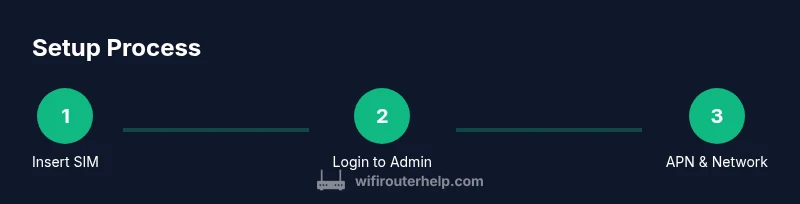
A SIM router 5G lets you turn cellular data into home internet by inserting a data SIM, powering on, and using the router’s admin panel to configure APN, network mode, and Wi‑Fi. You’ll choose a data plan, secure the network, and run a quick speed check. This how-to from WiFi Router Help covers the essential steps for a reliable setup.
Understanding SIM Router 5G: What It Is and Why It Matters
A SIM router 5G is a wireless router with a built-in SIM card slot that taps into a cellular 5G data network to provide Wi‑Fi in your home or in spaces without fixed broadband. Unlike traditional copper or fiber connections, a SIM router uses the mobile network to deliver internet access, which can be especially valuable in rural areas, as a backup failover, or while traveling. The key advantage is flexibility: you can move the router to where reception is strongest and share a single data plan across multiple devices. The WiFi Router Help team notes that the quality of experience depends on signal strength, network congestion, and the data plan you choose. When you select a SIM router for 5G, you’re choosing not just speed, but also coverage, carrier support for bands, and how much data you expect to consume each month. Keep in mind that 5G performance varies by location and carrier, so a good signal in one city may differ from another. For most households, a reliable 5G connection will feel like a robust fixed-line link, provided the plan is suited to streaming, conferencing, and smart-home traffic. In this guide, we’ll walk through choosing hardware, planning a data plan, configuring the router, and maintaining performance with steady security practices.
wordCountBlock1
Tools & Materials
- SIM card (data plan active)(Check carrier compatibility and ensure the SIM size matches the router slot (nano/micro/s inside).)
- SIM-eject tool or paperclip(Needed only if the router uses a tray SIM.)
- Power adapter and cable(Use the manufacturer-supplied adapter for optimal performance.)
- Wi‑Fi router with 5G cellular modem(Ensure the device supports 5G bands used by your carrier.)
- Computer or smartphone for admin access(You’ll access the router’s admin page via web browser or companion app.)
- Ethernet cable (optional)(Useful for a stable initial setup on desktop or for diagnostics.)
- PIN/PUK code (if required by SIM)(Some carriers require you to unlock or deactivate PIN on first boot.)
Steps
Estimated time: 30-60 minutes
- 1
Power down and prepare your SIM router
Place the router on a stable surface. If needed, remove the back panel and insert the SIM card into the dedicated slot. Ensure the device is powered off before inserting the SIM to avoid hardware faults. Re-seat the SIM if the router shows no SIM detected after powering on.
Tip: Consult the manual for the exact SIM orientation and slot location to avoid damaging the card. - 2
Connect to the router’s default network
Turn on the router and connect your computer or mobile device to the router’s default SSID. This is usually shown on a sticker or in the manual. If you prefer, connect via an Ethernet cable for a more stable setup experience.
Tip: If you don’t see a default SSID, reset to factory settings and try again. - 3
Log into the admin interface
Open a browser and enter the router’s default IP address (commonly 192.168.0.1 or 192.168.1.1). Use the default username and password from the manual, then immediately change the password to a strong, unique one.
Tip: Have a password manager ready to store the new credentials securely. - 4
Activate the SIM and check signal
In the status or cellular page, verify that the SIM is detected and the signal strength is listed. If you see ‘PIN required,’ enter the SIM PIN. If the SIM isn’t detected, reseat and reboot the router, or try another SIM if you have one.
Tip: If your carrier requires provisioning, complete it through the app or portal before proceeding. - 5
Configure APN and network mode
Navigate to the mobile/Internet settings and enter the APN values provided by your carrier. Choose a network mode that prioritizes 5G where available (5G NSA/SA) and allows fallback to 4G/3G if 5G is unstable. Save changes and reboot if prompted.
Tip: APN details vary by carrier; a wrong APN can prevent data from connecting. - 6
Set up Wi‑Fi and security
Create a strong SSID and a unique passphrase. Enable WPA3 if supported; otherwise WPA2. Consider enabling network isolation for guest networks and disable WPS to improve security.
Tip: Choose a long, random password and update it periodically to reduce risk. - 7
Test, optimize, and monitor
Run speed tests from multiple rooms to gauge coverage. Use the admin page to adjust channel settings, enable band steering, and check for firmware updates. Document your settings for future reference.
Tip: If speeds are inconsistent, try relocating the router to minimize interference from walls or appliances. - 8
Enable backups and maintenance
Enable automatic firmware updates if available. Back up your configuration after all changes. Consider enabling a local backup of critical settings and a secure remote-management option if you need to adjust settings away from home.
Tip: Disable remote management unless you secure it with strong authentication and a unique password.
People Also Ask
Do I need a separate data plan to use a SIM router 5G?
Yes. A SIM router requires an active data plan with a cellular carrier. The plan determines data limits, speed, and whether you can roam or hotspot. Choose a plan that matches your household usage and coverage in your area.
Yes. You need an active data plan for your SIM router 5G, with limits that fit your home usage.
Can I use my phone SIM in a SIM router?
Some phones use smaller SIM formats than those accepted by a router. Check the router’s SIM slot size and carrier compatibility. If the SIM fits, you may need to adjust APN settings for data to work correctly.
Depends on the SIM size and carrier support; check compatibility before attempting.
Will a 5G SIM router work where 5G coverage is limited?
Coverage varies by location and carrier. In areas with weak 5G signals, the router may fall back to 4G LTE or even 3G. Always check local coverage maps and consider a hybrid setup with a fixed broadband backup if reliability is critical.
In areas with weak 5G, it may fall back to 4G or be slower; check local coverage.
What’s the difference between standalone and non-standalone 5G for a router?
Standalone (SA) 5G uses the 5G core network and can offer lower latency and higher efficiency. Non-standalone (NSA) leverages existing 4G cores. For home routers, NSA is common but SA is improving with better performance in certain locales.
SA uses the 5G core for better performance; NSA relies on existing 4G cores.
Is it safe to leave remote management enabled on a SIM router?
Remote management can be convenient, but it expands your attack surface. If you enable it, use strong authentication, restrict IP access, and disable when not needed.
Remote management is convenient but risky; secure it properly or disable when not needed.
How often should I update the firmware on my SIM router 5G?
Check for updates monthly or when the device prompts you. Firmware updates fix security flaws and may improve connectivity stability.
Check for updates regularly; monthly is a good habit.
Watch Video
What to Remember
- Choose a 5G-capable SIM router with carrier-compatible bands.
- Configure APN and network mode correctly to enable data access.
- Set a strong Wi‑Fi name and security to protect your network.
- Regularly update firmware and monitor signal quality for reliability.
- Use a structured setup flow to minimize troubleshooting later.